







Question: H K PROBLEM 3 B D E G Step 1. In Row 17, use an nested VLOOKUP function to find the Description and Actual expenses
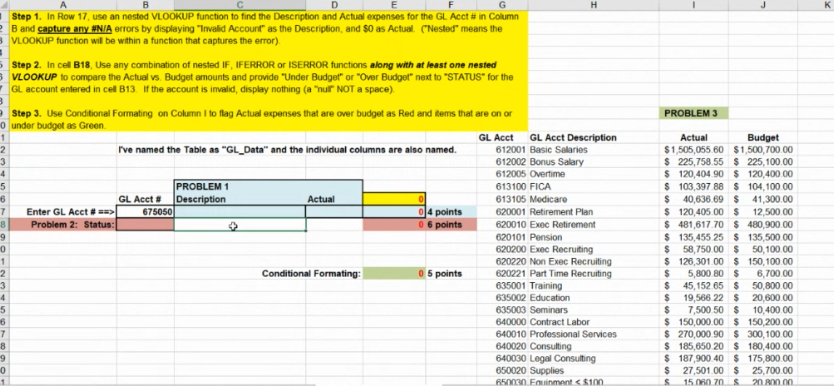
H K PROBLEM 3 B D E G Step 1. In Row 17, use an nested VLOOKUP function to find the Description and Actual expenses for the GL Acct # in Column 2B and capture any #N/A errors by displaying "Invalid Account as the Description, and $0 as Actual. ("Nested" means the B VLOOKUP function will be within a function that captures the error) Step 2. In cell B18. Use any combination of nested IF, IFERROR or ISERROR functions along with at least one nested VLOOKUP to compare the Actual vs Budget amounts and provide "Under Budget" or "Over Budget" next to "STATUS" for the GL account entered in cel B13. If the account is invalid, display nothing (a "nur" NOT a space) 3 Step 3. Use Conditional Formating on Column I to flag Actual expenses that are over budget as Red and items that are on or 0 under budget as Green 1 GL Acct GL Acct Description 2 I've named the Table as "GL_Data" and the individual columns are also named. 612001 Basic Salaries 3 612002 Bonus Salary 4 612005 Overtime 5 PROBLEM 1 613100 FICA 6 GL Acct # Description Actual 613105 Medicare 7 Enter GL Acct # ==> 675050 04 points 620001 Retirement Plan 8 Problem 2: Status: + 06 points 620010 Exec Retirement 620101 Pension 0 620200 Exec Recruiting 1 620220 Non Exec Recruiting 2 Conditional Formating: 05 points 620221 Part Time Recruiting 3 635001 Training 4 635002 Education 5 635003 Seminars 6 640000 Contract Labor 7 640010 Professional Services 8 640020 Consulting 9 640030 Legal Consulting 0 650020 Supplies 50030 Funment
Step by Step Solution
There are 3 Steps involved in it

Get step-by-step solutions from verified subject matter experts
 Study Help