







Question: Has to be written in C# Microsoft Visual Code :) 1. System Requirements Develop a bank account application using a CheckingAccount class as shown below.
Has to be written in C# Microsoft Visual Code :)
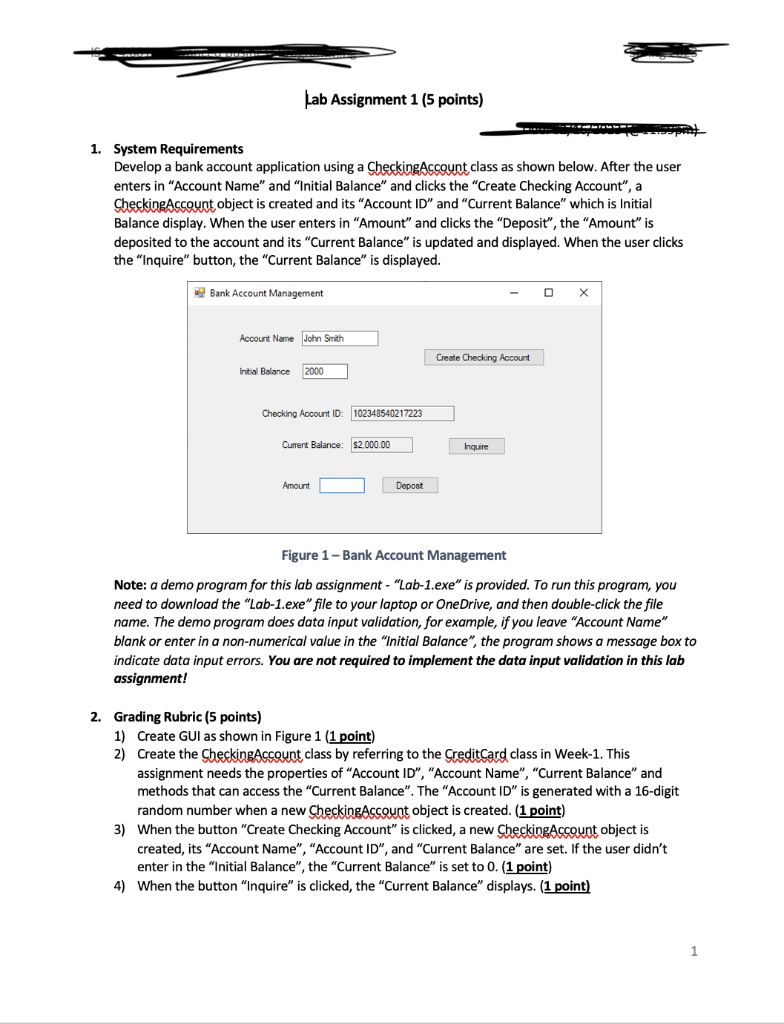
1. System Requirements Develop a bank account application using a CheckingAccount class as shown below. After the user enters in "Account Name" and "Initial Balance" and clicks the "Create Checking Account", a CheckingAccount object is created and its "Account ID" and "Current Balance" which is Initial Balance display. When the user enters in "Amount" and clicks the "Deposit", the "Amount" is deposited to the account and its "Current Balance" is updated and displayed. When the user clicks the "Inquire" button, the "Current Balance" is displayed. Figure 1 - Bank Account Management Note: a demo program for this lab assignment - "Lab-1.exe" is provided. To run this program, you need to download the "Lab-1.exe" file to your laptop or OneDrive, and then double-click the file name. The demo program does data input validation, for example, if you leave "Account Name" blank or enter in a non-numerical value in the "Initial Balance", the program shows a message box to indicate data input errors. You are not required to implement the data input validation in this lab assignment! 2. Grading Rubric (5 points) 1) Create GUI as shown in Figure 1 (1 point) 2) Create the CheckingAccount class by referring to the GreditCard class in Week-1. This assignment needs the properties of "Account ID", "Account Name", "Current Balance" and methods that can access the "Current Balance". The "Account ID" is generated with a 16-digit random number when a new CheckingAccount object is created. (1 point) 3) When the button "Create Checking Account" is clicked, a new CheckingAccount object is created, its "Account Name", "Account ID", and "Current Balance" are set. If the user didn't enter in the "Initial Balance", the "Current Balance" is set to 0 . (1 point) 4) When the button "Inquire" is clicked, the "Current Balance" displays. ( 1point) 5) When a positive "Amount" is entered and the button "Deposit" is clicked, a confirmation message is shown to indicate the "deposit succeeds" and the new "Current Balance" displays. If a negative "Amount" is entered, clicking the button "Deposit" displays a warning message "deposit failed due to negative amount". (1 point)
Step by Step Solution
There are 3 Steps involved in it

Get step-by-step solutions from verified subject matter experts
 Study Help