







Question: Hello, I am stuck on step 8 for this problem. I thought I would somehow use a DATEDIF function but am not entirely sure. Step
Hello, I am stuck on step 8 for this problem. I thought I would somehow use a DATEDIF function but am not entirely sure. Step 9 is very similar if you could possibly explain that as well. Thank you!
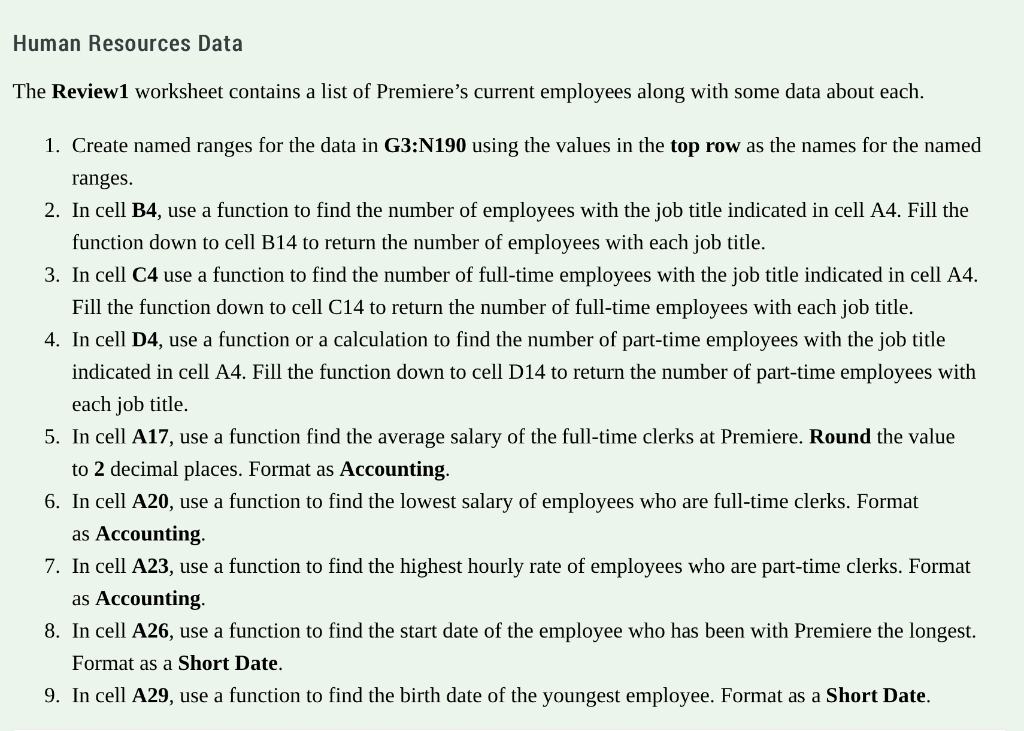
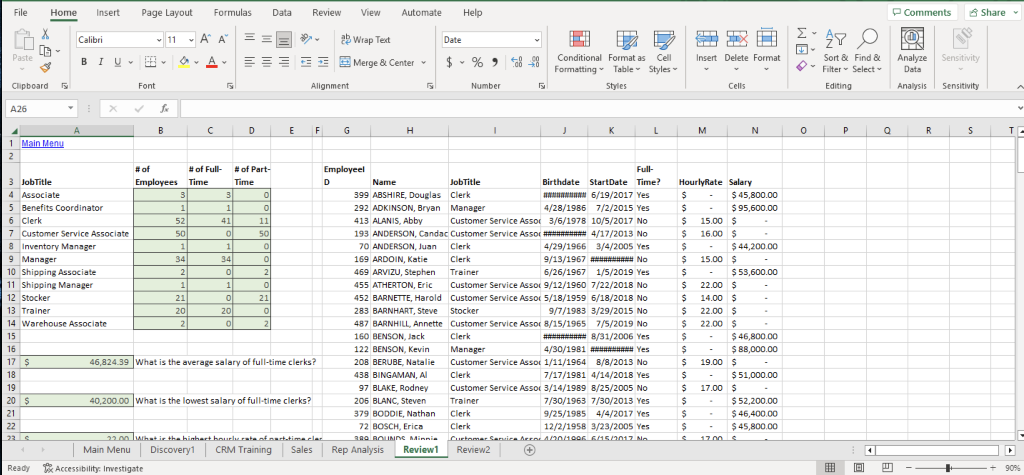
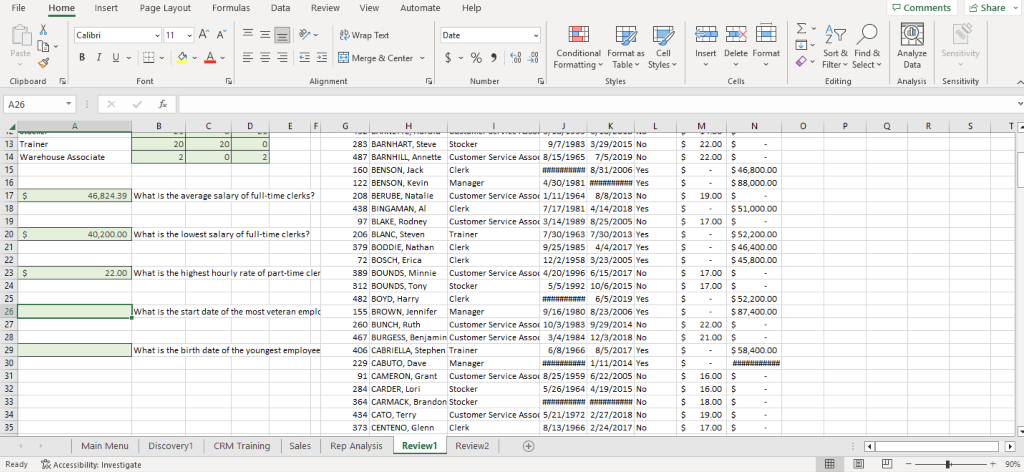
Human Resources Data The Review1 worksheet contains a list of Premiere's current employees along with some data about each. 1. Create named ranges for the data in G3:N190 using the values in the top row as the names for the named ranges. 2. In cell B4, use a function to find the number of employees with the job title indicated in cell A4. Fill the function down to cell B14 to return the number of employees with each job title. 3. In cell C4 use a function to find the number of full-time employees with the job title indicated in cell A4. Fill the function down to cell C14 to return the number of full-time employees with each job title. 4. In cell D4, use a function or a calculation to find the number of part-time employees with the job title indicated in cell A4. Fill the function down to cell D14 to return the number of part-time employees with each job title. 5. In cell A17, use a function find the average salary of the full-time clerks at Premiere. Round the value to 2 decimal places. Format as Accounting. 6. In cell A20, use a function to find the lowest salary of employees who are full-time clerks. Format as Accounting. 7. In cell A23, use a function to find the highest hourly rate of employees who are part-time clerks. Format as Accounting. 8. In cell A26, use a function to find the start date of the employee who has been with Premiere the longest. Format as a Short Date. 9. In cell A29, use a function to find the birth date of the youngest employee. Format as a Short Date. Human Resources Data The Review1 worksheet contains a list of Premiere's current employees along with some data about each. 1. Create named ranges for the data in G3:N190 using the values in the top row as the names for the named ranges. 2. In cell B4, use a function to find the number of employees with the job title indicated in cell A4. Fill the function down to cell B14 to return the number of employees with each job title. 3. In cell C4 use a function to find the number of full-time employees with the job title indicated in cell A4. Fill the function down to cell C14 to return the number of full-time employees with each job title. 4. In cell D4, use a function or a calculation to find the number of part-time employees with the job title indicated in cell A4. Fill the function down to cell D14 to return the number of part-time employees with each job title. 5. In cell A17, use a function find the average salary of the full-time clerks at Premiere. Round the value to 2 decimal places. Format as Accounting. 6. In cell A20, use a function to find the lowest salary of employees who are full-time clerks. Format as Accounting. 7. In cell A23, use a function to find the highest hourly rate of employees who are part-time clerks. Format as Accounting. 8. In cell A26, use a function to find the start date of the employee who has been with Premiere the longest. Format as a Short Date. 9. In cell A29, use a function to find the birth date of the youngest employee. Format as a Short Date
Step by Step Solution
There are 3 Steps involved in it

Get step-by-step solutions from verified subject matter experts
 Study Help