



Question: Hello, I would like you to answer these questions with screen shots step by step please. Thank you DMIT1518 Assignment 7 - Linux Firewall and
Hello,
I would like you to answer these questions with screen shots step by step please.
Thank you
![DMIT1518 Assignment 7 - Linux Firewall and SSH [24 marks] Part 1-](https://dsd5zvtm8ll6.cloudfront.net/si.experts.images/questions/2024/02/65c3116a0c976_79365c31169d227d.jpg)
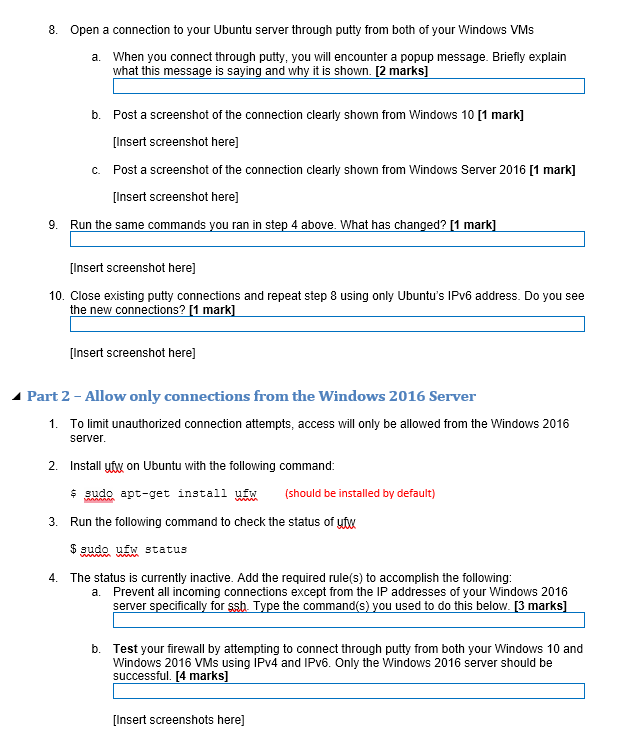
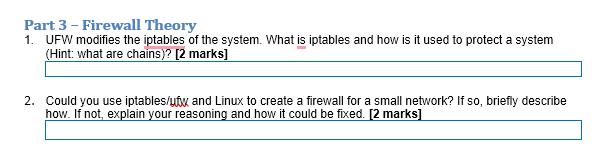
DMIT1518 Assignment 7 - Linux Firewall and SSH [24 marks] Part 1- Install and connect through ssh For this assignment you can use either the working VMs from your previous assignments or use pre-built VMs available from your instructor. The details of each VM can be found in the _ReadMeFirst.txt file. Start or resume your Windows 10 VM. Optionally, you can return your IPv4 settings back to manual for this assignment. 1. 2. Start or resume your W2K16 server. Make sure your server is fully powered on before proceeding to step 3. 3. Start your Ubuntu server and sign in with your local account. 4. To view any current internet connections, use the following netstat command S netstat -ntue a. Paste a screenshot of the active connections below (note the remote IP addresses and ports; there should be more than 2 connections) [2 marks] [Insert screenshot here] b. Explain what each of the flags used in the previous command do [4 marks] 5. Often it is not possible to physically administer a Linux server, and for this reason, SSH is typically used as a means to connect to these servers. 6. As the server was installed in a previous assignment, you can make remote connections to your server with any SSH client. What is the default port number for the SSH server? [1 mark] 7. For Windows machines, the putty client is a good option for making these connections. Download and install the putty.exe program on both your Windows 10 and Windows Server 2016 VMs. You can find the software here: [http://www.chiark.greenend.org.uk/~sgtatham/putty/download.html] You do not need to download the installer version, but instead can simply download the binary version, and save to your desktop: Alternative binary files The installer packages above will provide versions of all of these (except PuTTYtel), but you can download standalone binaries one by one if you prefer. (Not sure whether you want the 32-bit or the 64-bit version? Read the FAQ entry.) putty.exe (the SSH and Telnet client itself) 32-bit: putty.exe 64-bit: putty.exe (or by FTP) (or by FTP) (signature) (signature) Once saved to the desktop of your Windows 10 client, copy, and paste to the desktop of your Windows Server.
Step by Step Solution
There are 3 Steps involved in it

Get step-by-step solutions from verified subject matter experts