







Question: hello! Just need help on this section, appreciate whatever you can assist with! OSI Layer 3 (Network Layer): Investigating IP configuration In the Network and
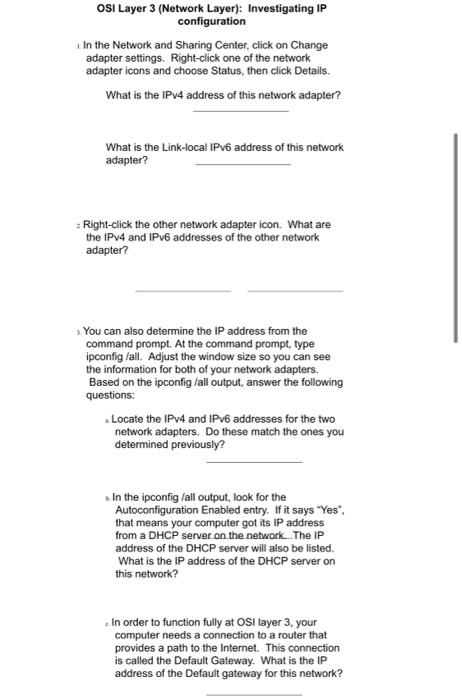
OSI Layer 3 (Network Layer): Investigating IP configuration In the Network and Sharing Center, click on Change adapter settings. Right click one of the network adapter icons and choose Status, then click Details. What is the IPv4 address of this network adapter? What is the Link-local IPv6 address of this network adapter? Right-click the other network adapter icon. What are the IPv4 and IPv6 addresses of the other network adapter? You can also determine the IP address from the command prompt. At the command prompt, type ipconfig /all. Adjust the window size so you can see the information for both of your network adapters. Based on the ipconfig fall output, answer the following questions: Locate the IPv4 and IPv6 addresses for the two network adapters. Do these match the ones you determined previously? . In the ipconfig /all output, look for the Autoconfiguration Enabled entry. If it says "Yes", that means your computer got its IP address from a DHCP server on the network. The IP address of the DHCP server will also be listed. What is the IP address of the DHCP server on this network? In order to function fully at OSI layer 3, your computer needs a connection to a router that provides a path to the Internet. This connection is called the Default Gateway. What is the IP address of the Default gateway for this network
Step by Step Solution
There are 3 Steps involved in it

Get step-by-step solutions from verified subject matter experts
 Study Help