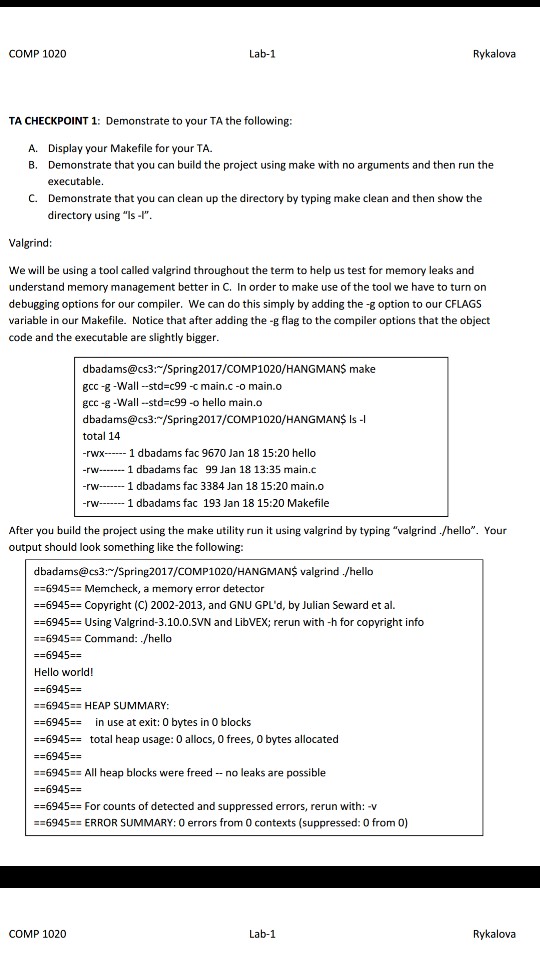
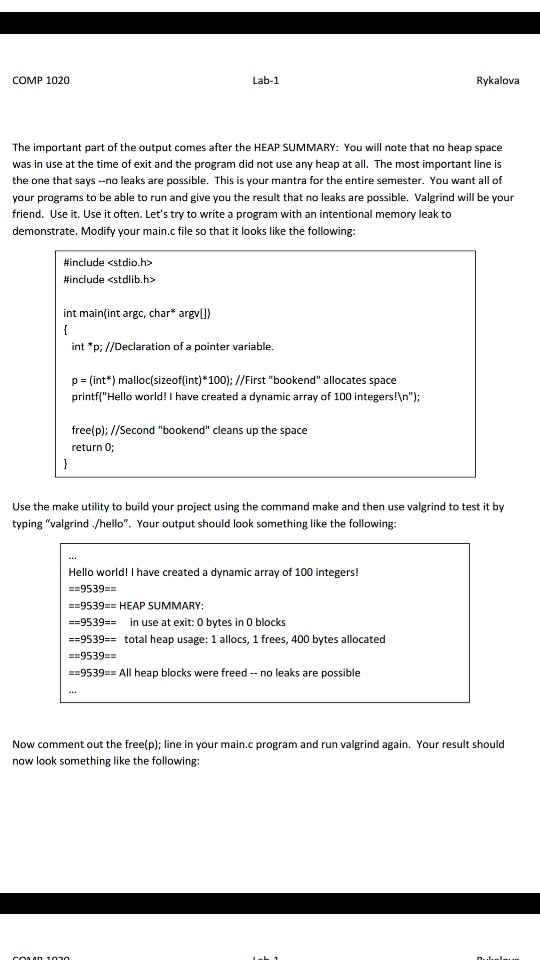
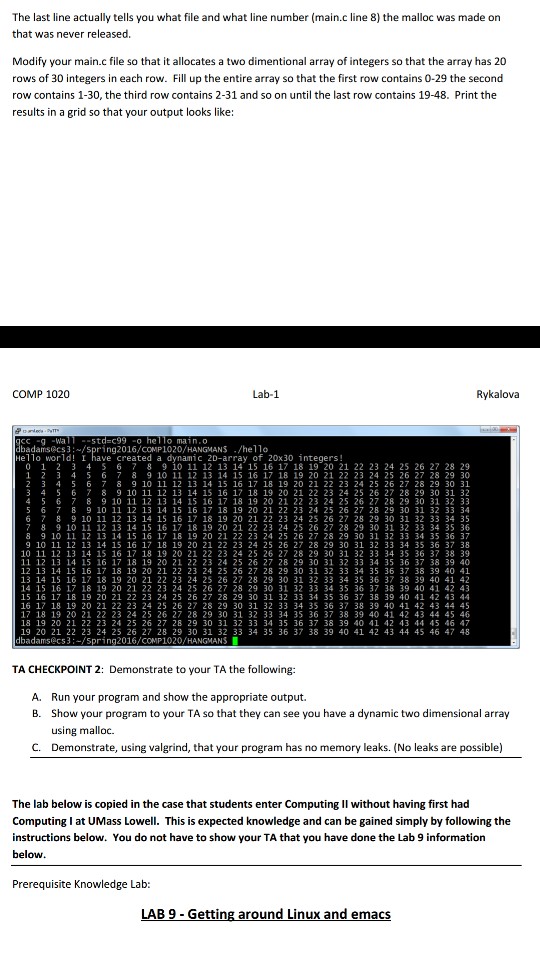
Question: help needed COMP 1020 Lab-1 Rykalova Evil Hangman Prerequisite Knowledge This lab assumes you have completed Computing I at UMass Lowell and that you already
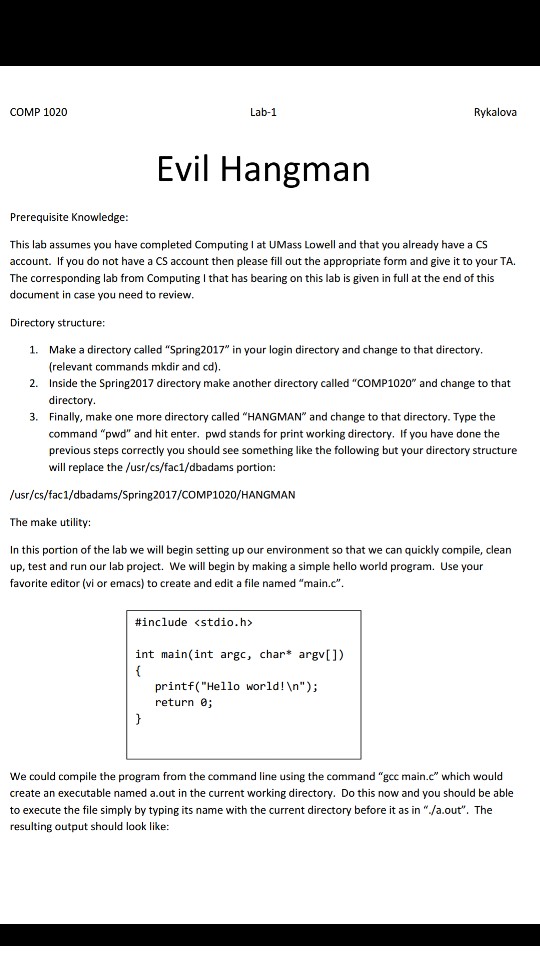
 help needed COMP 1020 Lab-1 Rykalova Evil Hangman Prerequisite Knowledge This

lab assumes you have completed Computing I at UMass Lowell and that

you already have a CS account. If you do not have a
CS account then please fill out the appropriate form and give it

to your TA. The corresponding lab from Computing I that has bearing

on this lab is given in full at the end of this

document in case you need to review Directory structure 1. Make a

directory called "Spring2017 in your login directory and change to that directory

help needed

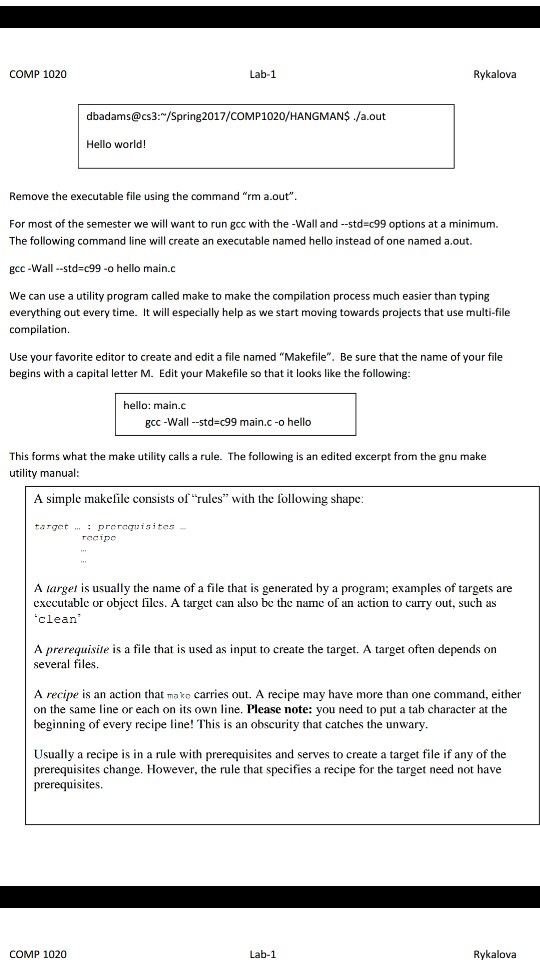
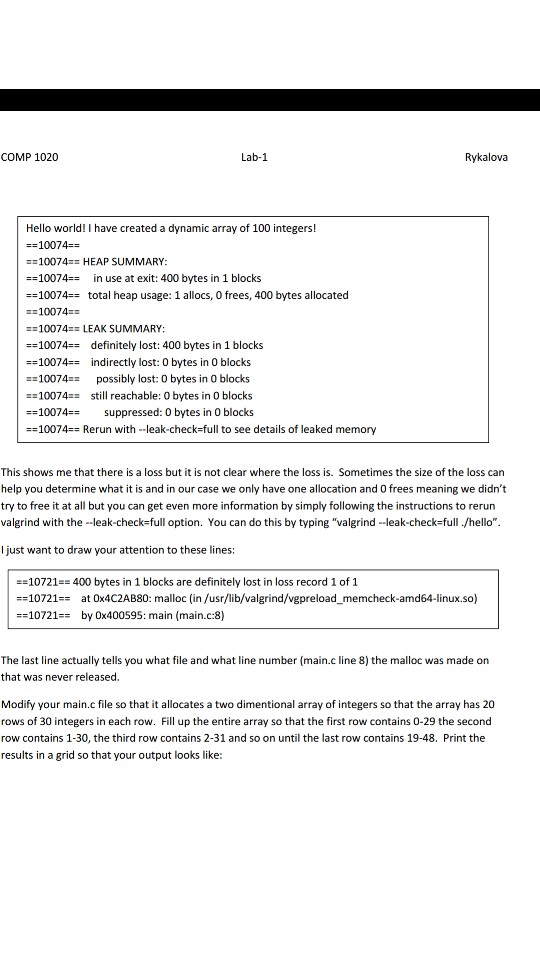
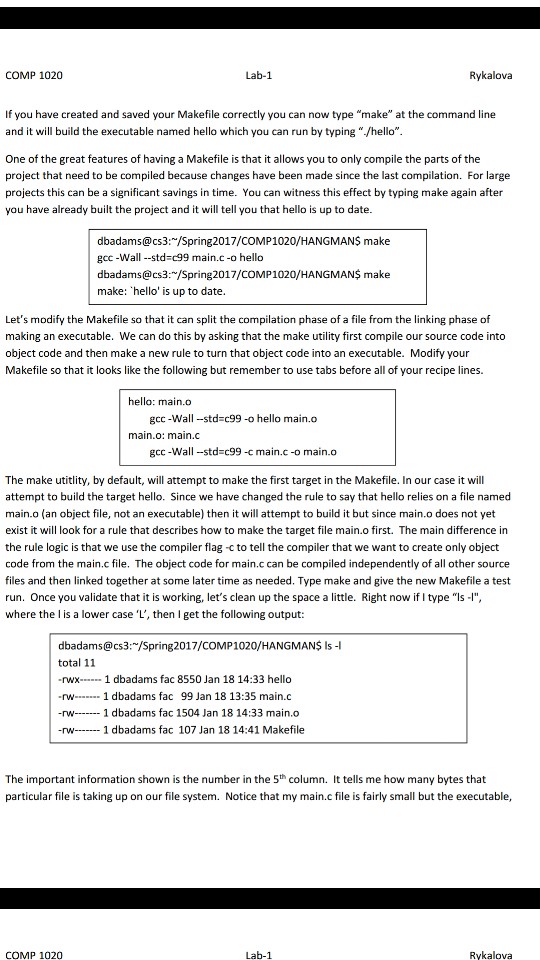
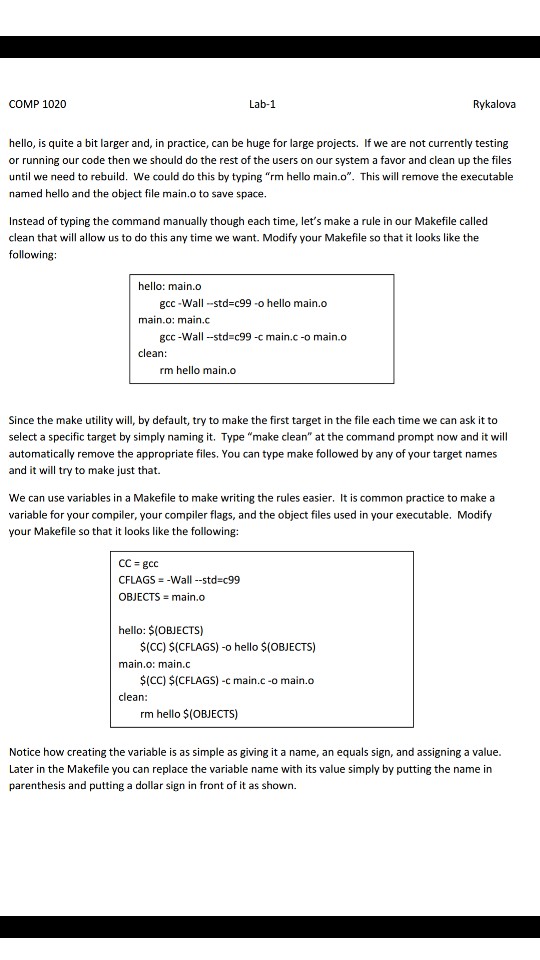
COMP 1020 Lab-1 Rykalova Evil Hangman Prerequisite Knowledge This lab assumes you have completed Computing I at UMass Lowell and that you already have a CS account. If you do not have a CS account then please fill out the appropriate form and give it to your TA. The corresponding lab from Computing I that has bearing on this lab is given in full at the end of this document in case you need to review Directory structure 1. Make a directory called "Spring2017 in your login directory and change to that directory 2. Inside the Spring2017 directory make another directory called "COMP1020" and change to that 3. Finally, make one more directory called "HANGMAN" and change to that directory. Type the relevant commands mkdir and cd) directory command "pwd" and hit enter. pwd stands for print working directory. If you have done the previous steps correctly you should see something like the following but your directory structure will replace the /usr/cs/fac1/dbadams portion: /usr/cs/fac1/dbadams/Spring2017/COMP1020/HANGMAN The make utility: In this portion of the lab we will begin setting up our environment so that we can quickly compile, clean up, test and run our lab project. We will begin by making a simple hello world program. Use your favorite editor (vi or emacs) to create and edit a file named main.c" #include int main(int argc, char* argv[]) printf("Hello world! "); return 0; We could compile the program from the command line using the command "gcc main.c" which would create an executable named a.out in the current working directory. Do this now and you should be able to execute the file simply by typing its name with the current directory before it as in "./a.out". The resulting output should look like: COMP 1020 Lab-1 Rykalova Evil Hangman Prerequisite Knowledge This lab assumes you have completed Computing I at UMass Lowell and that you already have a CS account. If you do not have a CS account then please fill out the appropriate form and give it to your TA. The corresponding lab from Computing I that has bearing on this lab is given in full at the end of this document in case you need to review Directory structure 1. Make a directory called "Spring2017 in your login directory and change to that directory 2. Inside the Spring2017 directory make another directory called "COMP1020" and change to that 3. Finally, make one more directory called "HANGMAN" and change to that directory. Type the relevant commands mkdir and cd) directory command "pwd" and hit enter. pwd stands for print working directory. If you have done the previous steps correctly you should see something like the following but your directory structure will replace the /usr/cs/fac1/dbadams portion: /usr/cs/fac1/dbadams/Spring2017/COMP1020/HANGMAN The make utility: In this portion of the lab we will begin setting up our environment so that we can quickly compile, clean up, test and run our lab project. We will begin by making a simple hello world program. Use your favorite editor (vi or emacs) to create and edit a file named main.c" #include int main(int argc, char* argv[]) printf("Hello world! "); return 0; We could compile the program from the command line using the command "gcc main.c" which would create an executable named a.out in the current working directory. Do this now and you should be able to execute the file simply by typing its name with the current directory before it as in "./a.out". The resulting output should look like
Step by Step Solution

There are 3 Steps involved in it

1 Expert Approved Answer
Step: 1 Unlock blur-text-image
Question Has Been Solved by an Expert!

Get step-by-step solutions from verified subject matter experts

Step: 2 Unlock
Step: 3 Unlock

Students Have Also Explored These Related Databases Questions!