







Question: help Variance Analysis using Excel's ABS, IF and Basic Math Functions Patterson, Inc. has provided detalis of its actual cost data for the month. The
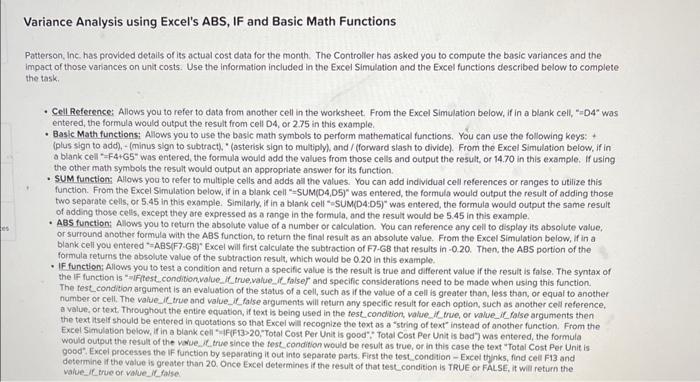
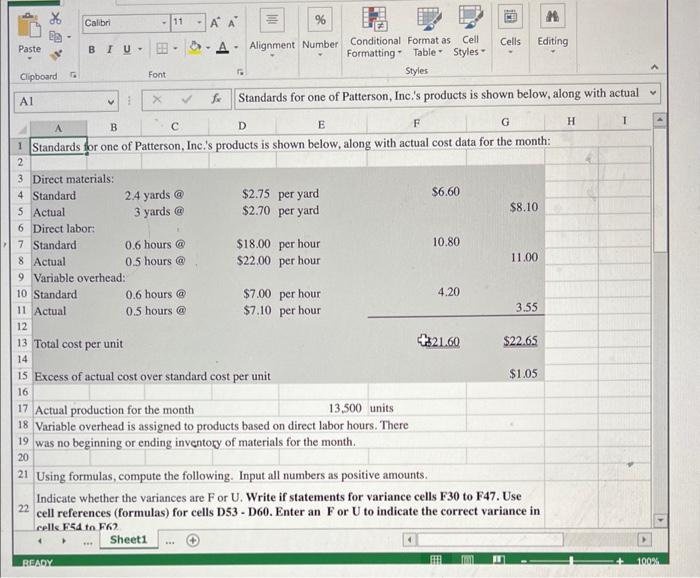
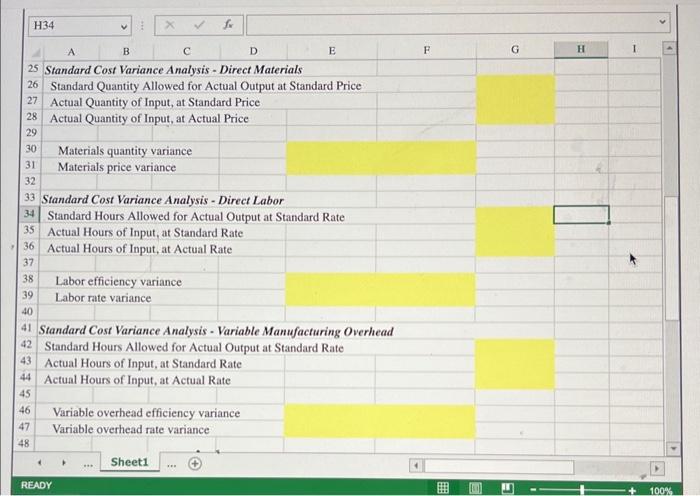
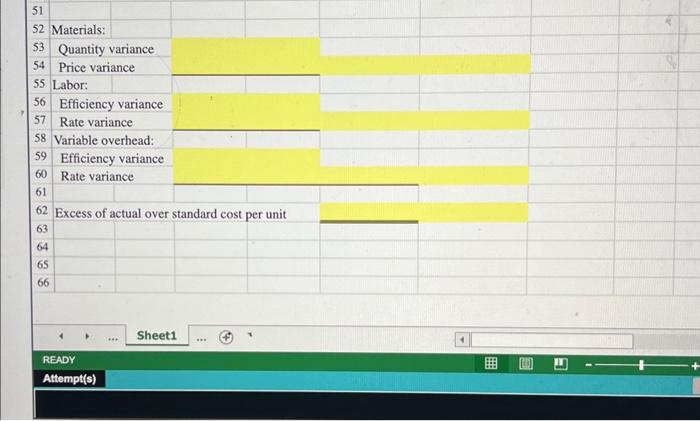
Variance Analysis using Excel's ABS, IF and Basic Math Functions Patterson, Inc. has provided detalis of its actual cost data for the month. The Controller has asked you to compute the basic variances and the impact of those variances on unit costs. Use the information included in the Excel Simulation and the Excel functions described below to complete the task. - Cell Reference: Allows you to refer to data from another cell in the worksheet. From the Excel Simulation below, if in a blank cell, "D4" was entered, the formula would output the result from cell D4, or 2.75 in this example. - Basic Math functions: Allows you to use the basic math symbols to perform mathematical functions. You can use the following keys: + (plus sign to add),- (minus sign to subtracti) " (asterisk sign to multiply), and / (forward slash to divide). From the Excel Simulation below, if in a blank cell =F4+65 was entered, the formula would add the values from those cells and output the result, of 14.70 in this example. If using the other math symbols the result would output an appropriate answer for its function. - SUM functions Allows you to refer to multiple cells and adds all the values. You can add individual cell references or ranges to utilize this function. From the Excel Simulation below, if in a blank cell "=SUM(D4,D5)" was entered, the formula would output the result of adding those two separate cells, or 5.45 in this example. Similarly, if in a blank cell "oSUM(D4:D5)" was entered, the formula would output the same result of adding those cetts, except they are expressed as a range in the formula, and the result would be 5.45 in this example. - A8s function: Allows you to return the absolute value of a number or calculation. You can reference any cell to display its absolute value. or surround another formula with the ABS function, to return the final result as an absolute value. From the Excel Simulation below, if in a blank cell you entered "=ABS(F7-G8)" Excel will first calculate the subtraction of F7.G8 that results in 0.20. Then, the ABS portion of the formula returns the absolute value of the subtraction result, which would be 0.20 in this example. - IE function: Allows you to test a condition and return a specific value is the result is true and different value if the result is false. The syntax of The festcondition argument is an evaluation of the status of a cell, such as if the value of a cell is greater than, less than, or equal to another number or cell. The value_it true and value_it false arguments will teturn any specific result for each option, such as another cell reference, b value, of text. Throughout the entire equation, if text is being used in the fest.condition, value. if true, or value, if false arguments then the text itself should be entered in quotations so that Excel will recognize the text as a "string of text instead of another function. From the would output the result of the varue. . . true since the fese condition would be result as true, or in this case the text "Total Cost Per Unit is 900d". Excel processes the IF function by separating it out into separate pants. First the tost condition - Excel thinks, find cell F13 and determine if the value is greater than 20 . Once Excel determines if the result of that testcondition is TRUE or FALSE, it will return the value it true or vatue, it talse: 26 Standard Quantity Allowed for Actual Output at Standard Price 27 Actual Quantity of Input, at Standard Price 28 Actual Quantity of Input, at Actual Price
Step by Step Solution
There are 3 Steps involved in it

Get step-by-step solutions from verified subject matter experts
 Study Help