







Question: Help with Matlab In the command line, type guide. Click the option to create a new blank GUI. Then, in the editor, place three pushbuttons,
Help with Matlab
In the command line, type guide. Click the option to create a new blank GUI. Then, in the editor, place three pushbuttons, two checkboxes, and a text entry box in this way:
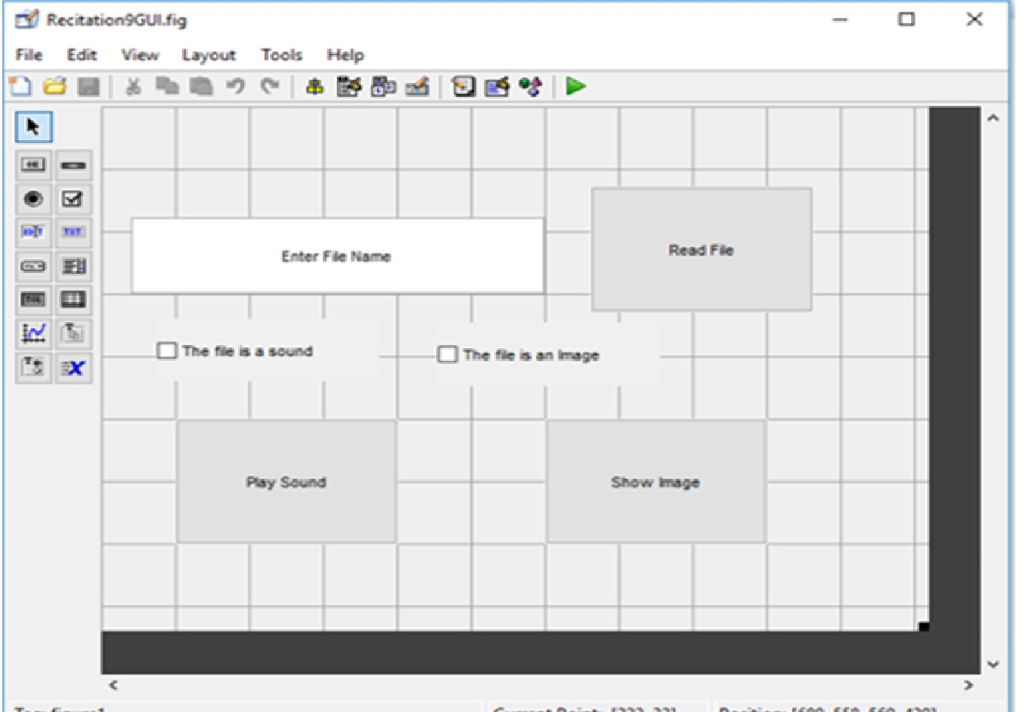
Double click on each GUI element to see the different properties it has. Remember: these are all properties you can change in MATLAB by altering the handles structure. Go back to this place if you ever forget the name of a property, or how it is formatted.
Change the String property of each element to match the strings you see above. Additionally, you may want to change the Tag property of each button. The Tag property is the name of each GUI element in the handles structure. Tags default to uninformative things like pushbutton1 and textentry1. You might want to change them to things like fileLocation, fileRead, playSound, and soundCheck. Also, note how the BackgroundColor property is formatted. It has three numbers in an array. Try changing the numbers of a GUI element to see how it affects the background color. For checkboxes, note that the Value property is 1.0 when the box is checked and 0 when the box is unchecked.
Save your GUI figure. MATLAB will automatically generate your skeleton code for the GUI. Scroll down and find the callback functions. The callback functions should do the following:
The callback for the text entry element that says Enter File Name should have nothing in it.
The checkbox that says The file is a sound should:
Turn the Play Sound button green, the Show Image button red, and make the This file is an image checkbox unchecked (set Value to 0). If the value is being set to 1.
Turn the Play Sound and Show Image buttons to grey if the value is being set to 0.
Similarly, the The file is an image checkbox should:
Turn the Play Sound button red, the Show Image button green, and make the This file is a sound checkbox unchecked (set Value to 0) if the value is being set to 1.
Turn the Play Sound and Show Image buttons to grey if the value is being set to 0.
Pressing the Read File button should:
Return an error popup using the errordlg function (please read MATLAB help for instructions on how to use this simple function) if there is no checkbox selected.
Read the String from the text entry box using audioread if the This file is a sound box is selected. You should save the data (both the array of sound data and the sampling frequency) to the handles structure, then use the code guidata(hObject, handles) to update the handles structure and permanently save the data.
Read the String from the text entry box using imread if the This file is an image box is selected. You should save the data to the handles structure, then use the code guidata(hObject, handles) to update the handles structure and permanently save the data.
Pressing the Play Sound button should:
Play the sound data using the sound function if the The file is a sound checkbox is selected AND there is sound data in the handles structure. To see if data exists, you can use isfield(handles, Tag), where Tag is a string with the name of the variable in handles where you would expect data to be stored.
Return an error diolog box if data doesnt exist or the checkbox is not checked.
Pressing the Show Image button should:
Create a new figure, then display the image using the imshow function if the The file is an image checkbox is selected AND there is image data in the handles structure. To see if data exists, you can use isfield(handles, Tag), where Tag is a string with the name of the variable in handles where you would expect data to be stored.
Return an error diolog box if data doesnt exist or the checkbox is not checked.
Here is my code so far.
function varargout = GUI(varargin) % GUI MATLAB code for GUI.fig % GUI, by itself, creates a new GUI or raises the existing % singleton*. % % H = GUI returns the handle to a new GUI or the handle to % the existing singleton*. % % GUI('CALLBACK',hObject,eventData,handles,...) calls the local % function named CALLBACK in GUI.M with the given input arguments. % % GUI('Property','Value',...) creates a new GUI or raises the % existing singleton*. Starting from the left, property value pairs are % applied to the GUI before GUI_OpeningFcn gets called. An % unrecognized property name or invalid value makes property application % stop. All inputs are passed to GUI_OpeningFcn via varargin. % % *See GUI Options on GUIDE's Tools menu. Choose "GUI allows only one % instance to run (singleton)". % % See also: GUIDE, GUIDATA, GUIHANDLES
% Edit the above text to modify the response to help GUI
% Last Modified by GUIDE v2.5 25-Nov-2017 13:26:22
% Begin initialization code - DO NOT EDIT gui_Singleton = 1; gui_State = struct('gui_Name', mfilename, ... 'gui_Singleton', gui_Singleton, ... 'gui_OpeningFcn', @GUI_OpeningFcn, ... 'gui_OutputFcn', @GUI_OutputFcn, ... 'gui_LayoutFcn', [] , ... 'gui_Callback', []); if nargin && ischar(varargin{1}) gui_State.gui_Callback = str2func(varargin{1}); end
if nargout [varargout{1:nargout}] = gui_mainfcn(gui_State, varargin{:}); else gui_mainfcn(gui_State, varargin{:}); end % End initialization code - DO NOT EDIT
% --- Executes just before GUI is made visible. function GUI_OpeningFcn(hObject, eventdata, handles, varargin) % This function has no output args, see OutputFcn. % hObject handle to figure % eventdata reserved - to be defined in a future version of MATLAB % handles structure with handles and user data (see GUIDATA) % varargin command line arguments to GUI (see VARARGIN)
% Choose default command line output for GUI handles.output = hObject;
% Update handles structure guidata(hObject, handles);
% UIWAIT makes GUI wait for user response (see UIRESUME) % uiwait(handles.figure1);
% --- Outputs from this function are returned to the command line. function varargout = GUI_OutputFcn(hObject, eventdata, handles) % varargout cell array for returning output args (see VARARGOUT); % hObject handle to figure % eventdata reserved - to be defined in a future version of MATLAB % handles structure with handles and user data (see GUIDATA)
% Get default command line output from handles structure varargout{1} = handles.output;
% --- Executes on button press in readFile. function readFile_Callback(hObject, eventdata, handles) % hObject handle to readFile (see GCBO) % eventdata reserved - to be defined in a future version of MATLAB % handles structure with handles and user data (see GUIDATA) if handles.soundCheck.Value==0 && handles.imageCheck.Value==0 errordlg('checkbox not selected')
elseif handles.soundCheck.Value==1 [soundData, fs] = audioread(handles.fileLocation.Tag); handles.fileLocation.Tag=soundData; guidata(hObject,handles);
elseif handles.imageCheck.Value==1 image = imread(handles.fileLocation.Tag); handles.fileLocation.Tag=image; guidata(hObject,handles); end
% --- Executes on button press in playSound. function playSound_Callback(hObject, eventdata, handles) % hObject handle to playSound (see GCBO) % eventdata reserved - to be defined in a future version of MATLAB % handles structure with handles and user data (see GUIDATA) if handles.soundCheck.Value==1 && isfield(handles,handles.fileLocation.Tag) == 1 sound(soundData, fs); end
% --- Executes on button press in showImage. function showImage_Callback(hObject, eventdata, handles) % hObject handle to showImage (see GCBO) % eventdata reserved - to be defined in a future version of MATLAB % handles structure with handles and user data (see GUIDATA) if handles.imageCheck.Value == 1 && isfield(handles,handles.fileLocation.Tag) figure; imshow(handles.fileLocation.Tag);
else error('Data doesnt exist or the checkbox is not checked.'); end
% --- Executes on button press in soundCheck. function soundCheck_Callback(hObject, eventdata, handles) % hObject handle to soundCheck (see GCBO) % eventdata reserved - to be defined in a future version of MATLAB % handles structure with handles and user data (see GUIDATA)
% Hint: get(hObject,'Value') returns toggle state of soundCheck if (get (hObject, 'Value') == 1) handles.playSound.BackgroundColor = [0 1 0]; handles.showImage.BackgroundColor = [1 0 0]; handles.imageCheck.Value = 0; else handles.playSound.BackgroundColor = [0.5 0.5 0.5]; handles.showImage.BackgroundColor = [0.5 0.5 0.5]; end
% --- Executes on button press in imageCheck. function imageCheck_Callback(hObject, eventdata, handles) % hObject handle to imageCheck (see GCBO) % eventdata reserved - to be defined in a future version of MATLAB % handles structure with handles and user data (see GUIDATA)
% Hint: get(hObject,'Value') returns toggle state of imageCheck if (get (hObject, 'Value') == 1) handles.playSound.BackgroundColor = [1 0 0]; handles.showImage.BackgroundColor = [0 1 0]; handles.soundCheck.Value = 0; else handles.playSound.BackgroundColor = [0.5 0.5 0.5]; handles.showImage.BackgroundColor = [0.5 0.5 0.5]; end
function fileLocation_Callback(hObject, eventdata, handles) % hObject handle to fileLocation (see GCBO) % eventdata reserved - to be defined in a future version of MATLAB % handles structure with handles and user data (see GUIDATA)
% Hints: get(hObject,'String') returns contents of fileLocation as text % str2double(get(hObject,'String')) returns contents of fileLocation as a double
% --- Executes during object creation, after setting all properties. function fileLocation_CreateFcn(hObject, eventdata, handles) % hObject handle to fileLocation (see GCBO) % eventdata reserved - to be defined in a future version of MATLAB % handles empty - handles not created until after all CreateFcns called
% Hint: edit controls usually have a white background on Windows. % See ISPC and COMPUTER. if ispc && isequal(get(hObject,'BackgroundColor'), get(0,'defaultUicontrolBackgroundColor')) set(hObject,'BackgroundColor','white'); end
Don't worry about the sound and image file that needs to be downloaded, I just need to know what's wrong with my code, thank you
a Recitation GUlfig File Edit View Layout Tools Help 2 Read Fle Enter File Name - The file isa sound Play Sound Show Image a Recitation GUlfig File Edit View Layout Tools Help 2 Read Fle Enter File Name - The file isa sound Play Sound Show Image
Step by Step Solution
There are 3 Steps involved in it

Get step-by-step solutions from verified subject matter experts
 Study Help