





Question: Here is the assignment for this week that i am competely lost on. Could someone please help me with this? Thank you so much yoga.css
Here is the assignment for this week that i am
Here is the assignment for this week that i am competely lost on. Could someone please help me with this? Thank you so much
yoga.css
*
{
box-sizing: border-box;
}
header, nav, main, footer
{
display: block;
}
body
{
background-color: #3f2860;
color: #3f2860;
font-family: Verdana, Arial, Helvetica, sans-serif;
}
.floatleft
{
float: left;
margin-right: 4em;
}
.clear
{
clear: both;
}
#wrappe
{
min-width: 1200px;
max-width: 1480px;
background-color: #f5f5f5;
width: 80%;
margin-right: auto;
margin-left: auto;
}
main
{
padding-left: 2em;
padding-right: 2em;
background-color: #f5f5f5;
margin-left: 170px;
padding-top: 1em;
}
header
{
height: 150px;
background-image: url(lilyheader.jpg);
background-color: #9bc1c2;
background-repeat: no-repeat;
background-position: right;
/*text-align: center;*/
}
h1
{
/*line-height: 200%;*/
padding-top: 50px;
padding-left: 2em;
}
nav
{
padding: 1em;
font-weight: bold;
float: left;
width: 160px;
border: 3px #CCCCCC;
}
/* nav anchor elemt that removes the underlines from the links */
nav a
{
text-decoration: none;
display: block;
font-weight: bold;
text-align: center;
border: 3px inset #CCCCCC;
padding: 1em;
margin-bottom: 1em;
}
nav a:link
{
color: #3F2860;
}
nav a:visited
{
color: #497777;
}
nav a:hover
{
color: #A26100;
border: 3px inset #333333;
}
nav ul
{
list-style: none;
padding-left: 0;
}
/*class element named studio used to add italics*/
.studio
{
font-style: italic;
}
footer
{
padding: 1em;
background-color: #9bc1c2;
font-size: 0.6em;
font-style: italic;
text-align: center;
}
dt
{
font-weight: bold;
}
dd
{
margin: 20px 5px 20px 40px;
}
#mobile
{
display: none;
}
#desktop
{
display: inline;
}
table{
width: 60%;
border: 1px;
border-color: #3f2860;
border-collapse: collapse;
margin: 1em;
}
td,th{
padding: 5px;
border: 1px;
border-color: #3f2860;
}
tr:nth-of-type(3) {
background: #9bc1c2;
}
caption{
margin: 1em;
font-weight: bold;
font-size: 120%;
}
}
fieldset
{
border: 0px white solid;
}
label
{
float: left;
display: block;
text-align: right;
font-weight: bold;
width: 10em;
padding-right: 1em;
}
input, textarea
{
display: block;
margin-bottom: 2em;
}
#mySubmit
{
margin-left: 12em;
schedule.html
Path of Light Yoga Studio

Path of Light Yoga Studio

Home Classes
Schedule Contact

Yoga Schedule

Mats, blocks, and blankets provided. Please arrive 10 minutes before your class begins. Relax in our Serenity Lounge before or after your class.
Monday - Friday
    9:00am Gentle Hatha Yoga
    10:30am Vinyasa Yoga
    5:30am Restoration Yoga
    7:00pm Gentle Hatha Yoga
    Saturday & Sunday
      10:30am Gentle Hatha Yoga
      Noon Vinyasa Yoga
      1:30pm Gentle Hatha Yoga
      3:00pm Vinyasa Yoga
      5:30pm Restoration Yoga
      Copyright © 2018 Path of Light Yoga Studio
      yourfirstname@yourlastname.com
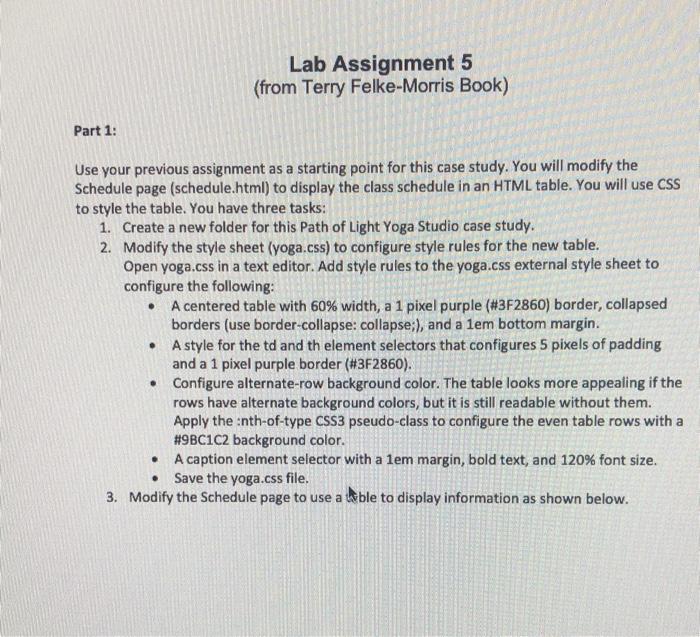
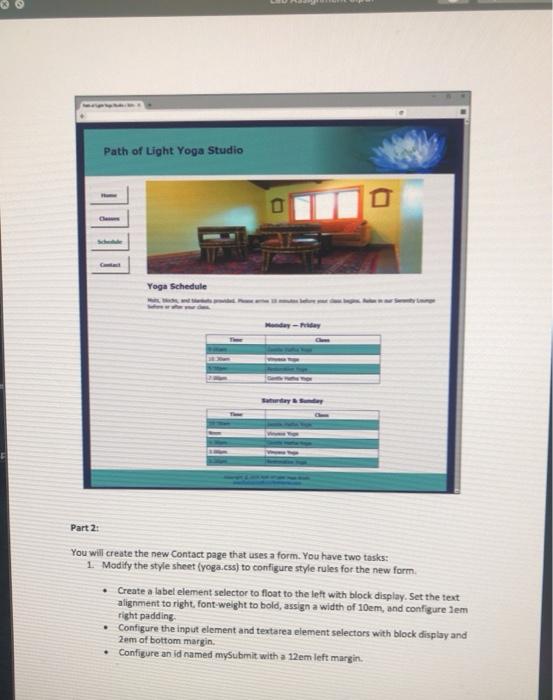
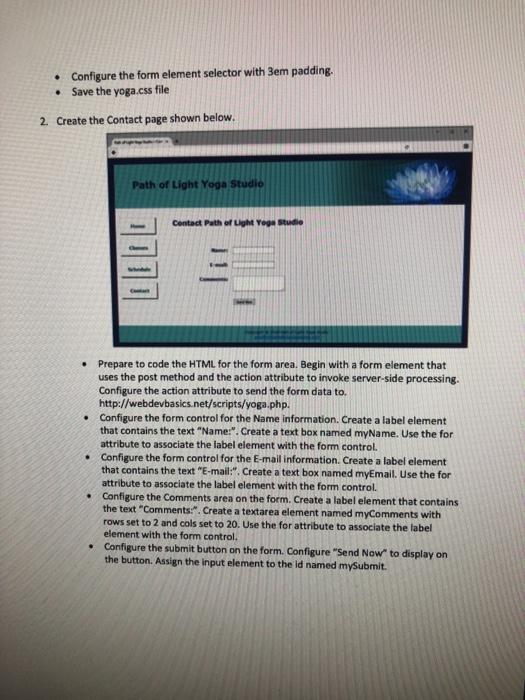
      Lab Assignment 5 (from Terry Felke-Morris Book) Part 1: Use your previous assignment as a starting point for this case study. You will modify the Schedule page (schedule.html) to display the class schedule in an HTML table. You will use CSS to style the table. You have three tasks: 1. Create a new folder for this path of Light Yoga Studio case study. 2. Modify the style sheet (yoga.css) to configure style rules for the new table. Open yoga.css in a text editor. Add style rules to the yoga.css external style sheet to configure the following: A centered table with 60% width, a 1 pixel purple (#3F2860) border, collapsed borders (use border-collapse: collapse;), and a lem bottom margin. A style for the td and th element selectors that configures 5 pixels of padding and a 1 pixel purple border (#3F2860). Configure alternate-row background color. The table looks more appealing if the rows have alternate background colors, but it is still readable without them. Apply the inth-of-type CSS3 pseudo-class to configure the even table rows with a #9BC1C2 background color. A caption element selector with a 1em margin, bold text, and 120% font size. Save the yoga.css file. 3. Modify the Schedule page to use a l&ble to display information as shown below. Path of Light Yoga Studio Yoga Schedule Part 2: You will create the new Contact page that uses a form. You have two tasks: 1 Modify the style sheet (yoga.css) to configure style rules for the new form. Create a label element selector to float to the left with block display. Set the text alignment to right, font-weight to bold, assign a width of 10em, and configure lem right padding Configure the input element and textarea element selectors with black display and 2em at bottom margin Configure an id named mysubmit with a 12em left margin Configure the form element selector with 3em padding. Save the yoga.css file 2. Create the Contact page shown below. Path of Light Yoga Studio Contact Path of Light Yoga Studio Prepare to code the HTML for the form area. Begin with a form element that uses the post method and the action attribute to invoke server-side processing. Configure the action attribute to send the form data to. http://webdevbasics.net/scripts/yoga.php. Configure the form control for the Name information. Create a label element that contains the text "Name:". Create a text box named myName. Use the for attribute to associate the label element with the form control. Configure the form control for the E-mail information. Create a label element that contains the text "E-mail:". Create a text box named myEmail. Use the for attribute to associate the label element with the form control. Configure the Comments area on the form. Create a label element that contains the text "Comments:". Create a textarea element named myComments with rows set to 2 and cols set to 20. Use the for attribute to associate the label element with the form control. Configure the submit button on the form. Configure "Send Now" to display on the button. Assign the input element to the Id named mySubmit

      Step by Step Solution

      There are 3 Steps involved in it

      1 Expert Approved Answer
      Step: 1 Unlock blur-text-image

      Question Has Been Solved by an Expert!

      Get step-by-step solutions from verified subject matter experts

      Step: 2 Unlock
      Step: 3 Unlock

      Students Have Also Explored These Related Databases Questions!