







Question: Hi, I have this assignment it is very confusing, I GOT A 45/100, if you could, complete it with notes, please, on how you were
Hi, I have this assignment it is very confusing, I GOT A 45/100, if you could, complete it with notes, please, on how you were able to do it and get it to work. I am using a library called objectdraw, which is NEEDED to complete this assignment. PLEASE! PROGRAM IN JAVA. You need to have the objectdraw library!
THIS IS THE PROMPT:
THIS IS THE INSTRUCTIONS WHICH ARE PUT IN THE src directory!!!!
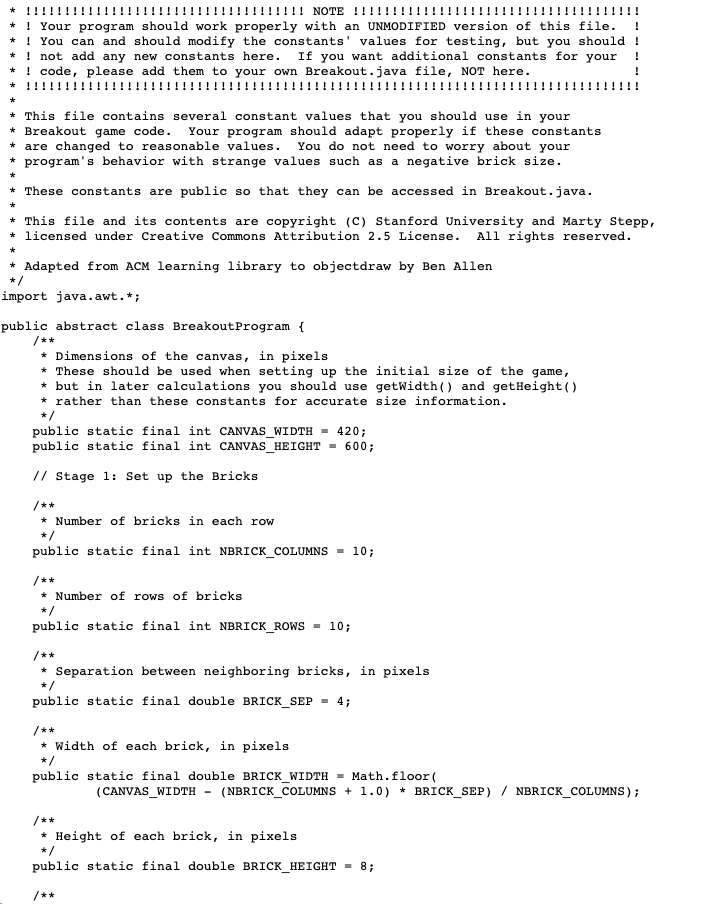
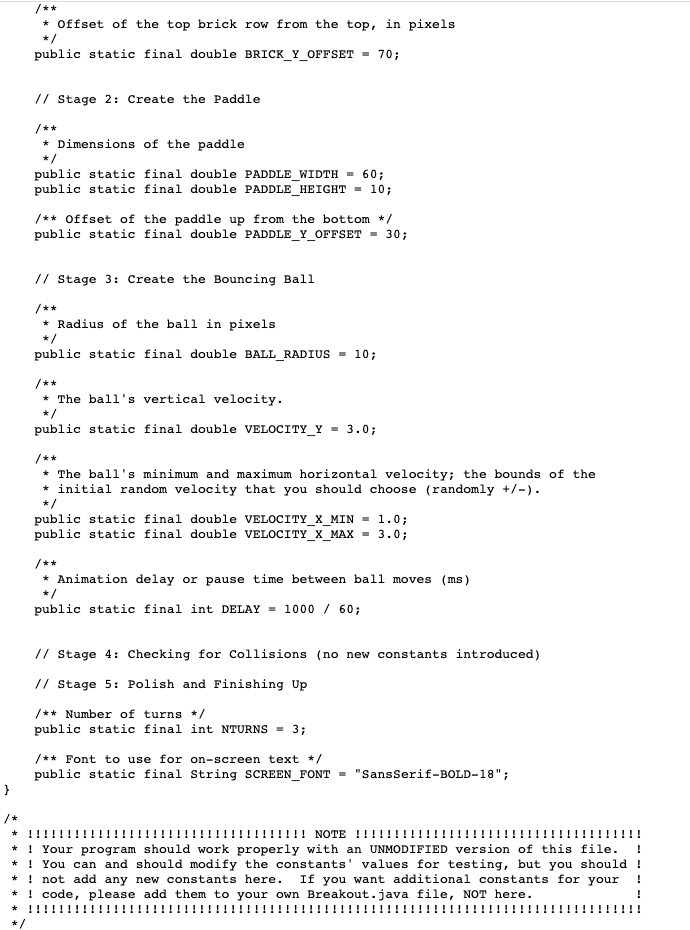
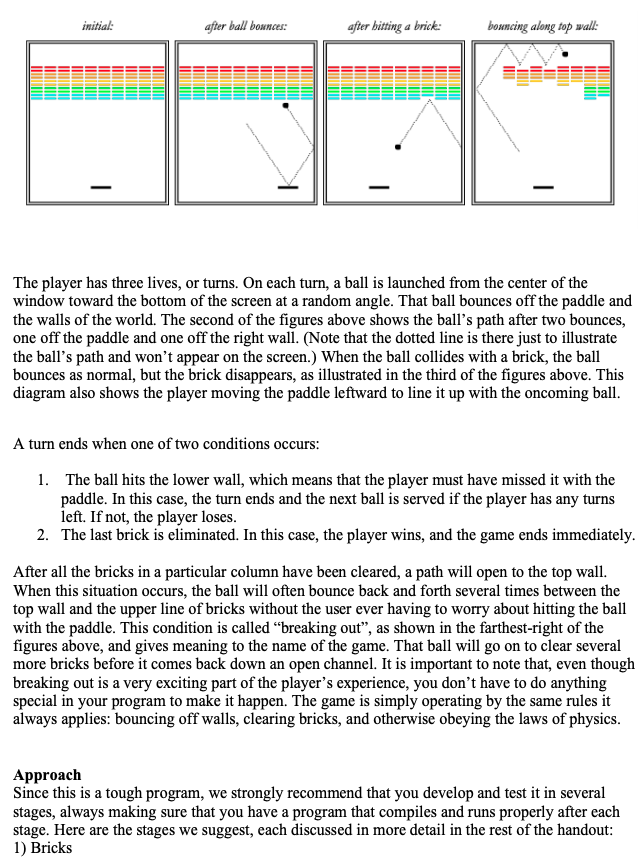
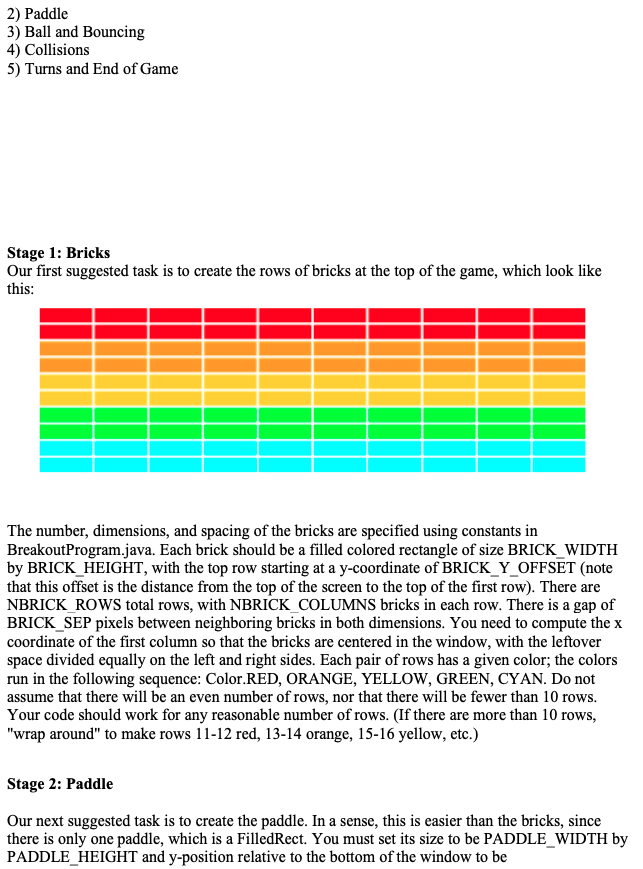
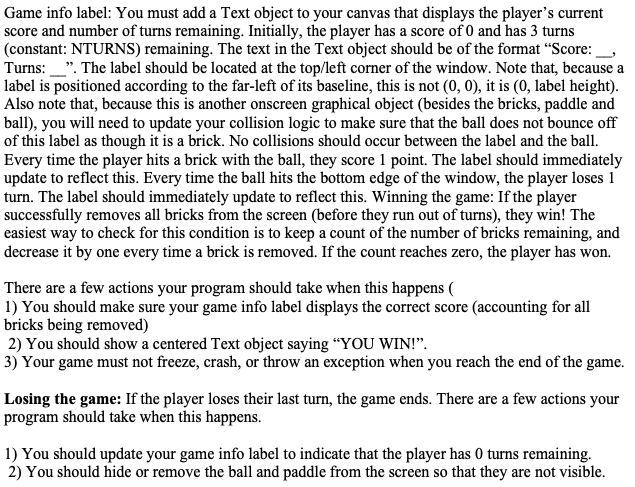
Your job is to write the classic arcade game of Breakout, which was invented by Steve Wozniak before he founded Apple with Steve Jobs. It is a large assignment, but entirely manageable as long as you follow the following pieces of advice: Start as soon as possible. This assignment is due in about two weeks, which will be here before you know it. Don't wait until the last minute! Implement the program in stages, as described in this handout. Don't try to get everything working all at once. Implement the various pieces of the project one at a time and make sure that each one is working before you move on to the next phase. If you get done early, you may be tempted to provide extensions or modifications to the game. That is excellent, and there are a lot of fun ways you can extend this game. However, please do not work on extensions to the game until you're done with the version as presented in this document. In the starter project, we provide you a base file BreakoutProgram.java which includes several constants you must use in your code. These constants control the game parameters, such as the dimensions of the various objects. Your code should use these constants so that, if one changes, your program behavior adjusts accordingly. Each of the following sections lists relevant constants you should use in that section. You are welcome to add more constants, but please do so in your own files, not in Breakout Program.java. To access constants in Breakout Program, put "BreakoutProgram" before the constant name. For example, if you want to print out the constant BALL_RADIUS, type: System.out.println(Breakout Program.BALL_RADIUS) In Breakout, the player controls a rectangular paddle that is in a fixed position in the vertical dimension but moves back and forth across the screen horizontally along with the mouse within the bounds of the screen. A ball moves about the rectangular world and bounces off of surfaces it hits. The world is also filled with rows of rectangular bricks that can be cleared from the screen if the ball collides with them. The goal is to clear all bricks. initial after ball bounces: after hitting a brick: bouncing along top wall: |||||||| IIII NUT ini The player has three lives, or turns. On each turn, a ball is launched from the center of the window toward the bottom of the screen at a random angle. That ball bounces off the paddle and the walls of the world. The second of the figures above shows the ball's path after two bounces, one off the paddle and one off the right wall. (Note that the dotted line is there just to illustrate the ball's path and won't appear on the screen.) When the ball collides with a brick, the ball bounces as normal, but the brick disappears, as illustrated in the third of the figures above. This diagram also shows the player moving the paddle leftward to line it up with the oncoming ball. A turn ends when one of two conditions occurs: 1. The ball hits the lower wall, which means that the player must have missed it with the paddle. In this case, the turn ends and the next ball is served if the player has any turns left. If not, the player loses. 2. The last brick is eliminated. In this case, the player wins, and the game ends immediately. After all the bricks in a particular column have been cleared, a path will open to the top wall. When this situation occurs, the ball will often bounce back and forth several times between the top wall and the upper line of bricks without the user ever having to worry about hitting the ball with the paddle. This condition is called breaking out, as shown in the farthest-right of the figures above, and gives meaning to the name of the game. That ball will go on to clear several more bricks before it comes back down an open channel. It is important to note that, even though breaking out is a very exciting part of the player's experience, you don't have to do anything special in your program to make it happen. The game is simply operating by the same rules it always applies: bouncing off walls, clearing bricks, and otherwise obeying the laws of physics. Approach Since this is a tough program, we strongly recommend that you develop and test it in several stages, always making sure that you have a program that compiles and runs properly after each stage. Here are the stages we suggest, each discussed in more detail in the rest of the handout: 1) Bricks 2) Paddle 3) Ball and Bouncing 4) Collisions 5) Turns and End of Game Stage 1: Bricks Our first suggested task is to create the rows of bricks at the top of the game, which look like this: The number, dimensions, and spacing of the bricks are specified using constants in Breakout Program.java. Each brick should be a filled colored rectangle of size BRICK_WIDTH by BRICK_HEIGHT, with the top row starting at a y-coordinate of BRICK_Y_OFFSET (note that this offset is the distance from the top of the screen to the top of the first row). There are NBRICK ROWS total rows, with NBRICK COLUMNS bricks in each row. There is a gap of BRICK_SEP pixels between neighboring bricks in both dimensions. You need to compute the x coordinate of the first column so that the bricks are centered in the window, with the leftover space divided equally on the left and right sides. Each pair of rows has a given color; the colors run in the following sequence: Color.RED, ORANGE, YELLOW, GREEN, CYAN. Do not assume that there will be an even number of rows, nor that there will be fewer than 10 rows. Your code should work for any reasonable number of rows. (If there are more than 10 rows, "wrap around" to make rows 11-12 red, 13-14 orange, 15-16 yellow, etc.) Stage 2: Paddle Our next suggested task is to create the paddle. In a sense, this is easier than the bricks, since there is only one paddle, which is a FilledRect. You must set its size to be PADDLE_WIDTH by PADDLE_HEIGHT and y-position relative to the bottom of the window to be PADDLE_Y_OFFSET. Note that PADDLE_Y_OFFSET is the distance between the bottom of the screen and the bottom of the paddle. - 5 - The paddle horizontally follows the mouse as it moves onscreen; specifically, you must make the horizontal center of the paddle follow the mouse. Also, do not allow any part of the paddle to move off the edge of the screen. Check to see whether the x-coordinate of the mouse extends beyond the screen boundary and ensure that the entire paddle is visible in the window. Stage 3: Ball + Bouncing Now let's make the ball and get it to bounce around the screen (for now ignoring brick and paddle collisions, or going off of the bottom). This is more or less equivalent to the work you've already done in WallBall and Pong. The velocity components represent the change in ball position on each time step of the animation. Initially, the ball should head downward with a velocity of VELOCITY_Y. (Recall that y values in Java increase as you move down the screen.) The game would be boring if every ball took the same course, though, so you should choose the x component of the velocity randoml. Set your x velocity to be a random real number between VELOCITY_X_MIN and VELOCITY_X_MAX, randomly in the + (right) or - (left) direction with equal probability. Make sure to exclude the range - VELOCITY_X_MIN through VELOCITY_X_MIN; those lead to a ball going mostly straight down, which makes things too easy Stage 4: Collisions: Once you've got the ball correctly bouncing off of the walls and the paddle, it's time to deal with bricks. When the ball impacts a brick, you should do the following; Remove the brick from the canvas. Remove the brick from whatever collection you're storing the bricks in Make the ball's direction of travel reverse. For this part of the assignment, you may or may not) find it useful to implement invisible "collider" FilledRect objects at each edge of the brick. If the ball overlaps any of the colliders, remove both the brick and all of its associated colliders from the canvas. Stage 4: Turns and End of Game We're almost there! There are, however, a few more details you need to take into account: Turns and end of turn: The player initially has 3 turns (constant: NTURNS) remaining. Every time the ball hits the bottom edge of the window, the player loses 1 turn. When the turn ends, if the player has more turns remaining, your program should re-launch the ball from the center of the window toward the bottom of the screen. The easiest way to do this is to call moveTo(x, y) on the ball to move it to the center of the window. Don't forget that the ball should receive a new random x velocity at the start of each turn. Game info label: You must add a Text object to your canvas that displays the player's current score and number of turns remaining. Initially, the player has a score of 0 and has 3 turns (constant: NTURNS) remaining. The text in the Text object should be of the format "Score: Turns: _. The label should be located at the top/left corner of the window. Note that, because a label is positioned according to the far-left of its baseline, this is not (0, 0), it is (0, label height). Also note that, because this is another onscreen graphical object (besides the bricks, paddle and ball), you will need to update your collision logic to make sure that the ball does not bounce off of this label as though it is a brick. No collisions should occur between the label and the ball. Every time the player hits a brick with the ball, they score 1 point. The label should immediately update to reflect this. Every time the ball hits the bottom edge of the window, the player loses 1 turn. The label should immediately update to reflect this. Winning the game: If the player successfully removes all bricks from the screen (before they run out of turns), they win! The easiest way to check for this condition is to keep a count of the number of bricks remaining, and decrease it by one every time a brick is removed. If the count reaches zero, the player has won. There are a few actions your program should take when this happens 1) You should make sure your game info label displays the correct score accounting for all bricks being removed) 2) You should show a centered Text object saying YOU WIN!". 3) Your game must not freeze, crash, or throw an exception when you reach the end of the game. Losing the game: If the player loses their last turn, the game ends. There are a few actions your program should take when this happens. 1) You should update your game info label to indicate that the player has 0 turns remaining. 2) You should hide or remove the ball and paddle from the screen so that they are not visible. !!!!!!! NOTE !!!!!!!!!!!!!!!! * ! Your program should work properly with an UNMODIFIED version of this file. ! * ! You can and should modify the constants values for testing, but you should ! * ! not add any new constants here. If you want additional constants for your ! * ! code, please add them to your own Breakout.java file, not here. * !!!!!!!!!!!!!!!!!!!!!!!!!!!!!!!!!!!!!!!!!!!!! !!!!!!!!!!!!!!!!!!!! ! * This file contains several constant values that you should use in your * Breakout game code. Your program should adapt properly if these constants * are changed to reasonable values. You do not need to worry about your + program's behavior with strange values such as a negative brick size. * These constants are public so that they can be accessed in Breakout.java. * This file and its contents are copyright (c) Stanford University and Marty Stepp, * licensed under Creative Commons Attribution 2.5 License. All rights reserved. * Adapted from ACM learning library to objectdraw by Ben Allen */ import java.awt.*; public abstract class Breakout Program { /** * Dimensions of the canvas, in pixels * These should be used when setting up the initial size of the game, * but in later calculations you should use getWidth() and getHeight() * rather than these constants for accurate size information. public static final int CANVAS_WIDTH - 420; public static final int CANVAS_HEIGHT = 600; // Stage 1: Set up the Bricks /** * Number of bricks in each row public static final int NBRICK_COLUMNS 10; * Number of rows of bricks public static final int NBRICK_ROWS 10; /** * Separation between neighboring bricks, in pixels public static final double BRICK_SEP 4; * Width of each brick, in pixels public static final double BRICK_WIDTH = Math.floor( (CANVAS_WIDTH (NBRICK_COLUMNS + 1.0) * BRICK_SEP) / NBRICK_COLUMNS); * Height of each brick, in pixels public static final double BRICK_HEIGHT = 8; /** /** * Offset of the top brick row from the top, in pixels */ public static final double BRICK_Y_OFFSET - 70; // Stage 2: Create the Paddle /** * Dimensions of the paddle */ public static final double PADDLE_WIDTH 60; public static final double PADDLE_HEIGHT = 10; /** Offset of the paddle up from the bottom */ public static final double PADDLE_Y_OFFSET = 30; // Stage 3: Create the Bouncing Ball * Radius of the ball in pixels */ public static final double BALL_RADIUS - 10; /** + The ball's vertical velocity. */ public static final double VELOCITY_Y = 3.0; * The ball's minimum and maximum horizontal velocity; the bounds of the * initial random velocity that you should choose (randomly +/-). public static final double VELOCITY_X_MIN - 1.0; public static final double VELOCITY_X_MAX - 3.0; * Animation delay or pause time between ball moves (ms) public static final int DELAY - 1000 / 60; // Stage 4: Checking for Collisions (no new constants introduced) // Stage 5: Polish and Finishing Up /** Number of turns */ public static final int NTURNS - 3; /** Font to use for on-screen text */ public static final String SCREEN_FONT "Sans Serif-BOLD-18"; } * ! ! /* !!! NOTE !!!!!!!!!!!!!!!!!!!! Your program should work properly with an UNMODIFIED version of this file. * ! You can and should modify the constants' values for testing, but you should ! * ! not add any new constants here. If you want additional constants for your ! code, please add them to your own Breakout.java file, NOT here. * !!!!!!!!!!!!!!!!!!! !!!!!!!!!!!!!!!!!!!!!!! ! ! * Your job is to write the classic arcade game of Breakout, which was invented by Steve Wozniak before he founded Apple with Steve Jobs. It is a large assignment, but entirely manageable as long as you follow the following pieces of advice: Start as soon as possible. This assignment is due in about two weeks, which will be here before you know it. Don't wait until the last minute! Implement the program in stages, as described in this handout. Don't try to get everything working all at once. Implement the various pieces of the project one at a time and make sure that each one is working before you move on to the next phase. If you get done early, you may be tempted to provide extensions or modifications to the game. That is excellent, and there are a lot of fun ways you can extend this game. However, please do not work on extensions to the game until you're done with the version as presented in this document. In the starter project, we provide you a base file BreakoutProgram.java which includes several constants you must use in your code. These constants control the game parameters, such as the dimensions of the various objects. Your code should use these constants so that, if one changes, your program behavior adjusts accordingly. Each of the following sections lists relevant constants you should use in that section. You are welcome to add more constants, but please do so in your own files, not in Breakout Program.java. To access constants in Breakout Program, put "BreakoutProgram" before the constant name. For example, if you want to print out the constant BALL_RADIUS, type: System.out.println(Breakout Program.BALL_RADIUS) In Breakout, the player controls a rectangular paddle that is in a fixed position in the vertical dimension but moves back and forth across the screen horizontally along with the mouse within the bounds of the screen. A ball moves about the rectangular world and bounces off of surfaces it hits. The world is also filled with rows of rectangular bricks that can be cleared from the screen if the ball collides with them. The goal is to clear all bricks. initial after ball bounces: after hitting a brick: bouncing along top wall: |||||||| IIII NUT ini The player has three lives, or turns. On each turn, a ball is launched from the center of the window toward the bottom of the screen at a random angle. That ball bounces off the paddle and the walls of the world. The second of the figures above shows the ball's path after two bounces, one off the paddle and one off the right wall. (Note that the dotted line is there just to illustrate the ball's path and won't appear on the screen.) When the ball collides with a brick, the ball bounces as normal, but the brick disappears, as illustrated in the third of the figures above. This diagram also shows the player moving the paddle leftward to line it up with the oncoming ball. A turn ends when one of two conditions occurs: 1. The ball hits the lower wall, which means that the player must have missed it with the paddle. In this case, the turn ends and the next ball is served if the player has any turns left. If not, the player loses. 2. The last brick is eliminated. In this case, the player wins, and the game ends immediately. After all the bricks in a particular column have been cleared, a path will open to the top wall. When this situation occurs, the ball will often bounce back and forth several times between the top wall and the upper line of bricks without the user ever having to worry about hitting the ball with the paddle. This condition is called breaking out, as shown in the farthest-right of the figures above, and gives meaning to the name of the game. That ball will go on to clear several more bricks before it comes back down an open channel. It is important to note that, even though breaking out is a very exciting part of the player's experience, you don't have to do anything special in your program to make it happen. The game is simply operating by the same rules it always applies: bouncing off walls, clearing bricks, and otherwise obeying the laws of physics. Approach Since this is a tough program, we strongly recommend that you develop and test it in several stages, always making sure that you have a program that compiles and runs properly after each stage. Here are the stages we suggest, each discussed in more detail in the rest of the handout: 1) Bricks 2) Paddle 3) Ball and Bouncing 4) Collisions 5) Turns and End of Game Stage 1: Bricks Our first suggested task is to create the rows of bricks at the top of the game, which look like this: The number, dimensions, and spacing of the bricks are specified using constants in Breakout Program.java. Each brick should be a filled colored rectangle of size BRICK_WIDTH by BRICK_HEIGHT, with the top row starting at a y-coordinate of BRICK_Y_OFFSET (note that this offset is the distance from the top of the screen to the top of the first row). There are NBRICK ROWS total rows, with NBRICK COLUMNS bricks in each row. There is a gap of BRICK_SEP pixels between neighboring bricks in both dimensions. You need to compute the x coordinate of the first column so that the bricks are centered in the window, with the leftover space divided equally on the left and right sides. Each pair of rows has a given color; the colors run in the following sequence: Color.RED, ORANGE, YELLOW, GREEN, CYAN. Do not assume that there will be an even number of rows, nor that there will be fewer than 10 rows. Your code should work for any reasonable number of rows. (If there are more than 10 rows, "wrap around" to make rows 11-12 red, 13-14 orange, 15-16 yellow, etc.) Stage 2: Paddle Our next suggested task is to create the paddle. In a sense, this is easier than the bricks, since there is only one paddle, which is a FilledRect. You must set its size to be PADDLE_WIDTH by PADDLE_HEIGHT and y-position relative to the bottom of the window to be PADDLE_Y_OFFSET. Note that PADDLE_Y_OFFSET is the distance between the bottom of the screen and the bottom of the paddle. - 5 - The paddle horizontally follows the mouse as it moves onscreen; specifically, you must make the horizontal center of the paddle follow the mouse. Also, do not allow any part of the paddle to move off the edge of the screen. Check to see whether the x-coordinate of the mouse extends beyond the screen boundary and ensure that the entire paddle is visible in the window. Stage 3: Ball + Bouncing Now let's make the ball and get it to bounce around the screen (for now ignoring brick and paddle collisions, or going off of the bottom). This is more or less equivalent to the work you've already done in WallBall and Pong. The velocity components represent the change in ball position on each time step of the animation. Initially, the ball should head downward with a velocity of VELOCITY_Y. (Recall that y values in Java increase as you move down the screen.) The game would be boring if every ball took the same course, though, so you should choose the x component of the velocity randoml. Set your x velocity to be a random real number between VELOCITY_X_MIN and VELOCITY_X_MAX, randomly in the + (right) or - (left) direction with equal probability. Make sure to exclude the range - VELOCITY_X_MIN through VELOCITY_X_MIN; those lead to a ball going mostly straight down, which makes things too easy Stage 4: Collisions: Once you've got the ball correctly bouncing off of the walls and the paddle, it's time to deal with bricks. When the ball impacts a brick, you should do the following; Remove the brick from the canvas. Remove the brick from whatever collection you're storing the bricks in Make the ball's direction of travel reverse. For this part of the assignment, you may or may not) find it useful to implement invisible "collider" FilledRect objects at each edge of the brick. If the ball overlaps any of the colliders, remove both the brick and all of its associated colliders from the canvas. Stage 4: Turns and End of Game We're almost there! There are, however, a few more details you need to take into account: Turns and end of turn: The player initially has 3 turns (constant: NTURNS) remaining. Every time the ball hits the bottom edge of the window, the player loses 1 turn. When the turn ends, if the player has more turns remaining, your program should re-launch the ball from the center of the window toward the bottom of the screen. The easiest way to do this is to call moveTo(x, y) on the ball to move it to the center of the window. Don't forget that the ball should receive a new random x velocity at the start of each turn. Game info label: You must add a Text object to your canvas that displays the player's current score and number of turns remaining. Initially, the player has a score of 0 and has 3 turns (constant: NTURNS) remaining. The text in the Text object should be of the format "Score: Turns: _. The label should be located at the top/left corner of the window. Note that, because a label is positioned according to the far-left of its baseline, this is not (0, 0), it is (0, label height). Also note that, because this is another onscreen graphical object (besides the bricks, paddle and ball), you will need to update your collision logic to make sure that the ball does not bounce off of this label as though it is a brick. No collisions should occur between the label and the ball. Every time the player hits a brick with the ball, they score 1 point. The label should immediately update to reflect this. Every time the ball hits the bottom edge of the window, the player loses 1 turn. The label should immediately update to reflect this. Winning the game: If the player successfully removes all bricks from the screen (before they run out of turns), they win! The easiest way to check for this condition is to keep a count of the number of bricks remaining, and decrease it by one every time a brick is removed. If the count reaches zero, the player has won. There are a few actions your program should take when this happens 1) You should make sure your game info label displays the correct score accounting for all bricks being removed) 2) You should show a centered Text object saying YOU WIN!". 3) Your game must not freeze, crash, or throw an exception when you reach the end of the game. Losing the game: If the player loses their last turn, the game ends. There are a few actions your program should take when this happens. 1) You should update your game info label to indicate that the player has 0 turns remaining. 2) You should hide or remove the ball and paddle from the screen so that they are not visible. !!!!!!! NOTE !!!!!!!!!!!!!!!! * ! Your program should work properly with an UNMODIFIED version of this file. ! * ! You can and should modify the constants values for testing, but you should ! * ! not add any new constants here. If you want additional constants for your ! * ! code, please add them to your own Breakout.java file, not here. * !!!!!!!!!!!!!!!!!!!!!!!!!!!!!!!!!!!!!!!!!!!!! !!!!!!!!!!!!!!!!!!!! ! * This file contains several constant values that you should use in your * Breakout game code. Your program should adapt properly if these constants * are changed to reasonable values. You do not need to worry about your + program's behavior with strange values such as a negative brick size. * These constants are public so that they can be accessed in Breakout.java. * This file and its contents are copyright (c) Stanford University and Marty Stepp, * licensed under Creative Commons Attribution 2.5 License. All rights reserved. * Adapted from ACM learning library to objectdraw by Ben Allen */ import java.awt.*; public abstract class Breakout Program { /** * Dimensions of the canvas, in pixels * These should be used when setting up the initial size of the game, * but in later calculations you should use getWidth() and getHeight() * rather than these constants for accurate size information. public static final int CANVAS_WIDTH - 420; public static final int CANVAS_HEIGHT = 600; // Stage 1: Set up the Bricks /** * Number of bricks in each row public static final int NBRICK_COLUMNS 10; * Number of rows of bricks public static final int NBRICK_ROWS 10; /** * Separation between neighboring bricks, in pixels public static final double BRICK_SEP 4; * Width of each brick, in pixels public static final double BRICK_WIDTH = Math.floor( (CANVAS_WIDTH (NBRICK_COLUMNS + 1.0) * BRICK_SEP) / NBRICK_COLUMNS); * Height of each brick, in pixels public static final double BRICK_HEIGHT = 8; /** /** * Offset of the top brick row from the top, in pixels */ public static final double BRICK_Y_OFFSET - 70; // Stage 2: Create the Paddle /** * Dimensions of the paddle */ public static final double PADDLE_WIDTH 60; public static final double PADDLE_HEIGHT = 10; /** Offset of the paddle up from the bottom */ public static final double PADDLE_Y_OFFSET = 30; // Stage 3: Create the Bouncing Ball * Radius of the ball in pixels */ public static final double BALL_RADIUS - 10; /** + The ball's vertical velocity. */ public static final double VELOCITY_Y = 3.0; * The ball's minimum and maximum horizontal velocity; the bounds of the * initial random velocity that you should choose (randomly +/-). public static final double VELOCITY_X_MIN - 1.0; public static final double VELOCITY_X_MAX - 3.0; * Animation delay or pause time between ball moves (ms) public static final int DELAY - 1000 / 60; // Stage 4: Checking for Collisions (no new constants introduced) // Stage 5: Polish and Finishing Up /** Number of turns */ public static final int NTURNS - 3; /** Font to use for on-screen text */ public static final String SCREEN_FONT "Sans Serif-BOLD-18"; } * ! ! /* !!! NOTE !!!!!!!!!!!!!!!!!!!! Your program should work properly with an UNMODIFIED version of this file. * ! You can and should modify the constants' values for testing, but you should ! * ! not add any new constants here. If you want additional constants for your ! code, please add them to your own Breakout.java file, NOT here. * !!!!!!!!!!!!!!!!!!! !!!!!!!!!!!!!!!!!!!!!!! ! ! *
Step by Step Solution
There are 3 Steps involved in it

Get step-by-step solutions from verified subject matter experts
 Study Help