Question: Hi, I need help with this excel project. Sheet1; Directions Sheet2; Data to Organize Sheet3; Summary and Graphs Sheet4; Questions to Answer Below is the
Hi, I need help with this excel project.
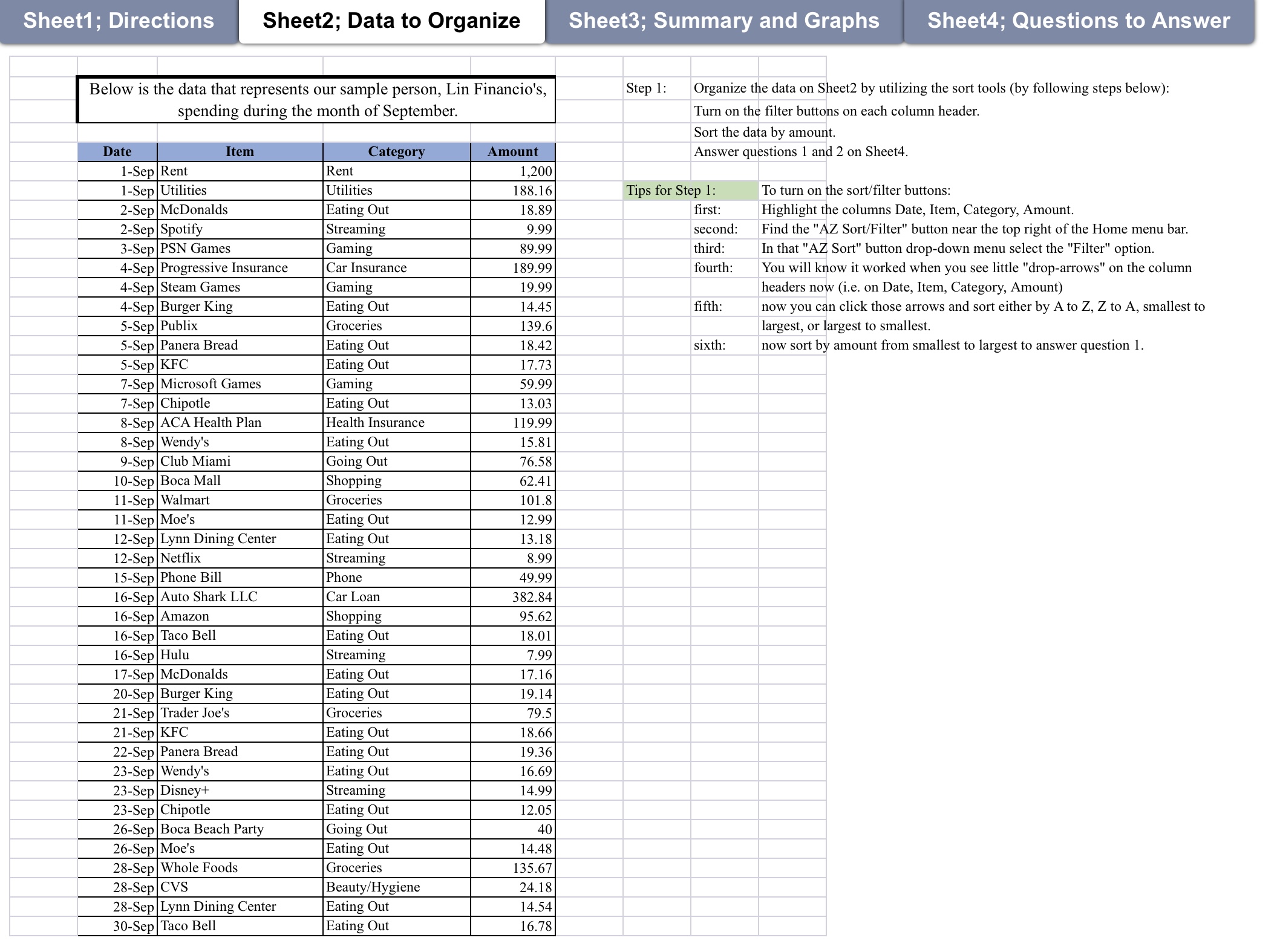
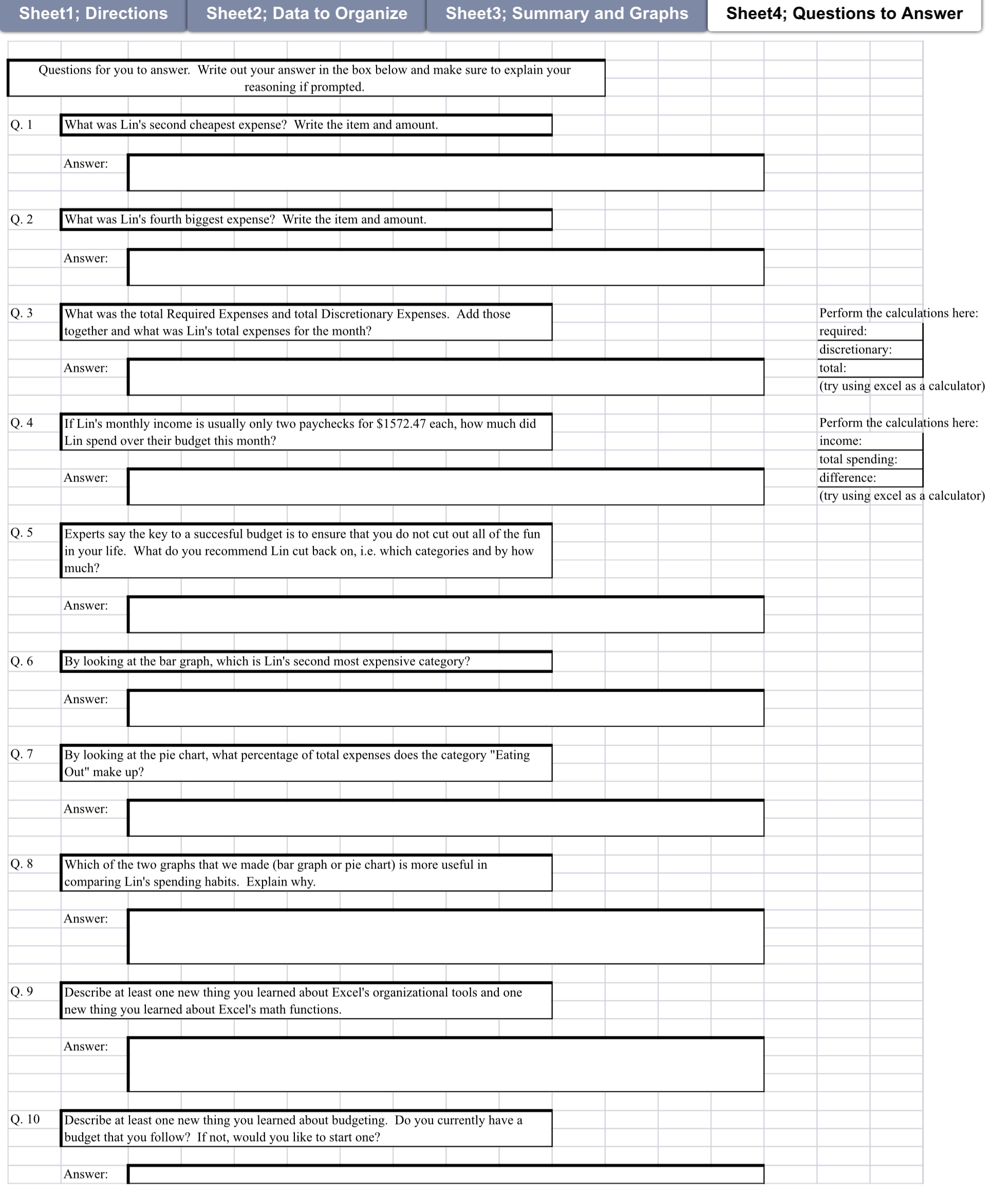
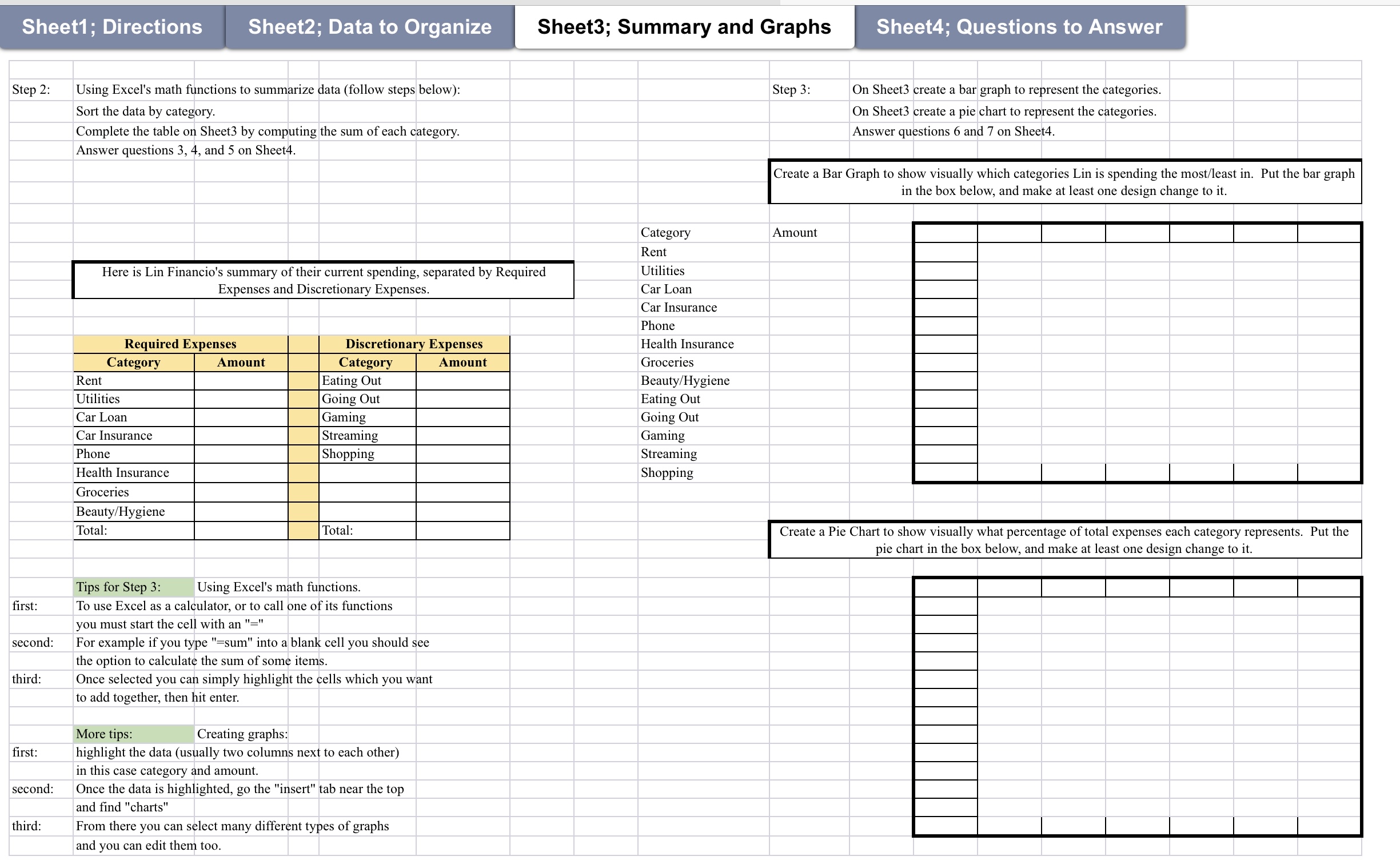
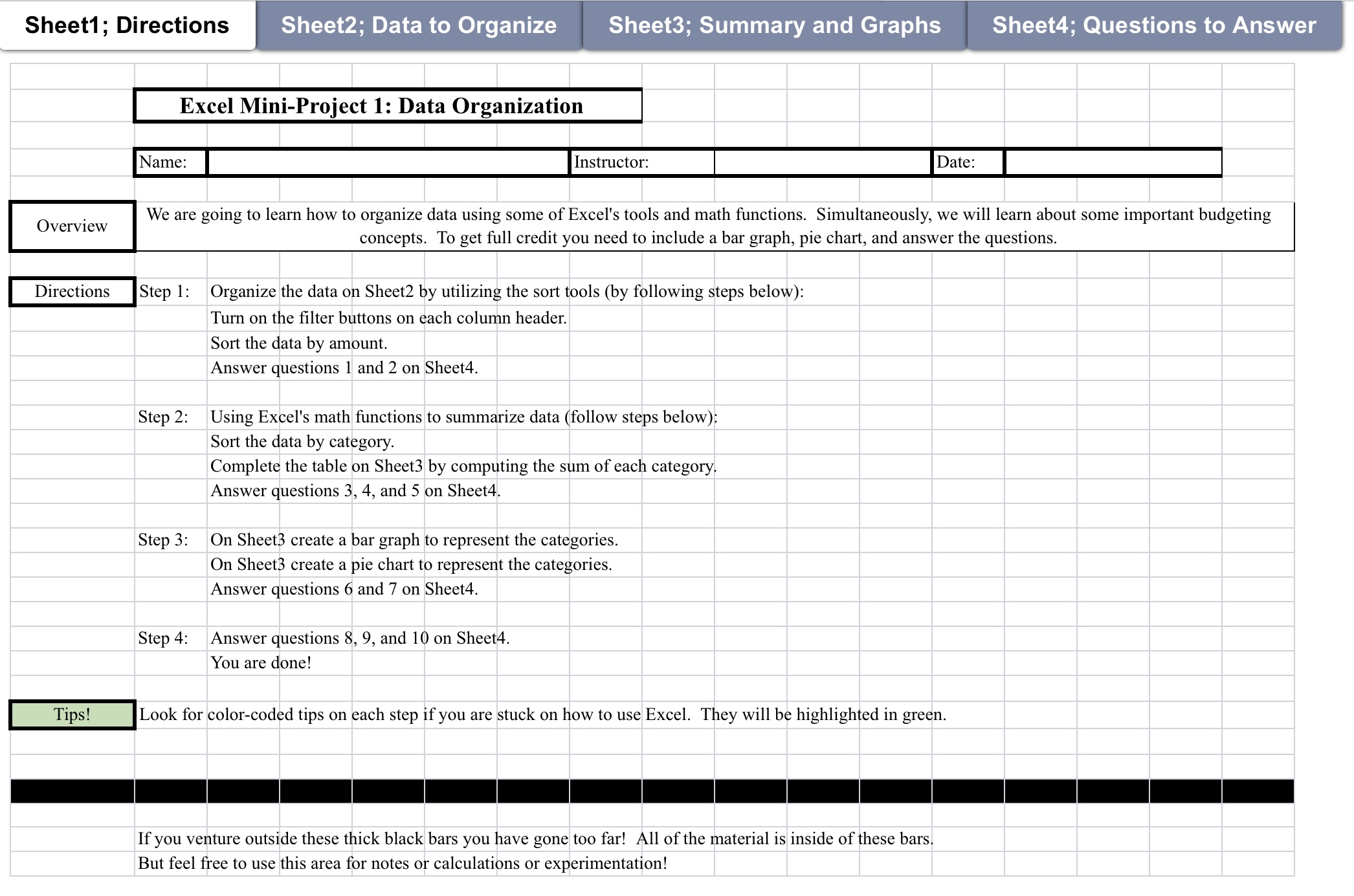
Sheet1; Directions Sheet2; Data to Organize Sheet3; Summary and Graphs Sheet4; Questions to Answer Below is the data that represents our sample person, Lin Financia's, Step 1: Organize the data on Sheet2 by utilizing the sort tools (by following steps below): spending during the month of September. Turn on the filter buttons on each column header. Sort the data by amount. Date Item Category Amount Answer questions 1 and 2 on Sheet4. 1-Sep Rent Rent 1,200 1-Sep Utilities Utilities 188.16 Tips for Step 1: To turn on the sort/filter buttons: 2-Sep Mcdonalds Eating Out 18.89 first: Highlight the columns Date, Item, Category, Amount. 2-Sep Spotify Streaming 9.99 second: Find the "AZ Sort/Filter" button near the top right of the Home menu bar. 3-Sep PSN Games Gaming 39.99 third: In that "AZ Sort" button drop-down menu select the "Filter" option. 4-Sep Progressive Insurance Car Insurance 189.99 fourth: You will know it worked when you see little "drop-arrows" on the column 4-Sep Steam Games Gaming 19.99 headers now (i.e. on Date, Item, Category, Amount) 4-Sep Burger King Eating Out 14.45 fifth: now you can click those arrows and sort either by A to Z, Z to A, smallest to 5-Sep Publix Groceries 139.6 largest, or largest to smallest. 5-Sep Panera Bread Eating Out 18.42 sixth: now sort by amount from smallest to largest to answer question 1. 5-Sep KFC Eating Out 17.73 7-Sep Microsoft Games Gaming 59.99 7-Sep Chipotle Eating Out 13.03 8-Sep ACA Health Plan Health Insurance 19.99 8-Sep Wendy's Eating Out 15.81 9-Sep Club Miami Going Out 76.58 0-Sep Boca Mal Shopping 62.41 1-Sep Walmart Groceries 101.8 1-Sep Moe's Eating Out 12.99 2-Sep Lynn Dining Center Eating Out 13.18 12-Sep Netflix Streaming 8.99 15-Sep Phone Bill Phon 49.99 16-Sep Auto Shark LLC Car Loan 82.84 16-Sep Amazon Shopping 95.62 16-Sep Taco Bell Eating Out 18.01 16-Sep Hulu Streaming 7.99 7-Sep Mcdonalds Eating Out 17.16 20-Sep Burger King Eating Out 19.14 21-Sep Trader Joe's Groceries 79.5 21-Sep KFC Eating Out 8.66 22-Sep Panera Bread Eating Out 9.36 23-Sep Wendy's Eating Out 16.69 23-Sep Disney+ Streaming 14.99 23-Sep Chipotle Eating Out 2.05 26-Sep Boca Beach Party Going Out 40 26-Sep Moe's Eating Out 14.48 28-Sep Whole Foods Groceries 35.67 28-Sep CVS Beauty/Hygiene 24.18 28-Sep Lynn Dining Center Eating Out 14.54 30-Sep Taco Bell Eating Out 16.78Sheet1; Directions Sheet2; Data to Organize Sheet3; Summary and Graphs Sheet4; Questions to Answer Questions for you to answer. Write out your answer in the box below and make sure to explain your reasoning if prompted. Q, 1 What was Lin's second cheapest expense? Write the item and amount. Answer: Q. 2 What was Lin's fourth biggest expense? Write the item and amount. Answer: Q 3 What was the total Required Expenses and total Discretionary Expenses. Add those together and what was Lin's total expenses for the month? Answer: Q, 4 If Lin's monthly income is usually only two paychecks for $1572.47 each, how much did Lin spend over their budget this month? Answer: 0- 5 Experts say the key to a succesful budget is to ensure that you do not out out all of the fun in your life. What do you recommend Lin cutback on, i.e. which categories and by how much? Answer: Q. 6 By looking at the bar graph, which is Lin's second most expensive category? Answer: Q. 7 By looking at the pie chart, what percentage of total expenses does the category "Eating Out" make up? Answer: Q- 3 Which of the two graphs that we made (bar graph or pie chart) is more useful in comparing Lin's spending habits. Explain why. Answer: Q. 9 Describe at least one new thing you learned about Excel's organizational tools and one new thing you learned about Excel's math functions. Answer: Q. 10 Describe at least one new thing you learned about budgeting. Do you currently have a budget that you follow? If not, would you like to start one? Answer: Perform the calculations here: required: discretionary; total: (try using excel as a calculator) Perform the calculations here: income: total spending: difference: (try using excel as a calculator) Direction Sheet2 Sheet3; Summary and Graphs Sheet4 Questions to A wer Step 2: rst: second: third: second: third: Using Excel's math functions to summarize data (follow steps below}: Sort the data by category. Complete the table on Sheet3 by computing the sum of each category. Answer questions 3, 4, and 5 on Sheet4 Category R ent Here is Lin Financio's summary of th 'r current spending, separated by Required Utilities Expenses and Discretionary Expenses. Car Loan Required Expenses Discretionary Expenses Category Amount Category Amount Rent Eating Out Utilities Going Out Car Loan Gaming Car Insurance Streaming Phone Shopping Health Insurance Groceries Beauty/Hygiene Total. Total. Tips for Step 3: Using Excel's math functions To use Excel as a calculator, or to call one of its functions you must start the cell with an "=" For example if you type "=sum" into ablank cell you should see the option to calculate the sum of some items. Once selected you can simply highlight the cells which you want to add together. then hit enter. More tips: Creating graphs: highlight the data (usually two columns next to each other) In this case category and amount Once the data is highlighted, go the "insert" tab near the top and find "charts" From there you can select many different types of graphs and you can edit them too. Car Insurance Phone Health Insurance Groceries Beauty/Hygiene Eating Out Going Out Gaming Streaming Shopping Step 3: 0n Sheet3 create a bar graph to represent the categories. On Sheet3 create a pie chart to represent the categories. Answer questions 6 and 7 on Sheet4. Create a Bar Graph to show visually which categories Lin is spending the most/least in. Put the bar graph in the box below, and make at least one design change In it Amount Create a Pie Chan to show visually what percentage of total expenses each category represents Put the pie chart in the box below, and make at least one design change to it. Sheet1; Directions Sheet2; Data to Organize Sheet3; Summary and Graphs Sheet4; Questions to Answer Excel Mini-Project 1: Data Organization -- We are going to learn how to organize data using some of Excel's tools and math functions. Simultaneously, we will learn about some important budgeting concepts. To get full credit you need to include a bar graph, pie chart, and answer the questions. Step 1: Organize the data on Sheet2 by utilizing the sort tools (by following steps below): Turn on the lter buttons on each column header. Sort the data by amount. Answer questions 1 and 2 on Sheet4. Step 2: Using Excel's math functions to summarize data (follow steps below): Sort the data by category. Complete the table on Sheet3 by computing the sum of each category. Answer questions 3, 4, and 5 on Sheet4. Step 3: On Sheet3 create a bar graph to represent the categories. On Sheet3 create a pie chart to represent the categories. Answer questions 6 and 7 on Sheet4. Step 4: Answer questions 8, 9, and 10 on Sheet4. You are done! Look for color-coded tips on each step if you are stuck on how to use Excel. They will be highlighted in green. If you venture outside these thick black bars you have gone too far! All of the material is inside of these bars. But feel free to use this area for notes or calculations or experimentation









 Study Help