







Question: High-Low Method and Contribution Format Income Statement using Excel's SUM and Basic Math Functions ay Corporation has provided data from a two-year perlod to ald
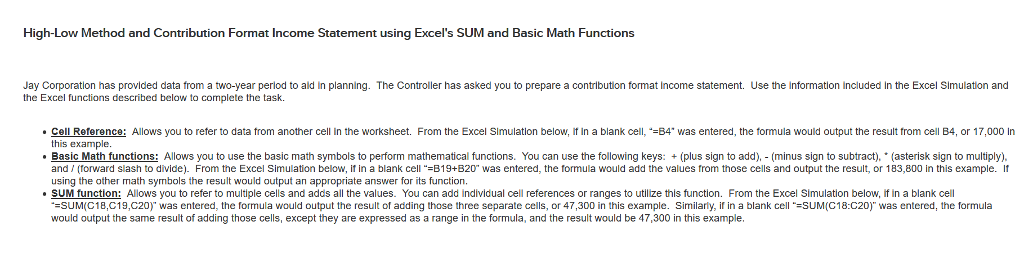
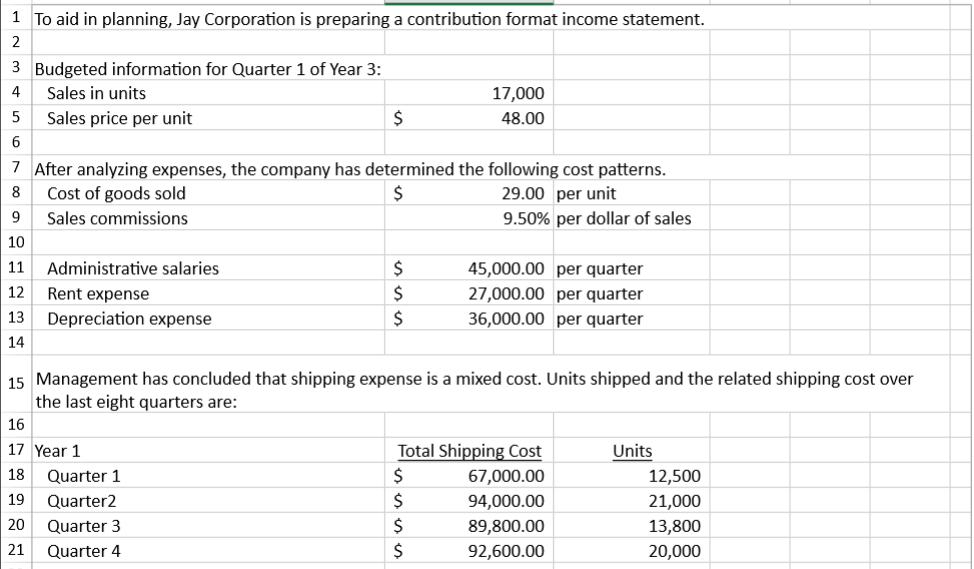
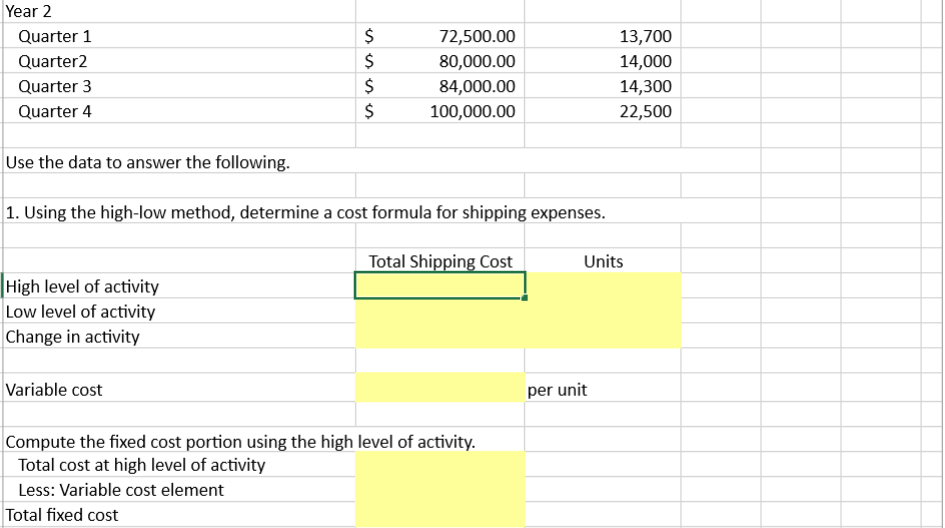
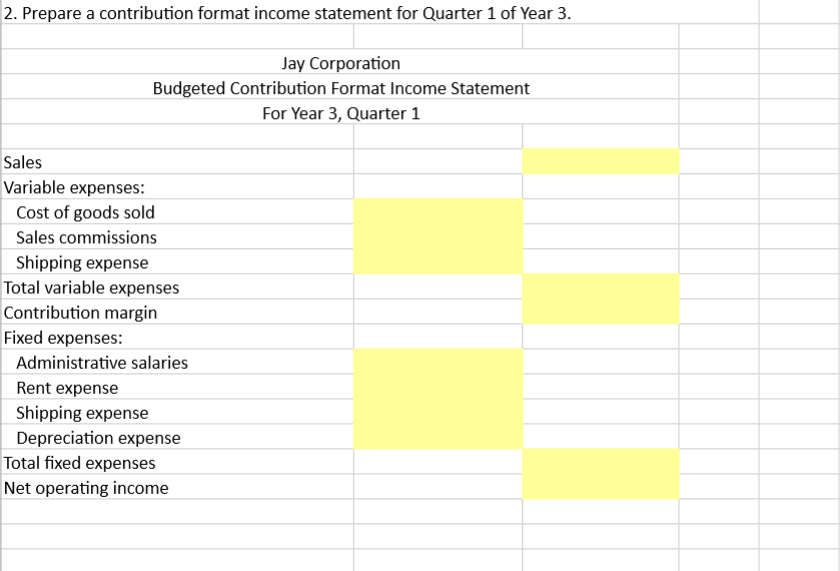
High-Low Method and Contribution Format Income Statement using Excel's SUM and Basic Math Functions ay Corporation has provided data from a two-year perlod to ald in planning. The Controller has asked you to prepare a contribution format Income statement. Use the information Included In the Excel Simulation and the Excel functions described below to complete the task. Cell Reference: Allows you to reter to data trom another cell in the worksheet. From the Excel Simulation below, If in a blank cell, -B4" was entered, the tormula would output the result from cell B4, or 17,000 In this example Basic Math functions: Allows you to use the basic math symbols to perform mathematical functions. You can use the following keys: (plus sign to add), (minus sign to subtract), (asterisk sign to multiply) and (forward slash to divide). From the Excel Simulation below, if in a blank cell " B19+B20" was entered, the formula would add the values trom those cells and output the result, or 183,800 in this example. If using the other math symbols the result would output an appropriate answer for its function. SUM function: Allows you to refer to multiple cells and adds all the values. You can add individual cell references or ranges to utitze this function. From the Excel Simulation below, if in a blank cel SUM(C18,C19,C20)" was entered, the formula would output the result of adding those three separate cells, or 47,300 in this example. Similarly, i in a blank cell SUM(C18:C20)" was entered, the formula would output the same result of adding those cells, except they are expressed as a range in the formula, and the result would be 47,300 in this example
Step by Step Solution
There are 3 Steps involved in it

Get step-by-step solutions from verified subject matter experts
 Study Help