







Question: Hint: Select cells B7:F24 and use Excel's Create from Selection command to create named ranges for each row using the labels at the left side
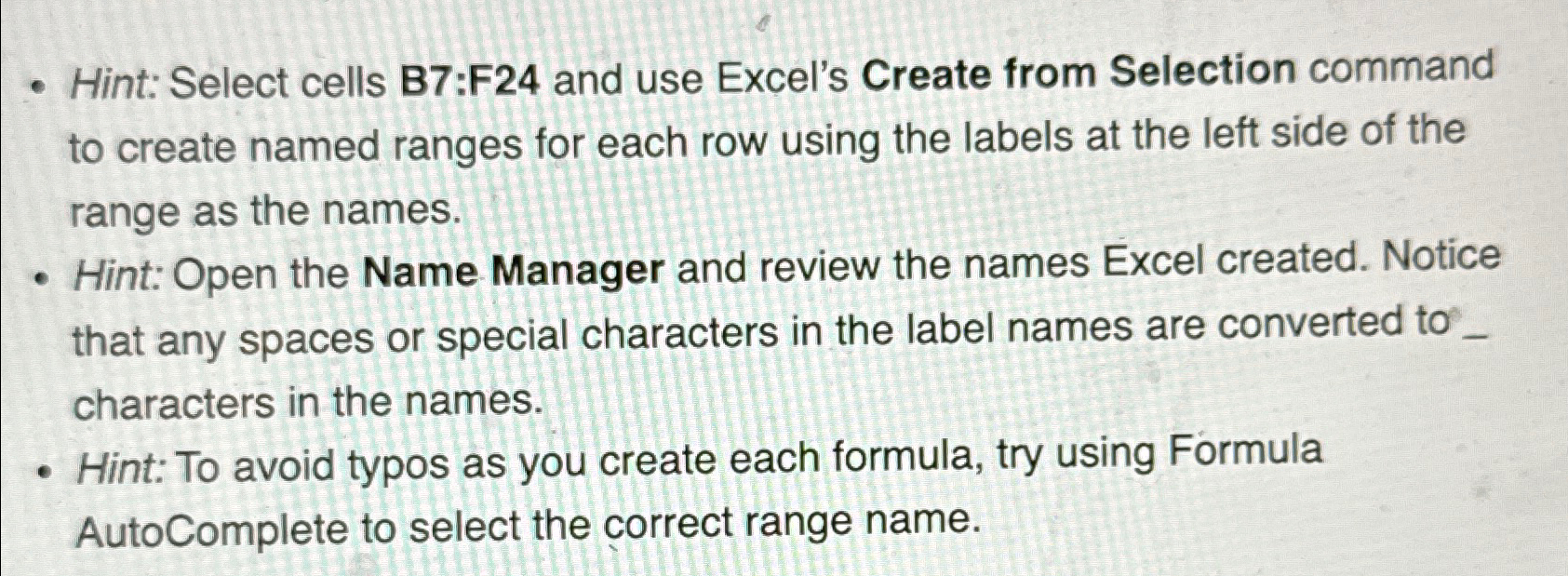
Hint: Select cells B7:F24 and use Excel's Create from Selection command to create named ranges for each row using the labels at the left side of the range as the names.\ Hint: Open the Name Manager and review the names Excel created. Notice that any spaces or special characters in the label names are converted to characters in the names.\ Hint: To avoid typos as you create each formula, try using Formula AutoComplete to select the correct range name.
- Hint: Select cells B7:F24 and use Excel's Create from Selection command to create named ranges for each row using the labels at the left side of the range as the names. - Hint: Open the Name Manager and review the names Excel created. Notice that any spaces or special characters in the label names are converted to characters in the names. - Hint: To avoid typos as you create each formula, try using Formula AutoComplete to select the correct range name
Step by Step Solution
There are 3 Steps involved in it

Get step-by-step solutions from verified subject matter experts
 Study Help