







Question: How can I write the IF formula by using the information below? Task 1) Building your Spreadsheet Start a new workbook and set up a
How can I write the IF formula by using the information below?
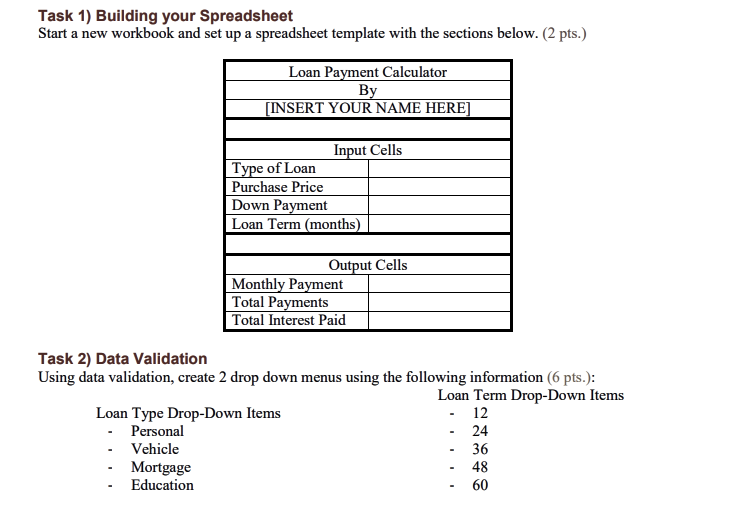
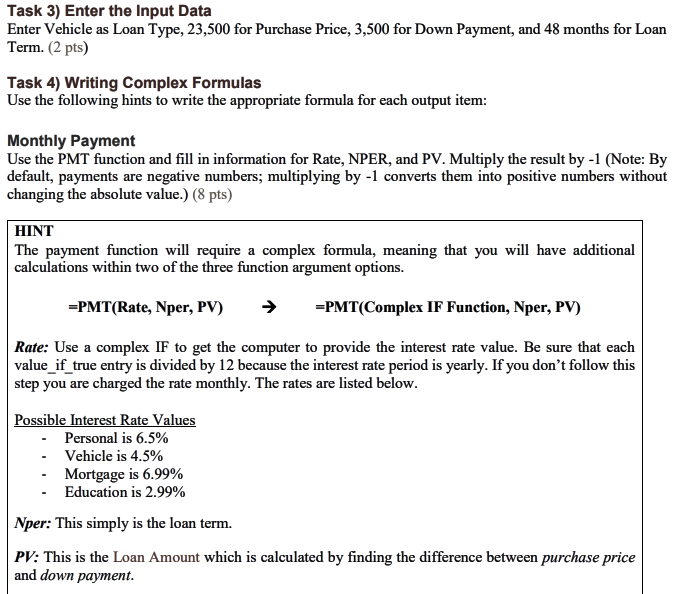
Task 1) Building your Spreadsheet Start a new workbook and set up a spreadsheet template with the sections below. (2 pts.) Loan Payment Calculator By [INSERT YOUR NAME HERE] Input Cells Type of Loan Purchase Price Down Payment Loan Term (months) Output Cells Monthly Payment Total Payments Total Interest Paid Task 2) Data Validation Using data validation, create 2 drop down menus using the following information (6 pts.): Loan Term Drop-Down Items Loan Type Drop-Down Items - 12 Personal 24 Vehicle 36 Mortgage 48 Education 60 Task 3) Enter the Input Data Enter Vehicle as Loan Type, 23,500 for Purchase Price, 3,500 for Down Payment, and 48 months for Loan Term. (2 pts) Task 4) Writing Complex Formulas Use the following hints to write the appropriate formula for each output item: Monthly Payment Use the PMT function and fill in information for Rate, NPER, and PV. Multiply the result by -1 (Note: By default, payments are negative numbers; multiplying by -1 converts them into positive numbers without changing the absolute value.) (8 pts) HINT The payment function will require a complex formula, meaning that you will have additional calculations within two of the three function argument options. =PMT(Rate, Nper, PV) =PMT(Complex IF Function, Nper, PV) Rate: Use a complex IF to get the computer to provide the interest rate value. Be sure that each value_if_true entry is divided by 12 because the interest rate period is yearly. If you don't follow this step you are charged the rate monthly. The rates are listed below. Possible Interest Rate Values Personal is 6.5% Vehicle is 4.5% Mortgage is 6.99% Education is 2.99% Nper: This simply is the loan term. PV: This is the Loan Amount which is calculated by finding the difference between purchase price and down payment. Task 1) Building your Spreadsheet Start a new workbook and set up a spreadsheet template with the sections below. (2 pts.) Loan Payment Calculator By [INSERT YOUR NAME HERE] Input Cells Type of Loan Purchase Price Down Payment Loan Term (months) Output Cells Monthly Payment Total Payments Total Interest Paid Task 2) Data Validation Using data validation, create 2 drop down menus using the following information (6 pts.): Loan Term Drop-Down Items Loan Type Drop-Down Items - 12 Personal 24 Vehicle 36 Mortgage 48 Education 60 Task 3) Enter the Input Data Enter Vehicle as Loan Type, 23,500 for Purchase Price, 3,500 for Down Payment, and 48 months for Loan Term. (2 pts) Task 4) Writing Complex Formulas Use the following hints to write the appropriate formula for each output item: Monthly Payment Use the PMT function and fill in information for Rate, NPER, and PV. Multiply the result by -1 (Note: By default, payments are negative numbers; multiplying by -1 converts them into positive numbers without changing the absolute value.) (8 pts) HINT The payment function will require a complex formula, meaning that you will have additional calculations within two of the three function argument options. =PMT(Rate, Nper, PV) =PMT(Complex IF Function, Nper, PV) Rate: Use a complex IF to get the computer to provide the interest rate value. Be sure that each value_if_true entry is divided by 12 because the interest rate period is yearly. If you don't follow this step you are charged the rate monthly. The rates are listed below. Possible Interest Rate Values Personal is 6.5% Vehicle is 4.5% Mortgage is 6.99% Education is 2.99% Nper: This simply is the loan term. PV: This is the Loan Amount which is calculated by finding the difference between purchase price and down payment
Step by Step Solution
There are 3 Steps involved in it

Get step-by-step solutions from verified subject matter experts
 Study Help