







Question: How to redirect command output to a text file? the new IP address 10. Close the command Prompt window Project 4-2: Redirect Command Output to
How to redirect command output to a text file?
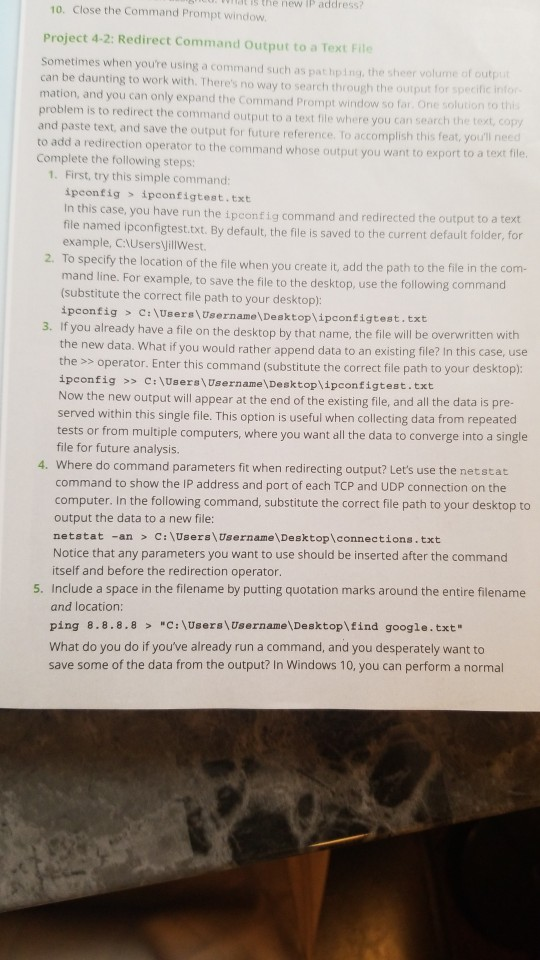
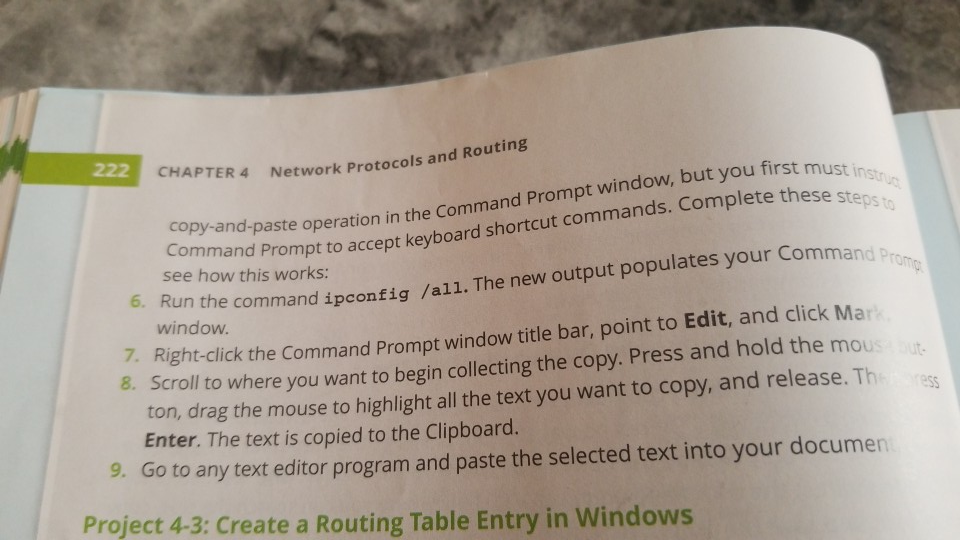
the new IP address 10. Close the command Prompt window Project 4-2: Redirect Command Output to a Text File Sometimes when youre using a command such as paling the sheer volume of out can be daunting to work with. There's no way to search through the output for specific intor mation, and you can only expand the Command Prompt window so far. One solution to this problem is to redirect the command output to a text file where you can search the Copy and paste text and save the output for future reference. To accomplish this feat, you'll need to add a redirection operator to the command whose output you want to export to a text file. Complete the following steps: 1. First, try this simple command: ipconfig > ipconfigtest.txt In this case, you have run the ipconfig command and redirected the output to a text file named ipconfigtest.txt. By default, the file is saved to the current default folder, for example, C:\Users VillWest. 2. To specify the location of the file when you create it add the path to the file in the com- mand line. For example, to save the file to the desktop, use the following command (substitute the correct file path to your desktop): ipconfig > C:\Users\Username\Desktop\ipconfigtest.txt 3. If you already have a file on the desktop by that name, the file will be overwritten with the new data. What if you would rather append data to an existing file? In this case, use the >> operator. Enter this command (substitute the correct file path to your desktop): ipconfig >> C:\Users\Username\Desktop\ipconfigtest.txt Now the new output will appear at the end of the existing file, and all the data is pre- served within this single file. This option is useful when collecting data from repeated tests or from multiple computers, where you want all the data to converge into a single file for future analysis. 4. Where do command parameters fit when redirecting output? Let's use the netstat command to show the IP address and port of each TCP and UDP connection on the computer. In the following command, substitute the correct file path to your desktop to output the data to a new file: netstat -an > C:\Users\Username\Desktop\connections.txt Notice that any parameters you want to use should be inserted after the command itself and before the redirection operator. 5. Include a space in the filename by putting quotation marks around the entire filename and location: ping 8.8.8.8 > "C:\Users\Username\Desktop\find google.txt" What do you do if you've already run a command, and you desperately want to save some of the data from the output? In Windows 10, you can perform a normal 222 t must instruc CHAPTER 4 Network Protocols and ork Protocols and Routing these steps to copy-and-paste operation in the Command and Prompt window, but you first must amand Prompt to accept keyboard shortcut commands. Complete these ste Command Prompt to accept see how this works: mmand Promo e command ipconfig /all. The new output populates your Comme ese window. Eht-click the Command Prompt window title bar, point to Edit, and click Mar con to where you want to begin collecting the copy. Press and hold the mous ton, drag the mouse to highlight all the text you want to copy, and release. Th Enter. The text is copied to the Clipboard. 9. Go to any text editor program and paste the selected text into your documen Project 4-3: Create a Routing Table Entry in Windows
Step by Step Solution
There are 3 Steps involved in it

Get step-by-step solutions from verified subject matter experts
 Study Help