







Question: How to submit: Make sure your solutions work at least as required. Export your homework folder (project folder) to a compressed file (ZIP) and then
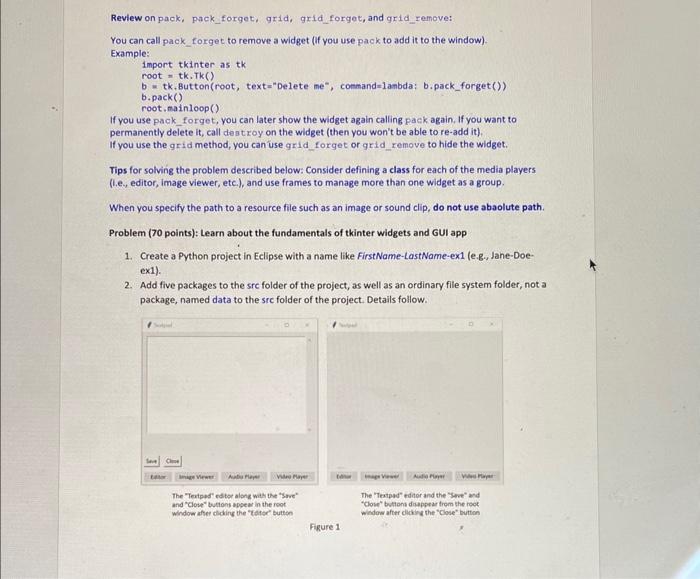
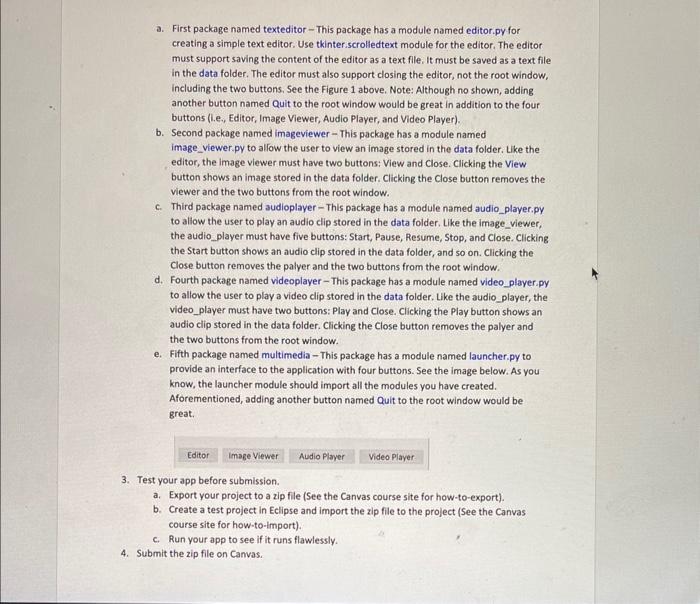
How to submit: Make sure your solutions work at least as required. Export your homework folder (project folder) to a compressed file (ZIP) and then upload it on the Canvas course site. The submission link is located right under the homework instructions. See below to learn how to export a Python project to a zip file. Grading policy and rubrics: Your homework assignments will be graded based on the quality of solutions. I will make every attempt to standardize grading procedures, but I reserve the right to normalize grades to account for possible disparities. Specifically, the policy on grading each solution is as follows: - (Mechanics up to 90% of the max grade) If your solution runs without any error and produces the required output. At the minimum, your solution needs to accommodate the requirements stated in the directions. Your solution can always go beyond the requirements once it meets them. Any solutions that do not meet the requirements will lose points at the instructor's discretion. - There will be n automatic partial points for your submitted solutions. It depends on how substantial, meaningful, and close your code is to the supposed solution to the problem. (0 credit) If your solution, even without any errors, is not substantial to be deemed a reasonable effort. ( 0 credit) If your solution contains any unhandled/unfixed runtime and/or syntax errors. ( 50% off the max grade for a serious logic error. 10% for each minor logic error) A logic error is caused by incorrect logic (e.g., dividing a number by zero), incorrect expressions, improper use of APis, and so forth, that returns an unexpected output upon execution. - (Documentation up to 10% of the max grade) This portion of credit is based on code readability enhanced by proper indentation, spacing, and documentation by comments. The necessary condition for this policy is that your program should first run without errors and produce the required output. - (Additional rubrics) They will be specified in the homework instructions. Module metadata: - At the top of each module, add a docstring similar to the one below. Created on sep26,2022 Gauthor: Jane Doe Enote: cdescription of why and how of the modules: Review on pack, pack_forget, grid, grid_forget, and grid_remove: You can call pack forget to remove a widget (if you use pack to add it to the window). Example: import tkinter as tk root = tk.Tk() b= tk. Button (root, text="Delete me", command=1anbda; b.pack_forget ())) b. pack() root,mainloop() If you use pack_forget, you can later show the widget again calling pack again. If you want to permanently delete it, call destroy on the widget (then you won't be able to re-add it). If you use the grid method, you can use grid forget or grid remove to hide the widget. Tips for solving the problem described below: Consider defining a class for each of the media players (i.e., editor, image viewer, etc.), and use frames to manage more than one widget as a group. When you specify the path to a resource file such as an image or sound clip, do not use abaolute path. Problem (70 points): Learn about the fundamentals of tkinter widgets and GUI app 1. Create a Python project in Eclipse with a name like FirstName-LastName-ex1 (e.g, Jane-Doeexi). 2. Add five packages to the sre folder of the project, as well as an ordinary file system folder, not a package, named data to the src folder of the project. Details follow. The "Tertpes" ed tor along wat the "Srre" and "close" buttons appear in the root The "Teatpad" editor and the "Sore" and windon after alding the 'tefser' button "Cose" butions dinappear from the rook Figure 1 a. First package named texteditor - This package has a module named editor.py for creating a simple text editor. Use tkinter.scrolledtext module for the editor. The editor must support saving the content of the editor as a text file. It must be saved as a text file in the data folder. The editor must also support closing the editor, not the root window, including the two buttons, See the Figure 1 above. Note: Although no shown, adding another button named Quit to the root window would be great in addition to the four buttons (i.e., Editor, Image Viewer, Audio Player, and Video Player). b. Second package named imageviewer - This package has a module named image_viewer.py to allow the user to view an image stored in the data folder. Like the editor, the image vlewer must have two buttons: View and Close. Clicking the View button shows an image stored in the data folder. Clicking the Close button removes the viewer and the two buttons from the root window. c. Third package named audioplayer - This package has a module named audio_player.py to allow the user to play an audio clip stored in the data folder. Like the image_viewer, the audio player must have five buttons: Start, Pause, Resume, Stop, and Close. Clicking the Start button shows an audio clip stored in the data folder, and so on. Clicking the Close button removes the palyer and the two buttons from the root window. d. Fourth package named videoplayer - This package has a module named video player.py to allow the user to play a video clip stored in the data folder. Like the audio player, the video_player must have two buttons: Play and Close. Clicking the Play button shows an audio clip stored in the data folder. Clicking the Close button removes the palyer and the two buttons from the root window. e. Fifth package named multimedia - This package has a module named launcher py to provide an interface to the application with four buttons. See the image below. As you know, the launcher module should import all the modules you have created. Aforementioned, adding another button named Quit to the root window would be great. 3. Test your app before submission. a. Export your project to a zip file (See the Canvas course site for how-to-export). b. Create a test project in Eclipse and import the zip file to the project (See the Canvas course site for how-to-import). c. Run your app to see if it runs flawlessly. 4. Submit the zip file on Canvas
Step by Step Solution
There are 3 Steps involved in it

Get step-by-step solutions from verified subject matter experts
 Study Help