



Question: how to write these information to the Sage 300, steps. 3. Enter the information on the check stocks tab in the RBC bank record. This
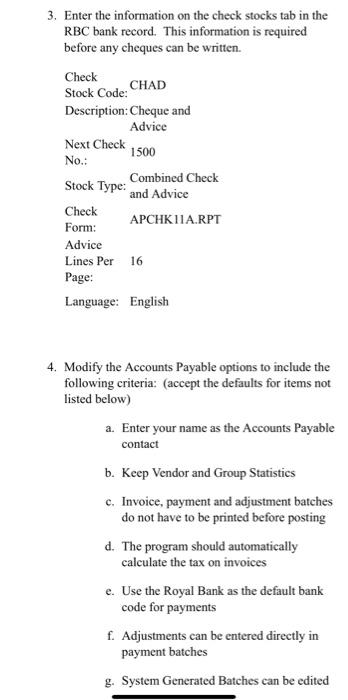
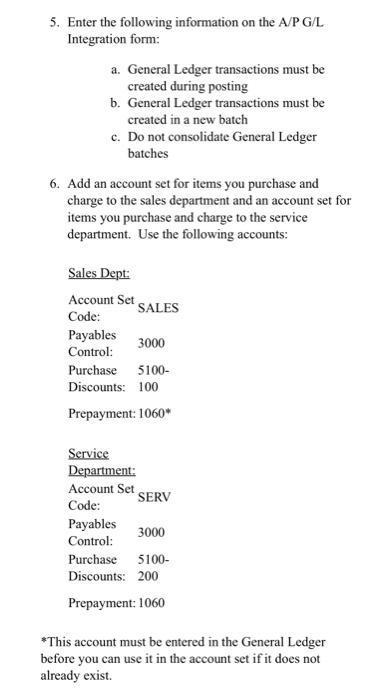
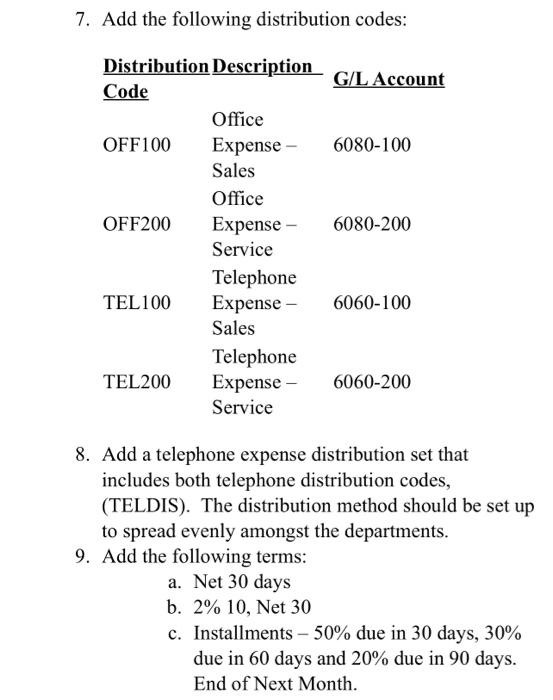
3. Enter the information on the check stocks tab in the RBC bank record. This information is required before any cheques can be written. Check Stock Code: Description: Cheque and Advice Next Check 1500 No.: Stock Type: Combined Check Check APCHK11A.RPT Form: Advice Lines Per 16 Page: Language: English 4. Modify the Accounts Payable options to include the following criteria: (accept the defaults for items not listed below) a. Enter your name as the Accounts Payable contact b. Keep Vendor and Group Statistics c. Invoice, payment and adjustment batches do not have to be printed before posting d. The program should automatically calculate the tax on invoices e. Use the Royal Bank as the default bank code for payments f. Adjustments can be entered directly in payment batches g. System Generated Batches can be edited 5. Enter the following information on the A/PG/L Integration form: a. General Ledger transactions must be created during posting b. General Ledger transactions must be created in a new batch c. Do not consolidate General Ledger batches 6. Add an account set for items you purchase and charge to the sales department and an account set for items you purchase and charge to the service department. Use the following accounts: Sales Dept: Account Set SALES Code: Purchase 5100- Discounts: 100 Prepayment: 1060 Service Department: Account Set SERV Code: Payables 3000 Control: Purchase 5100- Discounts: 200 Prepayment: 1060 * This account must be entered in the General Ledger before you can use it in the account set if it does not already exist. 7. Add the following distribution codes: 8. Add a telephone expense distribution set that includes both telephone distribution codes, (TELDIS). The distribution method should be set up to spread evenly amongst the departments. 9. Add the following terms: a. Net 30 days b. 2%10, Net 30 c. Installments 50% due in 30 days, 30% due in 60 days and 20% due in 90 days. End of Next Month. 3. Enter the information on the check stocks tab in the RBC bank record. This information is required before any cheques can be written. Check Stock Code: Description: Cheque and Advice Next Check 1500 No.: Stock Type: Combined Check Check APCHK11A.RPT Form: Advice Lines Per 16 Page: Language: English 4. Modify the Accounts Payable options to include the following criteria: (accept the defaults for items not listed below) a. Enter your name as the Accounts Payable contact b. Keep Vendor and Group Statistics c. Invoice, payment and adjustment batches do not have to be printed before posting d. The program should automatically calculate the tax on invoices e. Use the Royal Bank as the default bank code for payments f. Adjustments can be entered directly in payment batches g. System Generated Batches can be edited 5. Enter the following information on the A/PG/L Integration form: a. General Ledger transactions must be created during posting b. General Ledger transactions must be created in a new batch c. Do not consolidate General Ledger batches 6. Add an account set for items you purchase and charge to the sales department and an account set for items you purchase and charge to the service department. Use the following accounts: Sales Dept: Account Set SALES Code: Purchase 5100- Discounts: 100 Prepayment: 1060 Service Department: Account Set SERV Code: Payables 3000 Control: Purchase 5100- Discounts: 200 Prepayment: 1060 * This account must be entered in the General Ledger before you can use it in the account set if it does not already exist. 7. Add the following distribution codes: 8. Add a telephone expense distribution set that includes both telephone distribution codes, (TELDIS). The distribution method should be set up to spread evenly amongst the departments. 9. Add the following terms: a. Net 30 days b. 2%10, Net 30 c. Installments 50% due in 30 days, 30% due in 60 days and 20% due in 90 days. End of Next Month
Step by Step Solution
There are 3 Steps involved in it

Get step-by-step solutions from verified subject matter experts