







Question: I currently have the following code which creates a GUI that looks like this: At the moment when I click on custom pentagon it has
I currently have the following code which creates a GUI that looks like this:
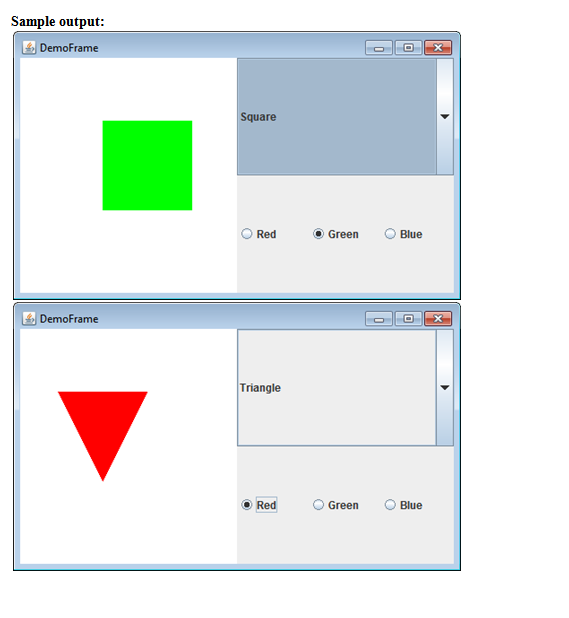
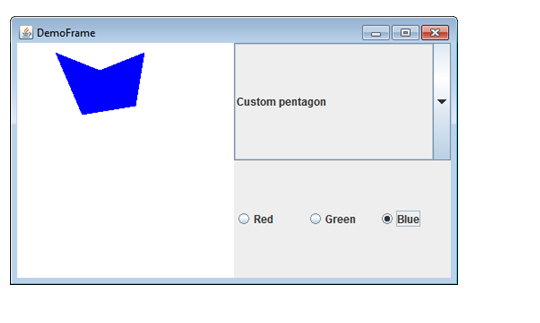
At the moment when I click on custom pentagon it has preset vaules and makes the same pentagon, I would like to modify it so when I click on 'custom pentagon' I am able to click 5 different points in the window to the left and using the 5 points, draw the custom pentagon.
Square and triangle are done and dont need to be edited
my code for the program:
import javax.swing.*; import java.awt.*; import java.awt.event.ActionEvent; import java.awt.event.ActionListener; import java.awt.event.ItemEvent; import java.awt.event.ItemListener; import java.awt.geom.Line2D;
public class DemoFrame extends JFrame implements ActionListener { int color=1; int selectedShape=0; JComboBox
public DemoFrame() { super("DemoFrame"); setPreferredSize(new Dimension(500,300)); setDefaultCloseOperation(WindowConstants.EXIT_ON_CLOSE); setLayout(new GridLayout()); JPanel panel = new JPanel(new GridLayout()); JPanel panel1 = new JPanel(new GridLayout(2,0)); JPanel panel2 = new JPanel(new GridLayout(0,3));
String[] bookTitles = new String[] {"Triangle", "Square", "Custom pentagon"}; bookList = new JComboBox(bookTitles); r1=new JRadioButton("Red"); r1.addActionListener(this); r2=new JRadioButton("Green"); r2.addActionListener(this); r3=new JRadioButton("Blue"); r3.addActionListener(this); r1.setBounds(75,50,100,30); r2.setBounds(75,100,100,30); ButtonGroup bg=new ButtonGroup(); bg.add(r1); bg.add(r2); bg.add(r3); panel.setBackground(Color.WHITE); panel2.add(r1); panel2.add(r2); panel2.add(r3); panel1.add(bookList); panel1.add(panel2); getContentPane().add(panel); getContentPane().add(panel1); bookList.addActionListener(this); pack(); }
public void actionPerformed(ActionEvent e) { int selct=bookList.getSelectedIndex(); selectedShape=selct; if(r1.isSelected()) color=1; else if(r2.isSelected()) color=2; else if(r3.isSelected()) color=3; repaint(); }
public static void main(String[] args) { java.awt.EventQueue.invokeLater(new Runnable() { public void run() { new DemoFrame().setVisible(true); } }); }
@Override public void paint(Graphics g) { super.paint(g); int r=0; int gr=0; int b=0; if(color==1) { r=255; } if(color==2) gr=255; if(color==3) b=255; g.setColor(new Color(r,gr,b)); if(selectedShape==0) { int[] xPoints={50,100,150}; int[] yPoints={100,200,100}; g.fillPolygon(xPoints, yPoints, 3); //repaint(); } if(selectedShape==1) { g.fillRect(100, 100, 100, 100); //repaint(); } if(selectedShape==2) { int[] xPoints1={150,100,50,80,140}; int[] yPoints1={40,60,40,110,100}; g.fillPolygon(xPoints1, yPoints1, 5); //repaint(); } } }
Sample output: DemoFrame DemoFrame Square O Red Green O Blue Triangle Red O Green O Blue
Step by Step Solution
There are 3 Steps involved in it

Get step-by-step solutions from verified subject matter experts
 Study Help