







Question: I need help Showing how to complete these steps! C++ Objective Add some customization and exibility to the grid's individual cells in the drawing panel.
I need help Showing how to complete these steps! C++
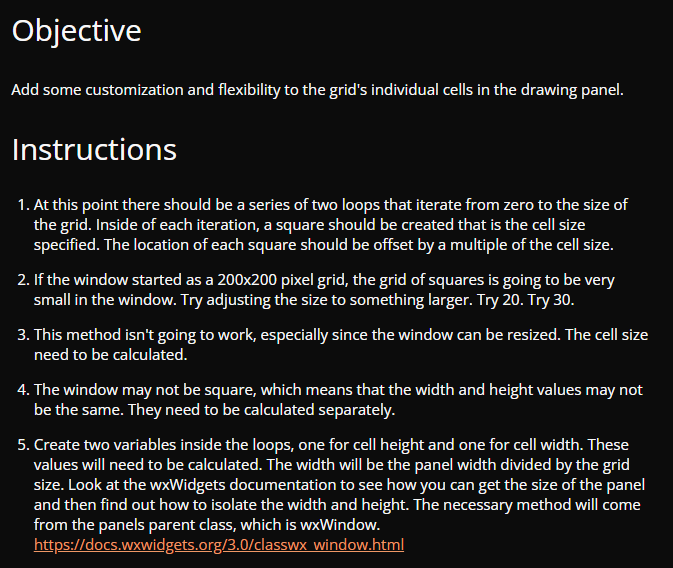
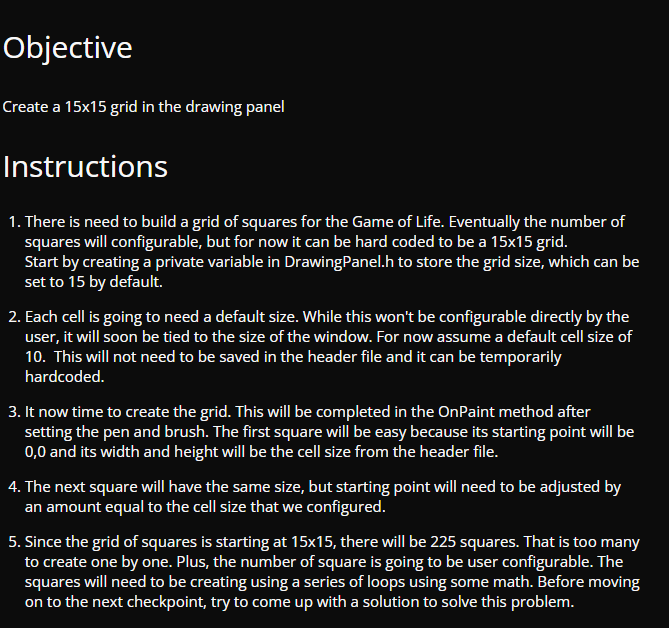
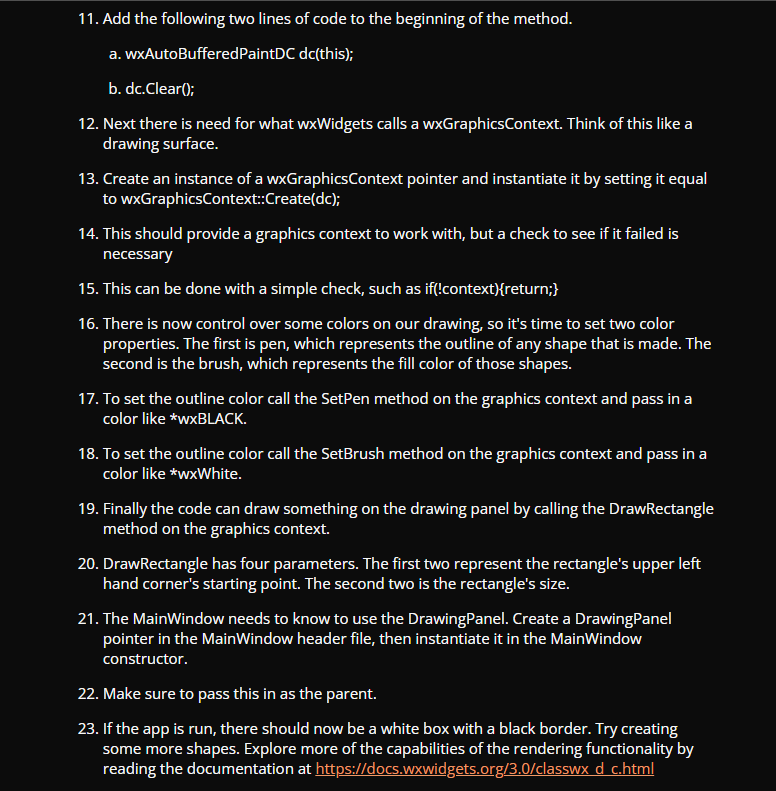
Objective Add some customization and exibility to the grid's individual cells in the drawing panel. Instructions 1. At this point there should be a series of two loops that iterate from zero to the size of the grid. Inside of each iteration, a square should be created that is the cell size specified. The location of each square should be offset bya multiple ofthe cell size. .lfthe window started as a 200x200 pixel grid, the grid ofsquares is going to be very small in the window. Try adjusting the size to something larger. Try 20. Try 30. . This method isn't going to work, especially since the window can be resized. The cell size need to be calculated. . The window may not be square, which means that the width and height values may not be the same. They need to be calculated separately. . Create two variables inside the loops. one for cell height and one for cell width. These values will need to be calculated. The width will be the panel width divided by the grid size. Look at the wxWidgets documentation to see howI you can get the size of the panel and then find out how to isolate the width and height. The necessary method will come from the panels parent class which is wxWindow. Objective Create a 15x15 grid in the drawing panel Instructions 1. There is need to build a grid of squares for the Game of Life. Eventually the number of squares wi|| configurable, but for now it can be hard coded to be a 15x15 grid. Start by creating a private variable in DrawingPanel.h to store the grid size, which can be set to \"IE by default. 2. Each cell is going to need a default size. While this won't be configurable directly by the user, it will soon be tied to the size of the window. For now assume a default cell size of 'I. This will not need to be saved in the header file and it can be temporarily hardcoded. 3. It now time to create the grid. This will be completed in the DnPaint method after setting the pen and brush. The first square will be easy because its starting point will be {1.0 and its width and height will be the cell size from the header file. 4. The next square will have the same size, but starting point will need to be adjusted by an amount equal to the cell size that we congured. 5. Since the grid of squares is starting at 15x15, there will be 225 squares. That is too many to create one by one. Plus, the number of square is going to be user configurable. The squares will need to be creating using a series of loops using some math. Before moving on to the next checkpoint, try to come up with a solution to solve this problem. 11. Add the following two lines of code to the beginning of the method. a. wxAutoBufferedPaintDC dc(this); b. dc.Clear(); 12. Next there is need for what wxWidgets calls a wxGraphicsContext. Think of this like a drawing surface. 13. Create an instance of a wxGraphicsContext pointer and instantiate it by setting it equal to wxGraphicsContext::Create(dc); 14. This should provide a graphics context to work with, but a check to see if it failed is necessary 15. This can be done with a simple check, such as if(!context){return;} 16. There is now control over some colors on our drawing, so it's time to set two color properties. The first is pen, which represents the outline of any shape that is made. The second is the brush, which represents the fill color of those shapes. 17. To set the outline color call the SetPen method on the graphics context and pass in a color like *wxBLACK. 18. To set the outline color call the SetBrush method on the graphics context and pass in a color like *wxWhite. 19. Finally the code can draw something on the drawing panel by calling the DrawRectangle method on the graphics context. 20. DrawRectangle has four parameters. The first two represent the rectangle's upper left hand corner's starting point. The second two is the rectangle's size. 21. The MainWindow needs to know to use the DrawingPanel. Create a DrawingPanel pointer in the MainWindow header file, then instantiate it in the MainWindow constructor. 22. Make sure to pass this in as the parent. 23. If the app is run, there should now be a white box with a black border. Try creating some more shapes. Explore more of the capabilities of the rendering functionality by reading the documentation at https://docs.wxwidgets.org/3.0/classwx d_c.html
Step by Step Solution
There are 3 Steps involved in it

Get step-by-step solutions from verified subject matter experts
 Study Help