Question: i need help with the formulas for f-q. c. Create named ranges for Interest Rate, Term in Years, and Down Payment in cells T2:V2. Use
i need help with the formulas for f-q.
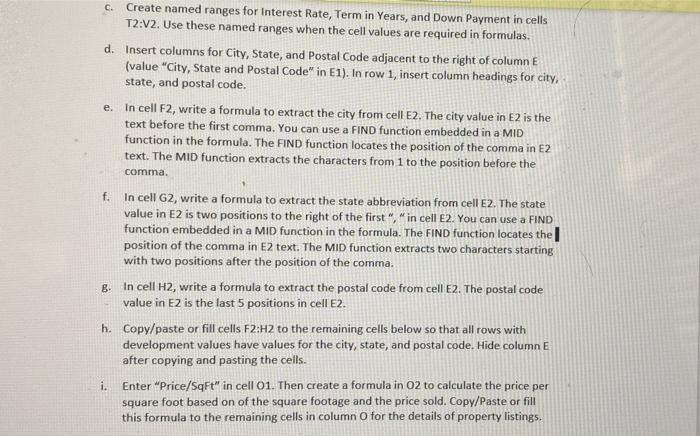
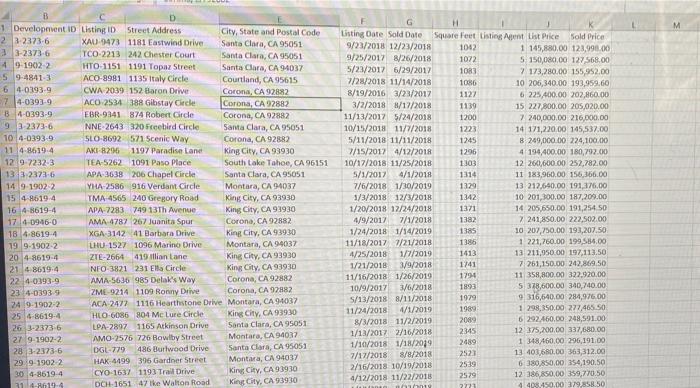
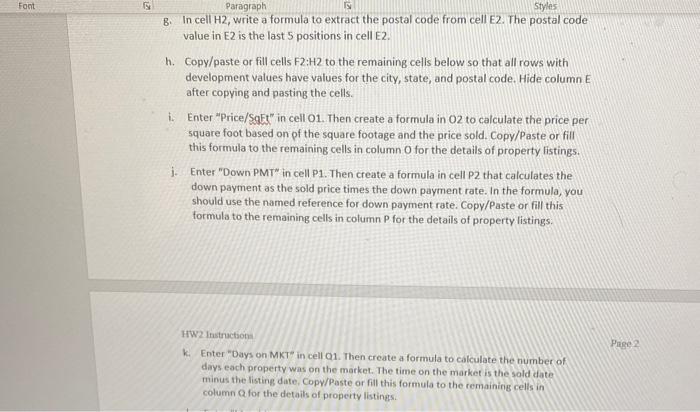
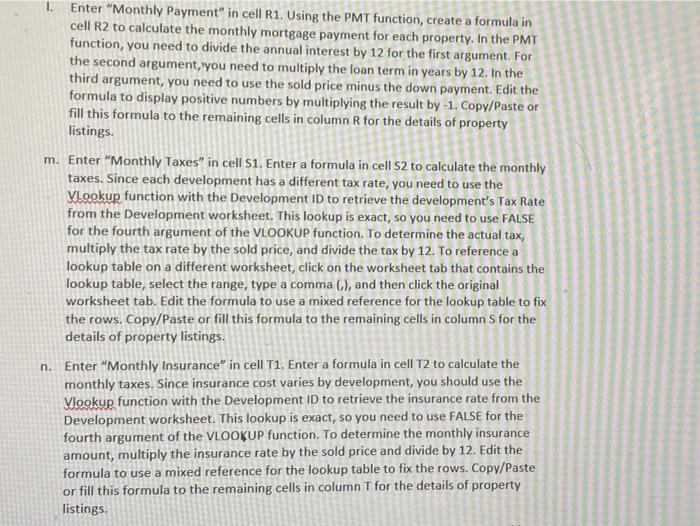
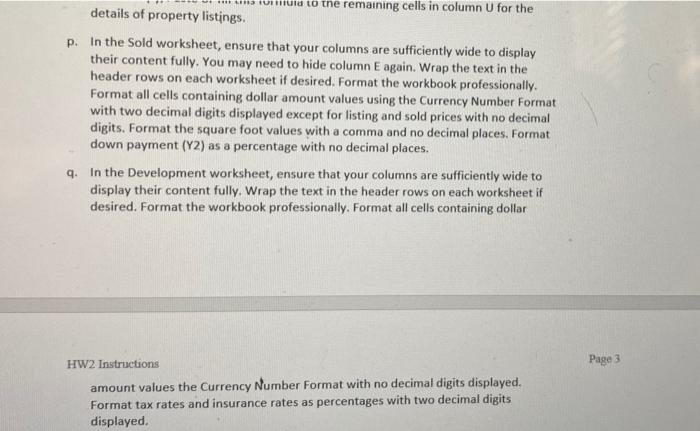
c. Create named ranges for Interest Rate, Term in Years, and Down Payment in cells T2:V2. Use these named ranges when the cell values are required in formulas. d. Insert columns for City, State, and Postal Code adjacent to the right of column E (value "City, State and Postal Code" in E1). In row 1, insert column headings for city, state, and postal code. e. In cell F2, write a formula to extract the city from cell E2. The city value in E2 is the text before the first comma. You can use a FIND function embedded in a MID function in the formula. The FIND function locates the position of the comma in E2 text. The MID function extracts the characters from 1 to the position before the comma. f. In cell G2, write a formula to extract the state abbreviation from cell E2. The state value in E2 is two positions to the right of the first", "in cell E2. You can use a FIND function embedded in a MID function in the formula. The FIND function locates the position of the comma in E2 text. The MID function extracts two characters starting with two positions after the position of the comma. 8. In cell H2, write a formula to extract the postal code from cell 2. The postal code value in E2 is the last 5 positions in cell E2. h. Copy/paste or fill cells F2:H2 to the remaining cells below so that all rows with development values have values for the city, state, and postal code. Hide column E after copying and pasting the cells. i. Enter"Price/SqFt" in cell 01. Then create a formula in 02 to calculate the price per square foot based on of the square footage and the price sold. Copy/Paste or fill this formula to the remaining cells in column o for the details of property listings. M D 1 Development ID Listing ID Street Address City, State and Postal Code 2 3 2373-6 XAU-9473 1181 Eastwind Drive Santa Clara, CA 95051 33-2373-6 TCO-2213 242 Chester Court Santa Clara, CA 95051 4 9 1902 2 HTO-1151 1191 Topaz Street Santa Clara, CA 94037 5 9-4841-1 ACO-9981 1135 Italy Circle Courtland, CA 95615 6 40193.9 CWA 2039 152 Baron Drive Corona, CA 92882 74-0393-9 ACO 2534 388 Gibstay Circle Corona, CA 92802 B4-0393.9 EBR-9241874 Robert Circle Corona, CA 92882 9 3:2373-6 NNE 2643 320 Freebird Circle Santa Clara, CA 95051 104-0393.9 SLO-8692 571 Scenic Way Corona, CA 92802 11 4-8619.4 AKI-8296 1197 Paradise Lane King City, CA 93930 129-7232-3 TEA-5262 1091 Paso Place South Lake Tahoe, CA 96151 13 3.23716 APA-3638 206 Chapel Circle Santa Clara, CA 95051 149-1902-2 YHA-2586 916 Verdant Circle Montara, CA 94037 15 4-8519.4 TMA 4565 240 Gregory Road King City, CA 93930 16 4-8619-4 APA-7283749 13th Avenue King City, CA 93930 17 14-09-16-0 AMA 4787 267 Juanita Spur Corona, CA 92882 18 4.8619.4 XGA 3142 41 Barbara Drive King City, CA 93930 199-1902-2 LHU-1527 1096 Marino Drive Montara, CA 94037 20 4 8619:41 ZTE-2664 419 ian lane King City, CA 93930 21 48619.4 NFO 3821 231 El Circle King City, CA 93930 224-0393-9 AMA-5636 985 Delak's Way Corona, CA 92882 234-0393 9 ZML-9214 1109 Ronny Drive Corona, CA 92882 24.9.1902-2 ACA 2477 1116 Hearthstone Drive Montara, CA 94037 25 4-8619-4 HLO-6086 804 Mc Lure Circle King City, CA 93930 263-23736 LPA-2897 1165 Atkinson Drive Santa Clara, CA 95051 279-1902-2 AMO-2576 726 Bowlby Street Montara, CA 94037 283-2373-6 DGL-779 486 Burwood Drive Santa Clara, CA 95051 29/9-1902-2 HAK: 4499 395 Gardner Street Montara, CA 94037 30 4-8619.4 CYO-1637 1193 Trail Drive King City, CA 93930 31-10-4 DCH-1651 47 tke Walton Road King City, CA 93930 Listing Date Sold Date Square Feet Listing Agent List Price Sold Price 9/23/2018 12/23/2018 1062 1 145,880,00 123,990.00 9/25/2017 8/26/2018 1072 5 150,080.00 127568,00 5/23/2017 6/29/2017 1083 7 173,280.00 155,952.00 7/28/2018 11/14/2018 1086 10 206,340.00 193,959.60 8/19/2016 3/23/2012 1127 6 225,400.00 202,860.00 3/2/2018 5/17/2018 1139 15 227,800.00 205,020.00 11/13/2017 5/24/2018 1200 7240,000.00 216,000.00 10/15/2018 11/1/2018 1223 14 171,220,00 145,537.00 5/11/2018 11/11/2018 1245 8 249,000.00 224,100.00 7/15/2017 4/12/2018 1296 4 194,400.00 180,792.00 10/17/2018 11/25/2018 1303 12 260,600.00 252.782.00 5/1/2017 4/1/2018 1314 11 183,960,00 156,166.00 7/6/2018 1/30/2019 1329 13 212,640.00 191, 176.00 1/3/2018 12/3/2018 1342 10 201,300.00 187.209.00 1/20/2018 17/24/2018 1371 14 205,650.00 191,254 50 4/9/2017 7/1/2018 1382 2 241,850,00 222.502.00 1/24/2018 1/14/ 1385 10 207,750.00 193,207.50 11/18/2017 7/21/2018 1386 1 221,760,00 199,554.00 4/25/2018 1/7/2019 1413 13 211,950.00 197,113.50 1/21/2018 3/9/2018 1741 71261,150.00 242.869.50 11/16/2018 1/26/2019 1794 11 358,800.00 322,920.00 10/9/2017 3/6/2018 1893 5 378,600.00 340,740.00 5/13/2018 8/11/2018 1979 9316,640.00 284,976.00 11/24/2018 1/1/2019 1989 1 298,350.00 277,465.50 8/3/2018 - 11/2/2019 2089 6 292.460,00 248,501.00 1/11/2017 2/16/2018 2345 12375,200.00 337,680.00 1/10/2018 1/18/2019 2489 1 348460.00 296,191.00 7/17/2018 8/8/2018 2521 13 403,680,00 363,312.00 2/16/2018 10/19/2018 2539 6 380,850,00 154,190.50 4/12/2018 11/22/2011 2579 12 386,850,00 359,770.50 moniy 2721 4.400.450.00 39,858.50 Font 5 Paragraph Styles B. In cell H2, write a formula to extract the postal code from cell E2. The postal code value in E2 is the last 5 positions in cell E2. h. Copy/paste or fill cells F2:H2 to the remaining cells below so that all rows with development values have values for the city, state, and postal code. Hide column E after copying and pasting the cells. Enter "Price/SgE" in cell 01. Then create a formula in O2 to calculate the price per square foot based on of the square footage and the price sold. Copy/Paste or fill this formula to the remaining cells in column o for the details of property listings. i. Enter "Down PMT" in cell P1. Then create a formula in cell P2 that calculates the down payment as the sold price times the down payment rate. In the formula, you should use the named reference for down payment rate. Copy/Paste or fill this formula to the remaining cells in column P for the details of property listings: i. Page 2 HW2 Instruction k Enter"Days on MKT" in cell 01. Then create a formula to calculate the number of days each property was on the market. The time on the market is the soldate minus the listing date. Copy/Paste or fill this formula to the remaining cells in column for the details of property listings 1. Enter "Monthly Payment" in cell R1. Using the PMT function, create a formula in cell R2 to calculate the monthly mortgage payment for each property. In the PMT function, you need to divide the annual interest by 12 for the first argument. For the second argument, you need to multiply the loan term in years by 12. In the third argument, you need to use the sold price minus the down payment. Edit the formula to display positive numbers by multiplying the result by -1. Copy/Paste or fill this formula to the remaining cells in column R for the details of property listings. m. Enter "Monthly Taxes" in cell S1. Enter a formula in cell S2 to calculate the monthly taxes. Since each development has a different tax rate, you need to use the Vlookup function with the Development ID to retrieve the development's Tax Rate from the Development worksheet. This lookup is exact, so you need to use FALSE for the fourth argument of the VLOOKUP function. To determine the actual tax, multiply the tax rate by the sold price, and divide the tax by 12. To reference a lookup table on a different worksheet, click on the worksheet tab that contains the lookup table, select the range, type a comma (), and then click the original worksheet tab. Edit the formula to use a mixed reference for the lookup table to fix the rows. Copy/Paste or fill this formula to the remaining cells in column S for the details of property listings. n. Enter "Monthly Insurance" in cell T1. Enter a formula in cell T2 to calculate the monthly taxes. Since insurance cost varies by development, you should use the Vlookup function with the Development ID to retrieve the insurance rate from the Development worksheet. This lookup is exact, so you need to use FALSE for the fourth argument of the VLOOKUP function. To determine the monthly insurance amount, multiply the insurance rate by the sold price and divide by 12. Edit the formula to use a mixed reference for the lookup table to fix the rows. Copy/Paste or fill this formula to the remaining cells in column T for the details of property listings. ou to the remaining cells in column U for the details of property listings. p. In the Sold worksheet, ensure that your columns are sufficiently wide to display their content fully. You may need to hide column E again. Wrap the text in the header rows on each worksheet if desired. Format the workbook professionally. Format all cells containing dollar amount values using the Currency Number Format with two decimal digits displayed except for listing and sold prices with no decimal digits. Format the square foot values with a commo and no decimal places. Format down payment (Y2) as a percentage with no decimal places. 4. In the Development worksheet, ensure that your columns are sufficiently wide to display their content fully. Wrap the text in the header rows on each worksheet if desired. Format the workbook professionally. Format all cells containing dollar HW2 Instructions Page 3 amount values the Currency Number Format with no decimal digits displayed. Format tax rates and insurance rates as percentages with two decimal digits displayed. c. Create named ranges for Interest Rate, Term in Years, and Down Payment in cells T2:V2. Use these named ranges when the cell values are required in formulas. d. Insert columns for City, State, and Postal Code adjacent to the right of column E (value "City, State and Postal Code" in E1). In row 1, insert column headings for city, state, and postal code. e. In cell F2, write a formula to extract the city from cell E2. The city value in E2 is the text before the first comma. You can use a FIND function embedded in a MID function in the formula. The FIND function locates the position of the comma in E2 text. The MID function extracts the characters from 1 to the position before the comma. f. In cell G2, write a formula to extract the state abbreviation from cell E2. The state value in E2 is two positions to the right of the first", "in cell E2. You can use a FIND function embedded in a MID function in the formula. The FIND function locates the position of the comma in E2 text. The MID function extracts two characters starting with two positions after the position of the comma. 8. In cell H2, write a formula to extract the postal code from cell 2. The postal code value in E2 is the last 5 positions in cell E2. h. Copy/paste or fill cells F2:H2 to the remaining cells below so that all rows with development values have values for the city, state, and postal code. Hide column E after copying and pasting the cells. i. Enter"Price/SqFt" in cell 01. Then create a formula in 02 to calculate the price per square foot based on of the square footage and the price sold. Copy/Paste or fill this formula to the remaining cells in column o for the details of property listings. M D 1 Development ID Listing ID Street Address City, State and Postal Code 2 3 2373-6 XAU-9473 1181 Eastwind Drive Santa Clara, CA 95051 33-2373-6 TCO-2213 242 Chester Court Santa Clara, CA 95051 4 9 1902 2 HTO-1151 1191 Topaz Street Santa Clara, CA 94037 5 9-4841-1 ACO-9981 1135 Italy Circle Courtland, CA 95615 6 40193.9 CWA 2039 152 Baron Drive Corona, CA 92882 74-0393-9 ACO 2534 388 Gibstay Circle Corona, CA 92802 B4-0393.9 EBR-9241874 Robert Circle Corona, CA 92882 9 3:2373-6 NNE 2643 320 Freebird Circle Santa Clara, CA 95051 104-0393.9 SLO-8692 571 Scenic Way Corona, CA 92802 11 4-8619.4 AKI-8296 1197 Paradise Lane King City, CA 93930 129-7232-3 TEA-5262 1091 Paso Place South Lake Tahoe, CA 96151 13 3.23716 APA-3638 206 Chapel Circle Santa Clara, CA 95051 149-1902-2 YHA-2586 916 Verdant Circle Montara, CA 94037 15 4-8519.4 TMA 4565 240 Gregory Road King City, CA 93930 16 4-8619-4 APA-7283749 13th Avenue King City, CA 93930 17 14-09-16-0 AMA 4787 267 Juanita Spur Corona, CA 92882 18 4.8619.4 XGA 3142 41 Barbara Drive King City, CA 93930 199-1902-2 LHU-1527 1096 Marino Drive Montara, CA 94037 20 4 8619:41 ZTE-2664 419 ian lane King City, CA 93930 21 48619.4 NFO 3821 231 El Circle King City, CA 93930 224-0393-9 AMA-5636 985 Delak's Way Corona, CA 92882 234-0393 9 ZML-9214 1109 Ronny Drive Corona, CA 92882 24.9.1902-2 ACA 2477 1116 Hearthstone Drive Montara, CA 94037 25 4-8619-4 HLO-6086 804 Mc Lure Circle King City, CA 93930 263-23736 LPA-2897 1165 Atkinson Drive Santa Clara, CA 95051 279-1902-2 AMO-2576 726 Bowlby Street Montara, CA 94037 283-2373-6 DGL-779 486 Burwood Drive Santa Clara, CA 95051 29/9-1902-2 HAK: 4499 395 Gardner Street Montara, CA 94037 30 4-8619.4 CYO-1637 1193 Trail Drive King City, CA 93930 31-10-4 DCH-1651 47 tke Walton Road King City, CA 93930 Listing Date Sold Date Square Feet Listing Agent List Price Sold Price 9/23/2018 12/23/2018 1062 1 145,880,00 123,990.00 9/25/2017 8/26/2018 1072 5 150,080.00 127568,00 5/23/2017 6/29/2017 1083 7 173,280.00 155,952.00 7/28/2018 11/14/2018 1086 10 206,340.00 193,959.60 8/19/2016 3/23/2012 1127 6 225,400.00 202,860.00 3/2/2018 5/17/2018 1139 15 227,800.00 205,020.00 11/13/2017 5/24/2018 1200 7240,000.00 216,000.00 10/15/2018 11/1/2018 1223 14 171,220,00 145,537.00 5/11/2018 11/11/2018 1245 8 249,000.00 224,100.00 7/15/2017 4/12/2018 1296 4 194,400.00 180,792.00 10/17/2018 11/25/2018 1303 12 260,600.00 252.782.00 5/1/2017 4/1/2018 1314 11 183,960,00 156,166.00 7/6/2018 1/30/2019 1329 13 212,640.00 191, 176.00 1/3/2018 12/3/2018 1342 10 201,300.00 187.209.00 1/20/2018 17/24/2018 1371 14 205,650.00 191,254 50 4/9/2017 7/1/2018 1382 2 241,850,00 222.502.00 1/24/2018 1/14/ 1385 10 207,750.00 193,207.50 11/18/2017 7/21/2018 1386 1 221,760,00 199,554.00 4/25/2018 1/7/2019 1413 13 211,950.00 197,113.50 1/21/2018 3/9/2018 1741 71261,150.00 242.869.50 11/16/2018 1/26/2019 1794 11 358,800.00 322,920.00 10/9/2017 3/6/2018 1893 5 378,600.00 340,740.00 5/13/2018 8/11/2018 1979 9316,640.00 284,976.00 11/24/2018 1/1/2019 1989 1 298,350.00 277,465.50 8/3/2018 - 11/2/2019 2089 6 292.460,00 248,501.00 1/11/2017 2/16/2018 2345 12375,200.00 337,680.00 1/10/2018 1/18/2019 2489 1 348460.00 296,191.00 7/17/2018 8/8/2018 2521 13 403,680,00 363,312.00 2/16/2018 10/19/2018 2539 6 380,850,00 154,190.50 4/12/2018 11/22/2011 2579 12 386,850,00 359,770.50 moniy 2721 4.400.450.00 39,858.50 Font 5 Paragraph Styles B. In cell H2, write a formula to extract the postal code from cell E2. The postal code value in E2 is the last 5 positions in cell E2. h. Copy/paste or fill cells F2:H2 to the remaining cells below so that all rows with development values have values for the city, state, and postal code. Hide column E after copying and pasting the cells. Enter "Price/SgE" in cell 01. Then create a formula in O2 to calculate the price per square foot based on of the square footage and the price sold. Copy/Paste or fill this formula to the remaining cells in column o for the details of property listings. i. Enter "Down PMT" in cell P1. Then create a formula in cell P2 that calculates the down payment as the sold price times the down payment rate. In the formula, you should use the named reference for down payment rate. Copy/Paste or fill this formula to the remaining cells in column P for the details of property listings: i. Page 2 HW2 Instruction k Enter"Days on MKT" in cell 01. Then create a formula to calculate the number of days each property was on the market. The time on the market is the soldate minus the listing date. Copy/Paste or fill this formula to the remaining cells in column for the details of property listings 1. Enter "Monthly Payment" in cell R1. Using the PMT function, create a formula in cell R2 to calculate the monthly mortgage payment for each property. In the PMT function, you need to divide the annual interest by 12 for the first argument. For the second argument, you need to multiply the loan term in years by 12. In the third argument, you need to use the sold price minus the down payment. Edit the formula to display positive numbers by multiplying the result by -1. Copy/Paste or fill this formula to the remaining cells in column R for the details of property listings. m. Enter "Monthly Taxes" in cell S1. Enter a formula in cell S2 to calculate the monthly taxes. Since each development has a different tax rate, you need to use the Vlookup function with the Development ID to retrieve the development's Tax Rate from the Development worksheet. This lookup is exact, so you need to use FALSE for the fourth argument of the VLOOKUP function. To determine the actual tax, multiply the tax rate by the sold price, and divide the tax by 12. To reference a lookup table on a different worksheet, click on the worksheet tab that contains the lookup table, select the range, type a comma (), and then click the original worksheet tab. Edit the formula to use a mixed reference for the lookup table to fix the rows. Copy/Paste or fill this formula to the remaining cells in column S for the details of property listings. n. Enter "Monthly Insurance" in cell T1. Enter a formula in cell T2 to calculate the monthly taxes. Since insurance cost varies by development, you should use the Vlookup function with the Development ID to retrieve the insurance rate from the Development worksheet. This lookup is exact, so you need to use FALSE for the fourth argument of the VLOOKUP function. To determine the monthly insurance amount, multiply the insurance rate by the sold price and divide by 12. Edit the formula to use a mixed reference for the lookup table to fix the rows. Copy/Paste or fill this formula to the remaining cells in column T for the details of property listings. ou to the remaining cells in column U for the details of property listings. p. In the Sold worksheet, ensure that your columns are sufficiently wide to display their content fully. You may need to hide column E again. Wrap the text in the header rows on each worksheet if desired. Format the workbook professionally. Format all cells containing dollar amount values using the Currency Number Format with two decimal digits displayed except for listing and sold prices with no decimal digits. Format the square foot values with a commo and no decimal places. Format down payment (Y2) as a percentage with no decimal places. 4. In the Development worksheet, ensure that your columns are sufficiently wide to display their content fully. Wrap the text in the header rows on each worksheet if desired. Format the workbook professionally. Format all cells containing dollar HW2 Instructions Page 3 amount values the Currency Number Format with no decimal digits displayed. Format tax rates and insurance rates as percentages with two decimal digits displayed









 Study Help