







Question: i need help with this. its in java. eclipse is the software - Review the Version Control lecture and video prior to attempting this assignment.
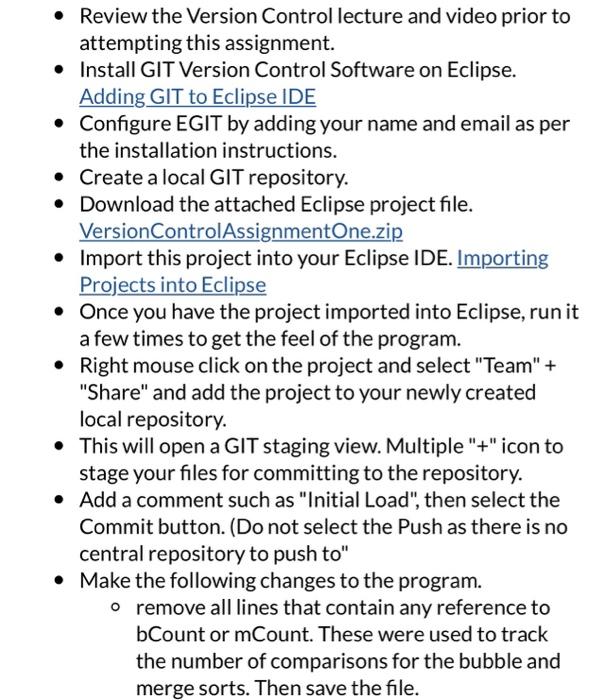
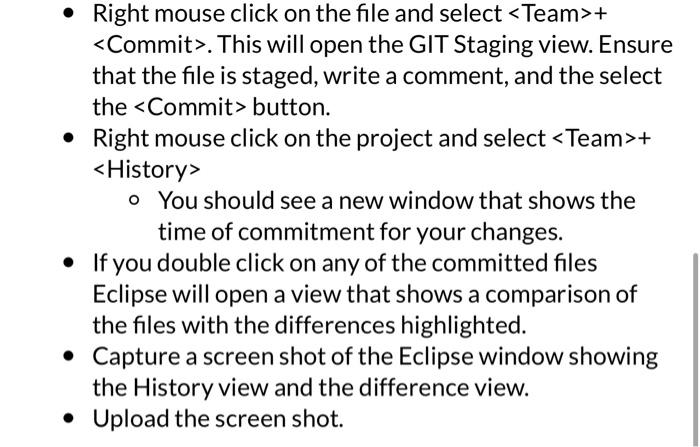
- Review the Version Control lecture and video prior to attempting this assignment. - Install GIT Version Control Software on Eclipse. Adding GIT to Eclipse IDE - Configure EGIT by adding your name and email as per the installation instructions. - Create a local GIT repository. - Download the attached Eclipse project file. VersionControlAssignmentOne.zip - Import this project into your Eclipse IDE. Importing Projects into Eclipse - Once you have the project imported into Eclipse, run it a few times to get the feel of the program. - Right mouse click on the project and select "Team" + "Share" and add the project to your newly created local repository. - This will open a GIT staging view. Multiple "+" icon to stage your files for committing to the repository. - Add a comment such as "Initial Load", then select the Commit button. (Do not select the Push as there is no central repository to push to" - Make the following changes to the program. - remove all lines that contain any reference to bCount or mCount. These were used to track the number of comparisons for the bubble and merge sorts. Then save the file. - Right mouse click on the fle and select + . This will open the GIT Staging view. Ensure that the file is staged, write a comment, and the select the button. - Right mouse click on the project and select + - You should see a new window that shows the time of commitment for your changes. - If you double click on any of the committed files Eclipse will open a view that shows a comparison of the files with the differences highlighted. - Capture a screen shot of the Eclipse window showing the History view and the difference view. - Upload the screen shot
Step by Step Solution
There are 3 Steps involved in it

Get step-by-step solutions from verified subject matter experts
 Study Help