Question: I need help. with tis homework Jial Handout #3 - CSCI 2440 01 - Review the enclosed screenshots and familiarize yourself with the source code
I need help. with tis homework
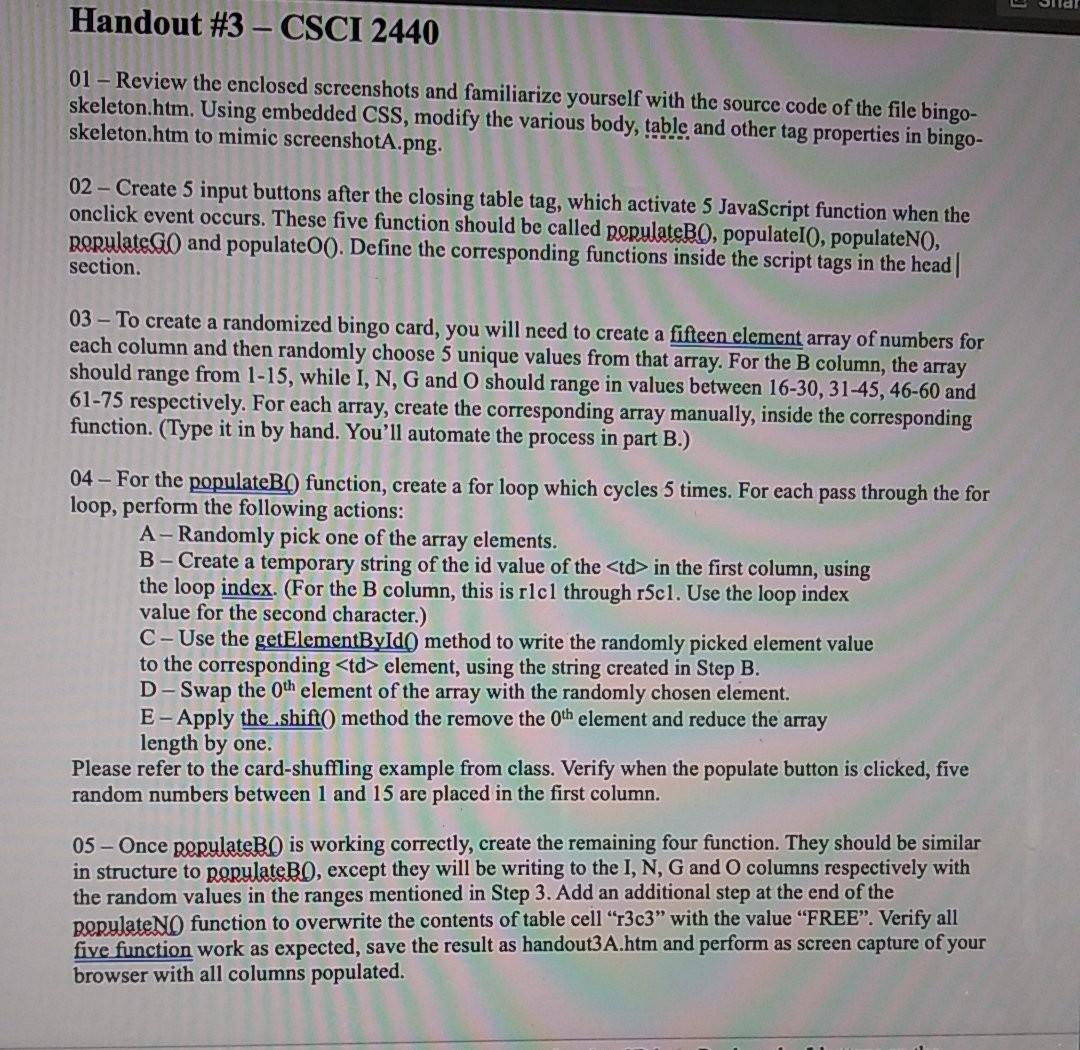
Jial Handout #3 - CSCI 2440 01 - Review the enclosed screenshots and familiarize yourself with the source code of the file bingo- skeleton.htm. Using embedded CSS, modify the various body, table and other tag properties in bingo- skeleton.htm to mimic screenshotA.png. 02 - Create 5 input buttons after the closing table tag, which activate 5 JavaScript function when the onclick event occurs. These five function should be called populateBO, populateI0, populateNO, populate and populate00. Define the corresponding functions inside the script tags in the head section. 03 - To create a randomized bingo card, you will need to create a fifteen element array of numbers for each column and then randomly choose 5 unique values from that array. For the B column, the array should range from 1-15, while I, N, G and O should range in values between 16-30, 31-45, 46-60 and 61-75 respectively. For each array, create the corresponding array manually, inside the corresponding function. (Type it in by hand. You'll automate the process in part B.) 04 - For the populateBQ function, create a for loop which cycles 5 times. For each pass through the for loop, perform the following actions: A- Randomly pick one of the array elements. B - Create a temporary string of the id value of the
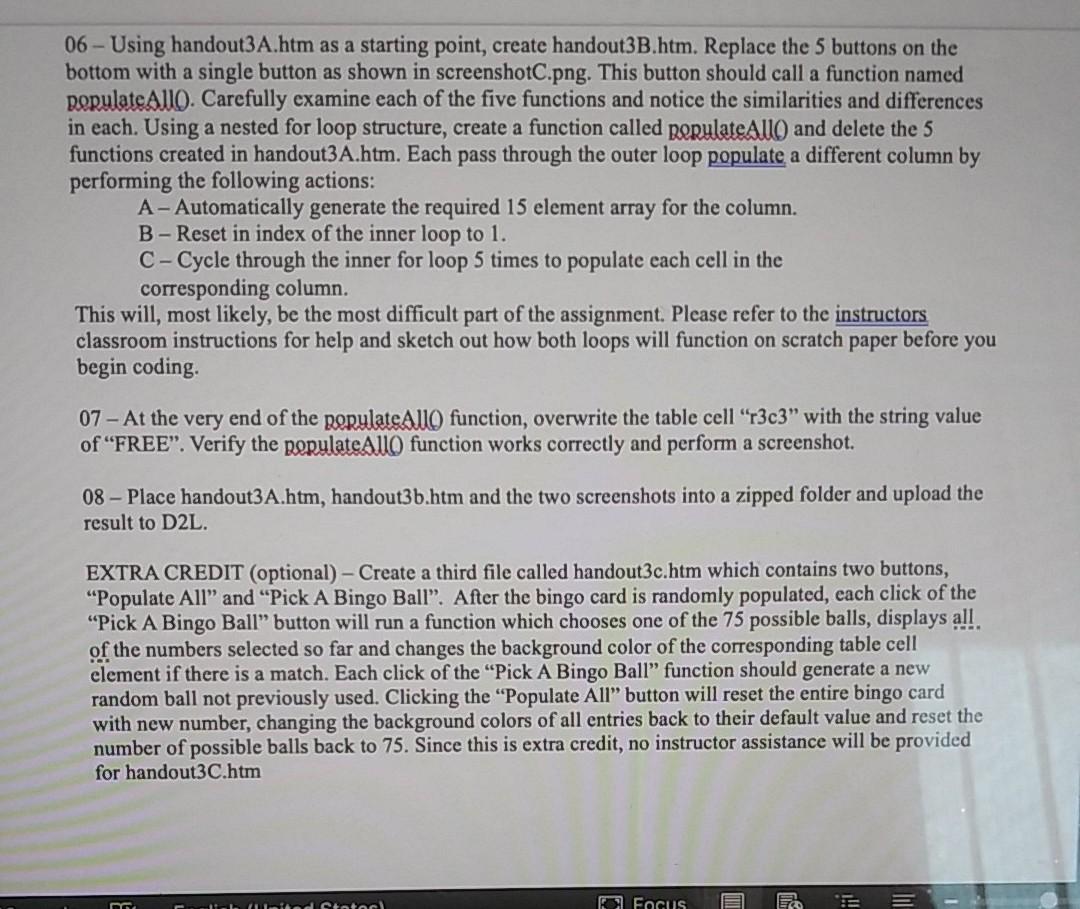
in the first column, using the loop index. (For the B column, this is rlcl through r5cl. Use the loop index value for the second character.) C-Use the getElementByIdl method to write the randomly picked element value to the corresponding | element, using the string created in Step B. D-Swap the oth element of the array with the randomly chosen element. E-Apply the shift( method the remove the oth element and reduce the array length by one. Please refer to the card-shuffling example from class. Verify when the populate button is clicked, five random numbers between 1 and 15 are placed in the first column. 05 - Once perulateB) is working correctly, create the remaining four function. They should be similar in structure to populateBO, except they will be writing to the I, N, G and O columns respectively with the random values in the ranges mentioned in Step 3. Add an additional step at the end of the PopulateNo function to overwrite the contents of table cell "r3c3" with the value "FREE". Verify all five function work as expected, save the result as handout3A.htm and perform as screen capture of your browser with all columns populated. 06- Using handout3A.htm as a starting point, create handout3B.htm. Replace the 5 buttons on the bottom with a single button as shown in screenshotC.png. This button should call a function named populateallo. Carefully examine each of the five functions and notice the similarities and differences in each. Using a nested for loop structure, create a function called perulateallo and delete the 5 functions created in handout3A.htm. Each pass through the outer loop populate a different column by performing the following actions: A- Automatically generate the required 15 element array for the column. B-Reset in index of the inner loop to 1. C-Cycle through the inner for loop 5 times to populate each cell in the corresponding column. This will, most likely, be the most difficult part of the assignment. Please refer to the instructors classroom instructions for help and sketch out how both loops will function on scratch paper before you begin coding 07 - At the very end of the populate allo function, overwrite the table cell r3c3" with the string value of "FREE". Verify the populateallo function works correctly and perform a screenshot. 08 - Place handout3A.htm, handout3b.htm and the two screenshots into a zipped folder and upload the result to D2L. EXTRA CREDIT (optional) - Create a third file called handout3c.htm which contains two buttons, "Populate All and Pick A Bingo Ball. After the bingo card is randomly populated, each click of the "Pick A Bingo Ball button will run a function which chooses one of the 75 possible balls, displays all of the numbers selected so far and changes the background color of the corresponding table cell element if there is a match. Each click of the "Pick A Bingo Ball" function should generate a new random ball not previously used. Clicking the "Populate All" button will reset the entire bingo card with new number, changing the background colors of all entries back to their default value and reset the number of possible balls back to 75. Since this is extra credit, no instructor assistance will be provided for handout3C.htm mindstotec Focus Jial Handout #3 - CSCI 2440 01 - Review the enclosed screenshots and familiarize yourself with the source code of the file bingo- skeleton.htm. Using embedded CSS, modify the various body, table and other tag properties in bingo- skeleton.htm to mimic screenshotA.png. 02 - Create 5 input buttons after the closing table tag, which activate 5 JavaScript function when the onclick event occurs. These five function should be called populateBO, populateI0, populateNO, populate and populate00. Define the corresponding functions inside the script tags in the head section. 03 - To create a randomized bingo card, you will need to create a fifteen element array of numbers for each column and then randomly choose 5 unique values from that array. For the B column, the array should range from 1-15, while I, N, G and O should range in values between 16-30, 31-45, 46-60 and 61-75 respectively. For each array, create the corresponding array manually, inside the corresponding function. (Type it in by hand. You'll automate the process in part B.) 04 - For the populateBQ function, create a for loop which cycles 5 times. For each pass through the for loop, perform the following actions: A- Randomly pick one of the array elements. B - Create a temporary string of the id value of the | in the first column, using the loop index. (For the B column, this is rlcl through r5cl. Use the loop index value for the second character.) C-Use the getElementByIdl method to write the randomly picked element value to the corresponding | element, using the string created in Step B. D-Swap the oth element of the array with the randomly chosen element. E-Apply the shift( method the remove the oth element and reduce the array length by one. Please refer to the card-shuffling example from class. Verify when the populate button is clicked, five random numbers between 1 and 15 are placed in the first column. 05 - Once perulateB) is working correctly, create the remaining four function. They should be similar in structure to populateBO, except they will be writing to the I, N, G and O columns respectively with the random values in the ranges mentioned in Step 3. Add an additional step at the end of the PopulateNo function to overwrite the contents of table cell "r3c3" with the value "FREE". Verify all five function work as expected, save the result as handout3A.htm and perform as screen capture of your browser with all columns populated. 06- Using handout3A.htm as a starting point, create handout3B.htm. Replace the 5 buttons on the bottom with a single button as shown in screenshotC.png. This button should call a function named populateallo. Carefully examine each of the five functions and notice the similarities and differences in each. Using a nested for loop structure, create a function called perulateallo and delete the 5 functions created in handout3A.htm. Each pass through the outer loop populate a different column by performing the following actions: A- Automatically generate the required 15 element array for the column. B-Reset in index of the inner loop to 1. C-Cycle through the inner for loop 5 times to populate each cell in the corresponding column. This will, most likely, be the most difficult part of the assignment. Please refer to the instructors classroom instructions for help and sketch out how both loops will function on scratch paper before you begin coding 07 - At the very end of the populate allo function, overwrite the table cell r3c3" with the string value of "FREE". Verify the populateallo function works correctly and perform a screenshot. 08 - Place handout3A.htm, handout3b.htm and the two screenshots into a zipped folder and upload the result to D2L. EXTRA CREDIT (optional) - Create a third file called handout3c.htm which contains two buttons, "Populate All and Pick A Bingo Ball. After the bingo card is randomly populated, each click of the "Pick A Bingo Ball button will run a function which chooses one of the 75 possible balls, displays all of the numbers selected so far and changes the background color of the corresponding table cell element if there is a match. Each click of the "Pick A Bingo Ball" function should generate a new random ball not previously used. Clicking the "Populate All" button will reset the entire bingo card with new number, changing the background colors of all entries back to their default value and reset the number of possible balls back to 75. Since this is extra credit, no instructor assistance will be provided for handout3C.htm mindstotec Focus |









 Study Help