







Question: I need please help in doing this, I am completely confused. Can you please help me in doing this and also paste the images of
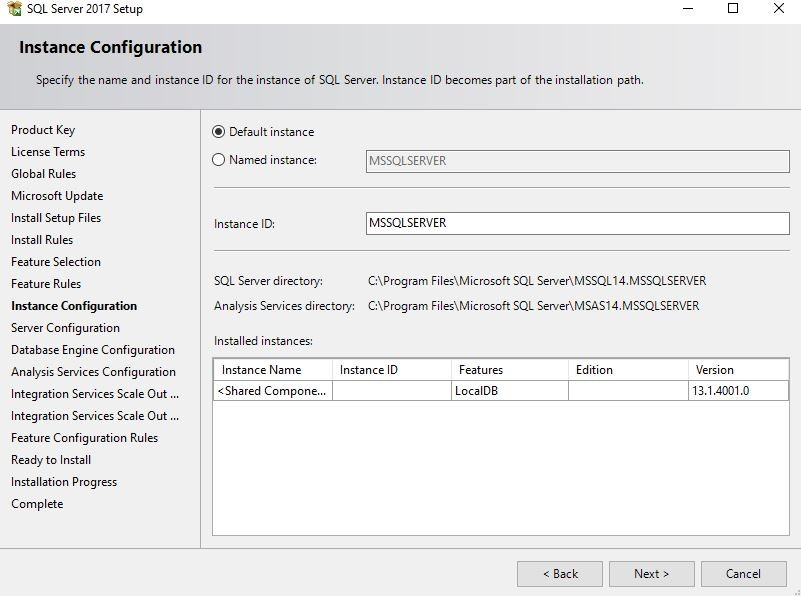
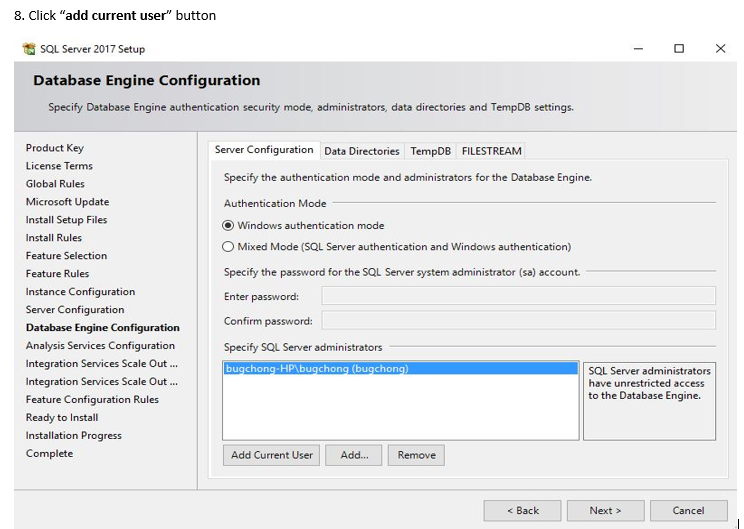
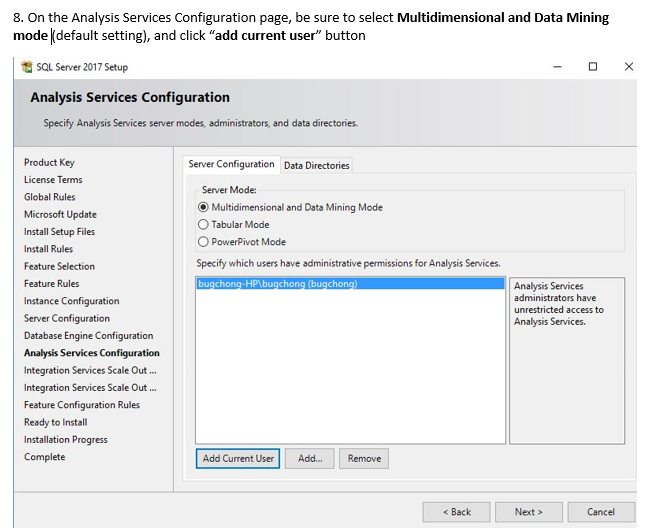
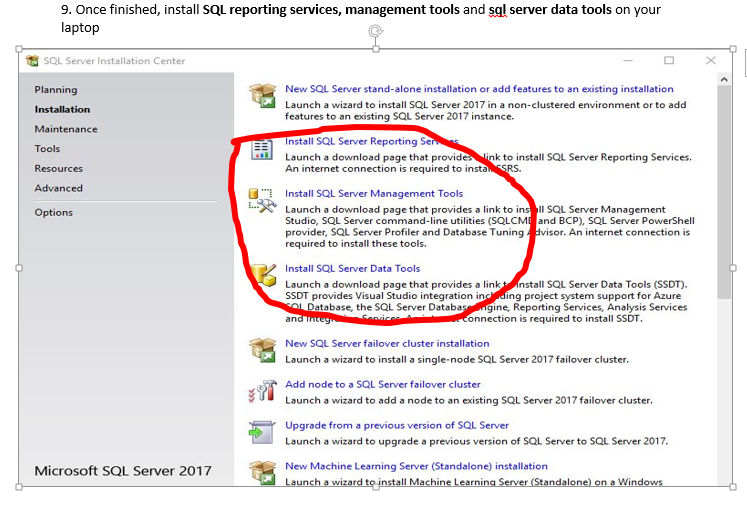
I need please help in doing this, I am completely confused. Can you please help me in doing this and also paste the images of output when you run the program as per instructions. I will be grateful to you. Here are instructions given below one by one in images.


Please I need it to be correct it's really important and I am really confused. it's due tomorrow. Thankyou so much.
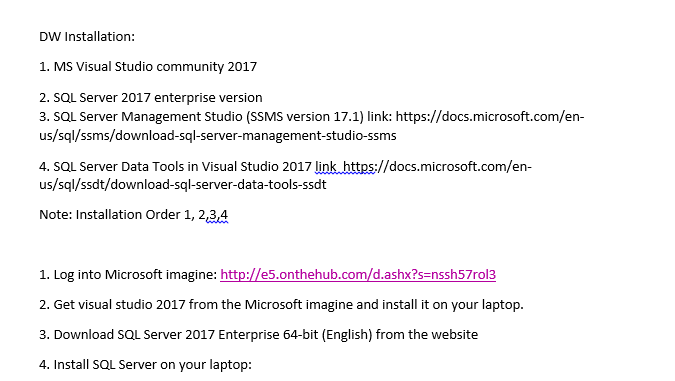
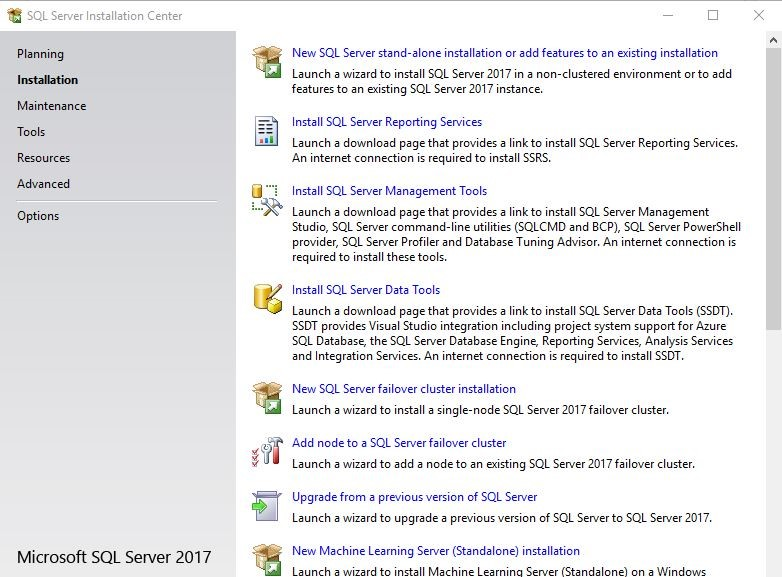
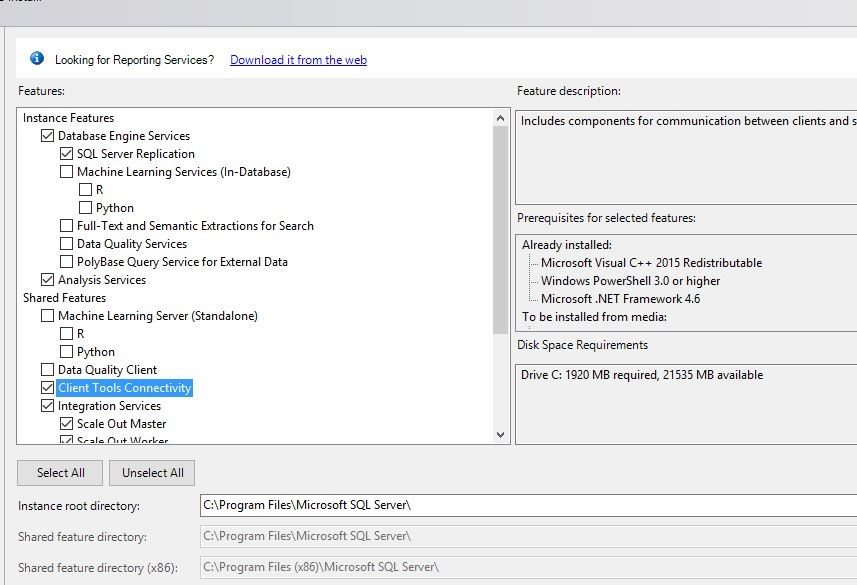
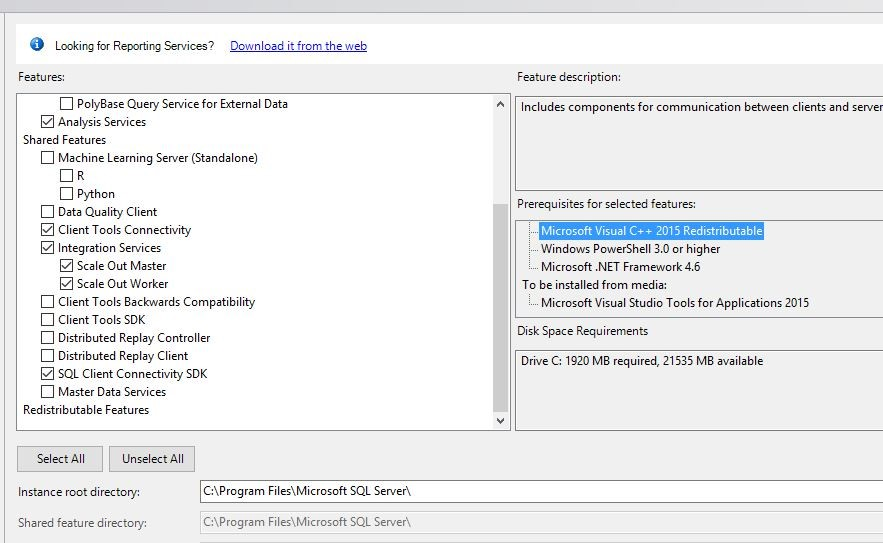
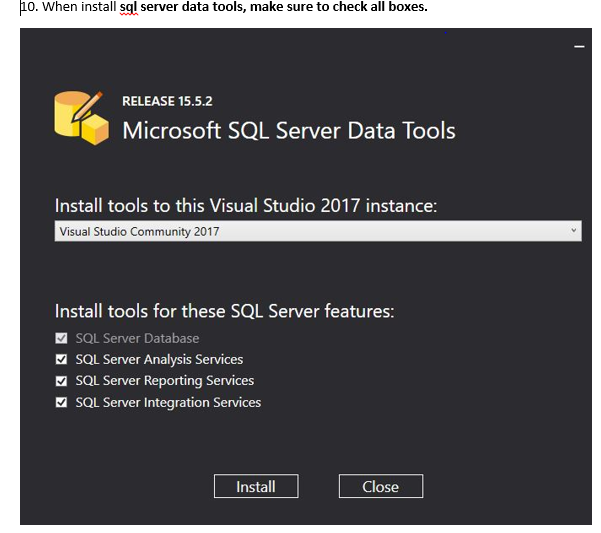
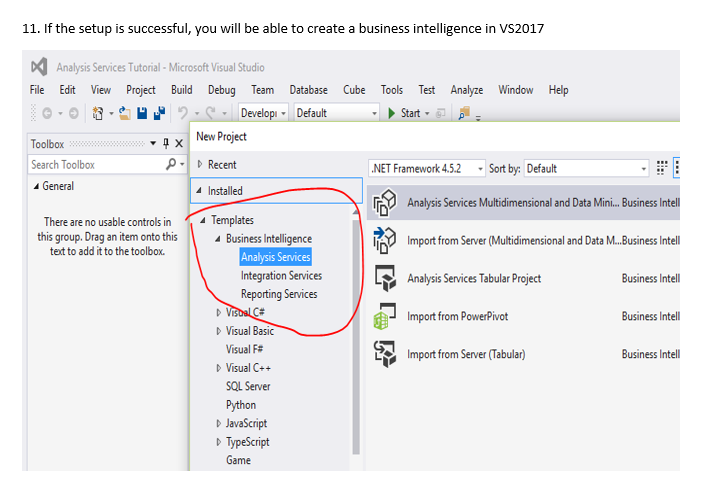
DW Installation: 1. MS Visual Studio community 2017 2. SQL Server 2017 enterprise version 3. SQL Server Management Studio (SSMS version 17.1) link: https://docs.microsoft.com/en us/sql/ssms/download-sql-server-management-studio-ssms 4. SQL Server Data Tools in Visual Studio 2017 link https://docs.microsoft.com/en- us/sql/ssdt/download-sql-server-data-tools-ssdt Note: Installation Order 1, 2,3,4 1. Log into Microsoft imagine: http://e5.onthehub.com/d.ashx?s nssh57rol3 2. Get visual studio 2017 from the Microsoft imagine and install it on your laptop. 3. Download SQL Server 2017 Enterprise 64-bit (English) from the website 4. Install SQL Server on your laptop
Step by Step Solution
There are 3 Steps involved in it

Get step-by-step solutions from verified subject matter experts
 Study Help