



Question: I need screenshots of every step Case Projects Case Project 5-1: Manage Log Files in Ubuntu Server Working with Linux operating systems, compared to working
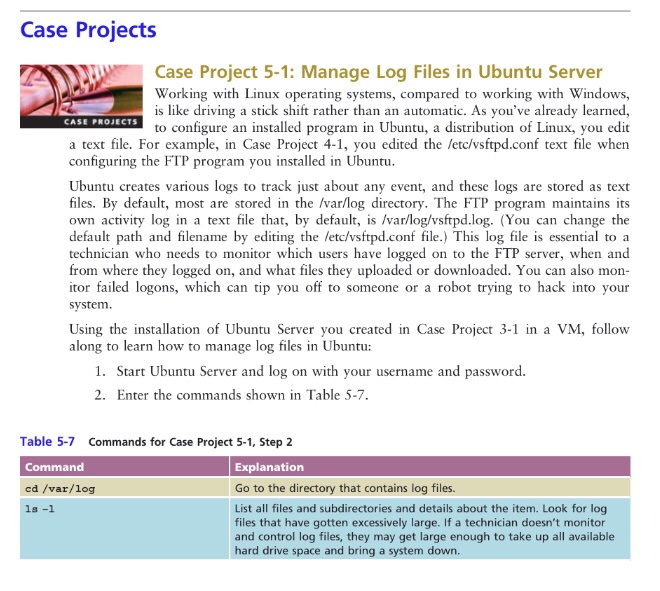
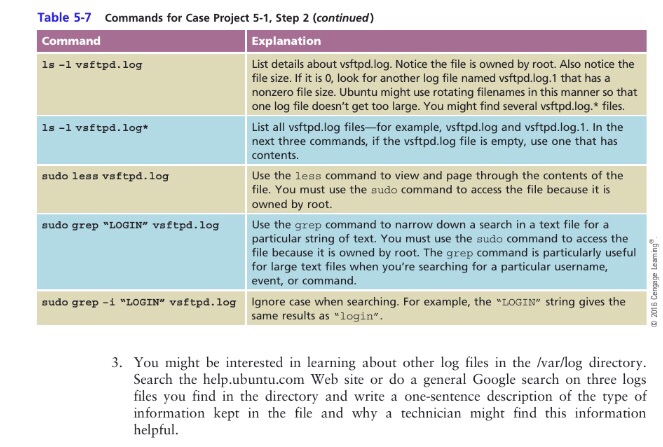
Case Projects Case Project 5-1: Manage Log Files in Ubuntu Server Working with Linux operating systems, compared to working with Windows, is like driving a stick shift rather than an automatic. As you've already learned, to configure an installed program in Ubuntu, a distribution of Linux, you edit a text file. For example, in Case Project 4-1, you edited the letc/vsftpd.conf text file when configuring the FTP program you installed in Ubuntu Ubuntu creates various logs to track just about any event, and these logs are stored as text files. By default, most are stored in the /var/log directory. The FTP program maintains its own activity log in a text file that, by default, is /var/log/vsftpd.log. (You can change the default path and filename by editing the letc/vsftpd.conf file.) This log file is essential to a technician who needs to monitor which users have logged on to the FTP server, when and from where they logged on, and what files they uploaded or downloaded. You can also mon itor failed logons, which can tip you off to someone or a robot trying to hack into your system. Using the installation of Ubuntu Server you created in Case Project 3-1 in a VM, follow along to learn how to manage log files in Ubuntu: 1. Start Ubuntu Server and log on with your username and password 2. Enter the commands shown in Table 5-7. Table 5-7 Commands for Case Project 5-1, Step 2 Command Explanation Go to the directory that contains log files. List all files and subdirectories and details about the item. Look for log files that have gotten excessively large. If a technician doesn't monitor and control log files, they may get large enough to take up all available hard drive space and bring a system down. ed /var/log
Step by Step Solution
There are 3 Steps involved in it

Get step-by-step solutions from verified subject matter experts