







Question: I need the py file and output file. Run all menu options and show input validation. Thank you. AutoSave Off File Home Insert Read Print
I need the py file and output file. Run all menu options and show input validation. Thank you.
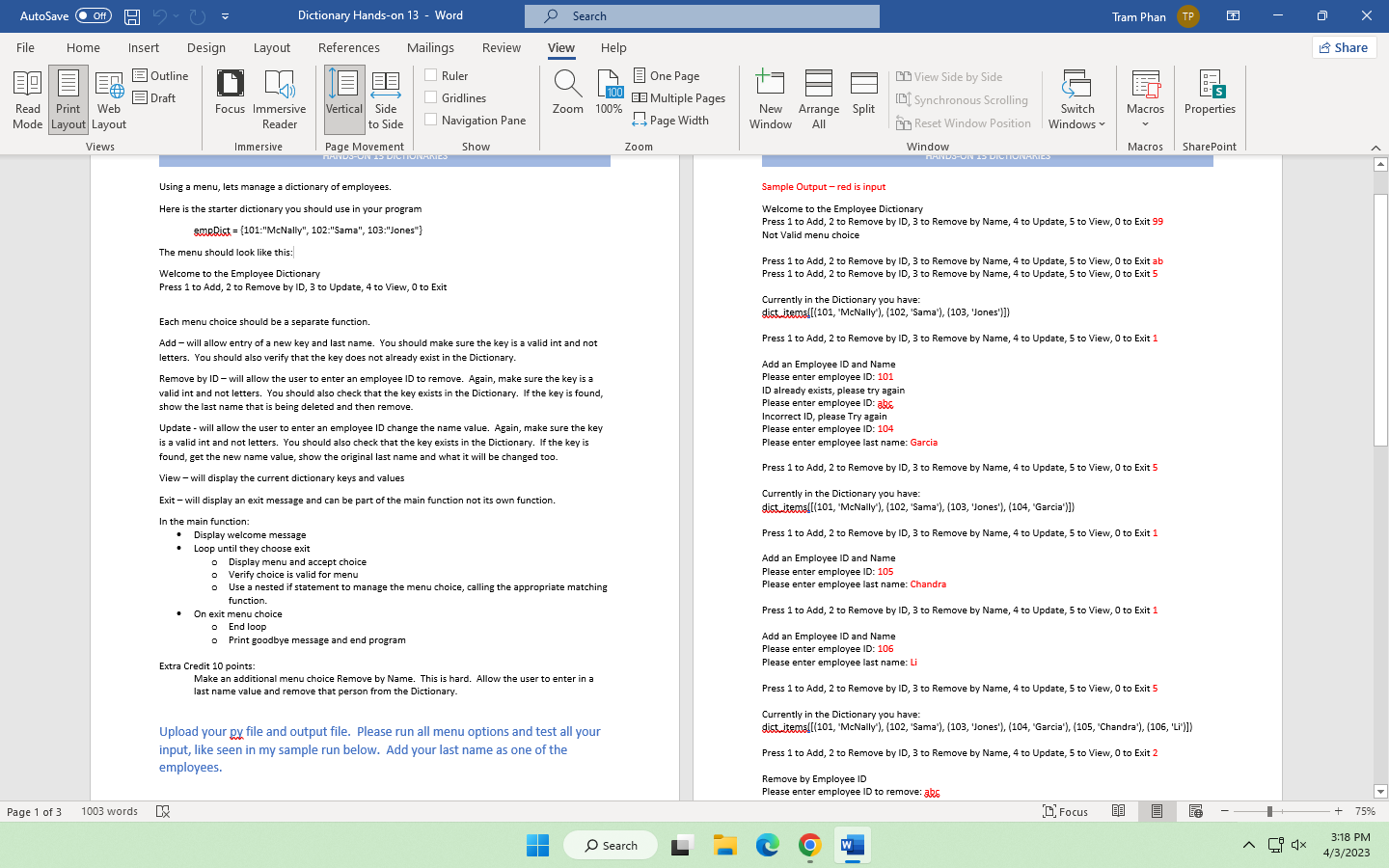
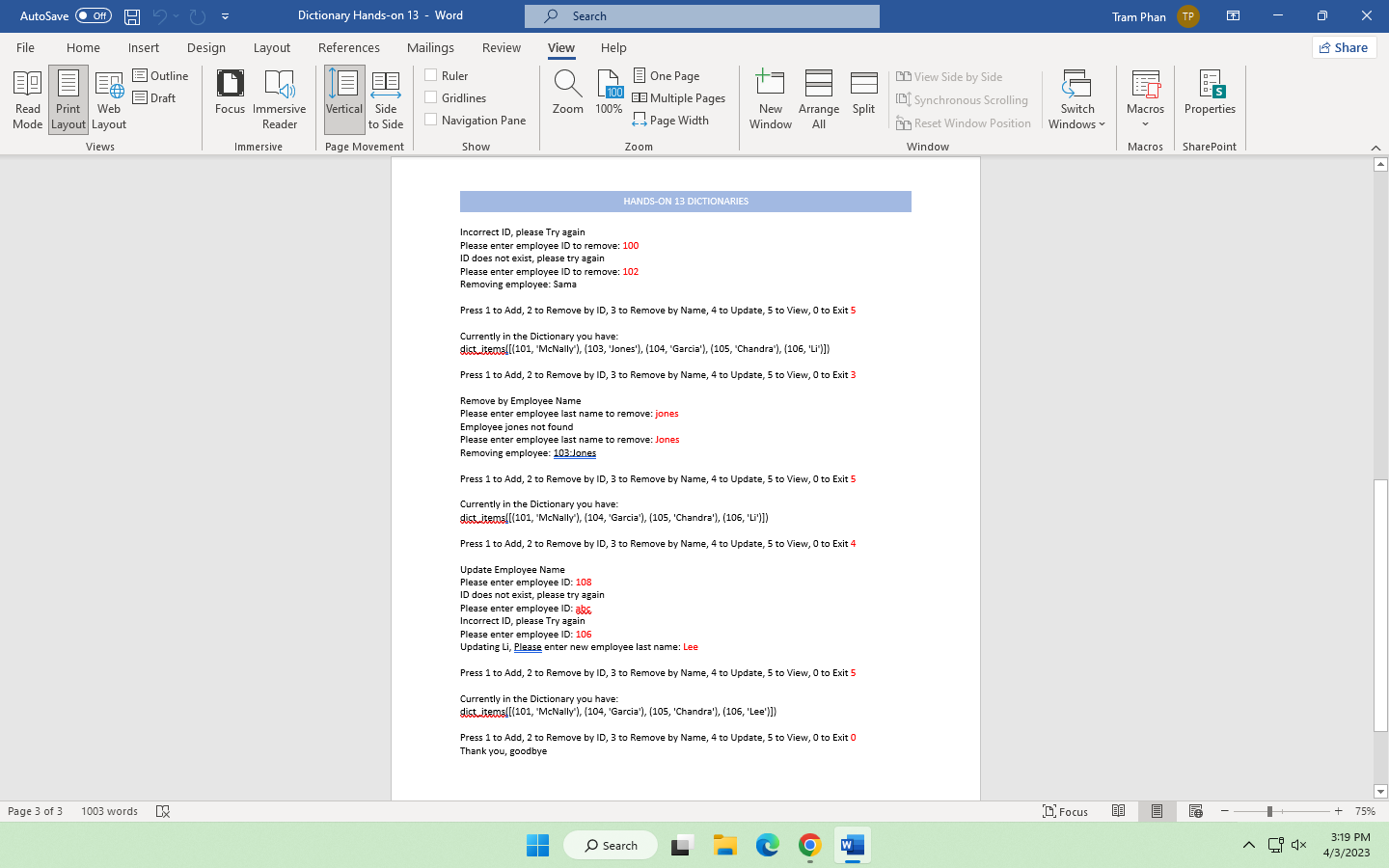
AutoSave Off File Home Insert Read Print Web Mode Layout Layout Views Page 1 of 3 1003 words Design Outline Draft Layout Dictionary Hands-on 13 - Word Mailings Focus Immersive Reader Immersive . References Vertical Side to Side Using a menu, lets manage a dictionary of employees. Here is the starter dictionary you should use in your program smeRist={101:"McNally", 102:"Sama", 103:"Jones"} Page Movement HANDS-ON 15 DICTIONARIES The menu should look like this: Welcome to the Employee Dictionary Press 1 to Add, 2 to Remove by ID, 3 to Update, 4 to View, 0 to Exit Display welcome message Loop until they choose exit Ruler Gridlines Navigation Pane Show Review Each menu choice should be a separate function. Add - will allow entry of a new key and last name. You should make sure the key is a valid int and not letters. You should also verify that the key does not already exist in the Dictionary. o Display menu and accept choice o Verify choice is valid for menu 0 Remove by ID - will allow the user to enter an employee ID to remove. Again, make sure the key is a valid int and not letters. You should also check that the key exists in the Dictionary. If the key is found, show the last name that is being deleted and then remove. Search View Help Update - will allow the user to enter an employee ID change the name value. Again, make sure the key is a valid int and not letters. You should also check that the key exists in the Dictionary. If the key is found, get the new name value, show the original last name and what it will be changed too. View - will display the current dictionary keys and values Exit - will display an exit message and can be part of the main function not its own function. In the main function: On exit menu choice o End loop o Print goodbye message and end program L100 Zoom 100% Use a nested if statement to manage the menu choice, calling the appropriate matching function. Extra Credit 10 points: Make an additional menu choice Remove by Name. This is hard. Allow the user to enter in a last name value and remove that person from the Dictionary. T Upload your py file and output file. Please run all menu options and test all your input, like seen in my sample run below. Add your last name as one of the employees. One Page EB Multiple Pages Page Width Zoom O Search New Arrange Split Window All View Side by Side [D] Synchronous Scrolling Switch Reset Window Position Windows Window HANDS-ON 15 DICTIONAMES Tram Phan Sample Output - red is input Welcome to the Employee Dictionary Press 1 to Add, 2 to Remove by ID, 3 to Remove by Name, 4 to Update, 5 to View, 0 to Exit 99 Not Valid menu choice Add an Employee ID and Name Please enter employee ID: 105 Please enter employee last name: Chandra Press 1 to Add, 2 to Remove by ID, 3 to Remove by Name, 4 to Update, 5 to View, 0 to Exit ab Press 1 to Add, 2 to Remove by ID, 3 to Remove by Name, 4 to Update, 5 to View, 0 to Exit 5 Macros Properties Currently in the Dictionary you have: dist_itemall(101, 'McNally'), (102, 'Sama'), (103, 'Jones')]) Press 1 to Add, 2 to Remove by ID, 3 to Remove by Name, 4 to Update, 5 to View, 0 to Exit 1 Add an Employee ID and Name Please enter employee ID: 101 ID already exists, please try again Please enter employee ID: abs Incorrect ID, please Try again Please enter employee ID: 104 Please enter employee last name: Garcial Press 1 to Add, 2 to Remove by ID, 3 to Remove by Name, 4 to Update, 5 to View, 0 to Exit 5 Currently in the Dictionary you have: dist .itemall(101, 'McNally'), (102, 'Sama'), (103, 'Jones'), (104, "Garcia')]) Press 1 to Add, 2 to Remove by ID, 3 to Remove by Name, 4 to Update, 5 to View, 0 to Exit 1 Macros SharePoint Remove by Employee ID Please enter employee ID to remove: aks Press 1 to Add, 2 to Remove by ID, 3 to Remove by Name, 4 to Update, 5 to View, 0 to Exit 1 Add an Employee ID and Name Please enter employee ID: 106 Please enter employee last name: Li Press 1 to Add, 2 to Remove by ID, 3 to Remove by Name, 4 to Update, 5 to View, 0 to Exit 5 Currently in the Dictionary you have: dist.itemal[(101, 'McNally'), (102, 'Sama'), (103, 'Jones'), (104, "Garcia'), (105, "Chandra'), (106, "Li")]) Press 1 to Add, 2 to Remove by ID, 3 to Remove by Name, 4 to Update, 5 to View, 0 to Exit 2 Focus BB 183 Cdx X Share + 75% 3:18 PM 4/3/2023
Step by Step Solution
There are 3 Steps involved in it

Get step-by-step solutions from verified subject matter experts
 Study Help