







Question: implement these codes in android studio to produce the output shown in the picture using genymotion and provide a full screen screenshot of the final
implement these codes in android studio to produce the output shown in the picture using genymotion and provide a full screen screenshot of the final output , note that it has to be similar to the output in the picture
NOTE: only a screenshot of the screen and the output is needed no no need for any mathematical output
NOTE: main xml code and fragment xml codes are not included to shorten the question all that is needed is a screenshot of the output and it should look the same as the output picture that is provided below
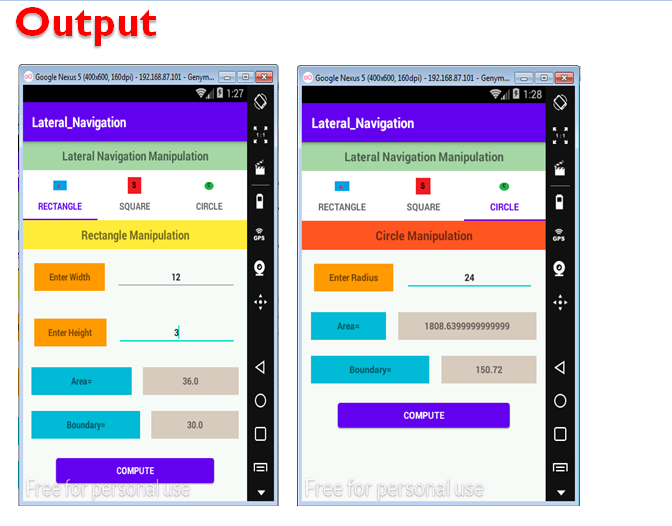
main activity java code package com.example.lateral_navigation;
import androidx.appcompat.app.AppCompatActivity; import androidx.fragment.app.Fragment; import androidx.fragment.app.FragmentTransaction;
import android.os.Bundle; import android.widget.TableLayout;
import com.google.android.material.tabs.TabLayout;
public class MainActivity extends AppCompatActivity {
@Override protected void onCreate(Bundle savedInstanceState) { super.onCreate(savedInstanceState); setContentView(R.layout.activity_main); ShowFragment(0); TabLayout MainTab=findViewById(R.id.MainTab); MainTab.setOnTabSelectedListener(new TabLayout.OnTabSelectedListener() { @Override public void onTabSelected(TabLayout.Tab tab) { ShowFragment(tab.getPosition()); }
@Override public void onTabUnselected(TabLayout.Tab tab) {
}
@Override public void onTabReselected(TabLayout.Tab tab) {
} }); } void ShowFragment(int Index) { Fragment F=null; if(Index==0) F=new RectangleFragment(); else if(Index==1) F=new SquareFragment(); else F=new CircleFragment();
FragmentTransaction FT=getSupportFragmentManager().beginTransaction(); FT.replace(R.id.MainFrame,F); FT.commit(); } }
rectagle fragment java code package com.example.lateral_navigation;
import android.os.Bundle;
import androidx.fragment.app.Fragment;
import android.view.LayoutInflater; import android.view.View; import android.view.ViewGroup; import android.widget.Button; import android.widget.EditText; import android.widget.TextView;
public class RectangleFragment extends Fragment {
@Override public View onCreateView(LayoutInflater inflater, ViewGroup container, Bundle savedInstanceState) { // Inflate the layout for this fragment View view=inflater.inflate(R.layout.fragment_rectangle, container, false); EditText width=view.findViewById(R.id.width_txt); EditText height=view.findViewById(R.id.height_txt); TextView area=view.findViewById(R.id.RectArea_txt); TextView boundary=view.findViewById(R.id.RectBounadry_txt);
Button B=view.findViewById(R.id.RectCompute_Btn); B.setOnClickListener(new View.OnClickListener() { @Override public void onClick(View v) { double W=Double.parseDouble(width.getText().toString()); double H=Double.parseDouble(height.getText().toString()); area.setText(String.valueOf(W*H)); boundary.setText(String.valueOf(2*W+2*H));
} }); return view; } }
square fragment java code package com.example.lateral_navigation;
import android.os.Bundle;
import androidx.fragment.app.Fragment;
import android.view.LayoutInflater; import android.view.View; import android.view.ViewGroup; import android.widget.Button; import android.widget.EditText; import android.widget.TextView;
public class SquareFragment extends Fragment { @Override public View onCreateView(LayoutInflater inflater, ViewGroup container, Bundle savedInstanceState) { // Inflate the layout for this fragment
View view=inflater.inflate(R.layout.fragment_square, container, false); EditText side=view.findViewById(R.id.side_txt); TextView area=view.findViewById(R.id.Area_Square_txt); TextView boundary=view.findViewById(R.id.Bounadry_Square_txt);
Button B=view.findViewById(R.id.Square_Compute_Btn); B.setOnClickListener(new View.OnClickListener() { @Override public void onClick(View v) { double S=Double.parseDouble(side.getText().toString());
area.setText(String.valueOf(S*S)); boundary.setText(String.valueOf(2*S+2*S));
} }); return view; } }
circle fragment java code package com.example.lateral_navigation;
import android.os.Bundle;
import androidx.fragment.app.Fragment;
import android.view.LayoutInflater; import android.view.View; import android.view.ViewGroup; import android.widget.Button; import android.widget.EditText; import android.widget.TextView;
public class CircleFragment extends Fragment {
@Override public View onCreateView(LayoutInflater inflater, ViewGroup container, Bundle savedInstanceState) { // Inflate the layout for this fragment View view=inflater.inflate(R.layout.fragment_circle, container, false); EditText radius=view.findViewById(R.id.radius_txt); TextView area=view.findViewById(R.id.Area_Circle_txt); TextView boundary=view.findViewById(R.id.Boundary_Circle_txt);
Button B=view.findViewById(R.id.Circle_Compute_Btn); B.setOnClickListener(new View.OnClickListener() { @Override public void onClick(View v) { double r=Double.parseDouble(radius.getText().toString());
area.setText(String.valueOf(3.14*r*r)); boundary.setText(String.valueOf(2*3.14*r));
} }); return view; } }
Step by Step Solution
There are 3 Steps involved in it

Get step-by-step solutions from verified subject matter experts
 Study Help