







Question: IMPORTANT NOTE: Please show work for all the questions in Excel step by step. w NP 1 Ticket Order Form 2 3 Invoice Information 4
IMPORTANT NOTE:
Please show work for all the questions in Excel step by step.
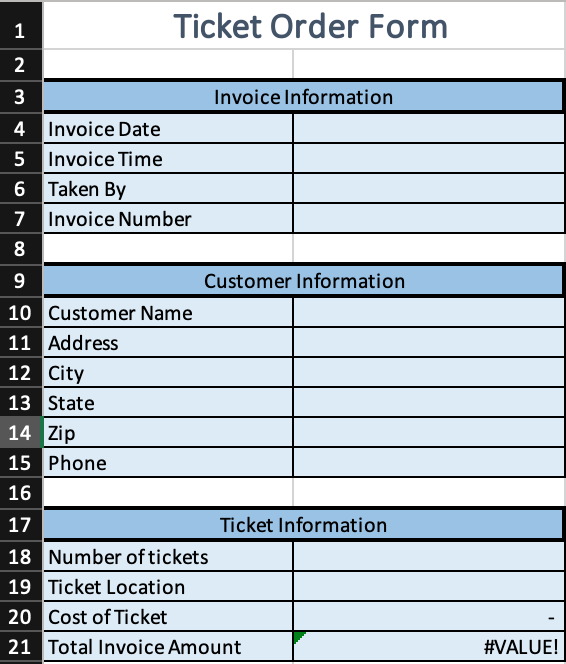
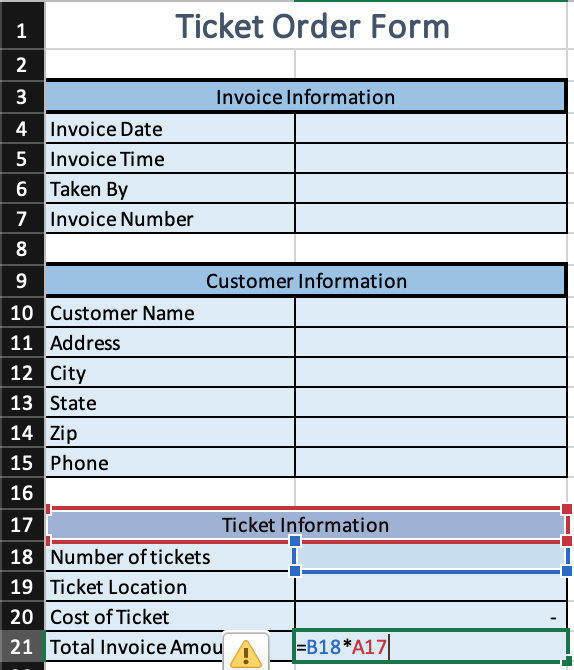
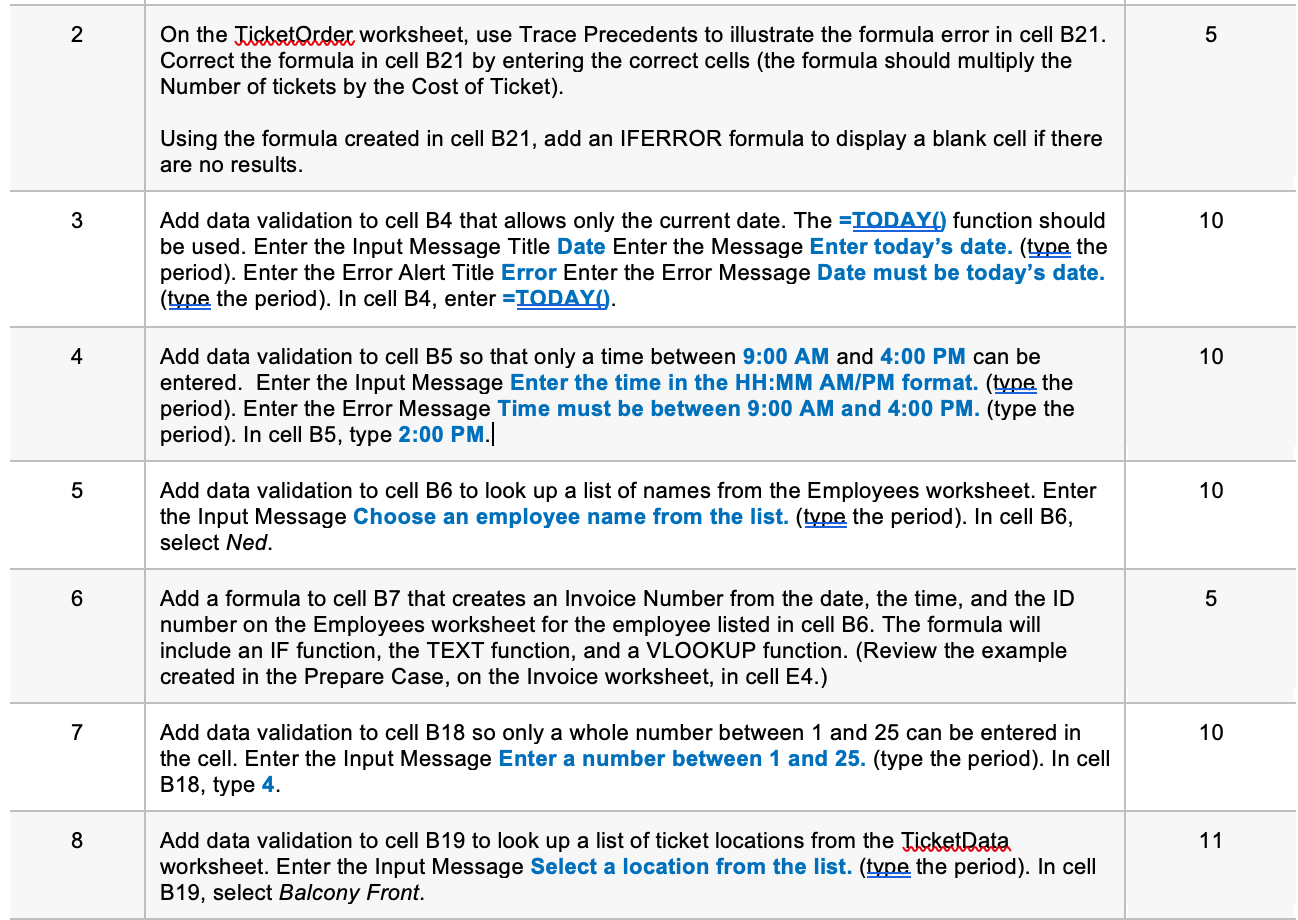
w NP 1 Ticket Order Form 2 3 Invoice Information 4 Invoice Date 5 Invoice Time 6 Taken By 7 Invoice Number 8 9 Customer Information 10 Customer Name 11 Address 12 City 13 State 14 Zip 15 Phone 16 17 Ticket Information 18 Number of tickets 19 Ticket Location 20 Cost of Ticket 21 Total Invoice Amount #VALUE! 1 Ticket Order Form 2 3 3 Invoice Information 4 Invoice Date 5 Invoice Time 6 Taken By 7 Invoice Number 8 9 Customer Information 10 Customer Name 11 Address 12 City 13 State 14 Zip 15 Phone 16 17 Ticket Information 18 Number of tickets 19 Ticket Location 20 Cost of Ticket 21 Total Invoice Amou =B18*A17 2 5 On the TicketOrder worksheet, use Trace Precedents to illustrate the formula error in cell B21. Correct the formula in cell B21 by entering the correct cells (the formula should multiply the Number of tickets by the Cost of Ticket). Using the formula created in cell B21, add an IFERROR formula to display a blank cell if there are no results. 3 10 Add data validation to cell B4 that allows only the current date. The =TODAY) function should be used. Enter the Input Message Title Date Enter the Message Enter today's date. (type the period). Enter the Error Alert Title Error Enter the Error Message Date must be today's date. (type the period). In cell B4, enter =TODAY!). 4 10 Add data validation to cell B5 so that only a time between 9:00 AM and 4:00 PM can be entered. Enter the Input Message Enter the time in the HH:MM AM/PM format. (type the period). Enter the Error Message Time must be between 9:00 AM and 4:00 PM. (type the period). In cell B5, type 2:00 PM. 5 10 Add data validation to cell B6 to look up a list of names from the Employees worksheet. Enter the Input Message Choose an employee name from the list. (type the period). In cell B6, select Ned. 6 5 Add a formula to cell B7 that creates an Invoice Number from the date, the time, and the ID number on the Employees worksheet for the employee listed in cell B6. The formula will include an IF function, the TEXT function, and a VLOOKUP function. (Review the example created in the Prepare Case, on the Invoice worksheet, in cell E4.) 7 10 Add data validation to cell B18 so only a whole number between 1 and 25 can be entered in the cell. Enter the Input Message Enter a number between 1 and 25. (type the period). In cell B18, type 4. 8 11 Add data validation to cell B19 to look up a list of ticket locations from the TicketData worksheet. Enter the Input Message Select a location from the list. (type the period). In cell B19, select Balcony FrontStep by Step Solution
There are 3 Steps involved in it
1 Expert Approved Answer
Step: 1 Unlock

Question Has Been Solved by an Expert!
Get step-by-step solutions from verified subject matter experts
Step: 2 Unlock
Step: 3 Unlock
 Study Help