Question: In column F you will find some cells and data exhibiting many of the skills you need to learn. This part describes how cells F6
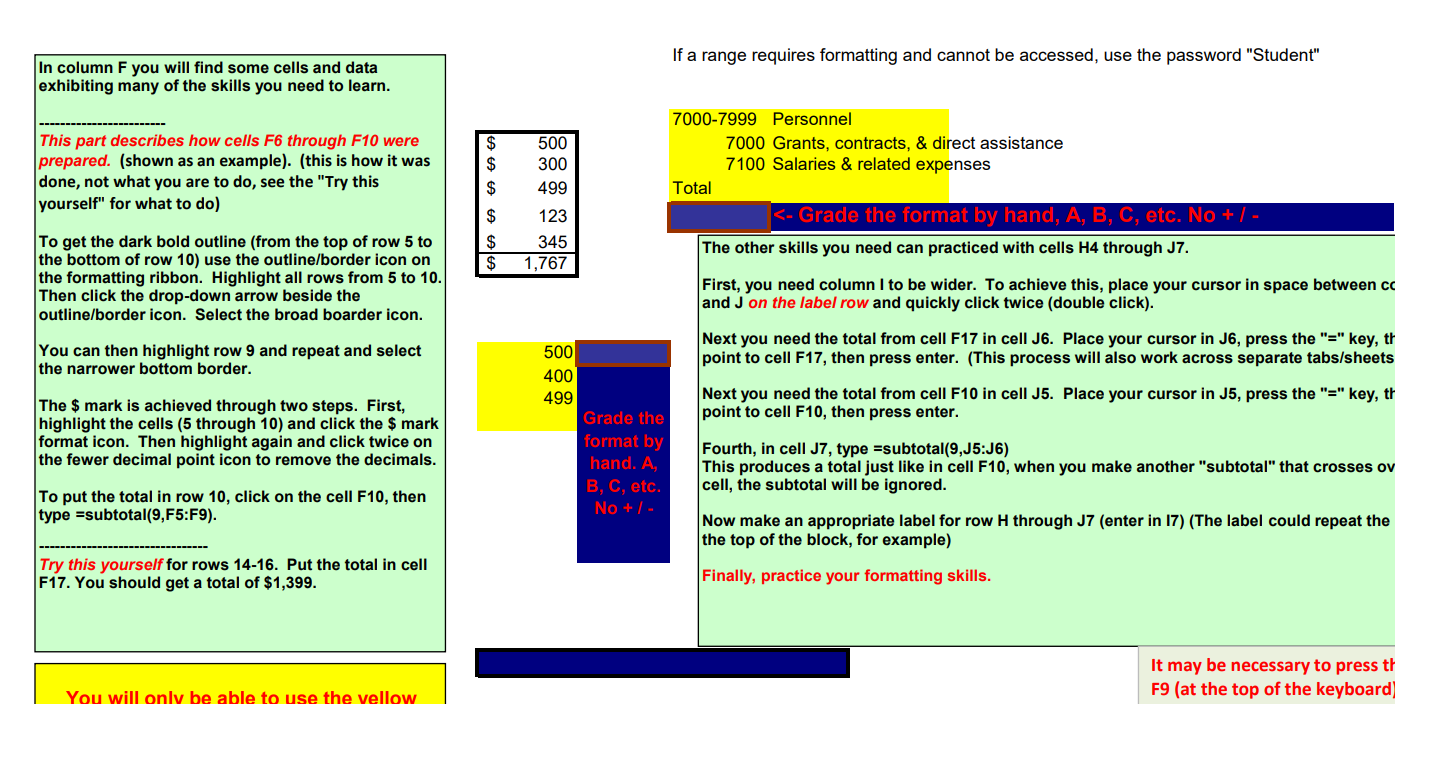
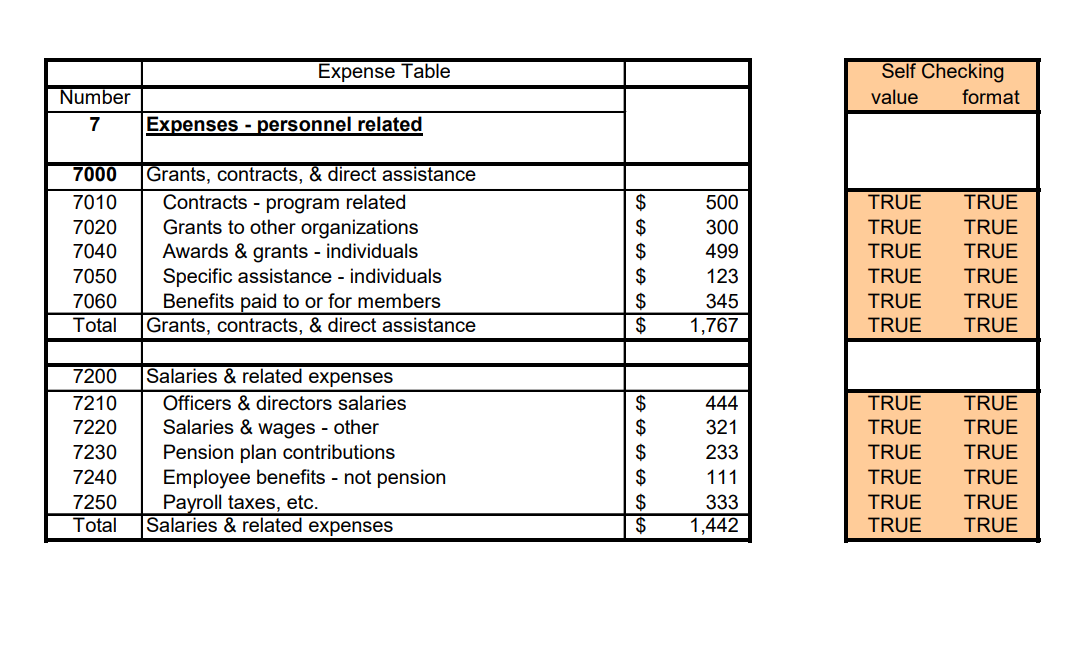
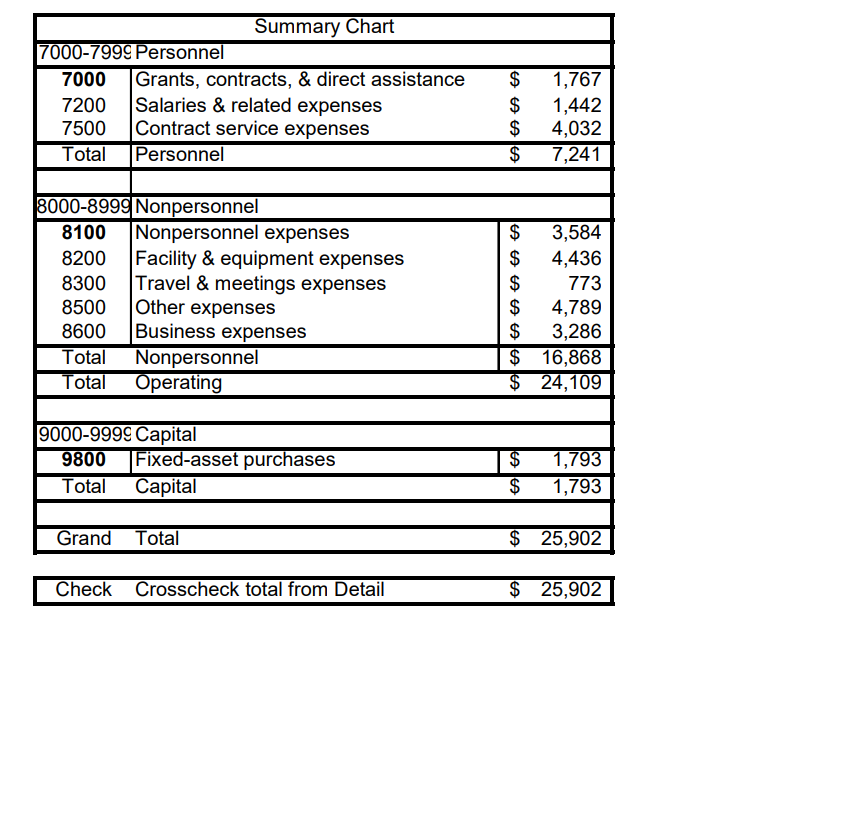
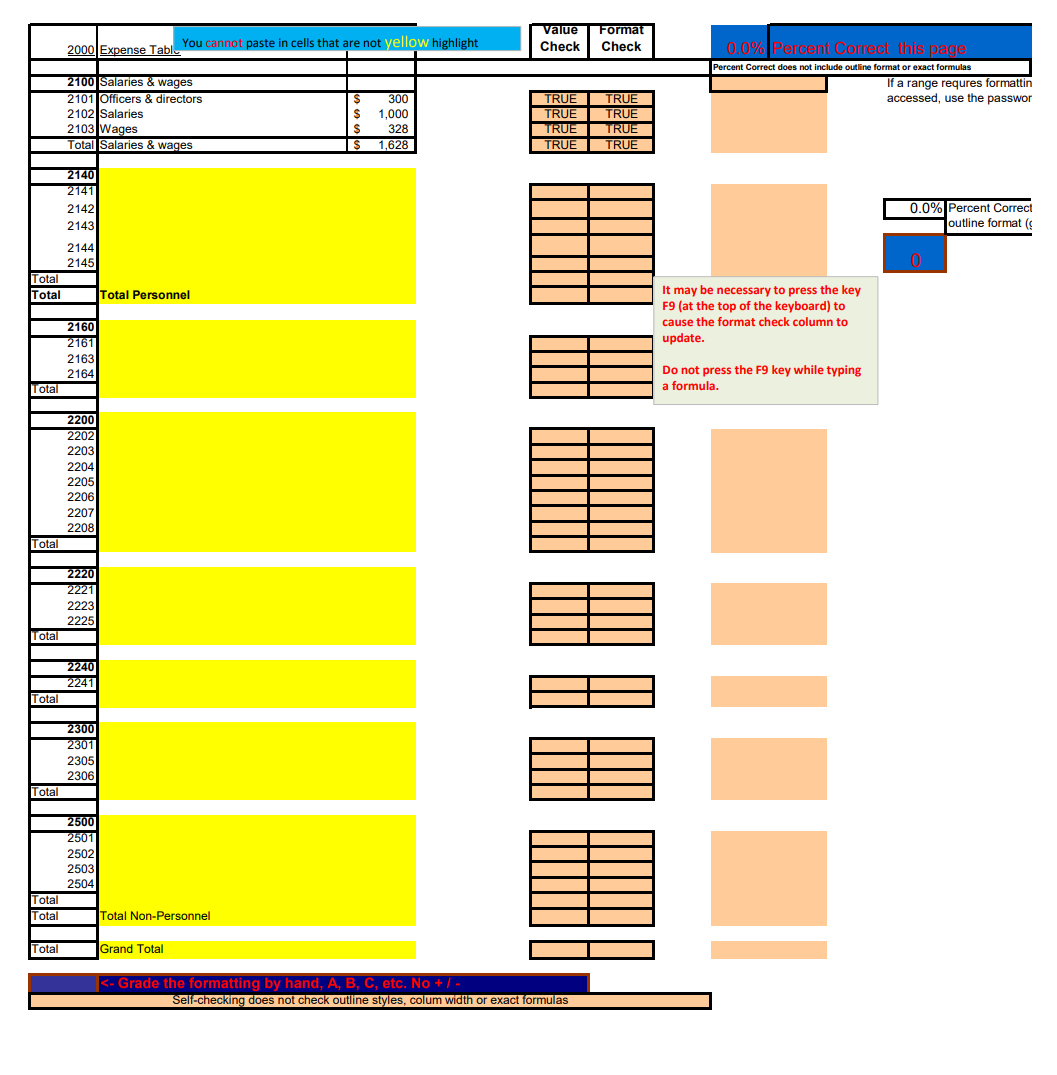
In column F you will find some cells and data exhibiting many of the skills you need to learn. This part describes how cells F6 through F10 were prepared. (shown as an example). (this is how it was done, not what you are to do, see the "Try this yourself" for what to do) To get the dark bold outline (from the top of row 5 to the bottom of row 10) use the outline/border icon on the formatting ribbon. Highlight all rows from 5 to 10. Then click the drop-down arrow beside the outline/border icon. Select the broad boarder icon. You can then highlight row 9 and repeat and select the narrower bottom border. The $ mark is achieved through two steps. First, highlight the cells (5 through 10) and click the $ mark format icon. Then highlight again and click twice on the fewer decimal point icon to remove the decimals. To put the total in row 10, click on the cell F10, then type =subtotal(9,F5:F9). Try this yourself for rows 14-16. Put the total in cell F17. You should get a total of $1,399. If a range requires formatting and cannot be accessed, use the password "Student" 7000-7999 Personnel 7000 Grants, contracts, & direct assistance 7100 Salaries & related expenses Total The other skills you need can practiced with cells H4 through J7. First, you need column | to be wider. To achieve this, place your cursor in space between cc and J on the label row and quickly click twice (double click). Next you need the total from cell F17 in cell J6. Place your cursor in J6, press the "=" key, tt point to cell F17, then press enter. (This process will also work across separate tabs/sheets Next you need the total from cell F10 in cell J5. Place your cursor in J5, press the "=" key, tt point to cell F10, then press enter. Fourth, in cell J7, type =subtotal(9,J5:J6) This produces a total just like in cell F10, when you make another "subtotal\" that crosses ov cell, the subtotal will be ignored. Now make an appropriate label for row H through J7 (enter in 17) (The label could repeat the the top of the block, for example) Finally, practice your formatting skills. You will onlv be able to use the vellow | it may be necessary to press t F9 (at the top of the keyboard)| ] Expense Table ] Self Checking _- value __format Expenses - personnel related 7000 rants, contracts, & direct assistance _ Contracts - program related Grants to other organizations Awards & grants - individuals Specific assistance - individuals Benefits paid to or for members Offlcers & directors salaries Salaries & wages - other Pension plan contributions Employee benefits - not pension Payroll taxes, etc. Summary Chart 7000-799 Personnel 7000 [Grants, contracts, & direct assistance $ 1,767 7200 |Salaries & related expenses $ 1,442 7500 |Contract service expenses $ 4,032 Personnel $ 7241 ! OO 30008909 Nonpersonnel Nonpersonnel expenses Facility & equipment expenses Travel & meetings expenses Other expenses Business expenses Total Nonpersonnel $ 16,868 Total Operating > 24109 I 9000-999 Capital 9800 ([Fixed-asset purchases b 1,793 Total Capital $ 1,793 I Grand Total $ 25,902 Check Crosscheck total from Detail $ 25902 Value Format 2000 Expense Table You cannot paste in cells that are not yellow highlight Check Check 0.0% Percent Correct this page Percent Correct does not include outline format or exact formulas 2100 Salaries & wages 2101 Officers & directors If a range requres formattin 300 TRUE TRUE 2102 Salaries accessed, use the passwor 1,000 TRUE TRUE 2103 Wages 328 TRUE TRUE Total Salaries & wages 1,628 TRUE TRUE 2140 2141 2142 2143 0.0% Percent Correct outline format ( 2144 2145 0 Total Total Total Personnel It may be necessary to press the key F9 (at the top of the keyboard) to 2160 cause the format check column to 2161 update. 2163 2164 Do not press the F9 key while typing Total a formula. 2200 2202 2203 2204 2205 2206 2207 22081 Total 2220 2221 2223 2225 Total 2240 2241 Total 2300 20 01 2305 2306 Total 2500 2501 2503 2504 Total Total Total Non-Personnel Total Grand Total
Step by Step Solution
There are 3 Steps involved in it
1 Expert Approved Answer
Step: 1 Unlock
Question Has Been Solved by an Expert!
Get step-by-step solutions from verified subject matter experts
Step: 2 Unlock
Step: 3 Unlock
Students Have Also Explored These Related Accounting Questions!