







Question: in fill the blanks Common-Size Financial Statement Analysis Using Excel Completing this activity will help you learn to: 1. create Excel formulas using cell references.
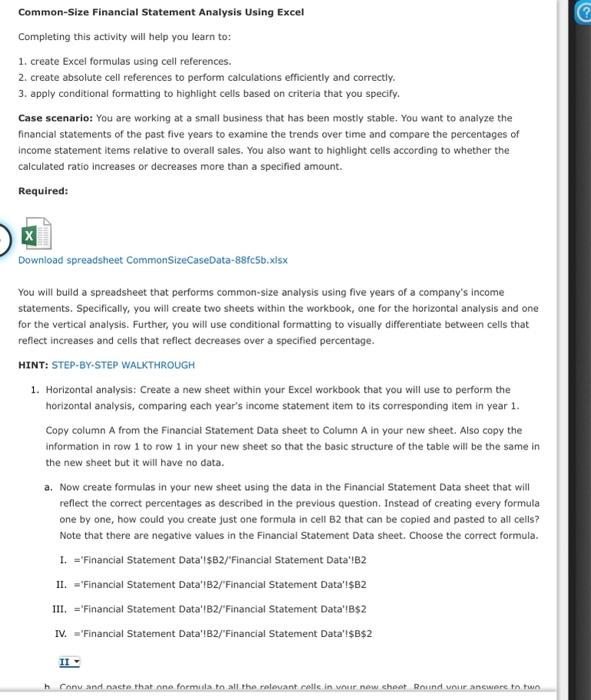
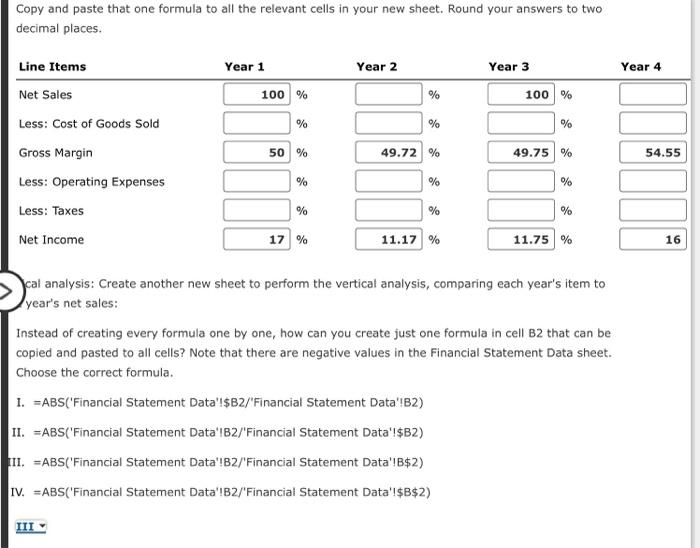
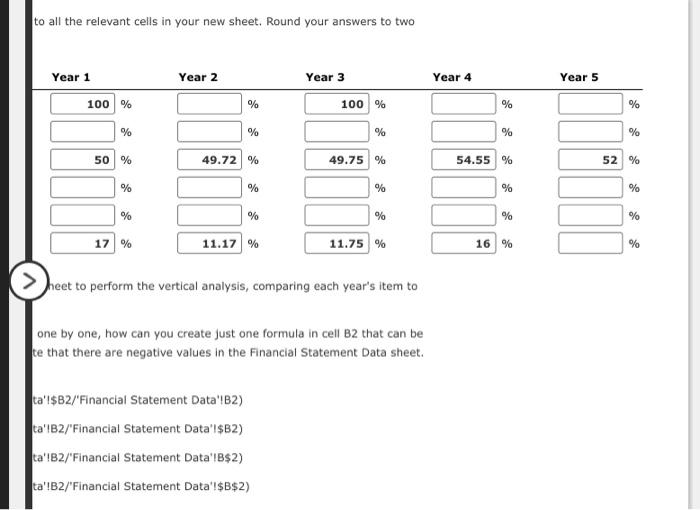
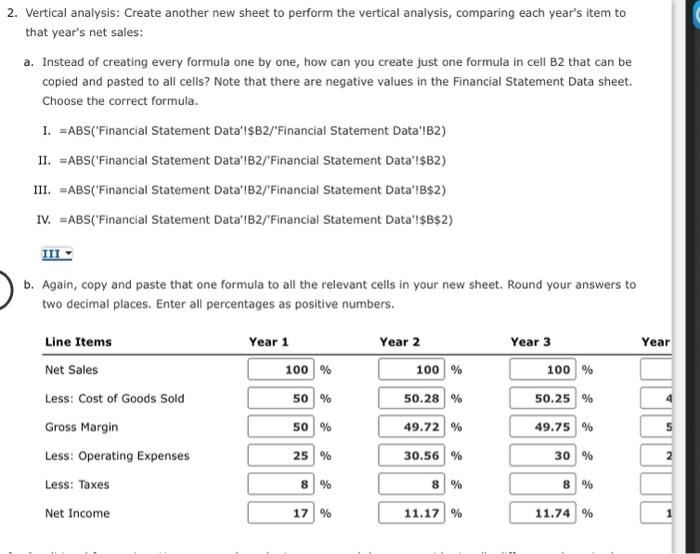
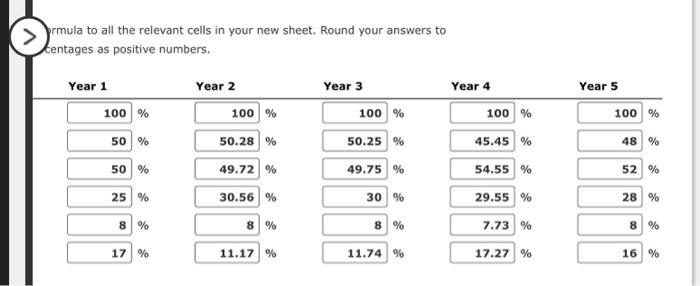
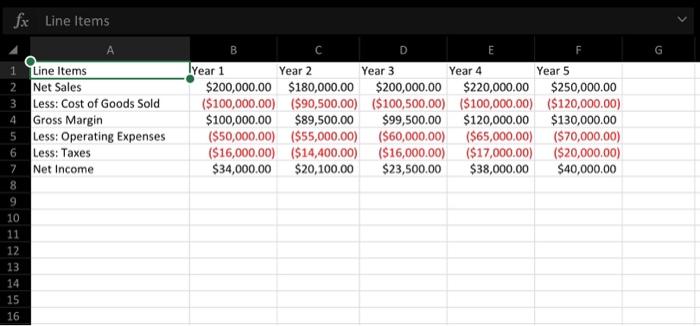
Common-Size Financial Statement Analysis Using Excel Completing this activity will help you learn to: 1. create Excel formulas using cell references. 2. create absolute cell references to perform calculations efficiently and correctly. 3. apply conditional formatting to highlight cells based on criteria that you specify. Case scenario: You are working at a small business that has been mostly stable. You want to analyze the financial statements of the past five years to examine the trends over time and compare the percentages of income statement items relative to overall sales, You also want to highlight cells according to whether the calculated ratio increases or decreases more than a specified amount. Required: Download spreadsheet CommonSizeCaseData-88fc5b.xisx You will bulid a spreadsheet that performs common-size analysis using five years of a company's income statements. Specifically, you will create two sheets within the workbook, one for the horizontal analysis and one for the vertical analysis. Further, you will use conditional formatting to visually differentiate between cells that reflect increases and cells that reflect decreases over a specified percentage. HINT: STEP-BY-STEP WAUKTHROUGH 1. Horizontal analysis: Create a new sheet within your Excel workbook that you will use to perform the horizontal analysis, comparing each year's income statement item to its corresponding item in year 1. Copy column A from the Financial Statement Data sheet to Column A in your new sheet. Also copy the information in row 1 to row 1 in your new sheet so that the basic structure of the table will be the same in the new sheet but it will have no data. a. Now create formulas in your new sheet using the data in the Financial Statement Data sheet that will reflect the correct percentages as described in the previous question. Instead of creating every formula one by one, how could you create just one formula in cell B2 that can be copied and pasted to all cells? Note that there are negative values in the Financiai Statement Data sheet. Choose the correct formula. 1. ="Financial Statement Data'IsB2/"Financlal Statement Data'lB2 II. ='Financial Statement Data'IB2/'Financial Statement Data'!\$B2 III. ='Financial Statement Data'/B2/'Financial Statement Data'IB\$2 IV. ="Financial Statement Data'!B2/"Financial Statement Data'!\$B\$2 II h Conu and nacte that ano formila to all the rolowant relle in vout now eheot Rnuind vair anewere ta twa. Copy and paste that one formula to all the relevant cells in your new sheet. Round your answers to two decimal places. cal analysis: Create another new sheet to perform the vertical analysis, comparing each year's item to year's net sales: Instead of creating every formula one by one, how can you create just one formula in cell B2 that can be copied and pasted to all cells? Note that there are negative values in the Financial Statement Data sheet. Choose the correct formula. 1. =ABS('Financial Statement Data'I\$B2/'Financial Statement Data'!B2) II. =ABS('Financial Statement Data'IB2/'Financial Statement Data'I\$B2) III. =ABS('Financial Statement Data'!B2/'Financial Statement Data'!B\$2) IV. =ABS('Financial Statement Data'!B2/'Financial Statement Data'I\$B\$2) to all the relevant cells in your new sheet. Round your answers to two heet to perform the vertical analysis, comparing each year's item to one by one, how can you create just one formula in cell B2 that can be te that there are negative values in the Financial Statement Data sheet. ta'1\$B2/'Financial Statement Data'IB2) ta'IB2/'Financial Statement Data'I\$B2) ta'!B2/'Financial Statement Data'IB $2) ta'!B2/'Financial Statement Data'!\$B\$2) 2. Vertical analysis: Create another new sheet to perform the vertical analysis, comparing each year's item to that year's net sales: a. Instead of creating every formula one by one, how can you create just one formula in cell B2 that can be copied and pasted to all cells? Note that there are negative values in the Financial Statement Data sheet. Choose the correct formula. I. =ABS('Financial Statement Data'I\$B2/'Financial Statement Data'IB2) II. =ABS('Financial Statement Data'lB2/'Financial Statement Data'I\$B2) III. =ABS('Financial Statement Data'IB2/'Financial Statement Data'IB\$2) IV. = ABS('Financial Statement Data'IB2/'Financial Statement Data'!\$B\$2) III b. Again, copy and paste that one formula to all the relevant cells in your new sheet. Round your answers to two decimal places. Enter all percentages as positive numbers. rmula to all the relevant cells in your new sheet. Round your answers to centages as positive numbers. fx Line ltems
Step by Step Solution
There are 3 Steps involved in it

Get step-by-step solutions from verified subject matter experts
 Study Help