







Question: In Lab 4 students will begin experimenting with basic web application vulnerability scanning using tools such as Nikto and the Open Web App Security Project.
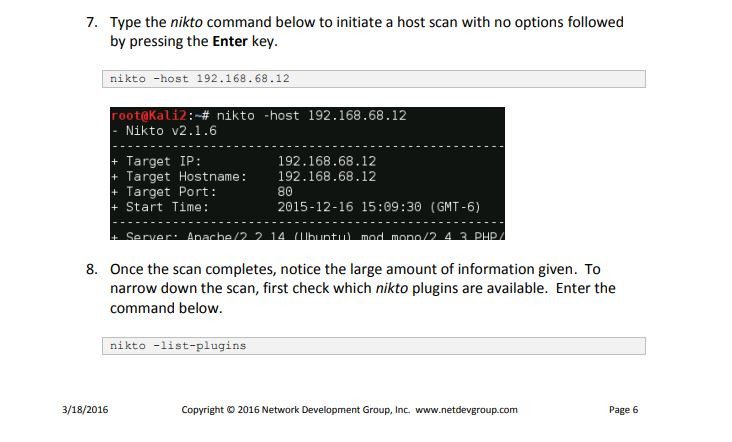
In Lab 4 students will begin experimenting with basic web application vulnerability scanning using tools such as Nikto and the Open Web App Security Project. Answers the following questions (2 points each): 1. What information is found when issuing the initial scan as in Step 1.7?
2. What are the purpose of the plugins that are displayed after the command in Step 1.8?
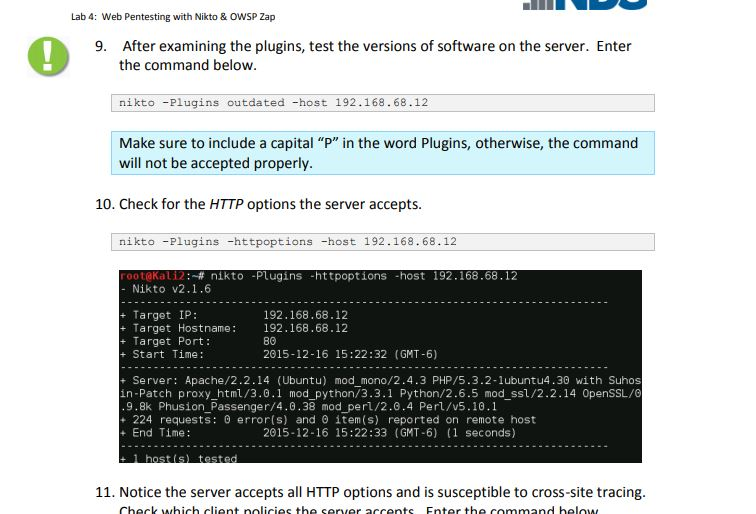
3. What does the command in Step 1.9 accomplish?
4. What does the command in Step 1.10 accomplish?
5. What is cross-site tracing? Explain in your own words.
6. What useful information is generated in the report in Step 1.1?
7. What is the purpose of the OWASP ZAP tool?
 8. There are other web application security tools included with Kali. Research the capabilities of another and briefly discuss how it is different from Nikto and OWASP ZAP.
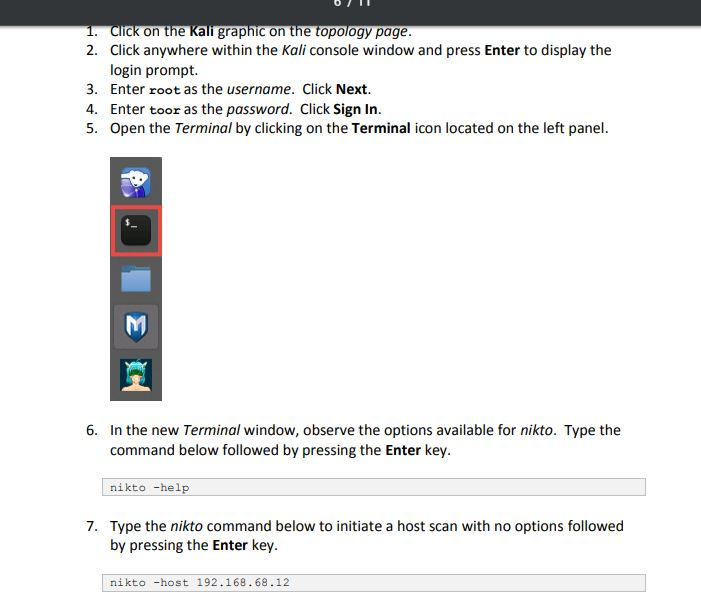
ck on the Kali graphic on the topology page Click anywhere within the Kali console window and press Enter to display the login prompt. 2. 3. Enter root as the username. Click Next. 4. Enter toor as the password. Click Sign In. 5. Open the Terminal by clicking on the Terminal icon located on the left panel In the new Terminal window, observe the options available for nikto. Type the command below followed by pressing the Enter key. 6. nikto -help Type the nikto command below to initiate a host scan with no options followed by pressing the Enter key 7. nikto -host 192.168.68.12 ck on the Kali graphic on the topology page Click anywhere within the Kali console window and press Enter to display the login prompt. 2. 3. Enter root as the username. Click Next. 4. Enter toor as the password. Click Sign In. 5. Open the Terminal by clicking on the Terminal icon located on the left panel In the new Terminal window, observe the options available for nikto. Type the command below followed by pressing the Enter key. 6. nikto -help Type the nikto command below to initiate a host scan with no options followed by pressing the Enter key 7. nikto -host 192.168.68.12
Step by Step Solution
There are 3 Steps involved in it

Get step-by-step solutions from verified subject matter experts
 Study Help