







Question: In linux::: Task 7 The fmt (format) command can wrap text like fold, but also has some additional functions. To wrap text at 50 characters,
In linux:::
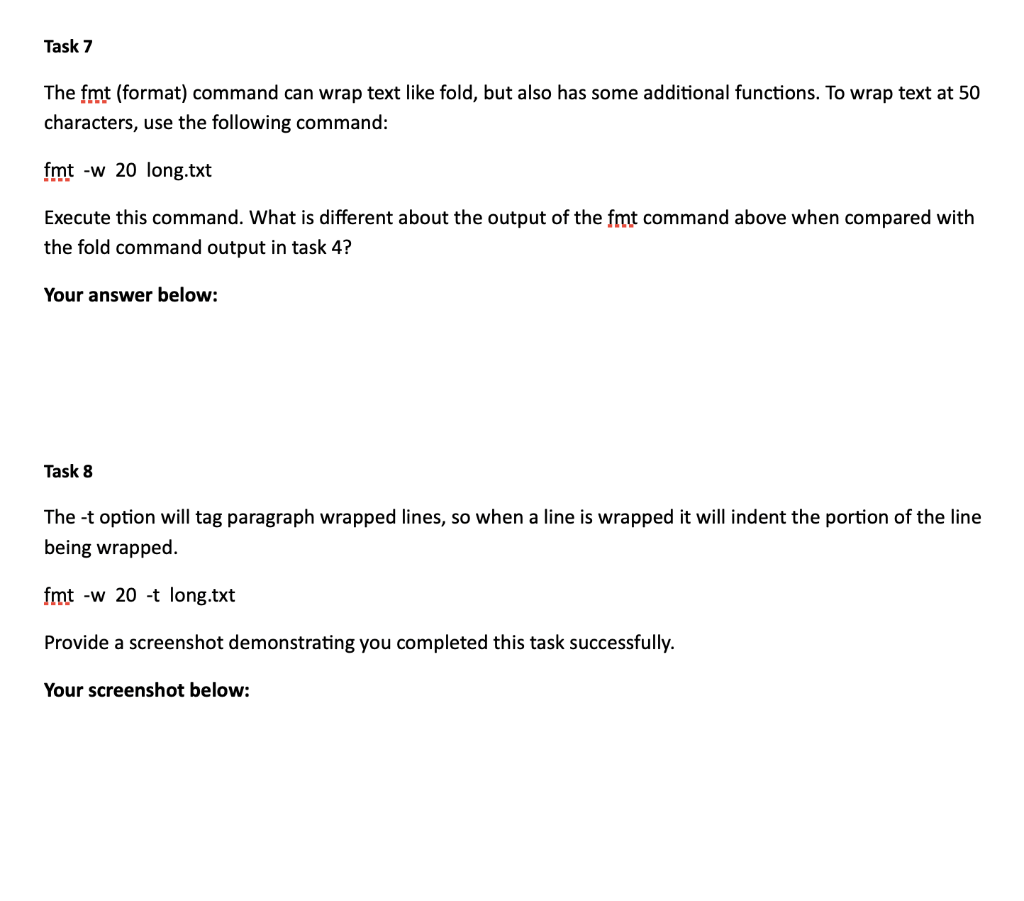
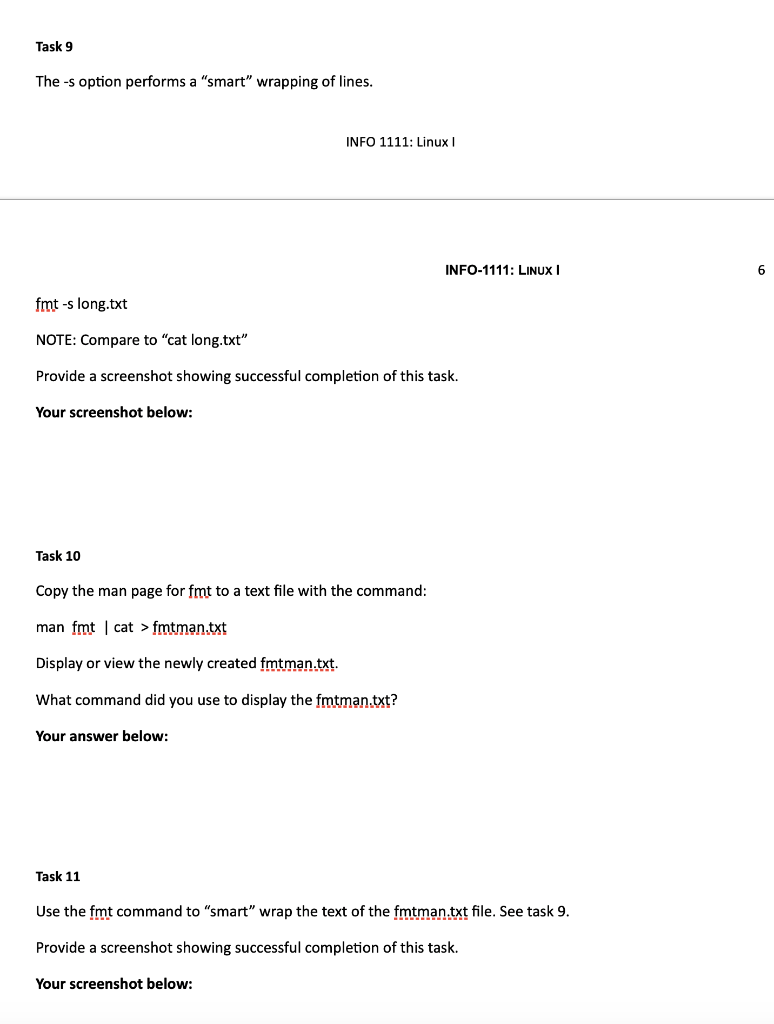
Task 7 The fmt (format) command can wrap text like fold, but also has some additional functions. To wrap text at 50 characters, use the following command: fmt -w 20 long.txt Execute this command. What is different about the output of the fmt command above when compared with the fold command output in task 4? Your answer below: Task 8 The-t option will tag paragraph wrapped lines, so when a line is wrapped it will indent the portion of the line being wrapped. fmt -w 20 -t long.txt Provide a screenshot demonstrating you completed this task successfully. Your screenshot below: Task 9 The -s option performs a "smart" wrapping of lines. INFO 1111: Linux INFO-1111: LINUX 6 fmt-s long.txt NOTE: Compare to "cat long.txt" Provide a screenshot showing successful completion of this task. Your screenshot below: Task 10 Copy the man page for fmt to a text file with the command: man fmt cat > fmtman.txt Display or view the newly created fmtman.txt. What command did you use to display the fmtman.txt? Your answer below: Task 11 Use the fmt command to "smart" wrap the text of the fmtman.txt file. See task 9. Provide a screenshot showing successful completion of this task. Your screenshot below: Task 12 Text that contains odd spacing between words can be corrected using the -u option. For example, INFO 1111: Linux INFO-1111: LINUX echo "Hello then goodbye" NOTE: Make sure to use random spacing between words. Open and close with double quotes. Notice the spacing > echo "Hello Hello then then Goodbye" Goodbye To resolve the spacing, pipe the echo command above to fmt using the -u (uniform-spacing). echo "Hello then goodbye" | fmt-u Provide a screenshot showing successful completion of this task. Your screenshot below: Task 13 Correct the spacing from the following echo command using fmt. echo "one two three four five six" Provide a screenshot showing successful completion of this task. Your screenshot below: Task 7 The fmt (format) command can wrap text like fold, but also has some additional functions. To wrap text at 50 characters, use the following command: fmt -w 20 long.txt Execute this command. What is different about the output of the fmt command above when compared with the fold command output in task 4? Your answer below: Task 8 The-t option will tag paragraph wrapped lines, so when a line is wrapped it will indent the portion of the line being wrapped. fmt -w 20 -t long.txt Provide a screenshot demonstrating you completed this task successfully. Your screenshot below: Task 9 The -s option performs a "smart" wrapping of lines. INFO 1111: Linux INFO-1111: LINUX 6 fmt-s long.txt NOTE: Compare to "cat long.txt" Provide a screenshot showing successful completion of this task. Your screenshot below: Task 10 Copy the man page for fmt to a text file with the command: man fmt cat > fmtman.txt Display or view the newly created fmtman.txt. What command did you use to display the fmtman.txt? Your answer below: Task 11 Use the fmt command to "smart" wrap the text of the fmtman.txt file. See task 9. Provide a screenshot showing successful completion of this task. Your screenshot below: Task 7 The fmt (format) command can wrap text like fold, but also has some additional functions. To wrap text at 50 characters, use the following command: fmt -w 20 long.txt Execute this command. What is different about the output of the fmt command above when compared with the fold command output in task 4? Your answer below: Task 8 The-t option will tag paragraph wrapped lines, so when a line is wrapped it will indent the portion of the line being wrapped. fmt -w 20 -t long.txt Provide a screenshot demonstrating you completed this task successfully. Your screenshot below: Task 9 The -s option performs a "smart" wrapping of lines. INFO 1111: Linux INFO-1111: LINUX 6 fmt-s long.txt NOTE: Compare to "cat long.txt" Provide a screenshot showing successful completion of this task. Your screenshot below: Task 10 Copy the man page for fmt to a text file with the command: man fmt cat > fmtman.txt Display or view the newly created fmtman.txt. What command did you use to display the fmtman.txt? Your answer below: Task 11 Use the fmt command to "smart" wrap the text of the fmtman.txt file. See task 9. Provide a screenshot showing successful completion of this task. Your screenshot below: Task 12 Text that contains odd spacing between words can be corrected using the -u option. For example, INFO 1111: Linux INFO-1111: LINUX echo "Hello then goodbye" NOTE: Make sure to use random spacing between words. Open and close with double quotes. Notice the spacing > echo "Hello Hello then then Goodbye" Goodbye To resolve the spacing, pipe the echo command above to fmt using the -u (uniform-spacing). echo "Hello then goodbye" | fmt-u Provide a screenshot showing successful completion of this task. Your screenshot below: Task 13 Correct the spacing from the following echo command using fmt. echo "one two three four five six" Provide a screenshot showing successful completion of this task. Your screenshot below: Task 7 The fmt (format) command can wrap text like fold, but also has some additional functions. To wrap text at 50 characters, use the following command: fmt -w 20 long.txt Execute this command. What is different about the output of the fmt command above when compared with the fold command output in task 4? Your answer below: Task 8 The-t option will tag paragraph wrapped lines, so when a line is wrapped it will indent the portion of the line being wrapped. fmt -w 20 -t long.txt Provide a screenshot demonstrating you completed this task successfully. Your screenshot below: Task 9 The -s option performs a "smart" wrapping of lines. INFO 1111: Linux INFO-1111: LINUX 6 fmt-s long.txt NOTE: Compare to "cat long.txt" Provide a screenshot showing successful completion of this task. Your screenshot below: Task 10 Copy the man page for fmt to a text file with the command: man fmt cat > fmtman.txt Display or view the newly created fmtman.txt. What command did you use to display the fmtman.txt? Your answer below: Task 11 Use the fmt command to "smart" wrap the text of the fmtman.txt file. See task 9. Provide a screenshot showing successful completion of this task. Your screenshot below
Step by Step Solution
There are 3 Steps involved in it

Get step-by-step solutions from verified subject matter experts
 Study Help