







Question: In this exercise, you will design a webpage for a mobile viewport. An example of the completed webpage is shown in Figure 5-65. 1. Open
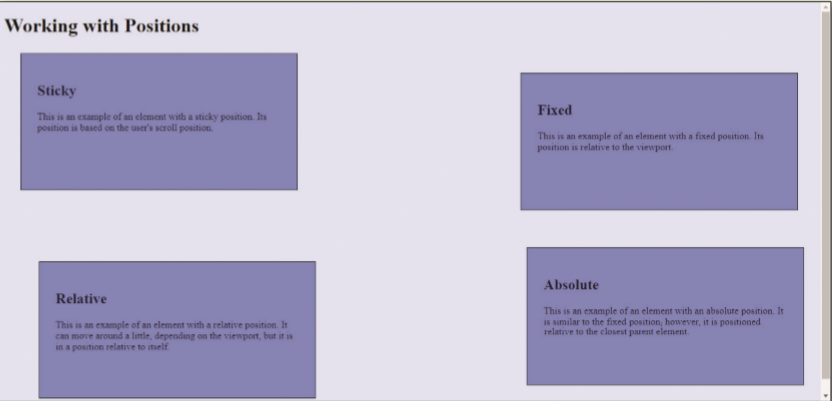
In this exercise, you will design a webpage for a mobile viewport. An example of the completed webpage is shown in Figure 5-65.
1.
Open index.html file and update the comment with your name (firstname lastname), the file name, and todays date (MM/DD/YYYY). Open index.html in your browser to view the file.
Add the text, CH 5 Extend Your Knowledge, to the title element.
2.
Open the styles.css file and locate the "sticky comment and create a style rule for the sticky class selector with the following rules:
Add a declaration for the position property with a value of -webkit-sticky.
Add a declaration for the position property with a value of sticky.
Add a declaration for the top property and specify a 0 value.
Refresh your page, and scroll down to view the changes. In the index.html file, use the empty paragraph element within the sticky div element to briefly explain how to use the sticky position.
3.
In the styles.css file, locate the relative comment and create a style rule for the relative class selector with the following declarations:
Add a declaration for the position property with a value of relative.
Add another declaration for the top property and specify a value of 90px.
Add another declaration for the left property with a value of 30px
Refresh your page, and scroll down to view the changes. In the index.html file, use the empty paragraph element within the relative div element to explain how the style rules affected the relative box.
4.
In the styles.css file, locate the fixed comment and create a style rule for the fixed class selector with the following declarations:
Add a declaration for the position property with a value of fixed.
Add another declaration for the top property and specify a value of 90px.
Add another declaration for the right property with a value of 10px.
Refresh your page, and scroll down to view the changes. In the index.html file, use the empty paragraph element within the fixed div element to explain how the style rules affected the fixed box.
5.
In the styles.css file, locate the absolute comment and create a style rule for the absolute class selector with the following declarations:
Add a declaration for the position property with a value of absolute.
Add another declaration for the bottom property and specify a 0 value.
Add another declaration for the right property and specify a 0 value.
Refresh your page, and scroll down to view the changes. In the index.html file, use the empty paragraph element within the absolute div element to explain how the style rules affected the absolute box.
Working with Positions Sticky This is an example of an element with a sticky position. Its position is based on the user's scroll position. Fixed This is an example of an element with a fixed position. Its position is relative to the viewport. Absolute Relative This is an example of an element with an absolute position. It This is an example of an element with a relative position. It can move around a limle, depending on the viewport, but it is is similar to the fixed position, however, it is positioned in a position relative to itself
Step by Step Solution
There are 3 Steps involved in it

Get step-by-step solutions from verified subject matter experts
 Study Help