







Question: In this project, you will use Microsoft Excel to see if a company named Electric Car has enough cash to get through the next three
In this project, you will use Microsoft Excel to see if a company named Electric Car has enough cash to get through the next three years without needing external financing.
Check the attached documents for the project handout and model skeleton.
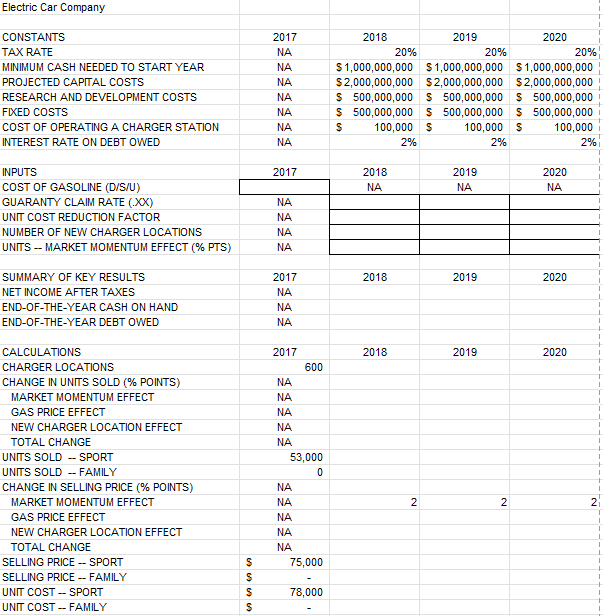
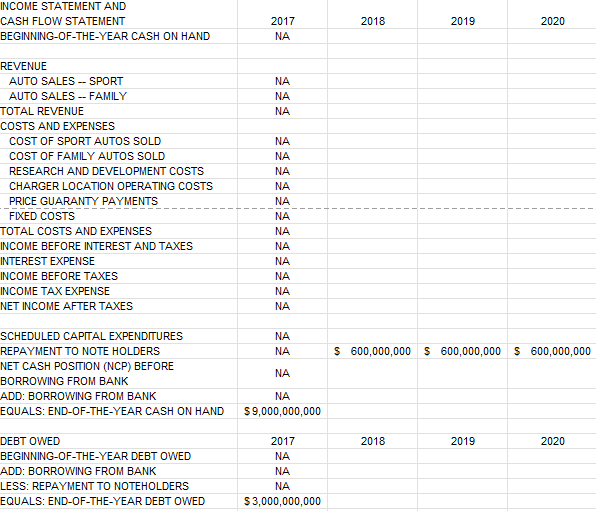
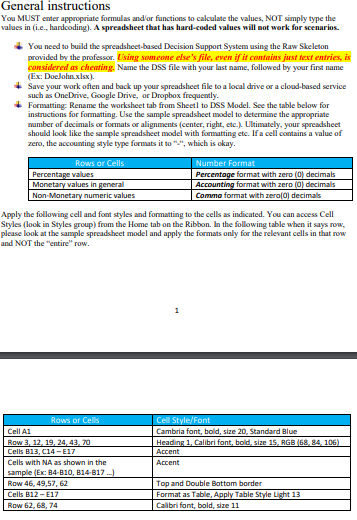
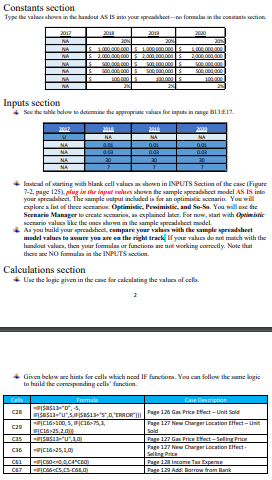
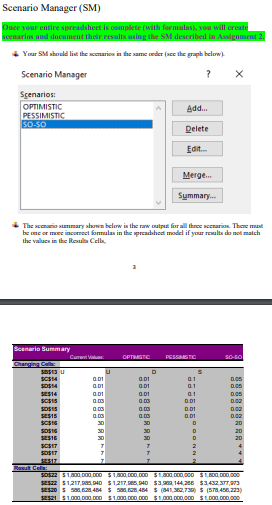
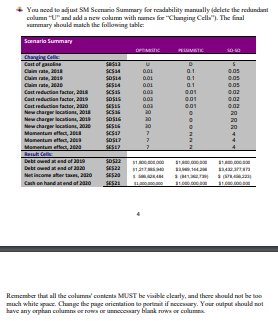
General instructions You MUST emter appropriate formulas and/or functions to calculate the values, NOT simply type the values in (i.e., hardcoding). A spreadsheet that has hard-coded values will not work for scenarios. You need to build the spreadsheet-based Decision Support System using the Raw Skeleton provided by the professor. Using souncone else's file, even if it contains jurst text entries, is considered as chenting. Name the DSS file with your last name, followed by your first name (Ex: Doelohn.xlsx). Save your work often and back up your spreadsheet file to a local drive or a cloud-based service such as OneDrive, Google Drive, or Dropbox frequently. if Formatting Rename the worksheet tab from Sheetl to DSS Model. See the table below for instructions for formatting. Use the sample spreadsheet model to determine the appropriate mumber of decimals or formats or alignments (center, right, etc.). Ultimately, your spreadsheet should look like the sample spreadsheet model with formatting ete. If a cell contains a value of zero, the accounting style type formats it to "2", which is okay. Apply the following cell and font syles and formatting to the cells as indicated. You can access Cell Styles (look in Styles group) from the Home tab on the Ribbon. In the following table when it says row, please look at the sample spreadsheet model and apply the formats only for the relevant cells in that row and NOT the "entire" row. column 'U" and add a new colurrn with menes fire "Changing Celle"). The final wemenary whould match the following table: 4 Remernber that all the colemax' curients MUST be visible elearly, and thaxe shoeld not be too Juce your entire spreadsheet is complete (with formulash, yeu will create Scenario Manager ? Scenarios: OPTIMISTIC oecelasictir Constants section Inputs section Invead of starting with blark cell valace ax shown in LPUTS Sectice of the case (Figure your apreadshect. The sample output included is for an cptirnitic accrario. Yoe will sceraria valuen like the cenes shown in the sample specadshect rodel. As you build your apreadhact, cempare year valass wth the cample spreadshect medrl values ba awure vea are ean the right track. If your valucs do nok malch with the handoet values, then your formelas or functions ane nos working coercetly. Note that thene are NO formelas in the INPLTS sectire. Calculations section Use the logie given in the case for calculating the valaca of ecll. 2 Given bebo ace hiris for cells which nod IF functinns. You can follow the aune logic in build the cornerponding cells" function. General instructions You MUST emter appropriate formulas and/or functions to calculate the values, NOT simply type the values in (i.e., hardcoding). A spreadsheet that has hard-coded values will not work for scenarios. You need to build the spreadsheet-based Decision Support System using the Raw Skeleton provided by the professor. Using souncone else's file, even if it contains jurst text entries, is considered as chenting. Name the DSS file with your last name, followed by your first name (Ex: Doelohn.xlsx). Save your work often and back up your spreadsheet file to a local drive or a cloud-based service such as OneDrive, Google Drive, or Dropbox frequently. if Formatting Rename the worksheet tab from Sheetl to DSS Model. See the table below for instructions for formatting. Use the sample spreadsheet model to determine the appropriate mumber of decimals or formats or alignments (center, right, etc.). Ultimately, your spreadsheet should look like the sample spreadsheet model with formatting ete. If a cell contains a value of zero, the accounting style type formats it to "2", which is okay. Apply the following cell and font syles and formatting to the cells as indicated. You can access Cell Styles (look in Styles group) from the Home tab on the Ribbon. In the following table when it says row, please look at the sample spreadsheet model and apply the formats only for the relevant cells in that row and NOT the "entire" row. column 'U" and add a new colurrn with menes fire "Changing Celle"). The final wemenary whould match the following table: 4 Remernber that all the colemax' curients MUST be visible elearly, and thaxe shoeld not be too Juce your entire spreadsheet is complete (with formulash, yeu will create Scenario Manager ? Scenarios: OPTIMISTIC oecelasictir Constants section Inputs section Invead of starting with blark cell valace ax shown in LPUTS Sectice of the case (Figure your apreadshect. The sample output included is for an cptirnitic accrario. Yoe will sceraria valuen like the cenes shown in the sample specadshect rodel. As you build your apreadhact, cempare year valass wth the cample spreadshect medrl values ba awure vea are ean the right track. If your valucs do nok malch with the handoet values, then your formelas or functions ane nos working coercetly. Note that thene are NO formelas in the INPLTS sectire. Calculations section Use the logie given in the case for calculating the valaca of ecll. 2 Given bebo ace hiris for cells which nod IF functinns. You can follow the aune logic in build the cornerponding cells" function
Step by Step Solution
There are 3 Steps involved in it

Get step-by-step solutions from verified subject matter experts
 Study Help