







Question: In this section, you will simulate a 1 0 dB T - Attenuator, which is also a matching network between a 5 0 system and
In this section, you will simulate a dB TAttenuator, which is also a matching network between a system and a system.
Open up AWR from the START menu.
Start Programs AWR AWR Design Environment
To create a project choose File New Project. Name the new project and the directory you want to write it to by choosing File Save Project As The project name displays in the title bar. To open an existing project, choose File Open Project. To save the current project, choose File Save Project. When you save a project, everything associated with it is automatically saved. AWR projects are saved as emp files.
To set default project units:Choose Options Project Options. The Project Options dialog box displays. Click the Global Units tab and verify that your settings match those in the following figure. You can choose units by clicking the arrows to the right of the display boxes.
To create a schematic or netlist, rightclick Circuit Schematics in the Project Browser and choose New Schematic or New Netlist.
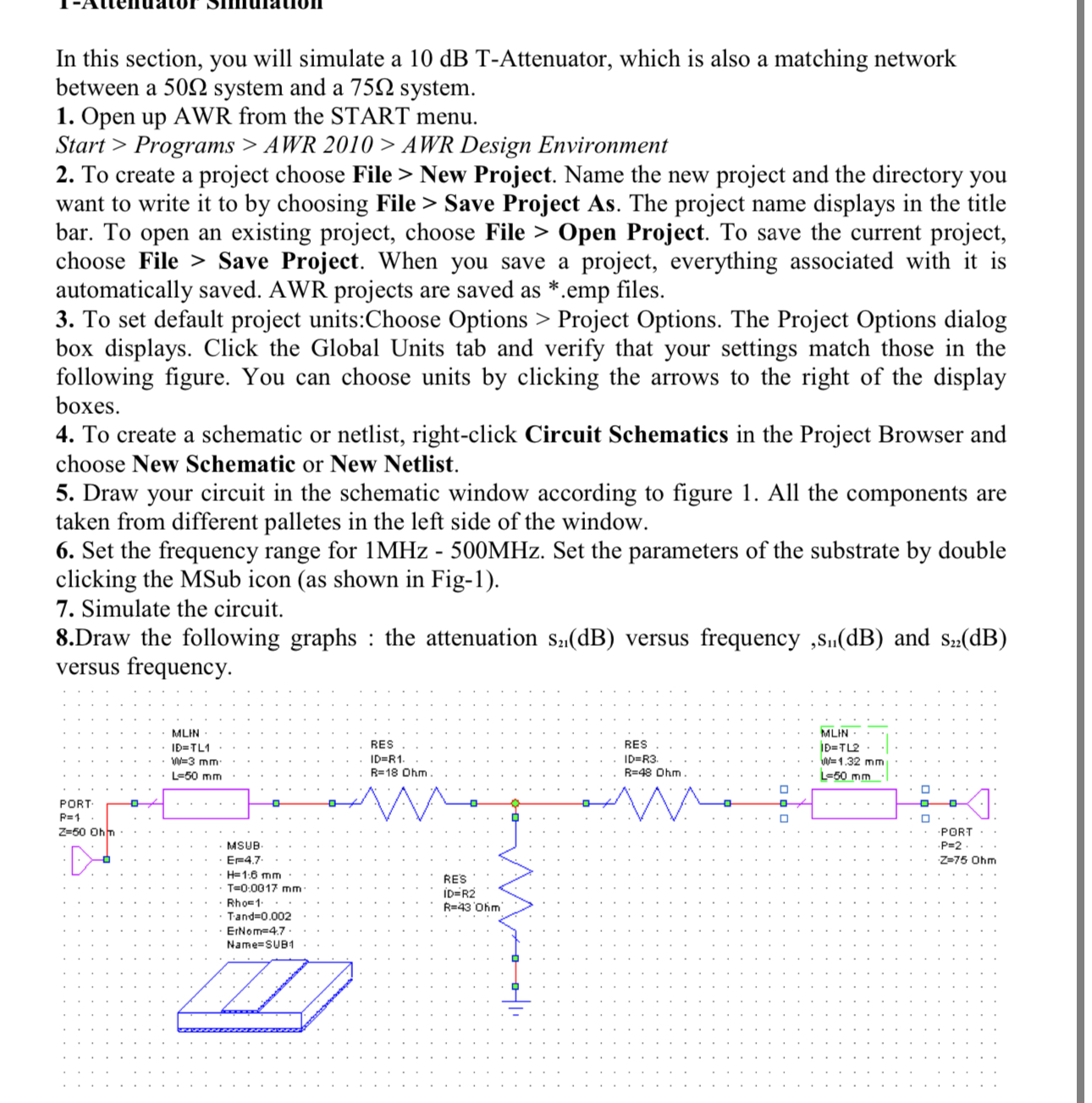
Draw your circuit in the schematic window according to figure All the components are taken from different palletes in the left side of the window.
Set the frequency range for Set the parameters of the substrate by double clicking the MSub icon as shown in Fig
Simulate the circuit.
Draw the following graphs : the attenuation versus frequency, and versus frequency.
Step by Step Solution
There are 3 Steps involved in it
1 Expert Approved Answer
Step: 1 Unlock

Question Has Been Solved by an Expert!
Get step-by-step solutions from verified subject matter experts
Step: 2 Unlock
Step: 3 Unlock
 Study Help