







Question: Independent Challenge 2 ( continued ) j . Scroll to the top of the document. Using shapes, create a graphic to illustrate the document. The
Independent Challenge continued
j Scroll to the top of the document. Using shapes, create a graphic to illustrate the document. The graphic
should be composed of two or more shapes. For example, you might draw city buildings, an abstract design, or
something else you think will represent the content.
k Format the shapes with fills, outlines, and effects. Use the adjustment and rotate handles to alter the shapes as
necessary.
Position the shapes so that they overlap, use the Bring Forward and Send Backward buttons to adjust the layers,
then group the shapes into a single object.
m Resize the grouped object, wrap text around it and position it in the document.
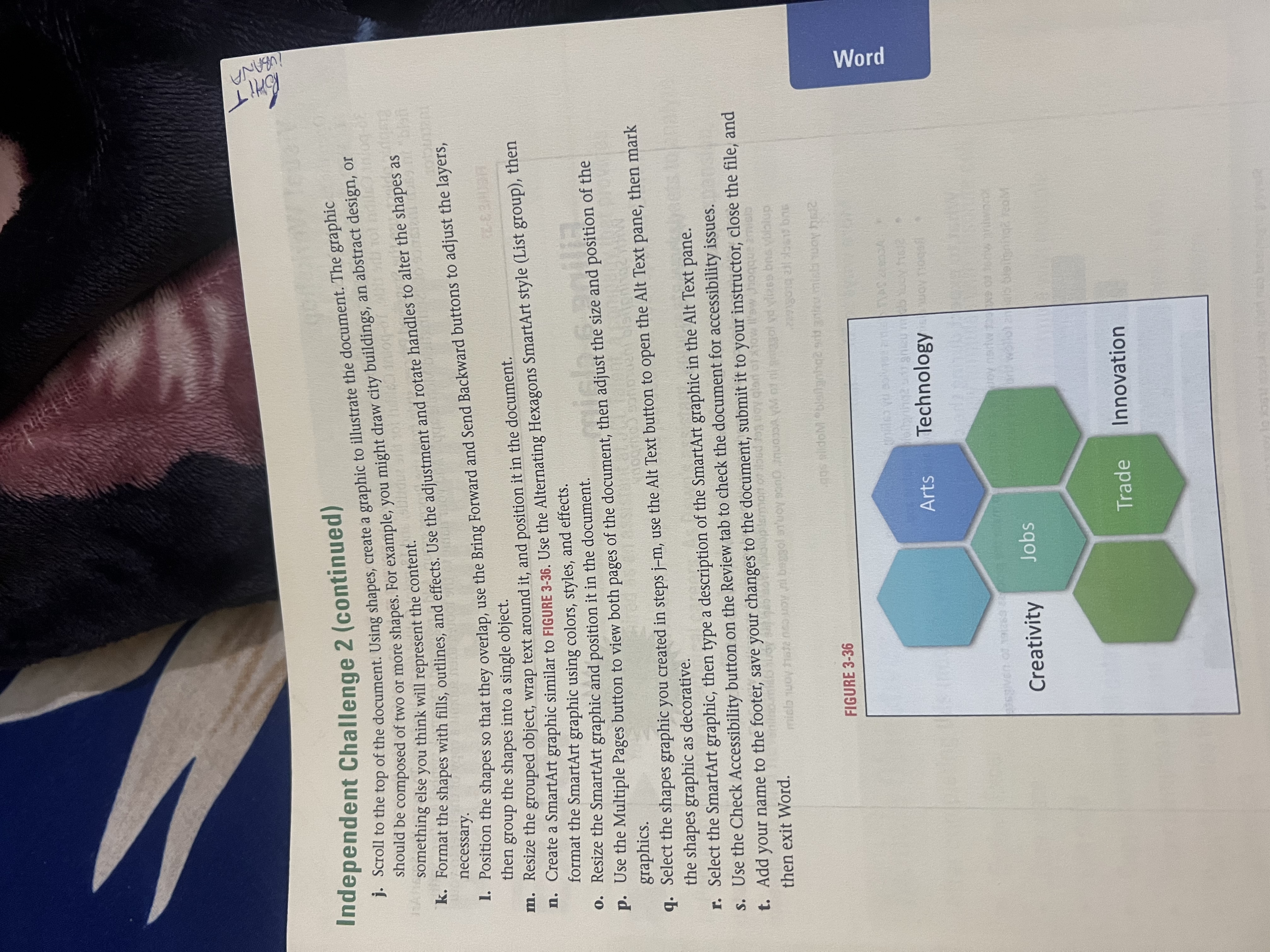
n Create a SmartArt graphic similar to FIGURE Use the Alternating Hexagons SmartArt style List group then
format the SmartArt graphic using colors, styles, and effects.
o Resize the SmartArt graphic and position it in the document.
p Use the Multiple Pages button to view both pages of the document, then adjust the size and position of the
graphics.
q Select the shapes graphic you created in steps use the Alt Text button to open the Alt Text pane, then mark
the shapes graphic as decorative.
r Select the SmartArt graphic, then type a description of the SmartArt graphic in the Alt Text pane.
s Use the Check Accessibility button on the Review tab to check the document for accessibility issues.
t Add your name to the footer, save your changes to the document, submit it to your instructor, close the file, and
then exit Word.
Independent Challenge continued
j Scroll to the top of the document. Using shapes, create a graphic to illustrate the document. The graphic
should be composed of two or more shapes. For example, you might draw city buildings, an abstract design, or
something else you think will represent the content.
k Format the shapes with fills, outlines, and effects. Use the adjustment and rotate handles to alter the shapes as
necessary.
Position the shapes so that they overlap, use the Bring Forward and Send Backward buttons to adjust the layers,
then group the shapes into a single object.
m Resize the grouped object, wrap text around it and position it in the document.
n Create a SmartArt graphic similar to FIGURE Use the Alternating Hexagons SmartArt style List group then
format the SmartArt graphic using colors, styles, and effects.
o Resize the SmartArt graphic and position it in the document.
p Use the Multiple Pages button to view both pages of the document, then adjust the size and position of the
graphics.
q Select the shapes graphic you created in steps use the Alt Text button to open the Alt Text pane, then mark
the shapes graphic as decorative.
r Select the SmartArt graphic, then type a description of the SmartArt graphic in the Alt Text pane.
s Use the Check Accessibility button on the Review tab to check the document for accessibility issues.
t Add your name to the footer, save your changes to the document, submit it to your instructor, close the file, and
then exit Word.
Step by Step Solution
There are 3 Steps involved in it
1 Expert Approved Answer
Step: 1 Unlock

Question Has Been Solved by an Expert!
Get step-by-step solutions from verified subject matter experts
Step: 2 Unlock
Step: 3 Unlock
 Study Help