







Question: Individual Assignment # 3 ( Creating a Physical Database ) Physical Database for an Online Store that Sells Digital Products Due: Submit your solution files
Individual Assignment #Creating a Physical Database
Physical Database for an Online Store that Sells Digital Products
Due: Submit your solution files two files on Blackboard by :PM on Monday, Feb
Problem Statement
For this assignment, you need to use a relational schema for an online store database, which I have
included on the last page. This relational schema has eight logically related relations tables Your tasks
are as follows:
Create a new and empty Microsoft ACCESS database file. Use your UIC Netid as the name of
this database file. That is if your UIC email address is
yourNetid@uic.edu, you should name
your database file yourNetid. Note that ACCESS will automatically append a file type accdb
Thus, for this example, the complete name of your database file would be yourNetid.accdb. This
database file initially has no tables. You will then need to follow steps below to create eight
tables.
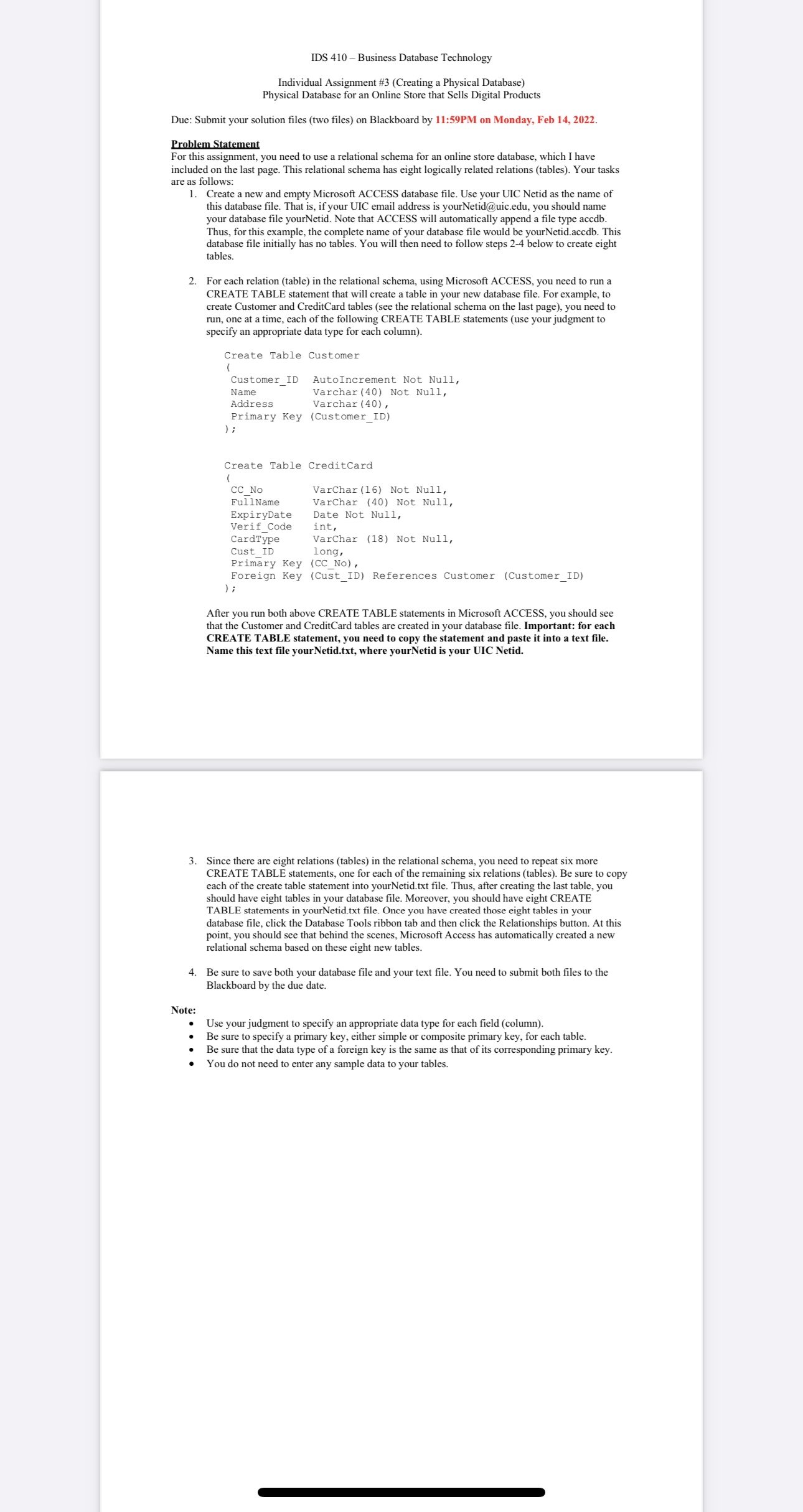
For each relation table in the relational schema, using Microsoft ACCESS, you need to run a
CREATE TABLE statement that will create a table in your new database file. For example, to
create Customer and CreditCard tables see the relational schema on the last page you need to
run, one at a time, each of the following CREATE TABLE statements use your judgment to
specify an appropriate data type for each column
Create Table Customer
CustomerID AutoIncrement Not Null,
Name Varchar Not Null,
Address Varchar
Primary Key CustomerID
;
Create Table CreditCard
CCNo VarChar Not Null,
FullName VarChar Not Null,
ExpiryDate Date Not Null,
VerifCode int,
VerifCode VarChar Not Null,
CustID long,
Primry Key CCNo
Foreign Key CustID References Customer CustomerID
;
After you run both above CREATE TABLE statements in Microsoft ACCESS, you should see
that the Customer and CreditCard tables are created in your database file. Important: for each
CREATE TABLE statement, you need to copy the statement and paste it into a text file.
Name this text file yourNetid.txt where yourNetid is your UIC Netid.
Since there are eight relations tables in the relational schema, you need to repeat six more
CREATE TABLE statements, one for each of the remaining six relations tables Be sure to copy
each of the create table statement into yourNetid.txt file. Thus, after creating the last table, you
should have eight tables in your database file. Moreover, you should have eight CREATE
TABLE statements in yourNetid.txt file. Once you have created those eight tables in your
database file, click the Database Tools ribbon tab and then click the Relationships button. At this
point, you should see that behind the scenes, Microsoft Access has automatically created a new
relational schema based on these eight new tables.
Be sure to save both your database file and your text file. You need to submit both files to the
Blackboard by the due date.
Note:
Use your judgment to specify an appropriate data type for each field column
Be sure to specify a primary key, either simple or composite primary key, for each table.
Be sure that the data type of a foreign key is the same as that of its corresponding primary key.
You do not need to enter any sample data to your tables.
Step by Step Solution
There are 3 Steps involved in it
1 Expert Approved Answer
Step: 1 Unlock

Question Has Been Solved by an Expert!
Get step-by-step solutions from verified subject matter experts
Step: 2 Unlock
Step: 3 Unlock
 Study Help