







Question: Insert, resize, and position the SPCCD logo . a . Place your insertion point at the beginning of the document and insert the SPCCDlogo -
Insert, resize, and position the SPCCD logo
a Place your insertion point at the beginning of the document and insert the SPCCDlogo picture from the Resources link Use the insert Picture dialog box.
b Change the width to and keep the size proportional.
C Change the text wrapping to Top and Bottom and drag the logo above the title:
d Set the Horizontal Absolute position to to the right of Page
e Set the Vertical Absolute position to below Page.
f Change the color Picture Format tab, Adjust group to Saturation:
Insert, modify, and position an icon.
a Place your insertion point at the end of the title
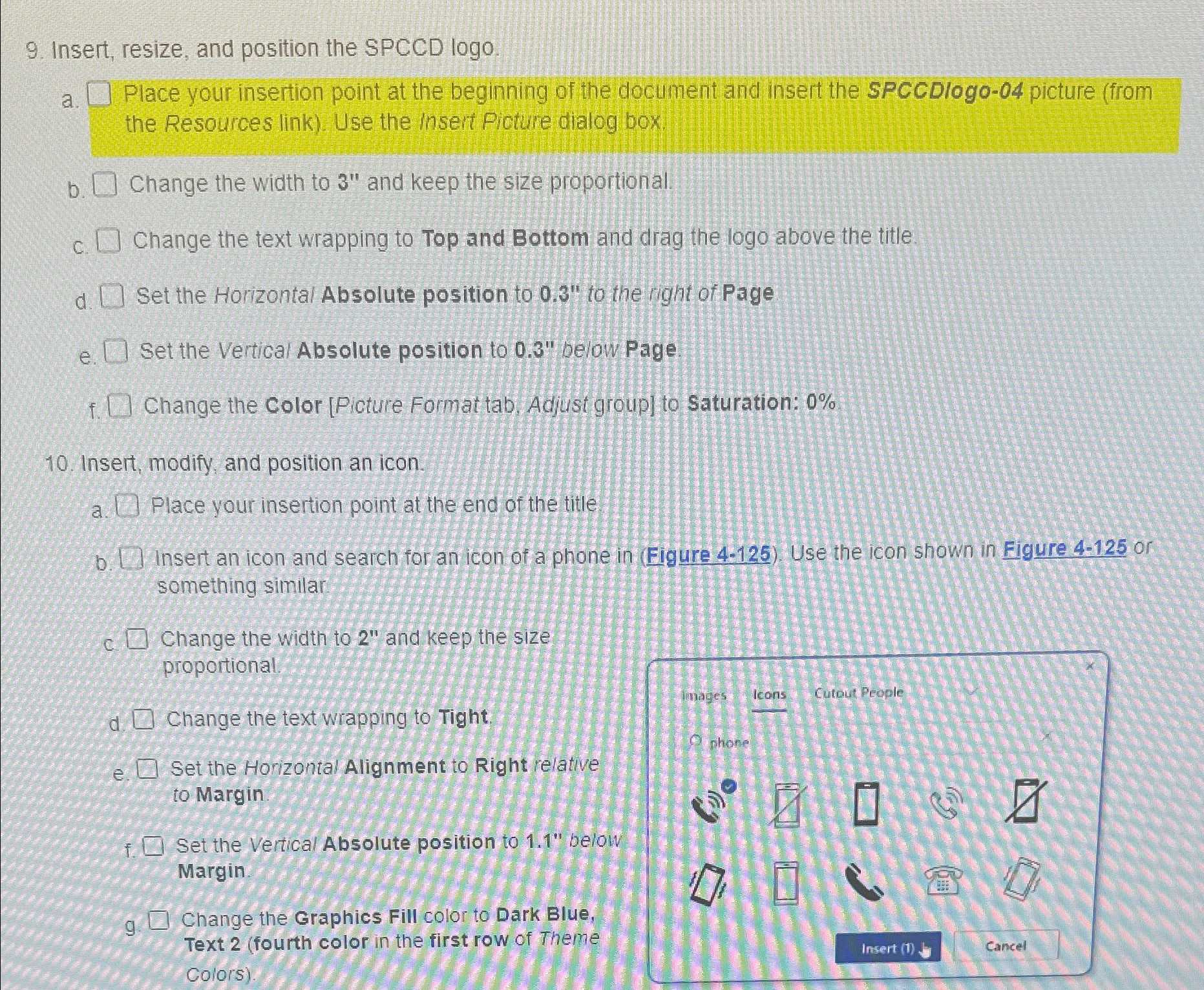
b Insert an icon and search for an icon of a phone in Figure Use the icon shown in Figure or something similar
c Change the width to and keep the size proportional
d Change the text wrapping to Tight
e Set the Horizontal Alignment to Right relative to Margin
f Set the Vertical Absolute position to below Margin.
g Change the Graphics Fill color to Dark Blue, Text fourth color in the first row of Theme Colors
Step by Step Solution
There are 3 Steps involved in it
1 Expert Approved Answer
Step: 1 Unlock

Question Has Been Solved by an Expert!
Get step-by-step solutions from verified subject matter experts
Step: 2 Unlock
Step: 3 Unlock
 Study Help