







Question: INSTRUCTIONS 1. Create a Data Validation Input Message - The relevant range is between 11,000 and 16,000 units. Click on cell N17 and add a
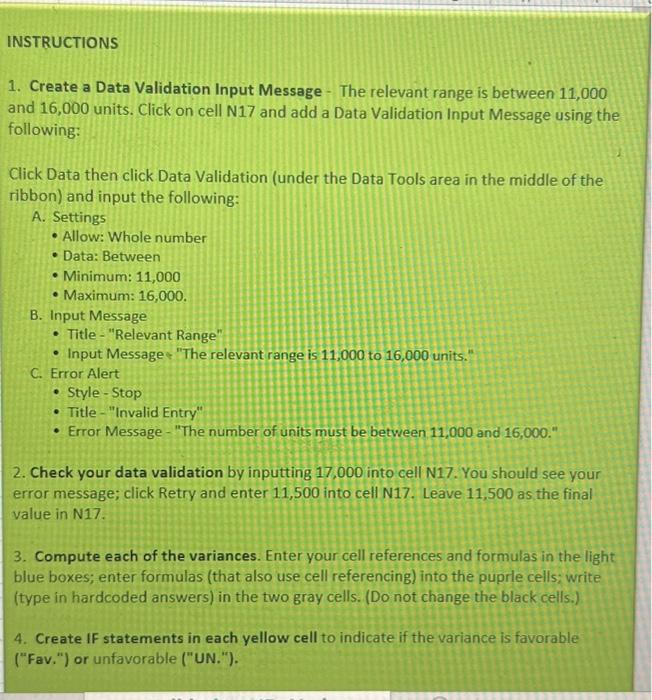
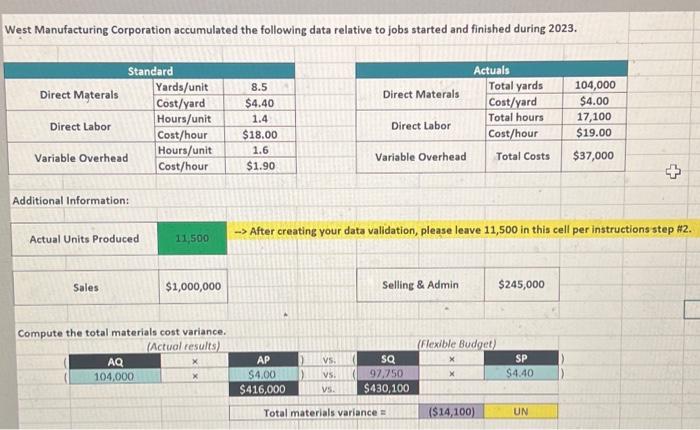
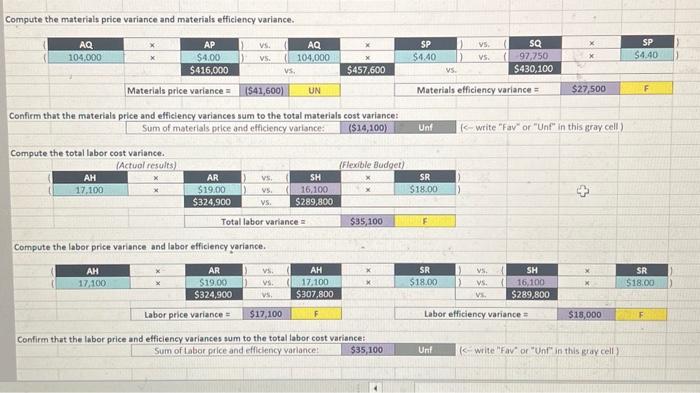
INSTRUCTIONS 1. Create a Data Validation Input Message - The relevant range is between 11,000 and 16,000 units. Click on cell N17 and add a Data Validation Input Message using the following: Click Data then click Data Validation (under the Data Tools area in the middle of the ribbon) and input the following: A. Settings - Allow: Whole number - Data: Between - Minimum: 11,000 - Maximum: 16,000. B. Input Message - Title "Relevant Range" - Input Messages "The relevant range is 11,000 to 16,000 units." C. Error Alert - Style - Stop - Title - "Invalid Entry" - Error Message - "The number of units must be between 11,000 and 16,000." 2. Check your data validation by inputting 17,000 into cell N17. You should see your error message; click Retry and enter 11,500 into cell N17. Leave 11,500 as the final value in N17. 3. Compute each of the variances. Enter your cell references and formulas in the light blue boxes; enter formulas (that also use cell referencing) into the puprle cells; write (type in hardcoded answers) in the two gray cells. (Do not change the black cells.) 4. Create IF statements in each yellow cell to indicate if the variance is favorable ("Fav.") or unfavorable ("UN."). West Manufacturing Corporation accumulated the following data relative to jobs started and finished during 2023. Additional Information: Compute the materials price variance and materials efficiency variance. Confirm that the materials price and efficiency variances sum to the total Sum of materials price and efficiency vari Compute the total labor cost variance. Compute the labor price variance and labor efficiency yariance
Step by Step Solution
There are 3 Steps involved in it

Get step-by-step solutions from verified subject matter experts
 Study Help