







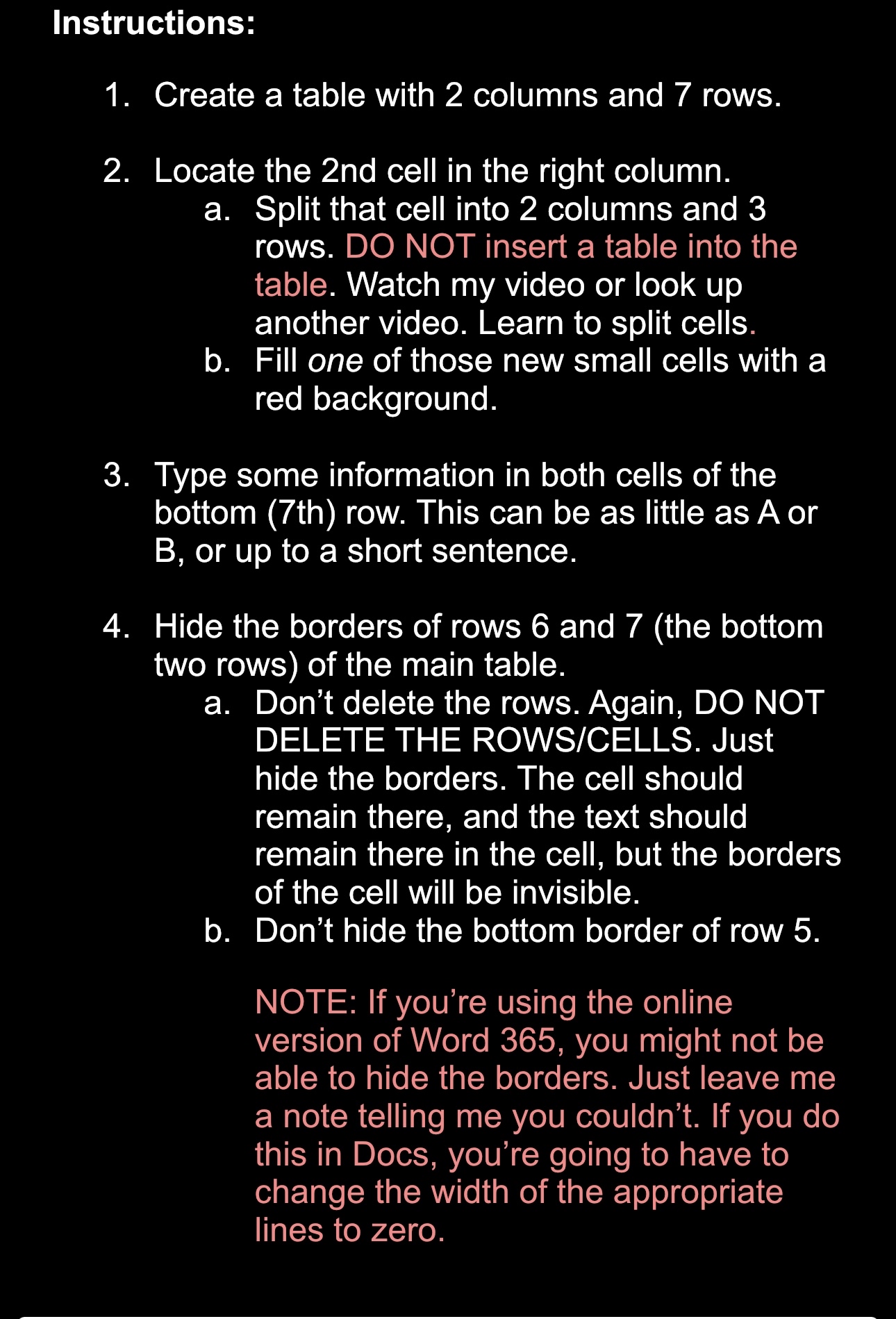
Question: Instructions: Create a table with 2 columns and 7 rows. Locate the 2 nd cell in the right column. a . Split that cell into
Instructions:
Create a table with columns and rows.
Locate the nd cell in the right column.
a Split that cell into columns and rows. DO NOT insert a table into the table. Watch my video or look up another video. Learn to split cells.
b Fill one of those new small cells with a red background.
Type some information in both cells of the bottom th row. This can be as little as or B or up to a short sentence.
Hide the borders of rows and the bottom two rows of the main table.
a Don't delete the rows. Again, DO NOT DELETE THE ROWSCELLS Just hide the borders. The cell should remain there, and the text should remain there in the cell, but the borders of the cell will be invisible.
b Don't hide the bottom border of row
NOTE: If you're using the online version of Word you might not be able to hide the borders. Just leave me a note telling me you couldn't. If you do this in Docs, you're going to have to change the width of the appropriate lines to zero. I want to make this by using mircrosoft Word, and for your answer take a screenshot of your final product.
Step by Step Solution
There are 3 Steps involved in it
1 Expert Approved Answer
Step: 1 Unlock

Question Has Been Solved by an Expert!
Get step-by-step solutions from verified subject matter experts
Step: 2 Unlock
Step: 3 Unlock
 Study Help