







Question: Instructions Part 1 : Capture and Analyze Local ICMP Data in Wireshark In Part 1 of this lab, you will ping another PC on the
Instructions
Part : Capture and Analyze Local ICMP Data in Wireshark
In Part of this lab, you will ping another PC on the LAN and capture ICMP requests and replies in
Wireshark. You will also look inside the frames captured for specific information. This analysis should help to
clarify how packet headers are used to transport data to their destination.
Step : Retrieve your PC interface addresses.
For this lab, you will need to retrieve your PC IP address and its network interface card NIC physical
address, also called the MAC address.
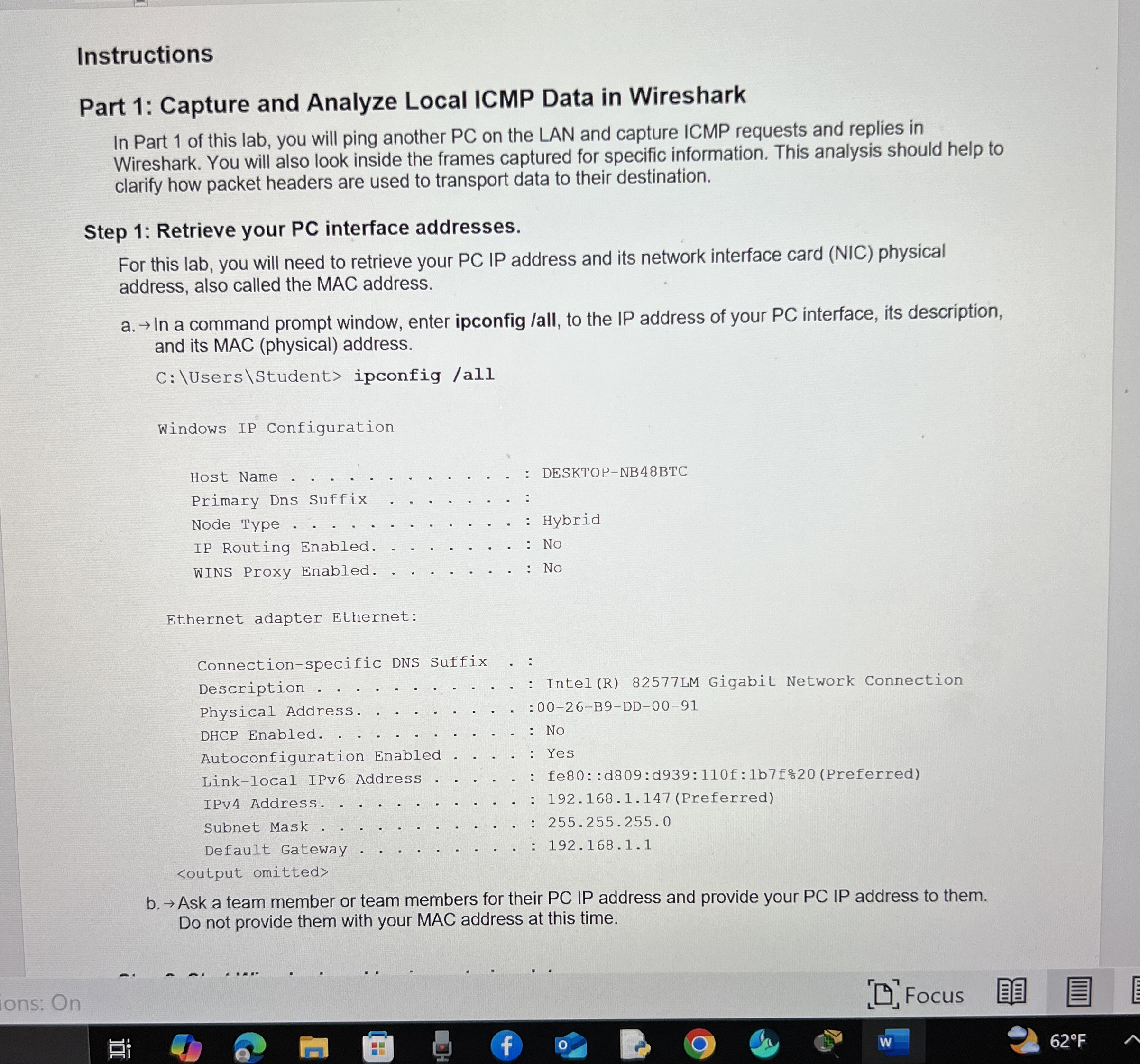
a In a command prompt window, enter ipconfig all to the IP address of your PC interface, its description,
and its MAC physical address.
C: UsersStudent ipconfig all
Windows IP Configuration
Host Name : DESKTOPNBBTC
Primary Dns Suffix :
Node Type : Hybrid
IP Routing Enabled. : No
WINS Proxy Enabled. : No
Ethernet adapter Ethernet:
Connectionspecific DNS Suffix :
Description IntelRLM Gigabit Network Connection
Physical Address. : BDD
DHCP Enabled. : No
Autoconfiguration Enabled : Yes
Linklocal IPv Address : fe::d:d:f:bfPreferred
IPv Address. : Preferred
Subnet Mask :
Default Gateway :
Step by Step Solution
There are 3 Steps involved in it
1 Expert Approved Answer
Step: 1 Unlock

Question Has Been Solved by an Expert!
Get step-by-step solutions from verified subject matter experts
Step: 2 Unlock
Step: 3 Unlock
 Study Help