







Question: Instructions s program demonstrates the use of parallel one-dimensional arrays. One array is used RadioButton objects. Here are instructions on how to design and case,
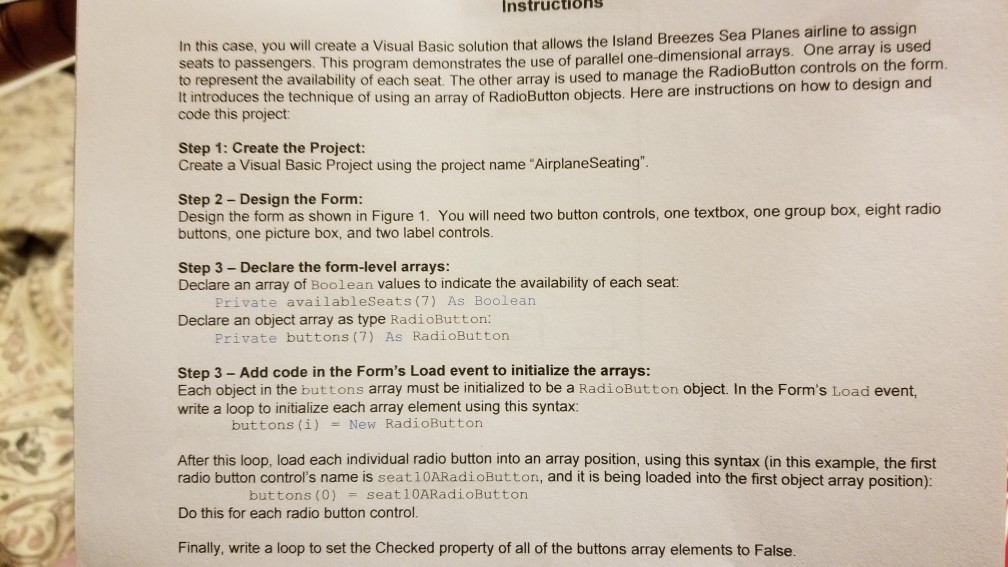
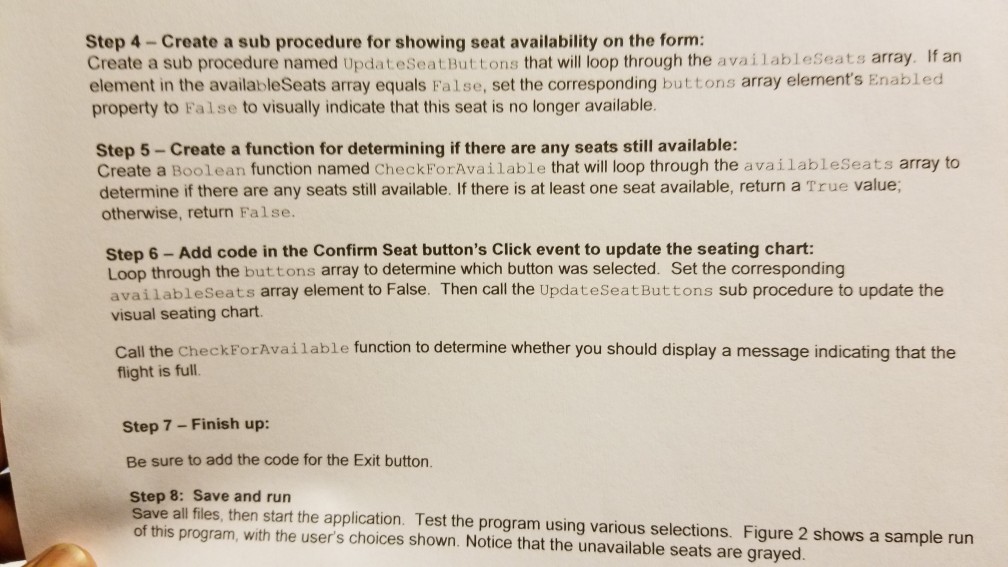
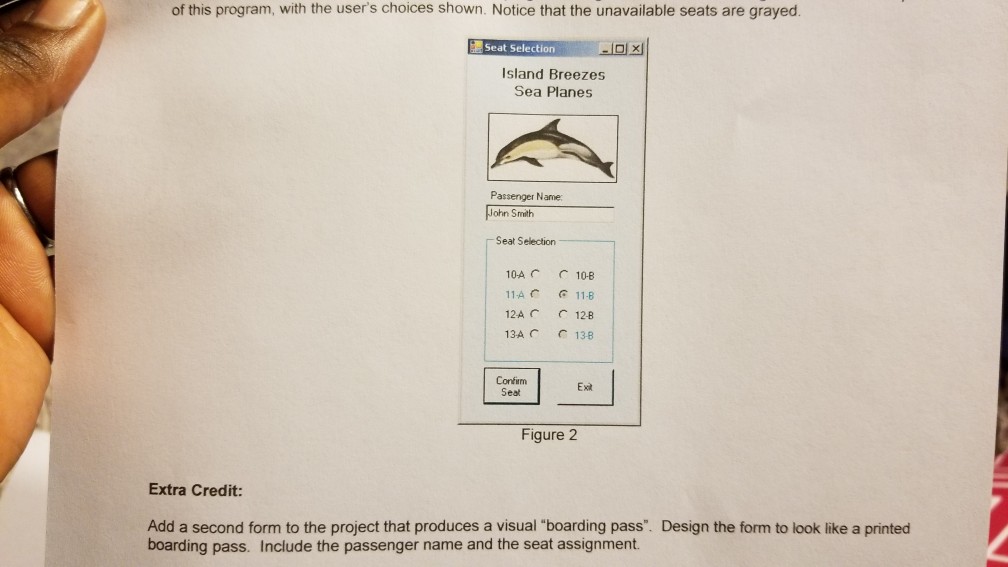
Instructions s program demonstrates the use of parallel one-dimensional arrays. One array is used RadioButton objects. Here are instructions on how to design and case, you will create a Visual Basic solution that allows the Island Breezes Sea Planes airline to assign seats to passengers. prog to represent the availability of each seat. The oth It introduces the technique of using an array of code this project: er array is used to manage the RadioButton controls on the form. Step 1: Create the Project: Create a Visual Basic Project using the project name "AirplaneSeating Step 2 -Design the Form: Design the form as shown in Figure 1. You will need two button controls, one textbox, one group box, eight radio buttons, one picture box, and two label controls. Step 3- Declare the form-level arrays Declare an array of Boolean values to indicate the availability of each seat: Private availableSeats (7) As Boolean Declare an object array as type RadioButton Private buttons (7) As RadioButton Step 3- Add code in the Form's Load event to initialize the arrays: Each object in the buttons array must be initialized to be a RadioButton object. In the Form's Load event, write a loop to initialize each array element using this syntax: buttons ()New RadioButton After this loop, load each individual radio button into an array position, using this syntax (in this example, the first radio button control's name is seati0ARadioButton, and it is being loaded into the first object array position): buttons (0)seat10ARadioButton Do this for each radio button control Finally, write a loop to set the Checked property of all of the buttons array elements to False
Step by Step Solution
There are 3 Steps involved in it

Get step-by-step solutions from verified subject matter experts
 Study Help