







Question: Introduction to OpenCV OpenCV is an open source library that includes several hundreds of image processing and computer vision algorithms. It's widely used in the
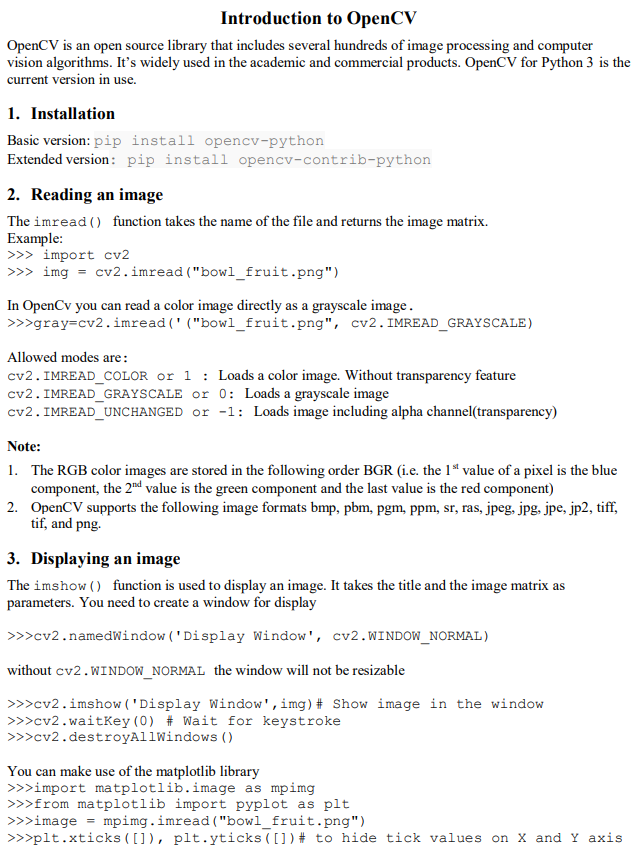
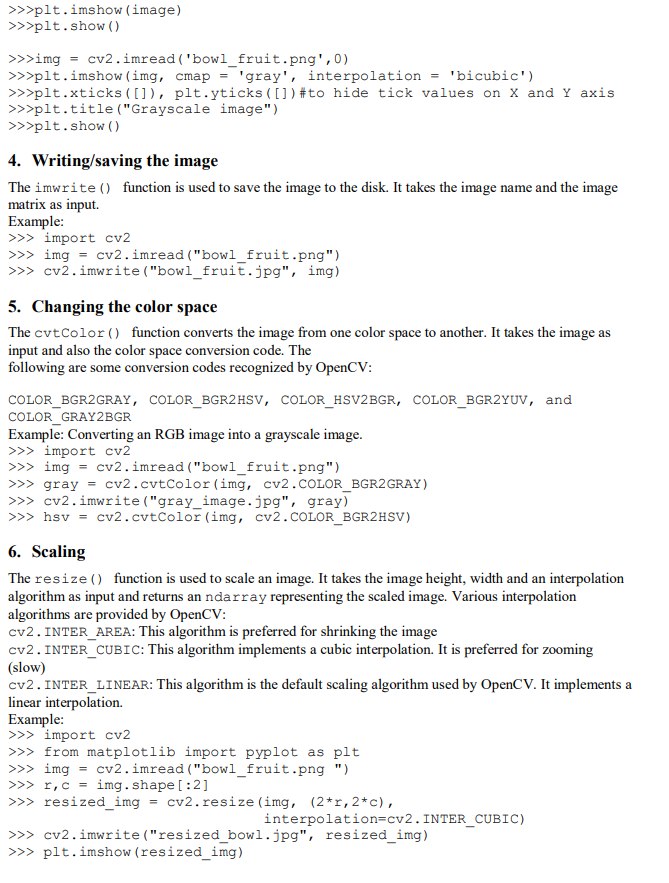
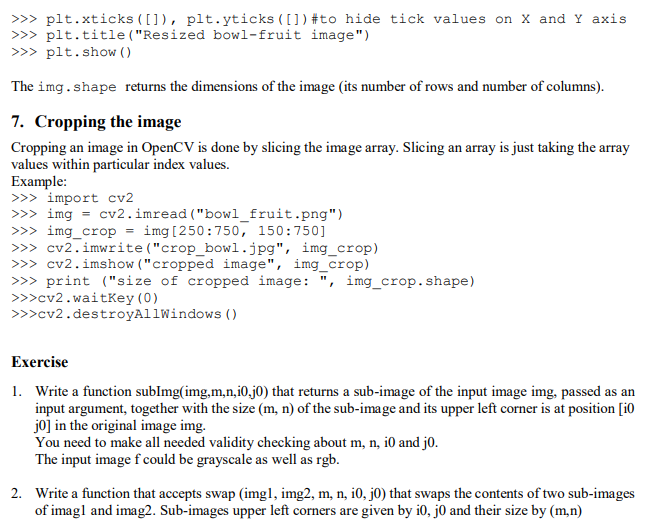
Introduction to OpenCV OpenCV is an open source library that includes several hundreds of image processing and computer vision algorithms. It's widely used in the academic and commercial products. OpenCV for Python 3 is the current version in use. 1. Installation Basic version: pip install opencv-python Extended version: pip install opencv-contrib-python 2. Reading an image The imread() function takes the name of the file and returns the image matrix. Example: >>> import cv2 >>> img = cv2.imread ("bowl_fruit.png") In OpenCv you can read a color image directly as a grayscale image. >>>gray=cv2.imread(' ("bowl_fruit.png", cv2.IMREAD_GRAYSCALE) Allowed modes are: CV2. IMREAD_COLOR or 1 : Loads a color image. Without transparency feature cv2. IMREAD_GRAYSCALE or 0: Loads a grayscale image cv2.IMREAD_UNCHANGED or -1: Loads image including alpha channel(transparency) Note: 1. The RGB color images are stored in the following order BGR (i.e. the 1" value of a pixel is the blue component, the 2nd value is the green component and the last value is the red component) 2. OpenCV supports the following image formats bmp, pbm, pgm, ppm, sr, ras, jpeg, jpg, jpe, jp2, tiff, tif, and png. 3. Displaying an image The imshow() function is used to display an image. It takes the title and the image matrix as parameters. You need to create a window for display >>>cv2.namedWindow('Display Window', CV2.WINDOW_NORMAL) without cv2.WINDOW_NORMAL the window will not be resizable >>>cv2.imshow("Display Window', img) # Show image in the window >>>cv2.waitKey(0) # Wait for keystroke >>>cv2.destroyAllWindows() You can make use of the matplotlib library >>>import matplotlib.image as mpimg >>>from matplotlib import pyplot as plt >>>image = mpimg.imread ("bowl_fruit.png") >>>plt.xticks ( []), plt.yticks ( []) # to hide tick values on X and Y axis >>>plt.imshow (image) >>>plt.show() >>>img cv2.imread ('bowl_fruit.png',0) >>>plt.imshow (img, cmap = 'gray', interpolation = 'bicubic') >>>plt.xticks ([]), plt.yticks ( []) #to hide tick values on X and Y axis >>>plt.title ("Grayscale image") >>>plt.show() 4. Writing/saving the image The imwrite() function is used to save the image to the disk. It takes the image name and the image matrix as input Example: >>> import cv2 >>> img cv2.imread ("bowl_fruit.png") >>> cv2.imwrite ("bowl_fruit.jpg", img) 5. Changing the color space The cvtColor() function converts the image from one color space to another. It takes the image as input and also the color space conversion code. The following are some conversion codes recognized by OpenCV: COLOR_BGR2GRAY, COLOR_BGR2HSV, COLOR_HSV2BGR, COLOR_BGR2YUV, and COLOR GRAY2BGR Example: Converting an RGB image into a grayscale image. >>> import cv2 >>> img = cv2.imread ("bowl_fruit.png") >>> gray = cv2.cvtColor(img, cv2.COLOR_BGR2GRAY) >>> cv2.imwrite("gray_image.jpg", gray) >>> hsv = cv2.cvtColor (img, cv2.COLOR_BGR2HSV) 6. Scaling The resize() function is used to scale an image. It takes the image height, width and an interpolation algorithm as input and returns an ndarray representing the scaled image. Various interpolation algorithms are provided by OpenCV: cv2.INTER_AREA: This algorithm is preferred for shrinking the image cv2.INTER CUBIC: This algorithm implements a cubic interpolation. It is preferred for zooming (slow) cv2.INTER_LINEAR: This algorithm is the default scaling algorithm used by OpenCV. It implements a linear interpolation Example: >>> import cv2 >>> from matplotlib import pyplot as plt >>> img = cv2.imread ("bowl_fruit.png") >>> I, c = img.shape[:2] >>> resized_img = cv2.resize (img, (2+1, 2+c), interpolation=cv2.INTER_CUBIC) >>> cv2.imwrite ("resized_bowl.jpg", resized_img) >>> plt.imshow (resized_img) >>> plt.xticks ([]), plt.yticks ([]) #to hide tick values on X and Y axis >>> plt.title ("Resized bowl-fruit image") >>> plt.show() The img.shape returns the dimensions of the image (its number of rows and number of columns). 7. Cropping the image Cropping an image in OpenCV is done by slicing the image array. Slicing an array is just taking the array values within particular index values. Example: >>> import cv2 >>> img = cv2.imread ("bowl_fruit.png") >>> img_crop = img (250:750, 150:750] >>> cv2.imwrite("crop_bowl.jpg", img_crop) >>> cv2.imshow ("cropped image", img_crop) >>> print ("size of cropped image: ", img_crop.shape) >>>cv2.waitKey (0) >>>cv2.destroyAllWindows() Exercise 1. Write a function sublmg(img,m,n,10,jo) that returns a sub-image of the input image img, passed as an input argument, together with the size (m, n) of the sub-image and its upper left corner is at position [i0 jo) in the original image img. You need to make all needed validity checking about m, n, i0 and jo. The input image f could be grayscale as well as rgb. 2. Write a function that accepts swap (imgl, img2, m, n, i0, jo) that swaps the contents of two sub-images of imagl and imag2. Sub-images upper left corners are given by i0, jo and their size by (m,n)
Step by Step Solution
There are 3 Steps involved in it

Get step-by-step solutions from verified subject matter experts
 Study Help