







Question: Introduction to the Program In this assignment, you will write a program to warm up your C++ skills. This in turn will help you to
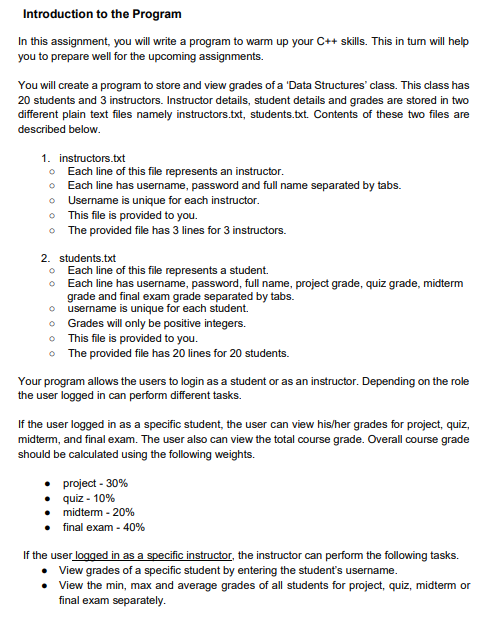
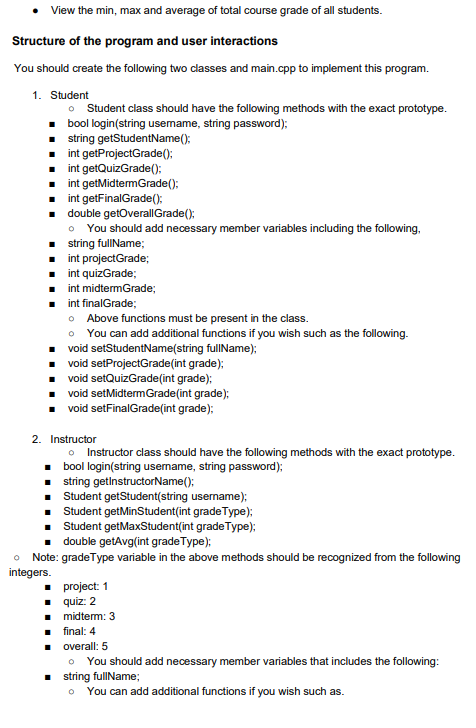
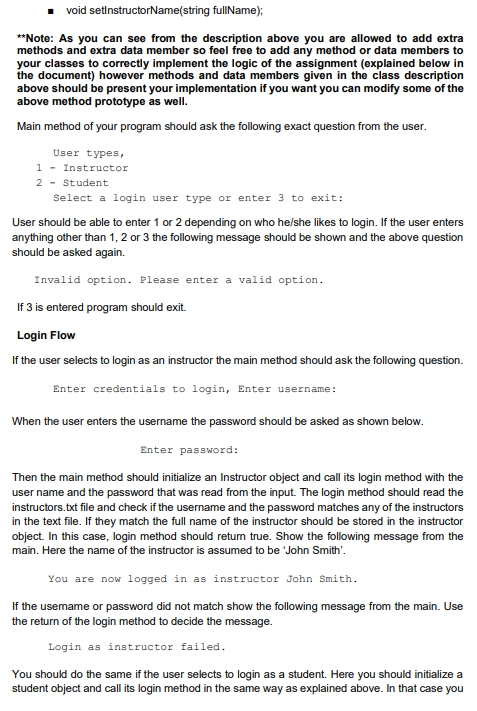
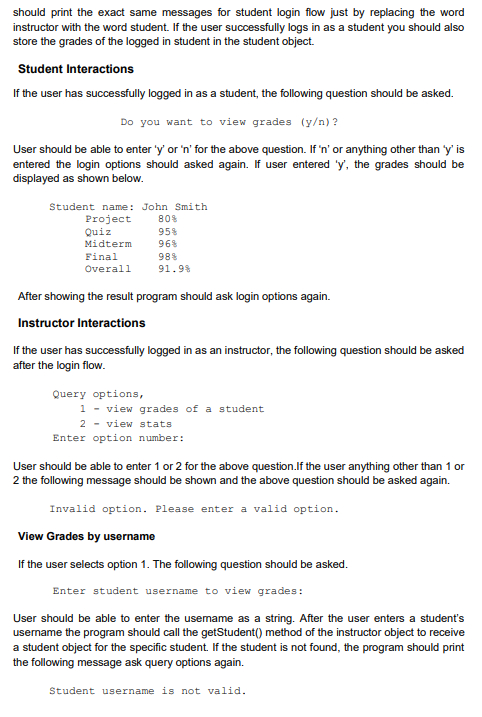
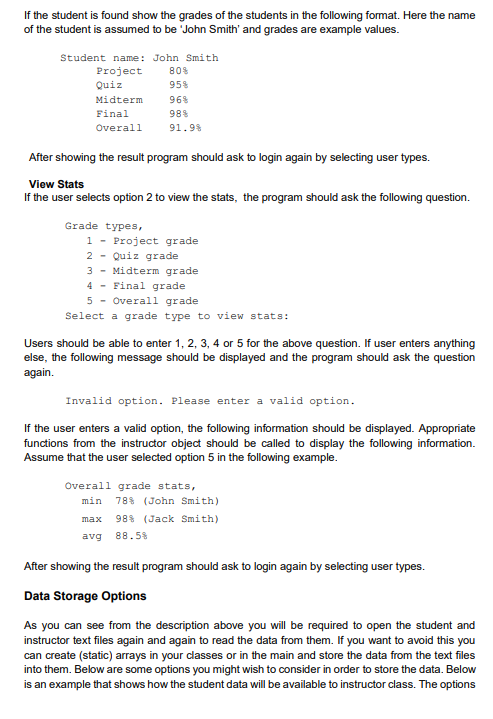
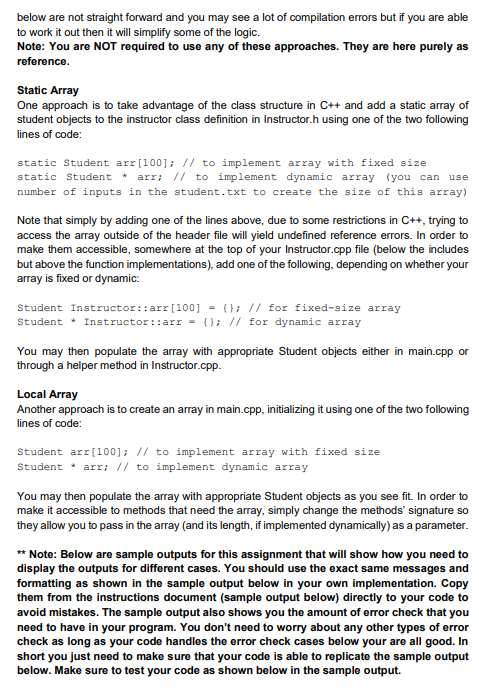
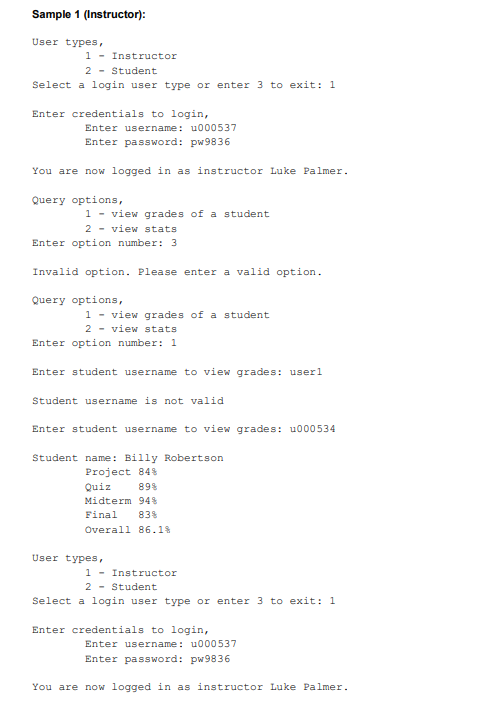
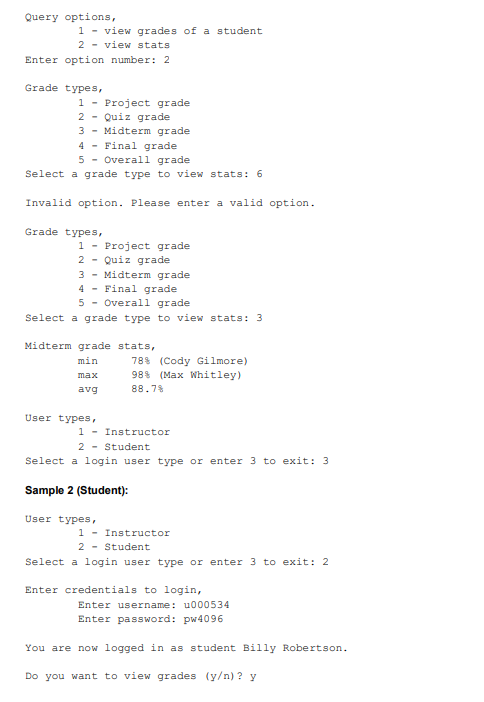
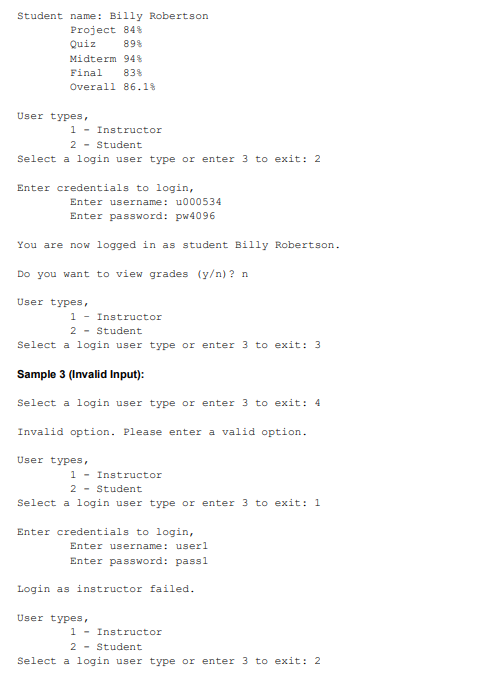
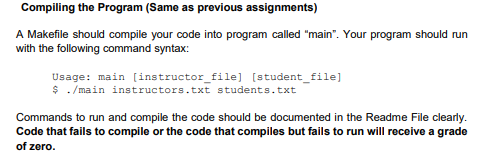
Introduction to the Program In this assignment, you will write a program to warm up your C++ skills. This in turn will help you to prepare well for the upcoming assignments. You will create a program to store and view grades of a 'Data Structures' class. This class has 20 students and 3 instructors. Instructor details, student details and grades are stored in two different plain text files namely instructors.txt, students.txt. Contents of these two files are described below. o 1. instructors.txt Each line of this file represents an instructor. Each line has username, password and full name separated by tabs. Username is unique for each instructor. This file is provided to you. The provided file has 3 lines for 3 instructors. 2. students.txt Each line of this file represents a student. Each line has username, password, full name, project grade, quiz grade, midterm grade and final exam grade separated by tabs. o username is unique for each student. Grades will only be positive integers. This file is provided to you. The provided file has 20 lines for 20 students. Your program allows the users to login as a student or as an instructor. Depending on the role the user logged in can perform different tasks. If the user logged in as a specific student, the user can view his/her grades for project, quiz, midterm, and final exam. The user also can view the total course grade. Overall course grade should be calculated using the following weights. project - 30% quiz - 10% midterm - 20% final exam - 40% If the user logged in as a specific instructor, the instructor can perform the following tasks. View grades of a specific student by entering the student's username. View the min, max and average grades of all students for project, quiz, midterm or final exam separately. View the min, max and average of total course grade of all students. Structure of the program and user interactions You should create the following two classes and main.cpp to implement this program. 1. Student Student class should have the following methods with the exact prototype. bool login(string usemame, string password); string getStudentName(); int getProjectGrade(); int getQuizGrade(); int getMidterm Grade(); int getFinalGrade(); double getOverallGrade(); You should add necessary member variables including the following, string fullName; int projectGrade; int quizGrade: int midterm Grade; int finalGrade; Above functions must be present in the class. - You can add additional functions if you wish such as the following. void setStudentName(string fullName); void setProjectGrade(int grade); void setQuizGrade(int grade): void setMidterm Grade(int grade); void setFinalGrade(int grade); 2. Instructor Instructor class should have the following methods with the exact prototype. bool login(string username, string password); string getInstructorName(); Student getStudent(string username); Student getMinStudent(int gradeType); Student getMaxStudent(int grade Type); double getAvg(int grade Type); Note: gradeType variable in the above methods should be recognized from the following integers. project: 1 quiz: 2 midterm: 3 . final: 4 overall: 5 You should add necessary member variables that includes the following: string fullName; You can add additional functions if you wish such as. . 0 void setinstructorName(string fullName); **Note: As you can see from the description above you are allowed to add extra methods and extra data member so feel free to add any method or data members to your classes to correctly implement the logic of the assignment (explained below in the document) however methods and data members given in the class description above should be present your implementation if you want you can modify some of the above method prototype as well. Main method of your program should ask the following exact question from the user. User types, 1 - Instructor 2 - Student Select a login user type or enter 3 to exit: User should be able to enter 1 or 2 depending on who he/she likes to login. If the user enters anything other than 1, 2 or 3 the following message should be shown and the above question should be asked again. Invalid option. Please enter a valid option. If 3 is entered program should exit. Login Flow If the user selects to login as an instructor the main method should ask the following question. Enter credentials to login, Enter username: When the user enters the username the password should be asked as shown below. Enter password: Then the main method should initialize an Instructor object and call its login method with the user name and the password that was read from the input. The login method should read the instructors.txt file and check if the username and the password matches any of the instructors in the text file. If they match the full name of the instructor should be stored in the instructor object. In this case, login method should retum true. Show the following message from the main. Here the name of the instructor is assumed to be John Smith'. You are now logged in as instructor John Smith. If the usemame or password did not match show the following message from the main. Use the return of the login method to decide the message. Login as instructor failed. You should do the same if the user selects to login as a student. Here you should initialize a student object and call its login method in the same way as explained above. In that case you should print the exact same messages for student login flow just by replacing the word instructor with the word student. If the user successfully logs in as a student you should also store the grades of the logged in student in the student object. Student Interactions If the user has successfully logged in as a student, the following question should be asked. Do you want to view grades (y)? User should be able to enter 'y' or 'n' for the above question. If 'n' or anything other than 'y' is entered the login options should asked again. If user entered 'y, the grades should be displayed as shown below. Student name: John Smith Project 80% Quiz 95% Midterm 96% Final 988 Overall 91.99 After showing the result program should ask login options again. Instructor Interactions If the user has successfully logged in as an instructor, the following question should be asked after the login flow. Query options, 1 - view grades of a student 2 - view stats Enter option number: User should be able to enter 1 or 2 for the above question.If the user anything other than 1 or 2 the following message should be shown and the above question should be asked again. Invalid option. Please enter a valid option. View Grades by username If the user selects option 1. The following question should be asked. Enter student username to view grades: User should be able to enter the usemame as a string. After the user enters a student's username the program should call the getStudent() method of the instructor object to receive a student object for the specific student. If the student is not found, the program should print the following message ask query options again. Student username is not valid. If the student is found show the grades of the students in the following format. Here the name of the student is assumed to be John Smith' and grades are example values. Student name: John Smith Project 80% Quiz 95% Midterm 96% Final 98% Overall 91.9% After showing the result program should ask to login again by selecting user types. View Stats If the user selects option 2 to view the stats, the program should ask the following question. Grade types, 1 - Project grade 2 - Quiz grade 3 - Midterm grade 4 - Final grade 5 - Overall grade Select a grade type to view stats: Users should be able to enter 1, 2, 3, 4 or 5 for the above question. If user enters anything else, the following message should be displayed and the program should ask the question again. Invalid option. Please enter a valid option. If the user enters a valid option, the following information should be displayed. Appropriate functions from the instructor object should be called to display the following information. Assume that the user selected option 5 in the following example. Overall grade stats, min 78% (John Smith) max 98% (Jack Smith) avg 88.5% After showing the result program should ask to login again by selecting user types. Data Storage Options As you can see from the description above you will be required to open the student and instructor text files again and again to read the data from them. If you want to avoid this you can create (static) arrays in your classes or in the main and store the data from the text files into them. Below are some options you might wish to consider in order to store the data. Below is an example that shows how the student data will be available to instructor class. The options below are not straight forward and you may see a lot of compilation errors but if you are able to work it out then it will simplify some of the logic. Note: You are NOT required to use any of these approaches. They are here purely as reference. Static Array One approach is to take advantage of the class structure in C++ and add a static array of student objects to the instructor class definition in Instructor.h using one of the two following lines of code: static Student arr[100]; // to implement array with fixed size static Student * arr; // to implement dynamic array (you can use number of inputs in the student.txt to create the size of this array) Note that simply by adding one of the lines above, due to some restrictions in C++, trying to access the array outside of the header file will yield undefined reference errors. In order to make them accessible, somewhere at the top of your Instructor.cpp file (below the includes but above the function implementations), add one of the following, depending on whether your array is fixed or dynamic Student Instructor::arr[100] = {}; // for fixed-size array Student * Instructor::arr {}; // for dynamic array You may then populate the array with appropriate Student objects either in main.cpp or through a helper method in Instructor.cpp. Local Array Another approach is to create an array in main.cpp, initializing it using one of the two following lines of code: Student arr[100]; // to implement array with fixed size Student * arr; // to implement dynamic array You may then populate the array with appropriate Student objects as you see fit. In order to make it accessible to methods that need the array, simply change the methods' signature so they allow you to pass in the array (and its length, if implemented dynamically) as a parameter. ** Note: Below are sample outputs for this assignment that will show how you need to display the outputs for different cases. You should use the exact same messages and formatting as shown in the sample output below in your own implementation. Copy them from the instructions document (sample output below) directly to your code to avoid mistakes. The sample output also shows you the amount of error check that you need to have in your program. You don't need to worry about any other types of error check as long as your code handles the error check cases below your are all good. In short you just need to make sure that your code is able to replicate the sample output below. Make sure to test your code as shown below in the sample output. Sample 1 (Instructor): User types, 1 - Instructor 2 - Student Select a login user type or enter 3 to exit: 1 Enter credentials to login, Enter username: u000537 Enter password: pw9836 You are now logged in as instructor Luke Palmer. Query options, 1 - view grades of a student 2 - view stats Enter option number: 3 Invalid option. Please enter a valid option. Query options, 1 - view grades of a student 2 - view stats Enter option number: 1 Enter student username to view grades: user1 Student username is not valid Enter student username to view grades: u000534 Student name: Billy Robertson Project 848 Quiz 89% Midterm 94% Final 83% Overall 86.1% User types. 1 - Instructor 2 - Student Select a login user type or enter 3 to exit: 1 Enter credentials to login, Enter username: u000537 Enter password: pw9836 You are now logged in as instructor Luke Palmer. Query options, 1 - view grades of a student 2 - View stats Enter option number: 2 Grade types, 1 - Project grade 2 - Quiz grade 3 - Midterm grade 4 - Final grade 5 - Overall grade Select a grade type to view stats: 6 Invalid option. Please enter a valid option. Grade types, 1 - Project grade 2 - Quiz grade 3 - Midterm grade 4 - Final grade 5 - Overall grade Select a grade type to view stats: 3 Midterm grade stats, min 78% (Cody Gilmore) 989 (Max Whitley) avg 88.78 max User types, 1 - Instructor 2 - Student Select a login user type or enter 3 to exit: 3 Sample 2 (Student): User types 1 - Instructor 2 - Student Select a login user type or enter 3 to exit: 2 Enter credentials to login, Enter username: u000534 Enter password: pw4096 You are now logged in as student Billy Robertson. Do you want to view grades (y)? y Student name: Billy Robertson Project 848 Quiz 898 Midterm 948 Final 83% Overall 86.1% User types 1 - Instructor 2 - Student Select a login user type or enter 3 to exit: 2 Enter credentials to login, Enter username: 000534 Enter password: pw4096 You are now logged in as student Billy Robertson. Do you want to view grades (y)? n User types, 1 - Instructor 2 - Student Select a login user type or enter 3 to exit: 3 Sample 3 (Invalid Input): Select a login user type or enter 3 to exit: 4 Invalid option. Please enter a valid option. User types, 1 - Instructor 2 - Student Select a login user type or enter 3 to exit: 1 Enter credentials to login, Enter username: userl Enter password: pass1 Login as instructor failed. User types, 1 - Instructor 2 - Student Select a login user type or enter 3 to exit: 2 Compiling the Program (Same as previous assignments) A Makefile should compile your code into program called "main". Your program should run with the following command syntax: Usage: main [instructor_file] (student_file] $ ./main instructors.txt students.txt Commands to run and compile the code should be documented in the Readme File clearly. Code that fails to compile or the code that compiles but fails to run will receive a grade of zero
Step by Step Solution
There are 3 Steps involved in it

Get step-by-step solutions from verified subject matter experts
 Study Help