







Question: Introduction Visual Basics In this assignment, you will be writing a simple text editor program. The program will be implemented with Windows forms and allow
Introduction Visual Basics
In this assignment, you will be writing a simple text editor program. The program will be implemented with Windows forms and allow the user to create, open, and save new text documents.
Deliverables
Visual Studio 2008 Project Folder(Editor Form, About Form, Helper Logic Module)
Assignment
In this assignment, you will be writing a program that emulates the services of a basic text editor program. The program will contain core logic that allows the user to type text, open text file, save text files, and close out text files. Additionally, you will include logic that allows the program to count the number of instances of characters, punctuation, words, and sentences. Finally, the program will be able to display a Windows About dialog box that displays information abou the program.
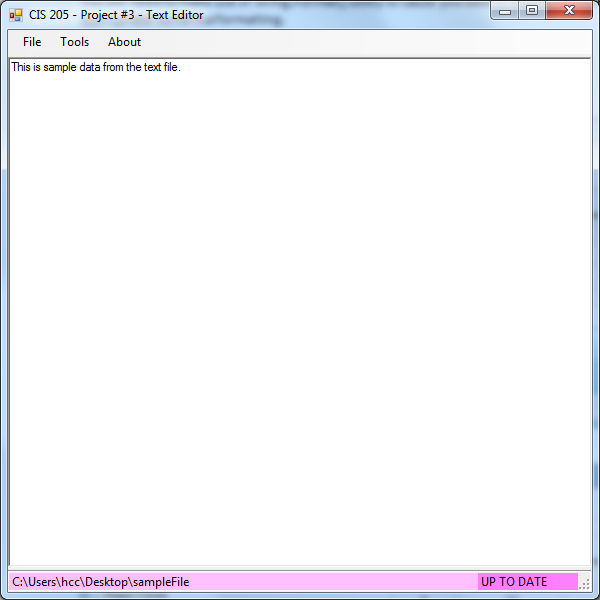
The basic program will begin by presenting the user with a form. The form should contain a RichTextBox, MenuStrip, and StatusStrip. The RichTextBox will be used to input text into the editor. When the form is resized, the RichTextBox should automatically resize to take up all available space on the Form. Your MenuStrip should provide access to a series of options that allow the user to Open, Save, Save As, and Close a file. Finally, your program should contain a StatusStrip that shows the name of the file currently being manupulated and a message indicating whether or not the content of the file have been modified since the file was originally opened.
At any point during execution, the program will be in one of two states. The first state is the FILE_CLOSED state. When the program is operating in the FILE_CLOSED state, the StatusStrip should indicate that no file is currently open. Along the file menu, the Close option should be disabled since there is currently no file open to be closed. After the user opens or saves a file with a name onto the hard disk, the program will enther the FILE_OPEN state. During the FILE_OPEN state, the StatusStrip should display the name of the file currently open on the file system and whether or not the file has been modified from its original state. Think of the modified state like the * that appears on a Visual Studio Source file when the contents of the file change. If a change is made to a file that is being worked on, a * displays next to its name to indicate that something is different and the file must be saved for those changes to be committed. When a file is open, the Open option from the file menu should be disabled and the Close options should become enabled. The program can only work on one file at any given time, so in order to open another file, the current file must be closed.
File Menu Items
The program will contains a Menu Strip with a series of choices to access different features of the program. These are core components of the GUI and the logic that pertains to these features should be encapsualted in the Form itself. Please read the following descriptions to understand how each of the options in the File menu should work:
File -> Open When the user clicks this option, he/she should be presented with an OpenFileDialog box. The use can then navigate to a text file on the file system. After pressing the Open button on a valid file, the file should be read and displayed in the RichTextBox. The path displayed in the StatusStrip should reflect the location chosen for the new file.
File -> Save When the user clicks this option the behavior of the program will depend on the current state of operation. If the program is operating in the FILE_CLOSED state, the use should be presented with a SaveFileDialog box and given a chance to select a location and name for a file. Once the user hits Save the program should move into the FILE_OPEN state. If the user clicks save while the program is already operating in the FILE_OPEN state, the contents of the RichTextBox should be posted to the file on the file system.
File->SaveAs When the user clicks this option, he/she should be presented with a SaveFileDialog box. Once the user selected a filename and location and pressed Save, the contents of the RichTextBox should be written to the designated file on the file system. The StatusStrip should be updated to reflect the location of the new file on the file system.
File->Close When the user clicks this option, the program will automatically revert back to the FILE_CLOSED state. Before doing so, the currently open file should be checked against the contents of the RichTextBox for differences. If the contents are different, the user should be presented with a MessageBox informing him/her that the contents of the file have been changed. The user should then be asked if he/she would like to save the changes to the file before closing. The program should then behave accordingly.
Tool Menu Items
In addition to the File menu, there should also be a Tool menu with options that allow the user to get a count on the number of characters, punctuation marks, words, and sentences. When any of these options is selected, the user should be shown a MessageBox that contains the requsted information. The text in the RichTextBox can be accessed as a String. Since the logic that parses the strings and determines the appropriate count is not part of the GUI, a series of functions should be written and tucked away in a Module. The Form code should call the functions in the module and pass along the string containing the information from the RichTextBox. When the string reaches the functions, it should be transferred over to a StringBuilder class to be analyzed. Please read the following descriptions to understand how each of these options should work:
Tools -> Character Count This feature will display a message indicating how many characters currently exist within the RichTextBox. After moving the contents of the String to a StringBuilder object, simply return the length property.
Tools -> Punctuation Count This feature will display the number of pieces of punctuation in the RichTextBox. You should probably make use of the Char.IsPunctuation() method when writing this function.
Tools -> Word Count This feature will display the number of words in the RichTextBox. In this project, a word will be defined as a series of non-space characters surrounded by one or more occurences of spaces on the left or right. The first word in the text does not have to be qualified by prepending space(s) and the last word in the text does not have to have space(s) following it.
Tools -> Sentence Count This feature will display the number of sentences in the RichTextBox. A sentence will be defined as the number of occurrences of a sentence ending punctuation mark (period, exclamation point, or question mark) followed by two spaces. The final sentence in the text does not have to be followed by 2 spaces.
About Menu Item
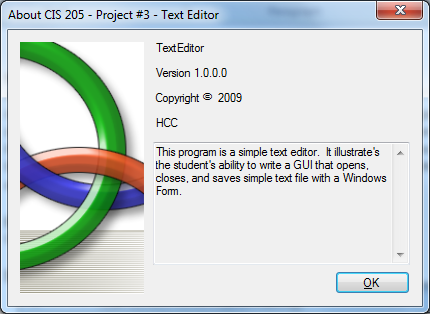
Finally, your program should contain an option to display an About box for the program. The About Box should populate itself with information from the programs assembly information.
Hints
Please be aware that even though we use the terms FILE_OPEN and FILE_CLOSED to describe the state of the program at any given point in time, the process of reading and writing a file at any point should involve opening, reading or writing, and then closing. The when the program is operating in the FILE_OPEN state, the file is technically still closed as far as the program is concerned. The idea of the file being Open is only used to define the behavior of the Menu Strip (which items are enabled/disabled) and the Save feature.
Remember to catch the exceptions that can be thrown when opening files for reading and writing. If an exception is caught, it would be a good idea to stop the current operation and display a message to the user informing him/her of what happened.
Grading
Console the attached grading rubric for grading details.
Sample Output
A copy of an executable illustrating the way this program should perform is being provided along with the problem description. Please execute and play with the program before you begin writing it yourself. Minimally, you must model the presented functionality, but feel free to improve upon it as you see fit. If you find any errors with the provided executable, please let me know so I can correct them.
Step by Step Solution
There are 3 Steps involved in it

Get step-by-step solutions from verified subject matter experts
 Study Help