







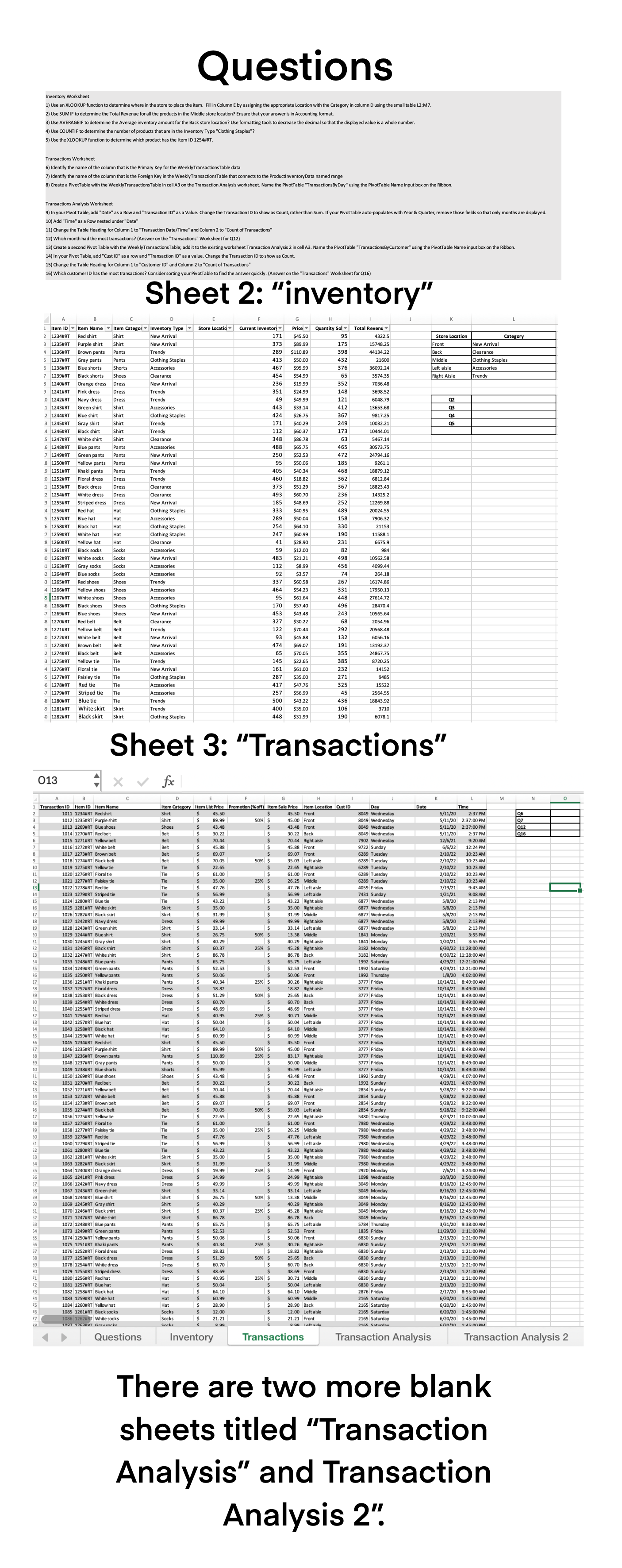
Question: Inventory Worksheet 1 . Use an XLOOKUP function to determine where in the store to place the item. Fill in Column E by assigning the
Inventory Worksheet
Use an XLOOKUP function to determine where in the store to place the item. Fill in Column E by assigning the appropriate Location with the Category in column D using the small table L: M
Use SUMIF to determine the Total Revenue for all the products in the Middle store location? Ensure that your answer is in Accounting format.
Use AVERAGEIF to determine the Average inventory amount for the Back store location? Use formatting tools to decrease the decimal so that the displayed value is a whole number.
Use COUNTIF to determine the number of products that are in the Inventory Type "Clothing Staples"?
Use the XLOOKUP function to determine which product has the Item ID #RT
Transactions Worksheet
Identify the name of the column that is the Primary Key for the WeeklyTransactions Table data
Identify the name of the column that is the Foreign Key in the WeeklyTransactionsTable that connects to the ProductInventory Data named range
Create a PivotTable with the WeeklyTransactions Table in cell A on the Transaction Analysis worksheet. Name the PivotTable "TransactionsByDay" using the PivotTable Name input box on the Ribbon.
Transactions Analysis Worksheet
In your Pivot Table, add "Date" as a Row and "Transaction ID as a Value. Change the Transaction ID to show as Count, rather than Sum. If your PivotTable autopopulates with Year & Quarter, remove those fields so that only months are displayed.
Add "Time" as a Row nested under "Date"
Change the Table Heading for Column to "Transaction DateTime and Column to "Count of Transactions"
Which month had the most transactions? Answer on the "Transactions" Worksheet for Q
Create a second Pivot Table with the WeeklyTransactions Table; add it to the existing worksheet Transaction Analysis in cell A Name the PivotTable "TransactionsByCustomer" using the PivotTable Name input box on the Ribbon.
In your Pivot Table, add "Cust ID as a row and "Transaction ID as a value. Change the Transaction ID to show as Count.
Change the Table Heading for Column to "Customer ID and Column to "Count of Transactions"
Which customer ID has the most transactions? Consider sorting your PivotTable to find the answer quickly. Answer on the "Transactions" Worksheet for Q
Step by Step Solution
There are 3 Steps involved in it
1 Expert Approved Answer
Step: 1 Unlock

Question Has Been Solved by an Expert!
Get step-by-step solutions from verified subject matter experts
Step: 2 Unlock
Step: 3 Unlock
 Study Help