







Question: ISM-360 Access Lab 2 Homework. Please help :) SQL10: Create a SQL query using QBE (Design View) which displays all orders where the order date
ISM-360 Access Lab 2 Homework. Please help :)
SQL10: Create a SQL query using QBE (Design View) which displays all orders where the order date is after February 1, 2019 and before February 15, 2019. You are on your own here: apply what you have learned in the previous steps to formulate this query.
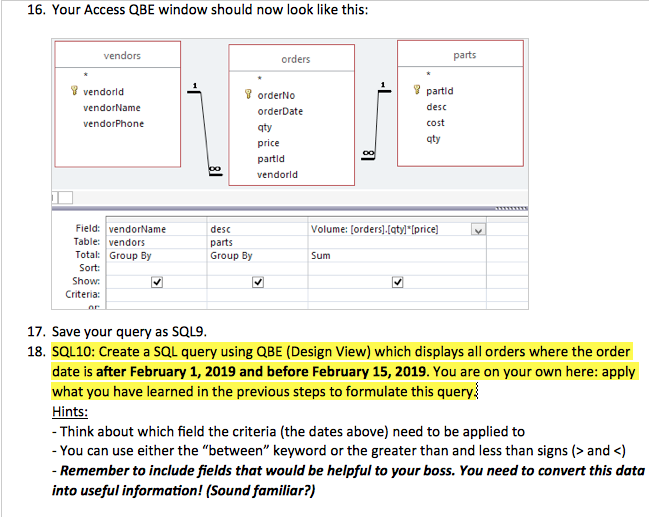
The about image is the three tables I have made and the "Orders" table is the one I need to pull the information from to make a SQL query displaying all of the orders with an order date after February 1, 2019 and before February 15, 2019.
I need help with which field or fields the criteria with those dates need to be applied to and what that criteria is as well. (What to type in, script?)
Also please help with what script or code I need to type into the SQL box to run the query listing only the orders with the dates listed above.
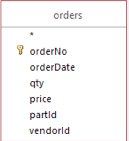
P.S. I tried to look up the script and came up with something like this but it did not work for a few reasons I guess. I received a couple error pop-ups on Access but this is just to give an idea of what kind of script I am talking about/ looking for. Thanks!
SQL SCRIPT EXAMPLE THAT DID NOT WORK:
SELECT orders.orderNo, orders.orderDate
FROM orders
WHERE orderDate >= '2019/02/01' AND orderDate
16. Your Access QBE window should now look like this: vendors orders parts vendorld vendorName vendorPhone orderNo orderDate gty price partld vendorld partid desc cost gty Field: vendorName Table vendors Total: Group By Sort: Show desc olume: [orders).[qty) [price parts Group By Sum Criteria: 17. Save your query as SQL9 18. SQL10: Create a SQL query using QBE (Design View) which displays all orders where the order date is after February 1, 2019 and before February 15, 2019. You are on your own here: apply what you have learned in the previous steps to formulate this query Hints: - Think about which field the criteria (the dates above) need to be applied to - You can use either the "between" keyword or the greater than and less than signs (>and
Step by Step Solution
There are 3 Steps involved in it

Get step-by-step solutions from verified subject matter experts
 Study Help