







Question: Java Create a New Class: Right-click your project (Lab04) and Select New-->Class and name it Calculator. Start by creating a private JFrame field and an
Java
- Create a New Class: Right-click your project (Lab04) and Select New-->Class and name it Calculator.
- Start by creating a private JFrame field and an accessor that returns it (getFrame). The JUnit tests rely on this accessor to test your GUI. Now, as you make progress, you can run the JUnits to see your grade improve. Create your constructor to initialize your frame.
- To actually run your program (to test it manually), create a main method and in it simply create a Calculator: Calculator calc = new Calculator(). You should not add any more lines to your main method.
- Now you should be able to run your program and run the JUnits. However, none of the JUnits should pass because you havent built your GUI. All initialization should occur inside the Calculator constructor / initializeComponents methods. You can scroll down to see pictures of what the calculator should look like at the end.
- Create a frame with an appropriate title for the calculator.
- Create a button panel.
- Create four buttons.
- Set the name for each button according to its function: (addButton, subButton, multButton, or divButton) [The tests need you to use the setName method on the buttons. The names of your variables don't matter.]
- Add the buttons to the button panel.
- Add the button panel to the frame.
- Create a result panel.
- Create a result label.
- Set the name of the result label to resultLabel. [Use the setName method again.]
- Add the result label to the result panel.
- Add the result panel to the frame.
- Create a text field panel.
- Create two text fields.
- Set the name of each text field according to its contents: (leftOperand or rightOperand). [Use the setName method again.]
- Add both text fields to the text field panel.
- Add the text field panel to the frame.
- Add the button handler inner classes.
- Make the buttons work.
- Remember buttons need a listener.
- If the user leaves a field blank the calculator label should say "Result = Error".
- If the user enters a non-number, the calculator should say "Result = Error".
- Hint: Double.parseDouble(String t) will get a double out of a String, but be weary because it can throw a NumberFormatException.
- Hint: Don't forget that you can't divide by zero!
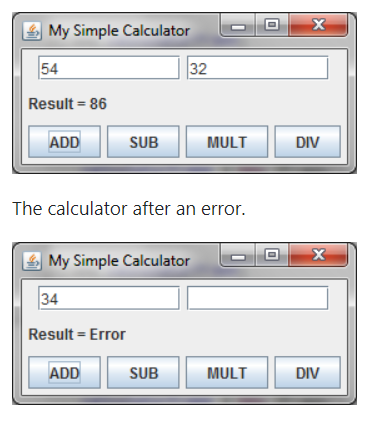
0 My Simple Calculator 54 32 Result = 86 ADD SUB MULT DIV The calculator after an error. My Simple Calculator 0 34 Result = Error ADD SUB MULT DIV
Step by Step Solution
There are 3 Steps involved in it
1 Expert Approved Answer
Step: 1 Unlock

Question Has Been Solved by an Expert!
Get step-by-step solutions from verified subject matter experts
Step: 2 Unlock
Step: 3 Unlock
 Study Help