







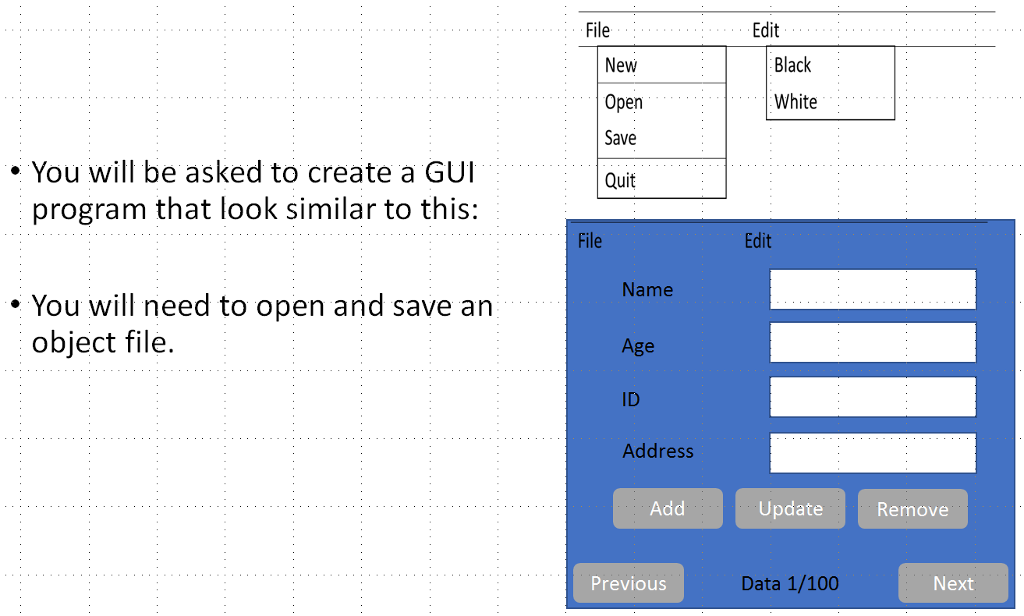
Question: JAVA GUI DATABASE MANAGEMENT i have done the first picture(white one), but i don't know how to make the 2nd picture(blue one) i uploaded my
JAVA GUI DATABASE MANAGEMENT
i have done the first picture(white one), but i don't know how to make the 2nd picture(blue one)
i uploaded my source code about the first thing.
so please help me about the blue one.
post me source code for me, thx.
----------------------------------------------
import javax.swing.*; import java.awt.*; import java.awt.event.ActionEvent; import java.awt.event.ActionListener; import java.text.DecimalFormat;
public class MortgageLoanCalculator extends JFrame implements ActionListener { private JFrame firstFrame, secondFrame, AboutFrame; private JMenuBar theMenuBar; private JMenu menuOne, menuTwo; private JMenuItem firstMenuItems; private JButton CancelBtn, ComputeBtn; private JTextField loanAmount, interestRate, loanPeriod; private JLabel loanAmountlbl, interestRatelbl, loanPeriodlbl; private JTextArea loanPayoutDetails;
Container FrameOnecontentPane, FrameTwocontentPane; JPanel leftPanel, rightPanel;
public static void main(String[] args) { MortgageLoanCalculator mortgageLoanCalculator = new MortgageLoanCalculator(); }
public void changeBlack() { Container container = getContentPane(); container.setBackground(Color.BLACK); } public void changeWhite() { Container container = getContentPane(); container.setBackground(Color.WHITE); }
public MortgageLoanCalculator() { DrawPanel(); } public void DrawPanel() { firstFrame = new JFrame("FIRST FRAME"); firstFrame.setSize(300,300); firstFrame.setVisible(true); theMenuBar = new JMenuBar();
menuOne = new JMenu("File"); firstMenuItems = new JMenuItem("New"); firstMenuItems.addActionListener(this); menuOne.add(firstMenuItems);
firstMenuItems = new JMenuItem("Open"); firstMenuItems.addActionListener(this); menuOne.add(firstMenuItems); theMenuBar.add(menuOne);
firstMenuItems = new JMenuItem("Save"); firstMenuItems.addActionListener(this); menuOne.add(firstMenuItems); theMenuBar.add(menuOne);
firstMenuItems = new JMenuItem("Quit"); firstMenuItems.addActionListener(this); menuOne.add(firstMenuItems); theMenuBar.add(menuOne);
menuTwo = new JMenu("Edit"); firstMenuItems = new JMenuItem("Black"); firstMenuItems.addActionListener(this); menuTwo.add(firstMenuItems); theMenuBar.add(menuTwo); this.changeBlack;
firstMenuItems = new JMenuItem("White"); firstMenuItems.addActionListener(this); menuTwo.add(firstMenuItems); theMenuBar.add(menuTwo); this.changeWhite();
firstFrame.setJMenuBar(theMenuBar);
secondFrame = new JFrame("SECOND FRAME"); secondFrame.setSize(1200,800); secondFrame.setVisible(false);
File Edit Black New Open Save Quit White You will be asked to create a GUI program that look similar to this: File Edit You will need to open and save an Name object file. Age ID Address Add Update Renove Previous Data 1/100 Next File Edit Black New Open Save Quit White You will be asked to create a GUI program that look similar to this: File Edit You will need to open and save an Name object file. Age ID Address Add Update Renove Previous Data 1/100 Next
Step by Step Solution
There are 3 Steps involved in it

Get step-by-step solutions from verified subject matter experts
 Study Help