







Question: JAVA Hello I am having some troble on this program Here is my code: /* * To change this license header, choose License Headers in
JAVA
Hello I am having some troble on this program
Here is my code:
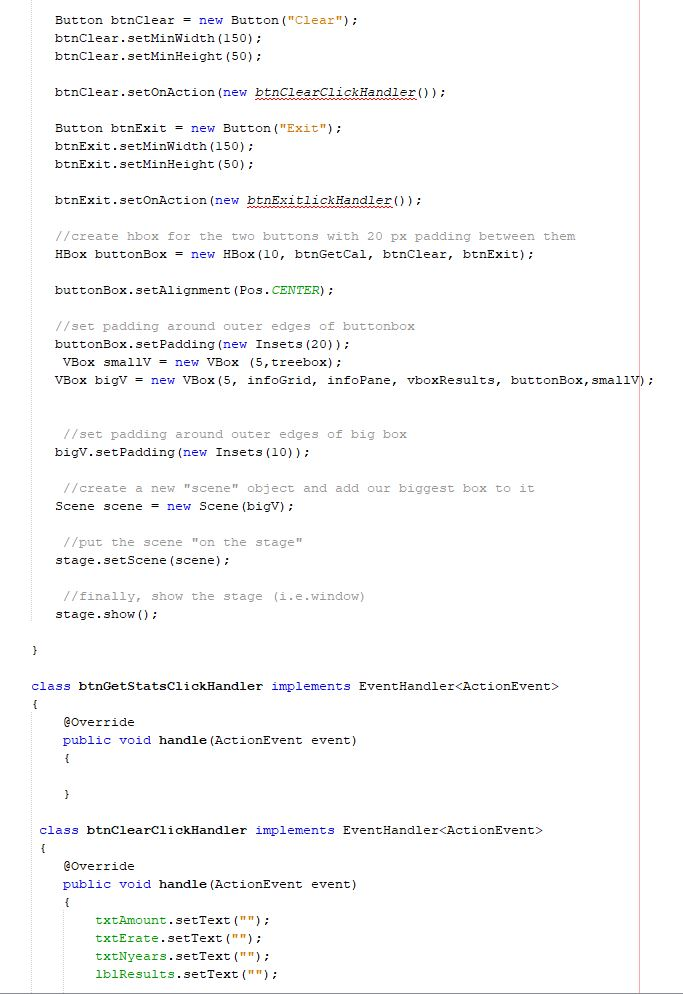
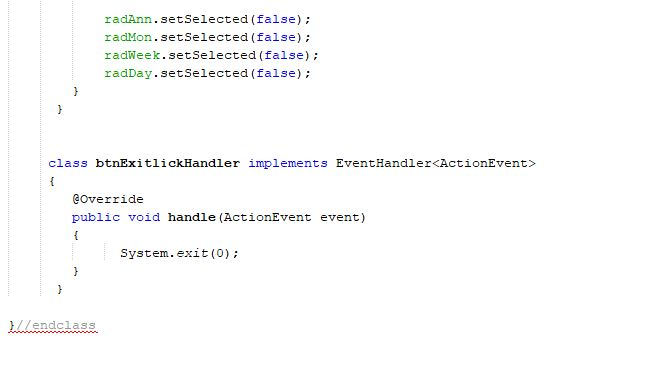
/* * To change this license header, choose License Headers in Project Properties. * To change this template file, choose Tools | Templates * and open the template in the editor. */
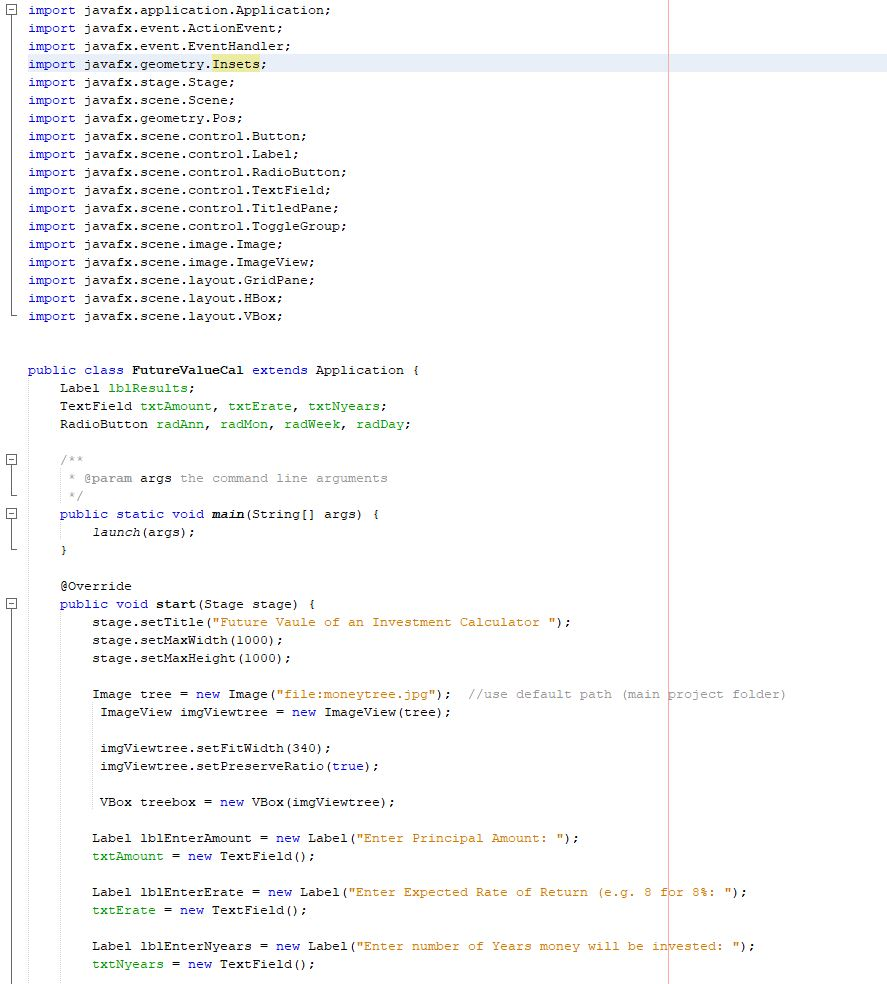
import javafx.application.Application; import javafx.event.ActionEvent; import javafx.event.EventHandler; import javafx.geometry.Insets; import javafx.stage.Stage; import javafx.scene.Scene; import javafx.geometry.Pos; import javafx.scene.control.Button; import javafx.scene.control.Label; import javafx.scene.control.RadioButton; import javafx.scene.control.TextField; import javafx.scene.control.TitledPane; import javafx.scene.control.ToggleGroup; import javafx.scene.image.Image; import javafx.scene.image.ImageView; import javafx.scene.layout.GridPane; import javafx.scene.layout.HBox; import javafx.scene.layout.VBox;
public class FutureValueCal extends Application { Label lblResults; TextField txtAmount, txtErate, txtNyears; RadioButton radAnn, radMon, radWeek, radDay; /** * @param args the command line arguments */ public static void main(String[] args) { launch(args); }
@Override public void start(Stage stage) { stage.setTitle("Future Vaule of an Investment Calculator "); stage.setMaxWidth(1000); stage.setMaxHeight(1000); Image tree = new Image("file:moneytree.jpg"); //use default path (main project folder) ImageView imgViewtree = new ImageView(tree); imgViewtree.setFitWidth(340); imgViewtree.setPreserveRatio(true); VBox treebox = new VBox(imgViewtree); Label lblEnterAmount = new Label("Enter Principal Amount: "); txtAmount = new TextField();
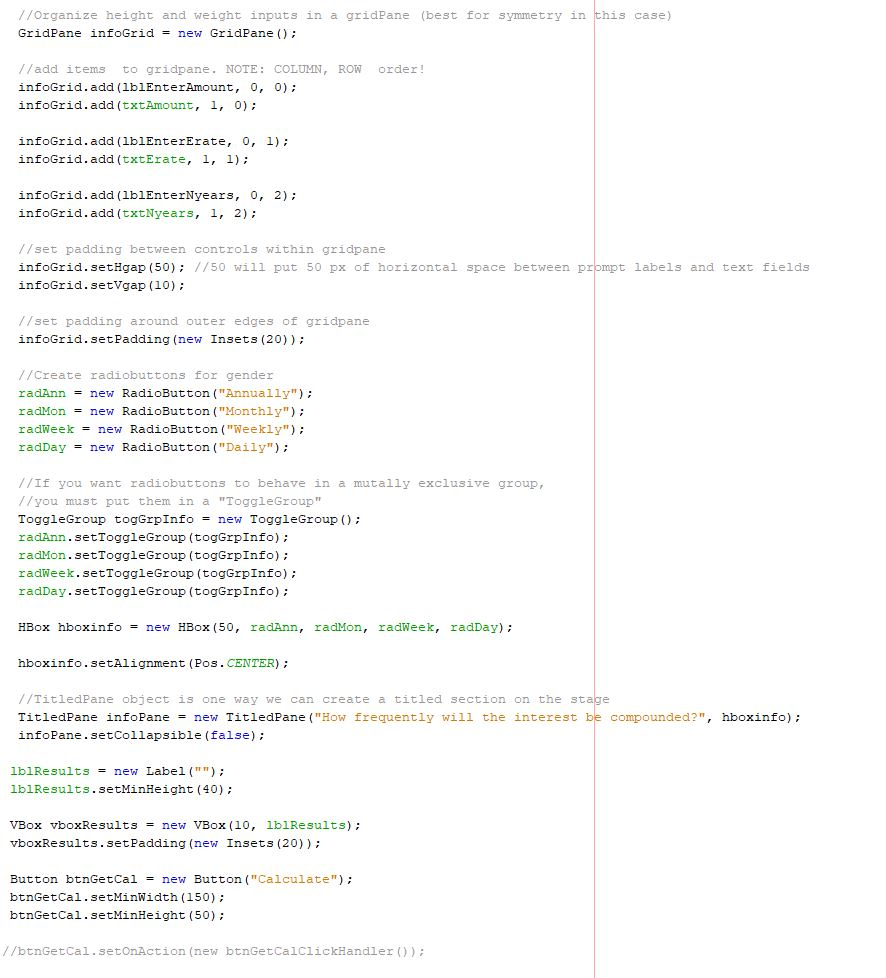
Label lblEnterErate = new Label("Enter Expected Rate of Return (e.g. 8 for 8%: "); txtErate = new TextField(); Label lblEnterNyears = new Label("Enter number of Years money will be invested: "); txtNyears = new TextField(); //Organize height and weight inputs in a gridPane (best for symmetry in this case) GridPane infoGrid = new GridPane(); //add items to gridpane. NOTE: COLUMN, ROW order! infoGrid.add(lblEnterAmount, 0, 0); infoGrid.add(txtAmount, 1, 0); infoGrid.add(lblEnterErate, 0, 1); infoGrid.add(txtErate, 1, 1); infoGrid.add(lblEnterNyears, 0, 2); infoGrid.add(txtNyears, 1, 2); //set padding between controls within gridpane infoGrid.setHgap(50); //50 will put 50 px of horizontal space between prompt labels and text fields infoGrid.setVgap(10); //set padding around outer edges of gridpane infoGrid.setPadding(new Insets(20)); //Create radiobuttons for gender radAnn = new RadioButton("Annually"); radMon = new RadioButton("Monthly"); radWeek = new RadioButton("Weekly"); radDay = new RadioButton("Daily"); //If you want radiobuttons to behave in a mutally exclusive group, //you must put them in a "ToggleGroup" ToggleGroup togGrpInfo = new ToggleGroup(); radAnn.setToggleGroup(togGrpInfo); radMon.setToggleGroup(togGrpInfo); radWeek.setToggleGroup(togGrpInfo); radDay.setToggleGroup(togGrpInfo); HBox hboxinfo = new HBox(50, radAnn, radMon, radWeek, radDay); hboxinfo.setAlignment(Pos.CENTER); //TitledPane object is one way we can create a titled section on the stage TitledPane infoPane = new TitledPane("How frequently will the interest be compounded?", hboxinfo); infoPane.setCollapsible(false); lblResults = new Label(""); lblResults.setMinHeight(40); VBox vboxResults = new VBox(10, lblResults); vboxResults.setPadding(new Insets(20)); Button btnGetCal = new Button("Calculate"); btnGetCal.setMinWidth(150); btnGetCal.setMinHeight(50); //btnGetCal.setOnAction(new btnGetCalClickHandler()); Button btnClear = new Button("Clear"); btnClear.setMinWidth(150); btnClear.setMinHeight(50); btnClear.setOnAction(new btnClearClickHandler()); Button btnExit = new Button("Exit"); btnExit.setMinWidth(150); btnExit.setMinHeight(50); btnExit.setOnAction(new btnExitlickHandler()); //create hbox for the two buttons with 20 px padding between them HBox buttonBox = new HBox(10, btnGetCal, btnClear, btnExit); buttonBox.setAlignment(Pos.CENTER); //set padding around outer edges of buttonbox buttonBox.setPadding(new Insets(20)); VBox smallV = new VBox (5,treebox); VBox bigV = new VBox(5, infoGrid, infoPane, vboxResults, buttonBox,smallV); //set padding around outer edges of big box bigV.setPadding(new Insets(10)); //create a new "scene" object and add our biggest box to it Scene scene = new Scene(bigV); //put the scene "on the stage" stage.setScene(scene); //finally, show the stage (i.e.window) stage.show(); } class btnGetStatsClickHandler implements EventHandler
class btnExitlickHandler implements EventHandler
Thank you
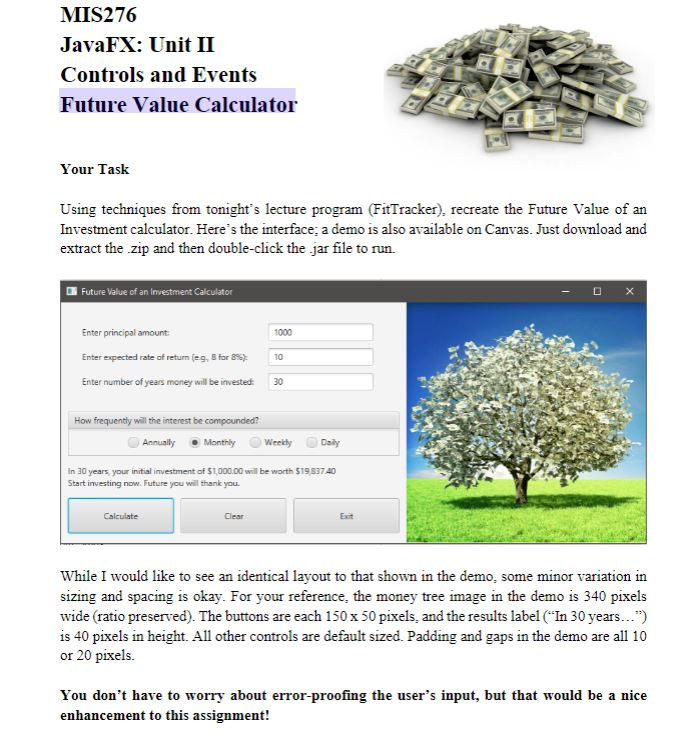
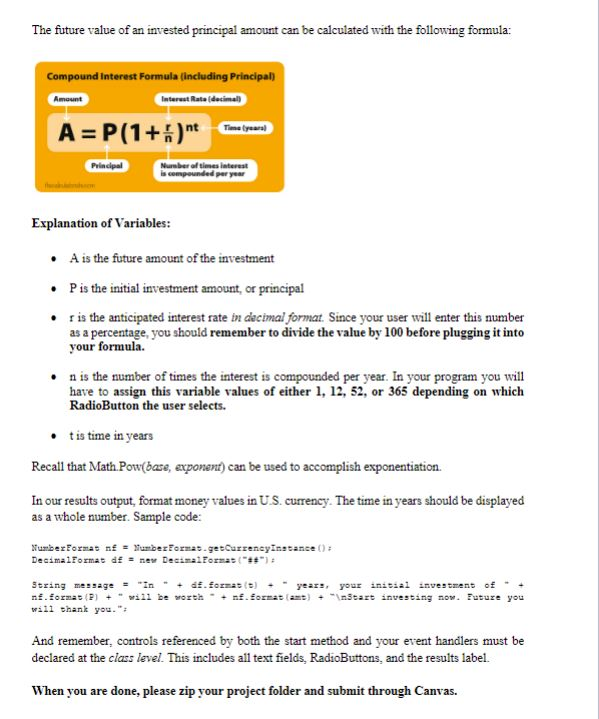
MIS276 JavaFX: Unit II Controls and Events Future Value Calculator Your lasK Using techniques from tonight's lecture program (FitTracker), recreate the Future Value of an Investment calculator. Here's the interface; a demo is also available on Canvas. Just download and extract the zip and then double-click the jar file to run. Future Value of an Investment Calculator Enter principal amount Enter expected rate of return (eg, 8 for 8%): Enter number of years money will be invested 1000 10 30 How frequently will the interest be compounded? AnnuallyMonthly Weedy Daly In 30 years, your initial investment of $1,000.00 will be worth $19 837 40 now. Future you will thank you. Clear Exit While I would like to see an identical layout to that shown in the demo, some minor variation in sizing and spacing is okay. For your reference, the money tree image in the demo is 340 pixels wide (ratio preserved). The buttons are each 150 x 50 pixels, and the results label ("In 30 years...") is 40 pixels in height. All other controls are default sized. Padding and gaps in the demo areall 10 or 20 pixels. You don't have to worry about error-proofing the user's input, but that would be a nice enhancement to this assignment! MIS276 JavaFX: Unit II Controls and Events Future Value Calculator Your lasK Using techniques from tonight's lecture program (FitTracker), recreate the Future Value of an Investment calculator. Here's the interface; a demo is also available on Canvas. Just download and extract the zip and then double-click the jar file to run. Future Value of an Investment Calculator Enter principal amount Enter expected rate of return (eg, 8 for 8%): Enter number of years money will be invested 1000 10 30 How frequently will the interest be compounded? AnnuallyMonthly Weedy Daly In 30 years, your initial investment of $1,000.00 will be worth $19 837 40 now. Future you will thank you. Clear Exit While I would like to see an identical layout to that shown in the demo, some minor variation in sizing and spacing is okay. For your reference, the money tree image in the demo is 340 pixels wide (ratio preserved). The buttons are each 150 x 50 pixels, and the results label ("In 30 years...") is 40 pixels in height. All other controls are default sized. Padding and gaps in the demo areall 10 or 20 pixels. You don't have to worry about error-proofing the user's input, but that would be a nice enhancement to this assignment
Step by Step Solution
There are 3 Steps involved in it

Get step-by-step solutions from verified subject matter experts
 Study Help