







Question: Java Programming 2 Exercise 18-2 Develop a new GUI In Netbeans IDE 8.1 Here is the code I have for the AreaAndPerimeterFrame package murach.ui; import
Java Programming 2 Exercise 18-2 Develop a new GUI In Netbeans IDE 8.1
Here is the code I have for the AreaAndPerimeterFrame
package murach.ui;
import java.awt.GridBagConstraints; import java.awt.Insets; import javax.swing.JFrame; import javax.swing.UIManager; import javax.swing.UnsupportedLookAndFeelException;
public class AreaAndPerimeterFrame extends JFrame {
// TODO: Add instance variables for text fields
public AreaAndPerimeterFrame() { try { UIManager.setLookAndFeel( UIManager.getSystemLookAndFeelClassName()); } catch (ClassNotFoundException | InstantiationException | IllegalAccessException | UnsupportedLookAndFeelException e) { System.out.println(e); } initComponents(); }
private void initComponents() { setTitle("Area and Perimeter Calculator"); setDefaultCloseOperation(JFrame.EXIT_ON_CLOSE); setLocationByPlatform(true); // components go here setVisible(true); }
// Helper method to return GridBagConstraints objects private GridBagConstraints getConstraints(int x, int y) { GridBagConstraints c = new GridBagConstraints(); c.anchor = GridBagConstraints.LINE_START; c.insets = new Insets(5, 5, 0, 5); c.gridx = x; c.gridy = y; return c; }
private void computeButtonClicked() { // TODO: Implement code }
private void resetButtonClicked() { // TODO: Implement code } public static void main(String[] args) { java.awt.EventQueue.invokeLater(() -> { JFrame frame = new AreaAndPerimeterFrame(); }); } }
And here is what I have for Rectangle:
package murach.business;
import java.text.NumberFormat;
public class Rectangle { private double length; private double width; public Rectangle() { length = 0; width = 0; }
public Rectangle(double length, double width) { this.length = length; this.width = width; }
public double getLength() { return length; }
public void setLength(double length) { this.length = length; } public double getWidth() { return width; }
public void setWidth(double width) { this.width = width; }
public double getArea() { double area = width * length; return area; } public String getAreaNumberFormat() { NumberFormat number = NumberFormat.getNumberInstance(); number.setMinimumFractionDigits(3); String numberFormatted = number.format(getArea()); return numberFormatted; } public double getPerimeter() { double perimeter = 2 * width + 2 * length; return perimeter; } public String getPerimeterNumberFormat() { NumberFormat number = NumberFormat.getNumberInstance(); number.setMinimumFractionDigits(3); String numberFormatted = number.format(getPerimeter()); return numberFormatted; } }
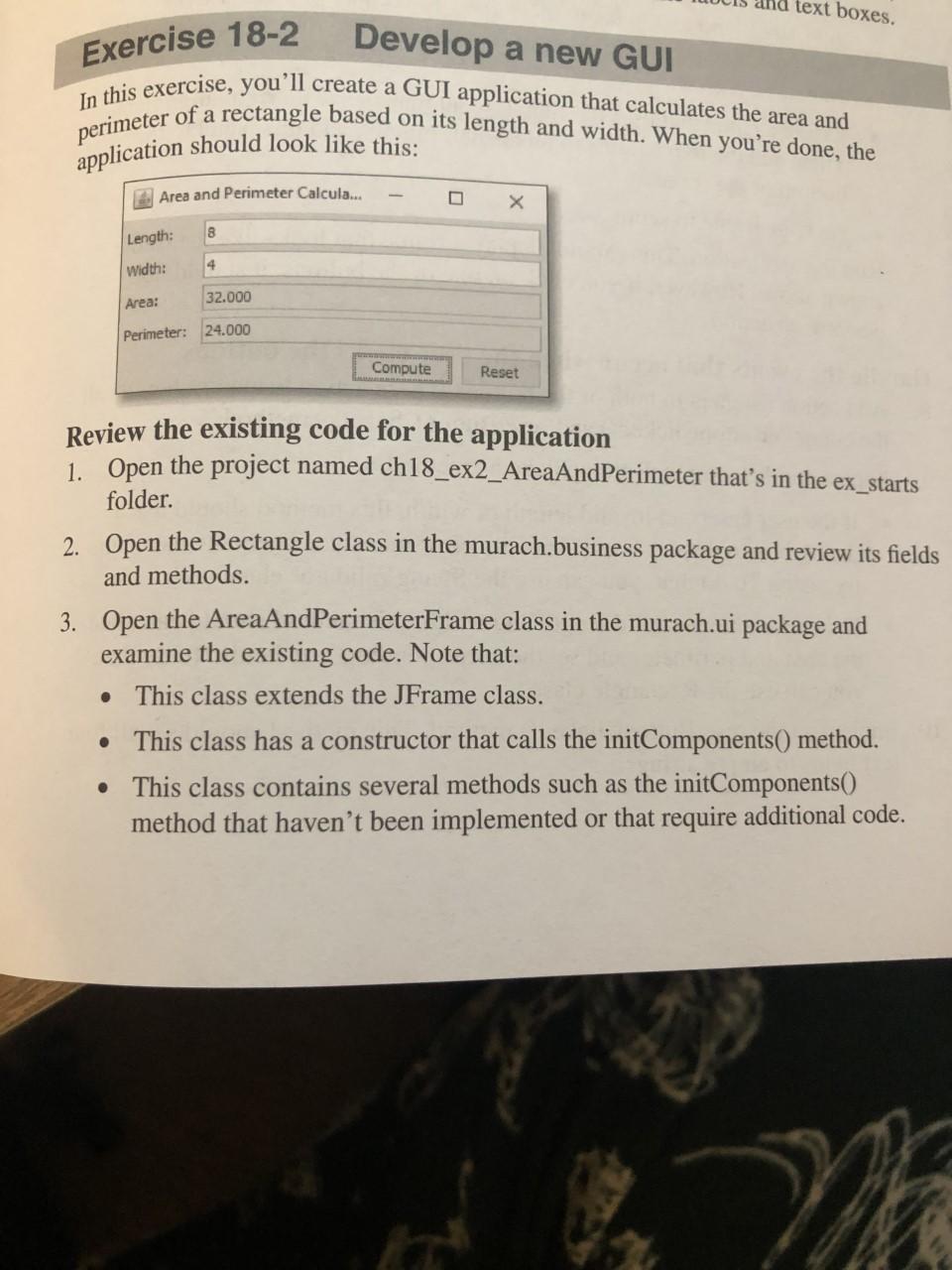
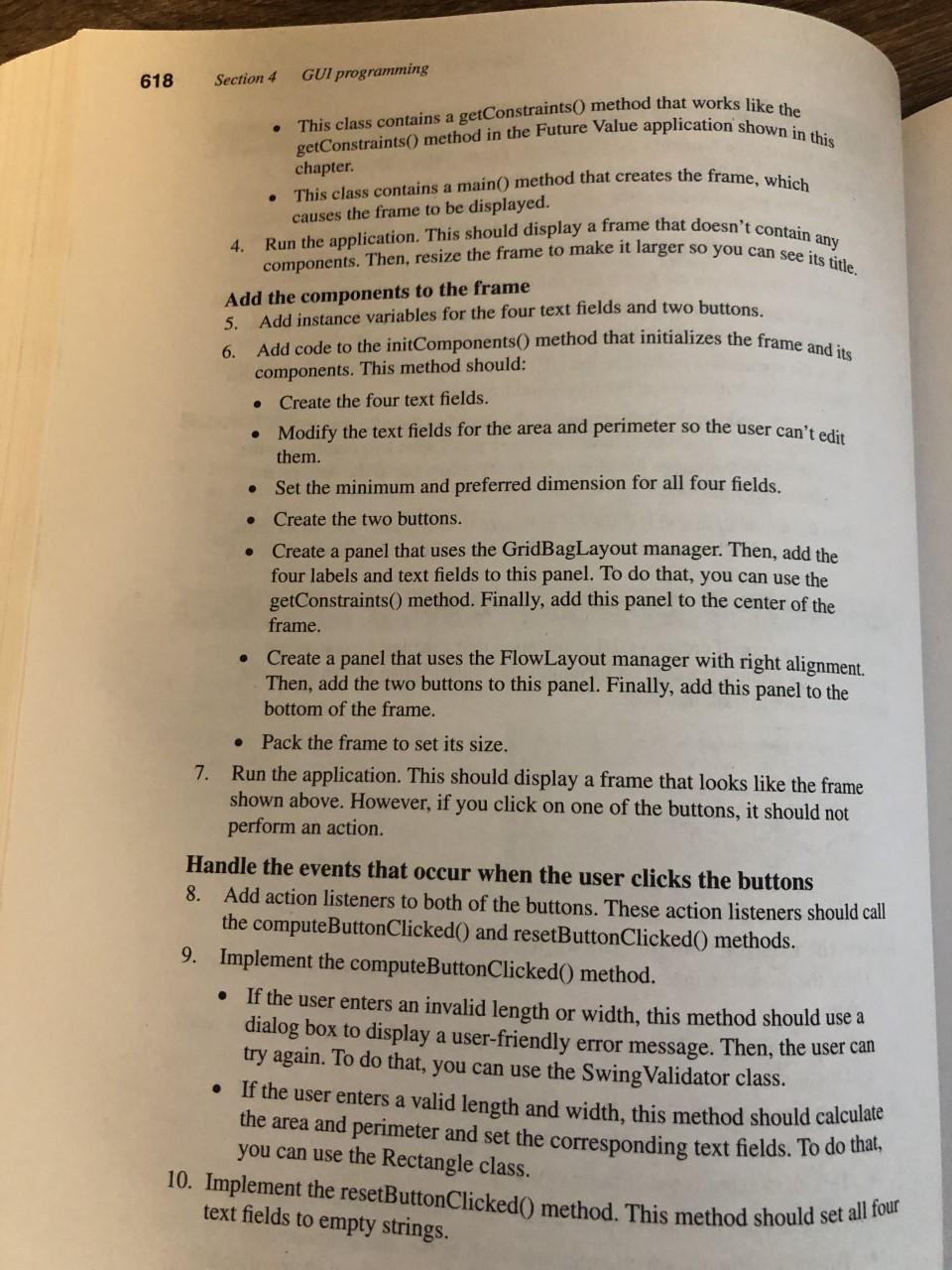
text boxes. In this exercise, you'll create a GUI application that calculates the area and perimeter of a rectangle based on its length and width. When you're done, the application should look like this: a Exercise 18-2 Develop a new GUI Area and Perimeter Calcula... O 8 Length: Width: 4 Area: 32.000 Perimeter: 24.000 Compute Reset Review the existing code for the application 1. Open the project named ch18_ex2_AreaAndPerimeter that's in the ex_starts folder. 2. Open the Rectangle class in the murach.business package and review its fields and methods. 3. Open the AreaAndPerimeterFrame class in the murach.ui package and examine the existing code. Note that: This class extends the JFrame class. This class has a constructor that calls the initComponents() method. This class contains several methods such as the initComponents() method that haven't been implemented or that require additional code. ma This class contains a getConstraints method that works like the getConstraints() method in the Future Value application shown in this This class contains a main() method that creates the frame, which components. Then, resize the frame to make it larger so you can see its title. Run the application. This should display a frame that doesn't contain any Add code to the initComponents() method that initializes the frame and its 10. Implement the resetButtonClicked() method. This method should set all four 618 Section 4 GUI programming chapter causes the frame to be displayed. 4. Add the components to the frame 5. Add instance variables for the four text fields and two buttons. 6. components. This method should: Create the four text fields. Modify the text fields for the area and perimeter so the user can't edit them. Set the minimum and preferred dimension for all four fields. Create the two buttons. Create a panel that uses the GridBagLayout manager. Then, add the four labels and text fields to this panel. To do that, you can use the getConstraints() method. Finally, add this panel to the center of the frame. Create a panel that uses the FlowLayout manager with right alignment. Then, add the two buttons to this panel. Finally, add this panel to the bottom of the frame. Pack the frame to set its size. 7. Run the application. This should display a frame that looks like the frame shown above. However, if you click on one of the buttons, it should not perform an action. Handle the events that occur when the user clicks the buttons 8. Add action listeners to both of the buttons. These action listeners should call the computeButtonClicked() and resetButtonClicked() methods. 9. Implement the computeButtonClicked() method. If the user enters an invalid length or width, this method should use a dialog box to display a user-friendly error message. Then, the user can try again. To do that, you can use the Swing Validator class. If the user enters a valid length and width, this method should calculate the area and perimeter and set the corresponding text fields. To do that, you can use the Rectangle class. text fields to empty strings
Step by Step Solution
There are 3 Steps involved in it

Get step-by-step solutions from verified subject matter experts
 Study Help